Topics
This section contains shared workflows and UI concepts.
Commands and command palette
Left side panel
Opening files and selecting editors
Switching editors
Settings
Sidebar (Analog Attach panel)
File types (.dts, .dtso)
Save, validate, and compile flow
Behind the Scenes (Helpful Behaviors)
Switching Editors
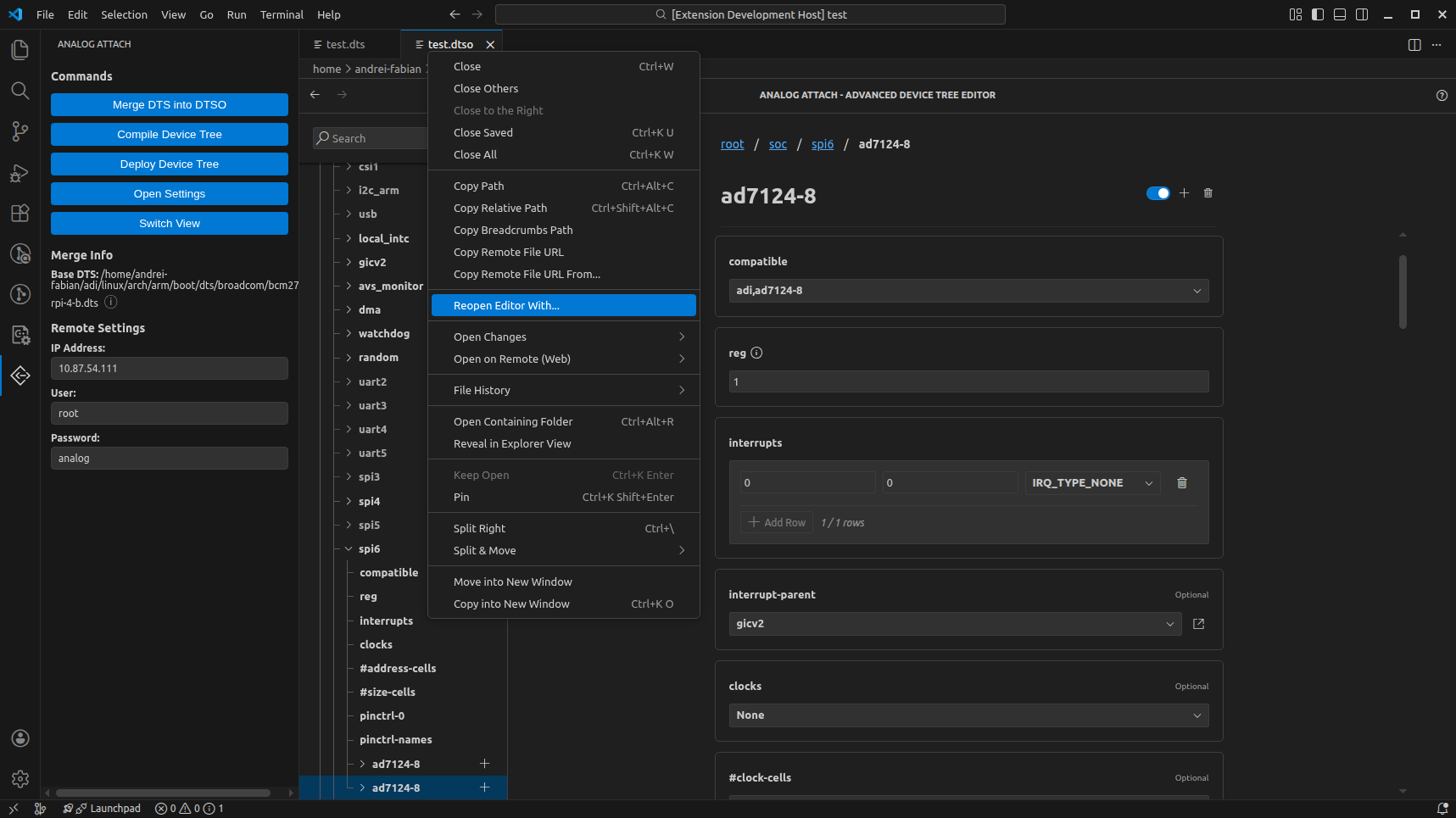
You can switch between editors for the current file in two ways:
Right-click the file tab and select
Reopen Editor With...Open the Analog Attach side panel and click
Switch View
Settings
Open settings with Ctrl+, or via File > Preferences > Settings.
You can also open settings from the Analog Attach side panel by clicking
Open Settings.
You can search for Analog Attach in the Settings UI.
Key settings:
Analog Attach: Default Linux RepositoryPath to a Linux kernel repository used for bindings and preprocessing.
Analog Attach: Default Dt Schema RepositoryPath to the dt-schema repository. If not set, the bundled copy is used.
Analog Attach: Preprocess DTS Files CommandCommand used to preprocess DTS files that contain include directives.
Analog Attach: Compile DTS File CommandCommand used to compile a DTS/DTSO file.
Analog Attach: Decompile DTB File CommandCommand used to decompile a DTB file.
Analog Attach: SSH ConfigSSH command template used for remote execution.
Analog Attach: SSHPass Configsshpass command template used for remote uploads.
Analog Attach: Remote HostRemote target host used to build the SSH command.
Analog Attach: Remote UserRemote username used to build the SSH command.
Analog Attach: Remote PasswordRemote password used to build the sshpass command.
Analog Attach: Enable Auto Merge Dtso BaseWhen enabled, Analog Attach remembers the DTS base you selected for a
.dtsooverlay and automatically re-merges that base the next time you open the overlay.
Behind the Scenes (Helpful Behaviors)
Analog Attach performs a few automatic actions to reduce manual work. These behaviors can be easy to miss at first:
Auto-merge remembered DTS bases for DTSO files when
Enable Auto Merge Dtso Baseis enabled.Channel-aware validation runs on configuration updates to highlight missing required properties for device channels.
Parent validation and filtering helps guide you to valid parent nodes when selecting a placement for a device.
Enable/Disable behavior: enabling a node turns on any disabled ancestors up to the root, while disabling only affects the selected node. This is an intentional design decision (and a known limitation).
A side effect is that if you delete a node after enabling a parent via this behavior, the parent can remain enabled and still be printed in the DTS/DTSO output.