Overview
This section covers the Tree Config (advanced) editor. Content will be expanded step by step.
The Tree Config view is the default editor for .dts files. It displays the
full device tree structure for the opened file.
When opening a .dtso file in the Tree Config view, you should merge a base
.dts file first. After merging, the full tree is shown, but only your
changes are written back to the .dtso file.
Using the Tree
Click a node in the tree to view its configuration in the main panel. Use the + button to add a new node. Newly added nodes can be enabled, or deleted with the trash icon.
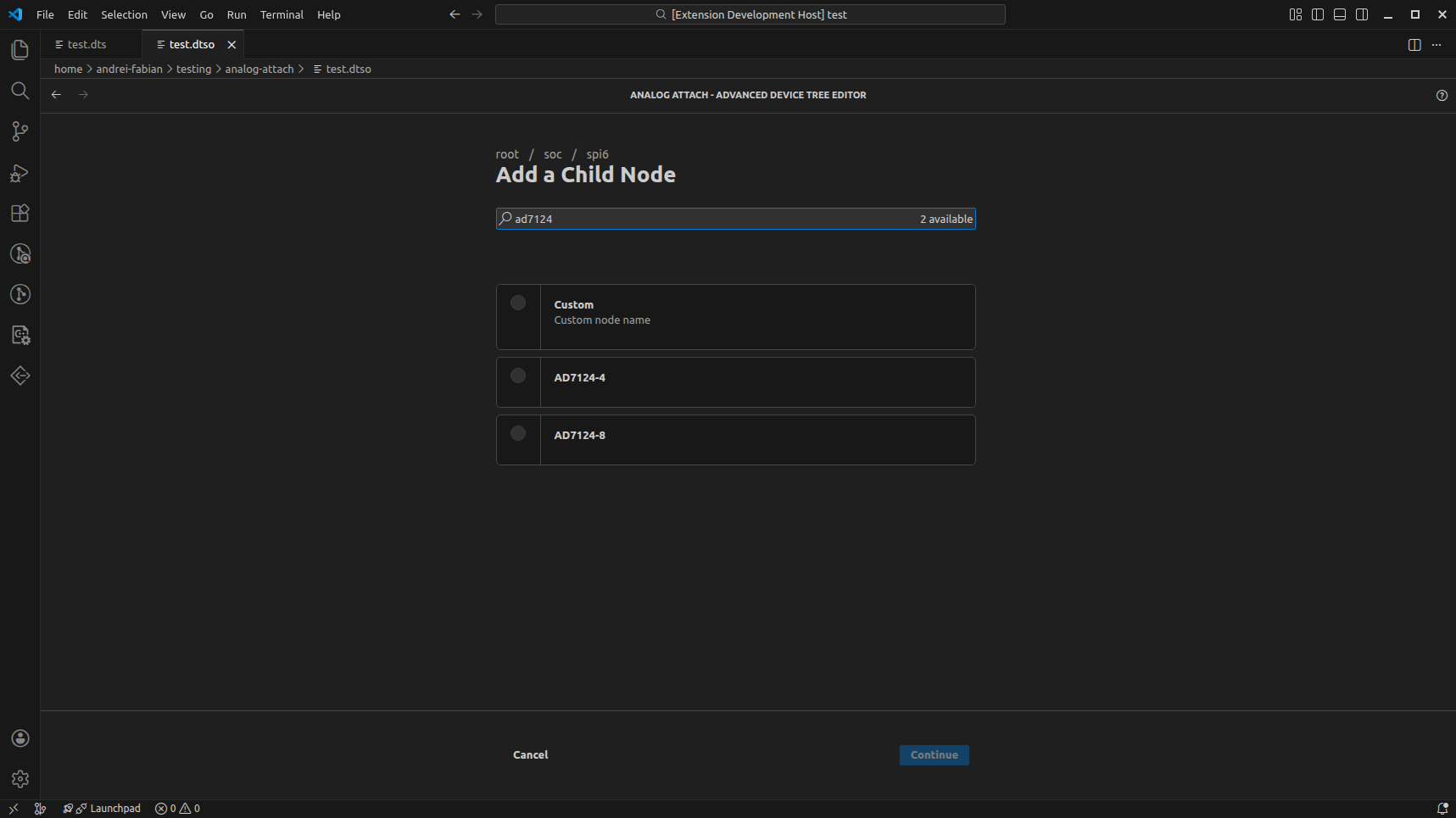
When you press +, a list of possible devices is shown, with an option to add a custom node. A custom node is not interpreted and no validation is performed for it; only custom properties can be added.
Search
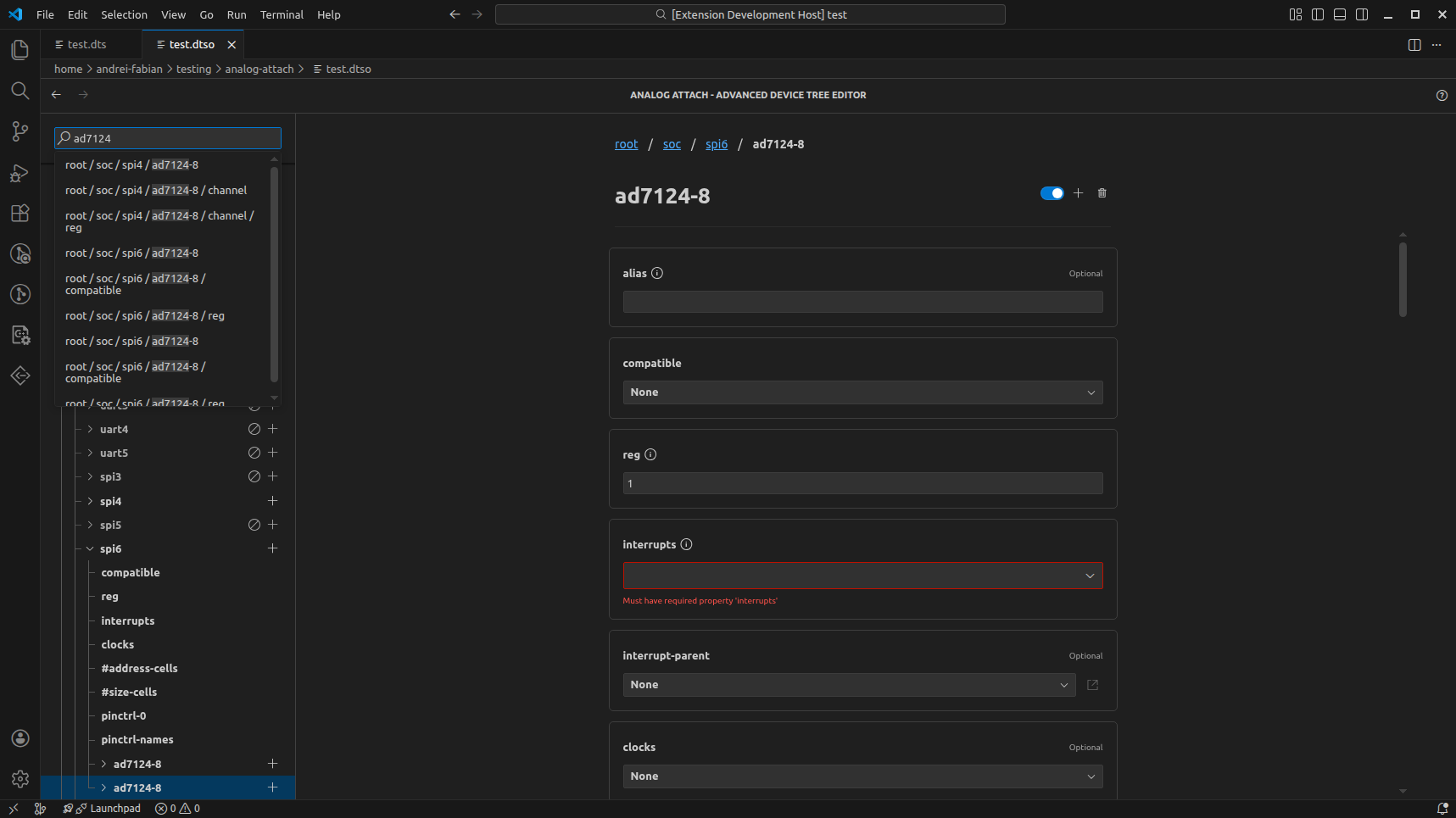
The search bar matches against the full node path. Selecting a result focuses the node in the tree.
Configuration
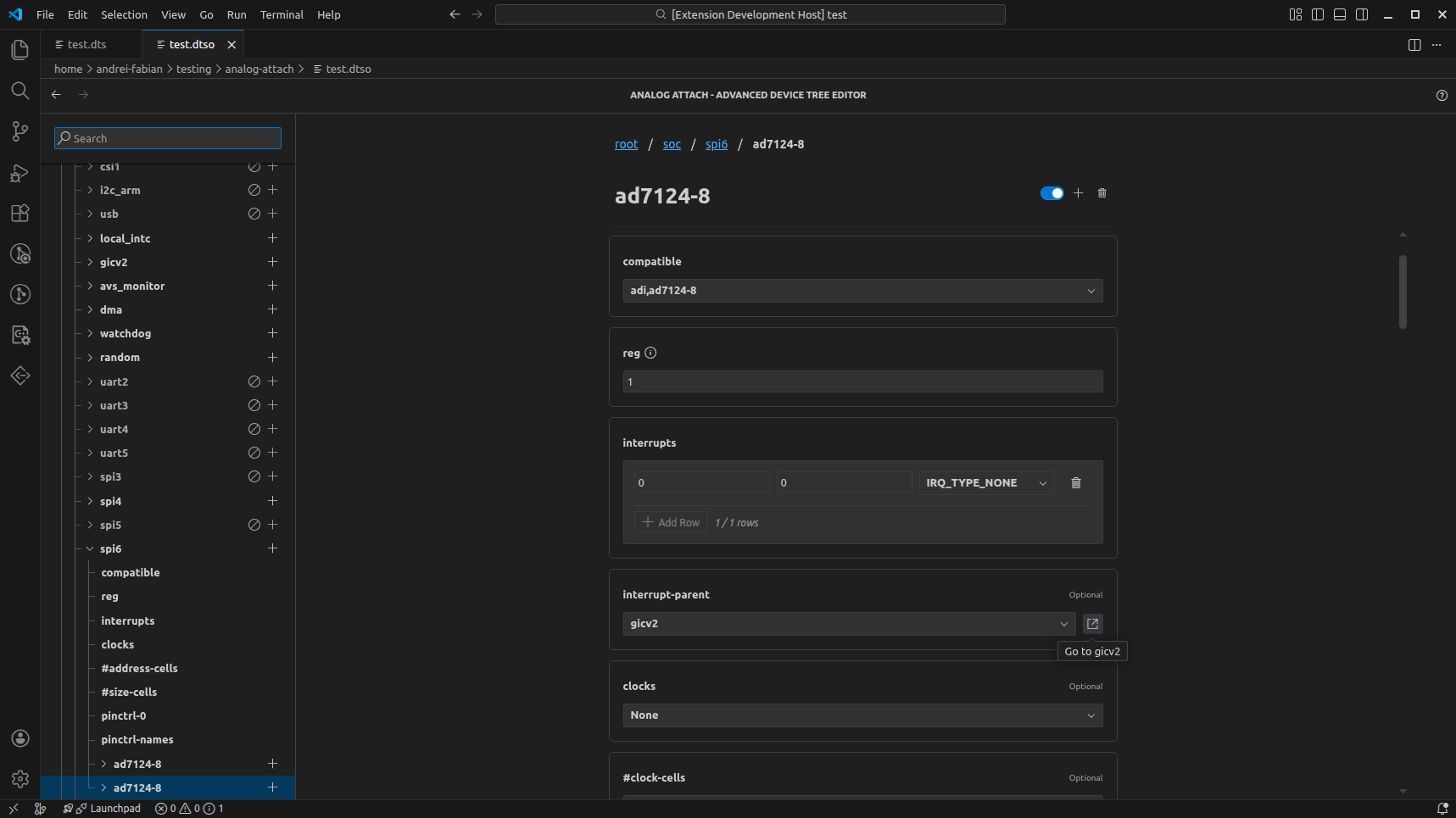
The configuration panel supports device aliases with built-in validation. Custom properties can be added and removed from the configuration list.
Topics
Overview (what the view is for)
Tree navigation
Editing nodes and properties
Custom properties
Validation feedback