AD-R1M ROS2 Examples
This page provides practical examples for using the AD-R1M robot with ROS2, including mapping, localization, and autonomous navigation.
Mapping with SLAM Toolbox
Create a map of your environment using SLAM Toolbox for real-time mapping.
Starting the Mapping Session
On the robot (via SSH), generate the SLAM configuration and start the services:
ad-r1m mkconfig slam
cd slam

# Check if base services are running
docker ps

# If not running, start base services (robot, tof, teleop, zenoh)
docker compose --env-file ad-r1m.env up -d

# Start the SLAM node for mapping
docker compose --env-file ad-r1m.env up slam -d
See Manage AD-R1M runtime configurations for more details on ad-r1m mkconfig.
Active Docker Compose Services:
Base services (started with docker compose --env-file ad-r1m.env up -d):
zenoh_router- Zenoh middleware routerrobot- motors, IMU, odometry, sensor fusiontof- ToF camera and depth-to-laserscanteleop_crsf- radio control for driving
Profile service (started with docker compose --env-file ad-r1m.env up slam -d):
slam- SLAM Toolbox for mapping
Mapping Process
Start RViz on your host computer (see AD-R1M ROS 2 Getting Started):
cd pixiws
pixi run rviz2
Change the Fixed Frame in RViz to
mapDrive the robot around using one of these methods:
Remote Control: Arm the robot using the killswitch on the RC handset (switch SA to “ARMED”), then drive using the right stick. See Remote Control for details.
Keyboard Teleop: Use keyboard control from your host or via SSH. See Control the robot using a keyboard for setup instructions.
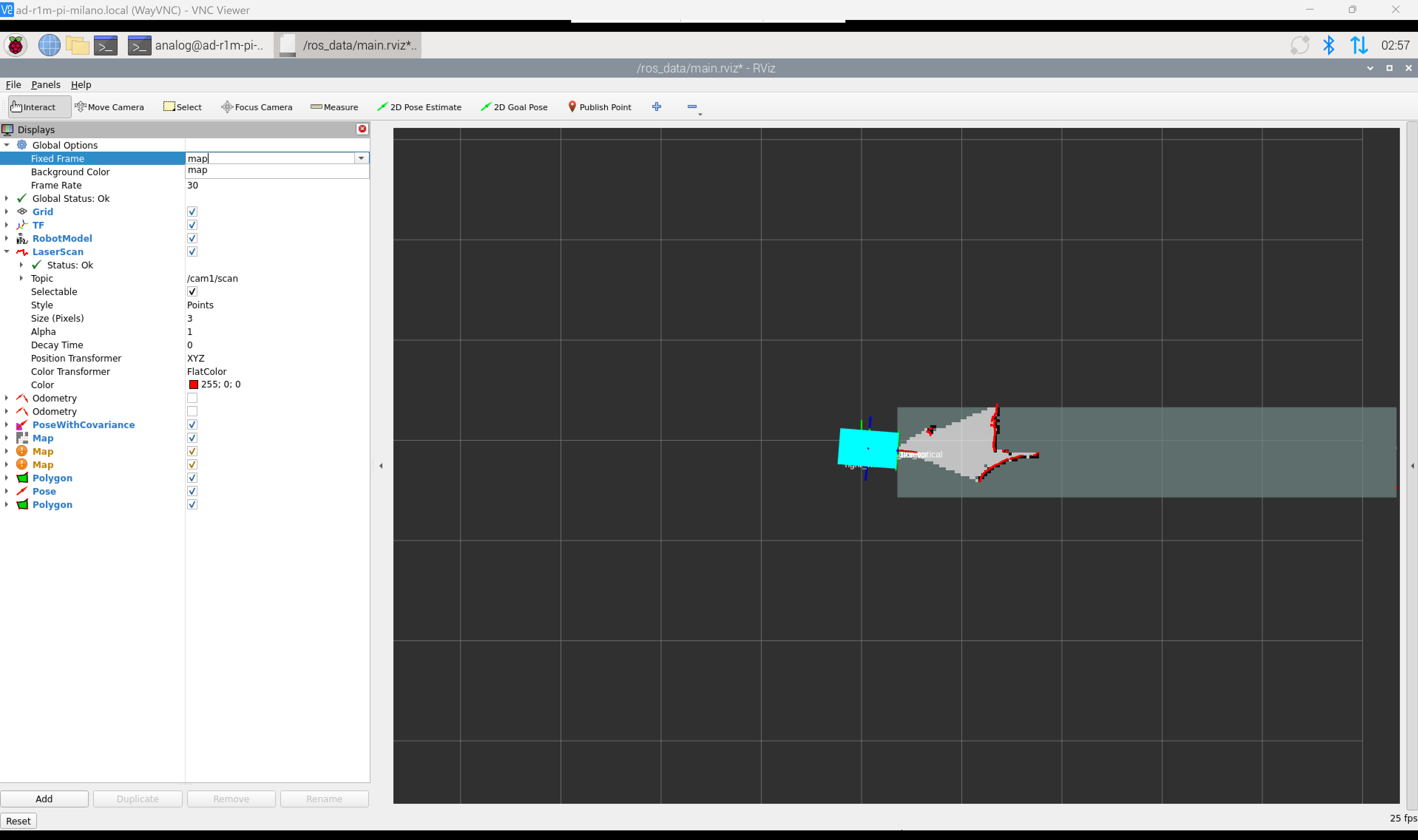
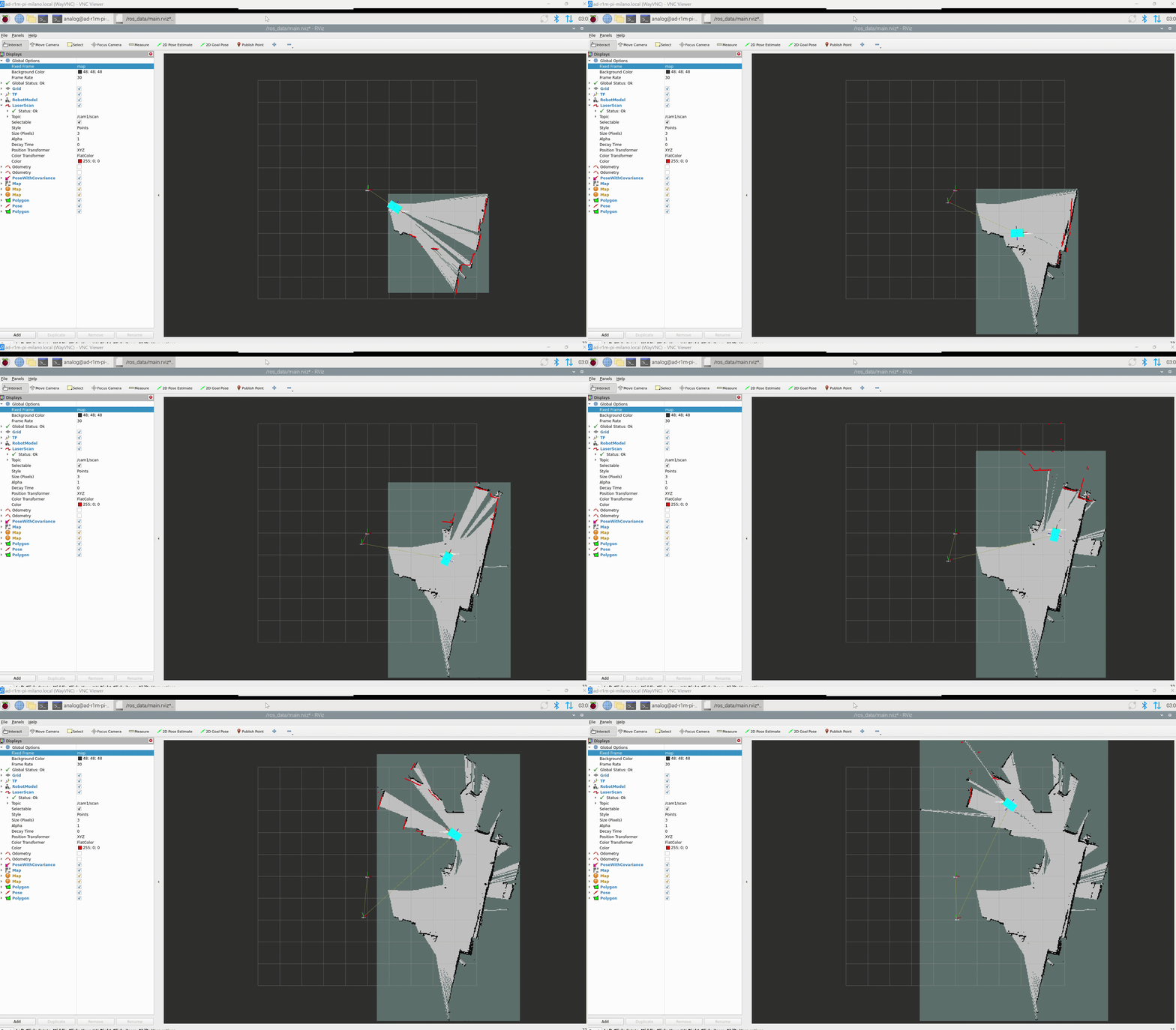
Map Legend:
White areas = Free space (safe to navigate)
Black areas = Obstacles (walls, objects)
Gray areas = Unexplored/unknown
Saving the Map
After mapping is complete, save the map:
docker compose --env-file ad-r1m.env run save_map
This creates two files in ros_data/maps/ with a timestamped filename (e.g., map_2024-01-15T10:30:00+00:00):
map_<timestamp>.png- Grayscale image (white=free, black=occupied, gray=unknown)map_<timestamp>.yaml- Map metadata (resolution, origin, thresholds)
Note
To use the saved map with AMCL localization, either:
Rename the files to
map.pngandmap.yamland move toros_data/, orUpdate the map path in the
localization_amclservice command incompose.yaml
SLAM Configuration
SLAM Toolbox parameters: /ros_data/mapper_params_online_async.yaml
Key parameters:
slam_toolbox:
  ros__parameters:
    resolution: 0.05            # Map resolution (meters/pixel)
    max_laser_range: 5.0        # Maximum laser range to use
    minimum_travel_distance: 0.3  # Min distance before adding scan
Localization
The robot supports two localization modes: AMCL (using a saved map) or blind/dead-reckoning (no map required).
Starting Localization
On the robot (via SSH), generate the navigation configuration and start the services:
ad-r1m mkconfig nav
cd nav

# Check if base services are running
docker ps

# If not running, start base services
docker compose --env-file ad-r1m.env up -d
Choose one of the localization modes:
Option 1: AMCL Localization (requires saved map)
Warning
AMCL requires a map file at ros_data/map.yaml. You must first create a map using Mapping with SLAM Toolbox and save it before using AMCL localization.
docker compose --env-file ad-r1m.env up -d localization_amcl
Uses AMCL (Adaptive Monte Carlo Localization) with the saved map from ros_data/map.yaml.
Option 2: Blind/Dead-Reckoning Localization (no map required)
docker compose --env-file ad-r1m.env up -d localization_blind map_server
Uses odometry-only localization with an empty map. Useful for testing navigation without a pre-built map.
See Manage AD-R1M runtime configurations for more details.
Setting Initial Pose (AMCL only)
When using AMCL localization, set the robot’s initial pose in RViz:
Click 2D Pose Estimate in the toolbar
Click on the map where the robot is located
Drag to set the orientation (direction robot is facing)
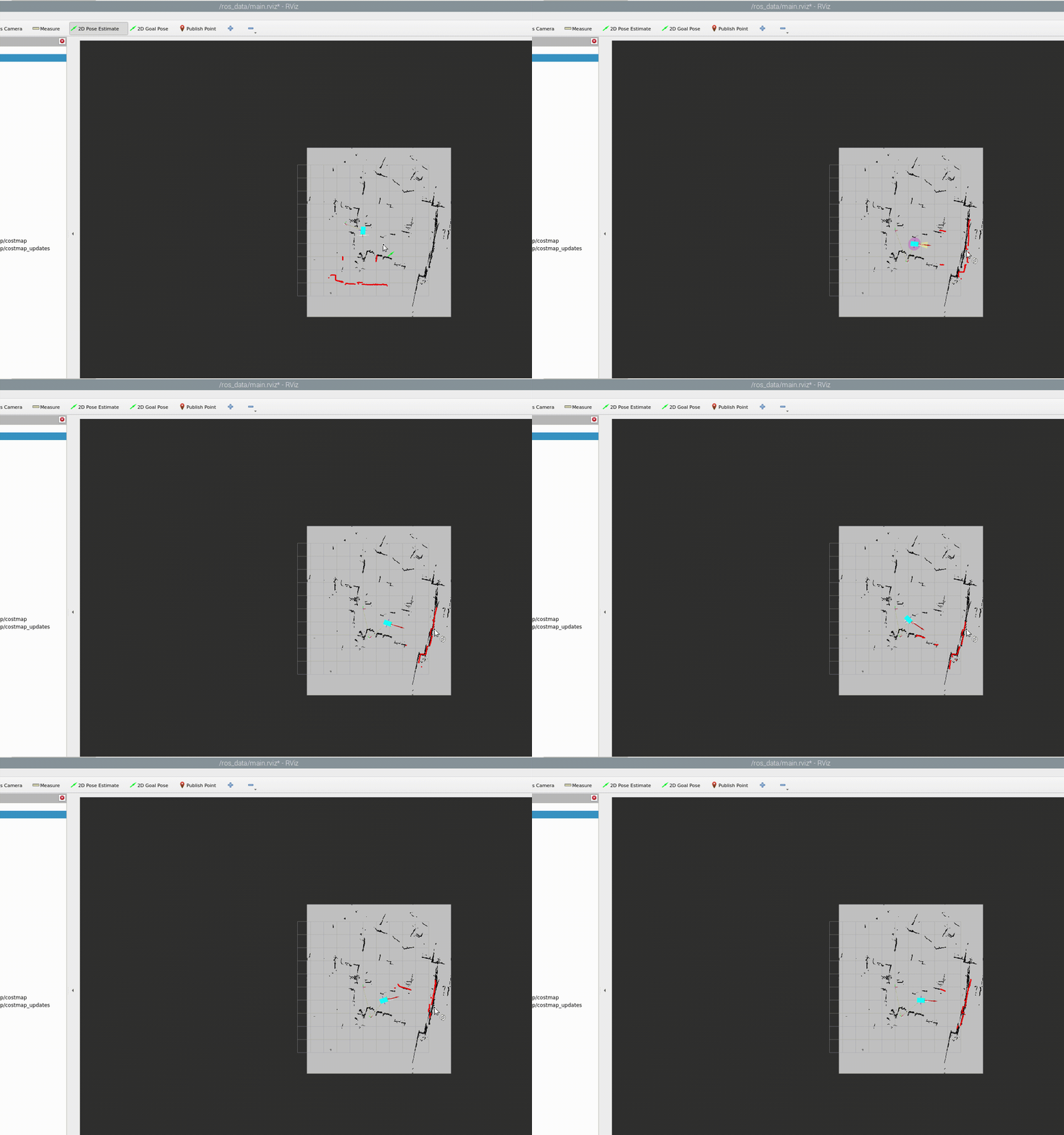
The robot’s estimated position (red arrow) and uncertainty (purple ellipse) will be displayed.
Tips for good localization:
Set the initial pose as accurately as possible
Drive the robot around to help particles converge
Ensure the saved map matches the current environment
AMCL Topics
Publishes:
/amcl_pose(geometry_msgs/PoseWithCovarianceStamped)Publishes: TF transform (
map→odom)Subscribes:
/scan(laser scan)Subscribes:
/odom(odometry)
Autonomous Navigation with Nav2
Use the Nav2 navigation stack for autonomous point-to-point navigation.
Sending Navigation Goals
In RViz:
Click 2D Nav Goal in the toolbar
Click on the desired destination on the map
Drag to set the goal orientation
The robot will plan a path and navigate autonomously
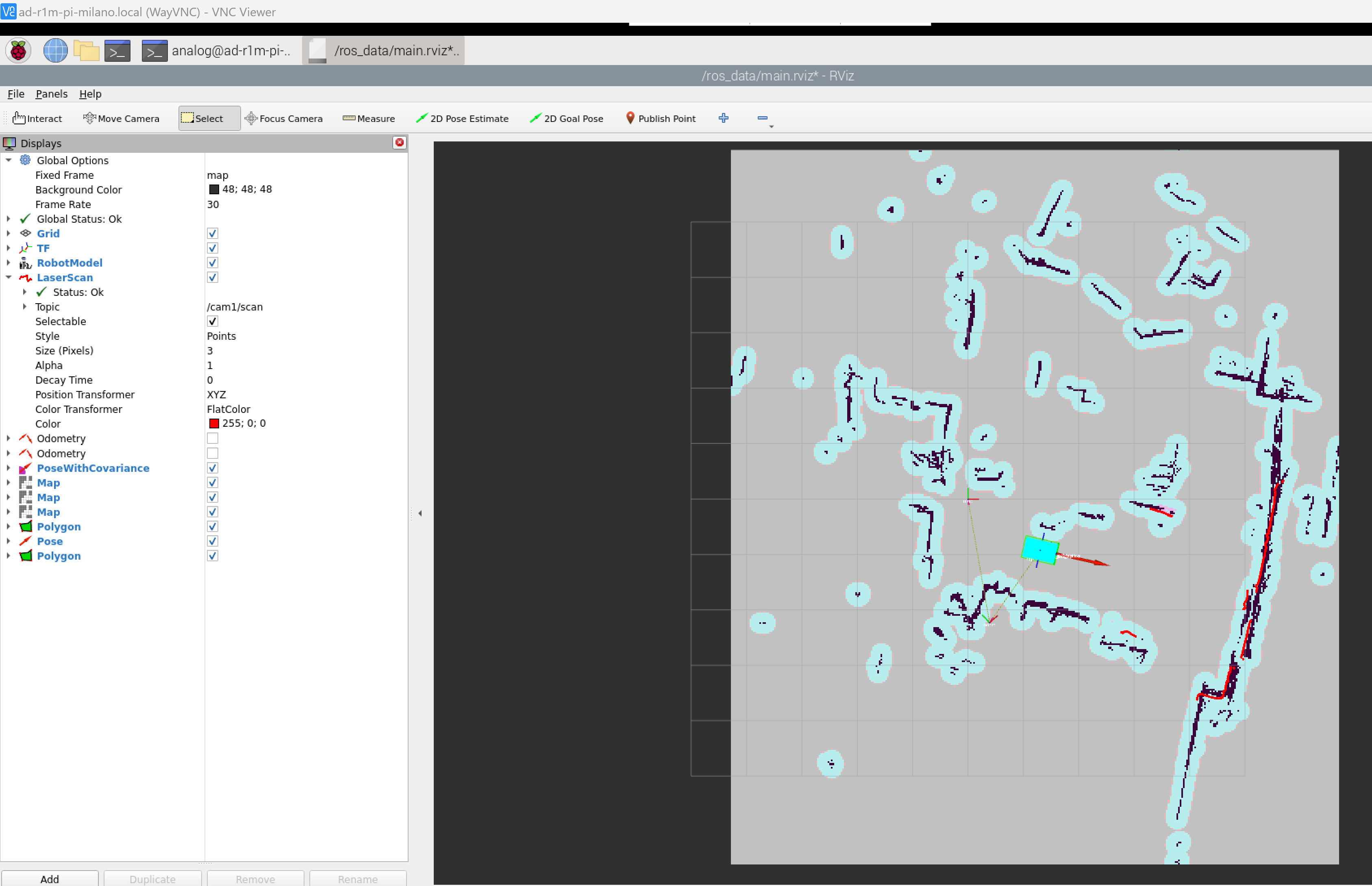
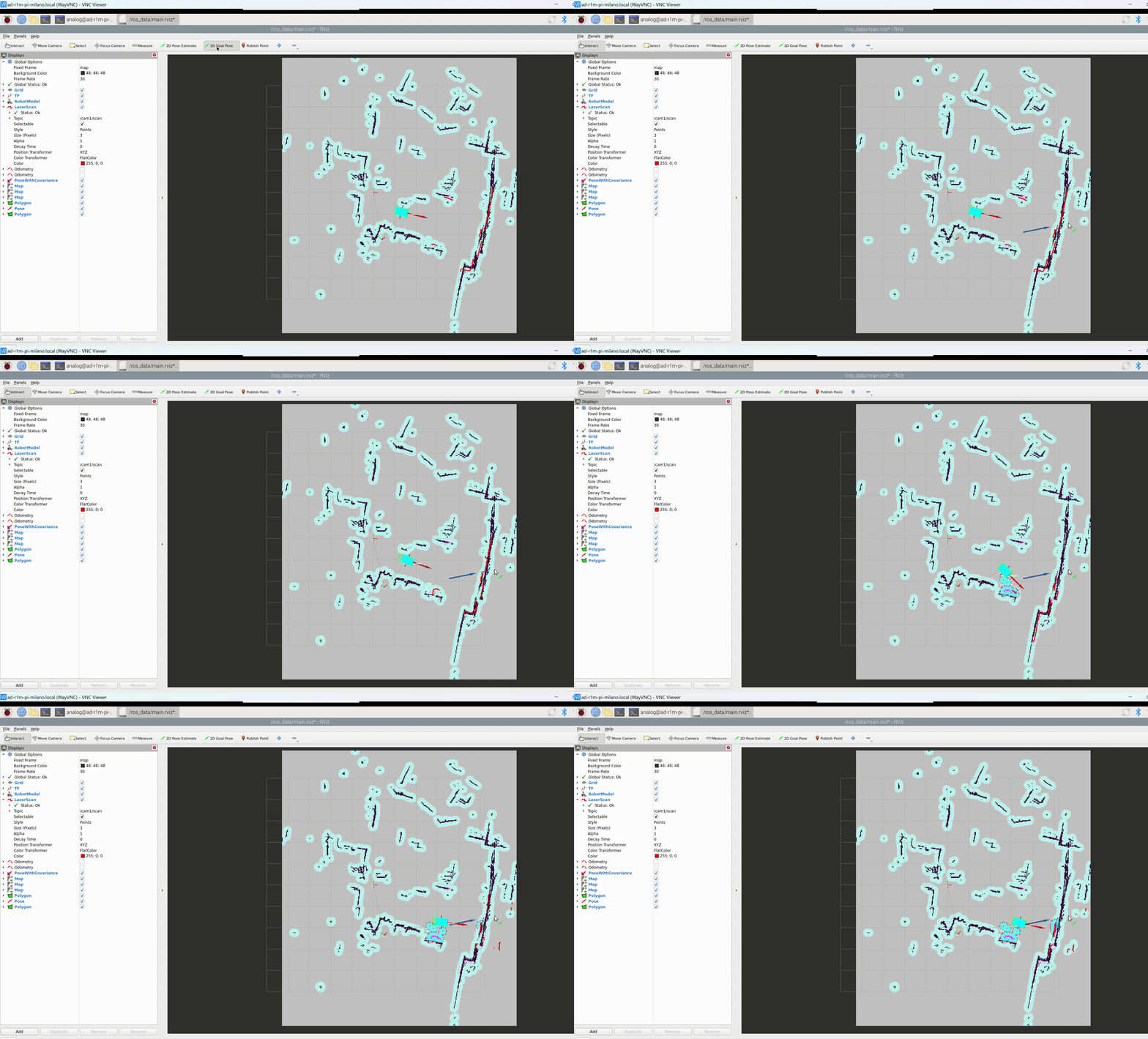
Navigation displays:
Green line - Global path plan
Colored regions - Costmap (inflation around obstacles)
Robot footprint - Current robot position
ROS 2 Topics Reference
Core sensor and control topics used by the AD-R1M:
Sensor Data
/scan- 2D laser scan (from ToF depth-to-laserscan)/cam1/depth_image- Raw depth image from ToF camera/imu- IMU data (angular velocities, linear accelerations)
Odometry and Localization
/diff_drive_controller/odom- Raw odometry from wheel encoders/odom- Fused odometry (encoder + IMU via EKF)/amcl_pose- AMCL localization pose estimate
Motion Control
/cmd_vel_joy- Velocity commands from RC handset/cmd_vel_nav- Velocity commands from Nav2/diff_drive_controller/cmd_vel_unstamped- Final commands to motors
Navigation
/goal_pose- Navigation goals/plan- Global path/map- Occupancy grid map
# List all active topics
ros2 topic list

# Echo a topic
ros2 topic echo /imu --once

# Check topic frequency
ros2 topic hz /scan
For detailed architecture information, see AD-R1M ROS2 Architecture.
<root main_tree_to_execute="MainTree">
  <BehaviorTree ID="MainTree">
    <Sequence name="navigate_sequence">
      <ComputePathToPose goal="{goal}" path="{path}" planner_id="GridBased"/>
      <FollowPath path="{path}" controller_id="FollowPath"/>
    </Sequence>
  </BehaviorTree>
</root>
Load custom behavior trees via the Nav2 parameters:
bt_navigator:
  ros__parameters:
    default_bt_xml_filename: "/path/to/custom_bt.xml"
Waypoint Following
For multi-waypoint missions, use the waypoint follower action.
Python Waypoint Example
from nav2_simple_commander.robot_navigator import BasicNavigator
from geometry_msgs.msg import PoseStamped

navigator = BasicNavigator()

# Define waypoints
waypoints = []

waypoint1 = PoseStamped()
waypoint1.header.frame_id = 'map'
waypoint1.pose.position.x = 1.0
waypoint1.pose.position.y = 0.0
waypoint1.pose.orientation.w = 1.0
waypoints.append(waypoint1)

waypoint2 = PoseStamped()
waypoint2.header.frame_id = 'map'
waypoint2.pose.position.x = 2.0
waypoint2.pose.position.y = 1.0
waypoint2.pose.orientation.w = 1.0
waypoints.append(waypoint2)

# Start waypoint following
navigator.followWaypoints(waypoints)

while not navigator.isTaskComplete():
    feedback = navigator.getFeedback()
    print(f'Current waypoint: {feedback.current_waypoint}')

result = navigator.getResult()
print(f'Navigation result: {result}')
Multi-Robot Setup
For multi-robot scenarios, use namespaces to separate robot topics and frames.
Launching Multiple Robots
Each robot should have a unique namespace configured. See Manage AD-R1M runtime configurations for details on setting up robot namespaces.
RViz for Multiple Robots
Configure the Zenoh connection to each robot by updating the ZENOH_CONFIG_OVERRIDE environment variable with the appropriate robot hostname.
Each robot’s topics will be prefixed with its namespace (e.g., /ad_r1m_0/cmd_vel, /ad_r1m_1/cmd_vel).
Stopping Services
To stop all services in the current configuration:
docker compose --env-file ad-r1m.env down
To stop specific services:
docker compose --env-file ad-r1m.env stop nav localization_amcl
To stop all running Docker containers (regardless of compose project):
docker stop $(docker ps -q)