CoraZ7-07S Quickstart
Requirements
Hardware
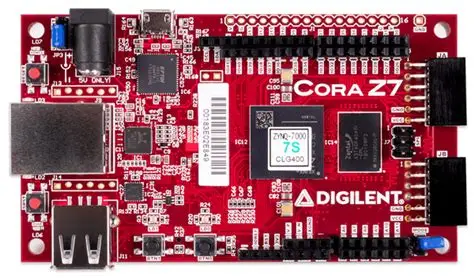
Cora Z7S on Arduino shield connector
Class 10 16GB SD Card
Ethernet cable (with network access)
Micro USB to USB Type A cable
IEPE Compatible Sensor
Software
Setup
SD-Card
To prepare the SD-card for the CoraZ7-07s board:
Validate, Format, and Flash the SD Card
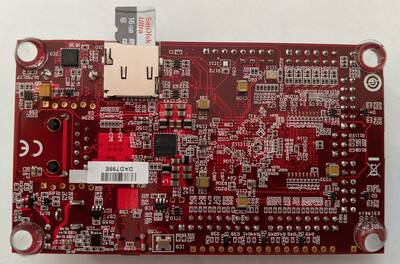
Once microSD card has been imaged, safely remove the hardware from the SD card writer, and insert the card directly into the microSD card slot on the CoraZ7-07s.
|
|
Download and Install IIO-Oscilloscope
Download the latest IIO-Oscilloscope release from GitHub, and install it on your PC (you may need to right-click the installer, and run as “Elevated” in order to get it to install).
CoraZ7-07s Hardware Configuration
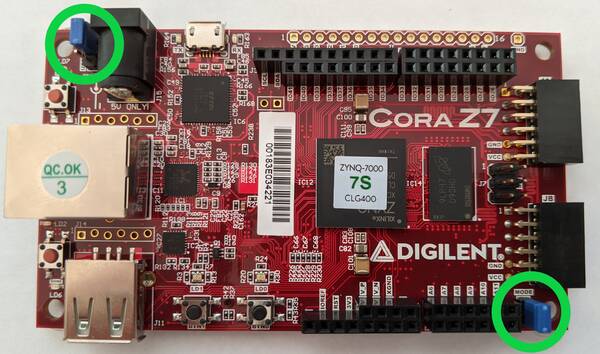
There are a few jumpers that need to be placed properly in order to use the Cora Z7s as described in this guide.
Jumper Location |
Description |
Shunt Placement |
|---|---|---|
JP2 |
Selects how the CoraZ7‑07s board boots. We want to boot from the microSD card. |
Across Pins 1 & 2 |
JP3 |
Selects how the CoraZ7‑07s board is powered. We are powering from the USB port. |
Across Pins 3 & 2 (labeled USB) |
Cables & Connectors
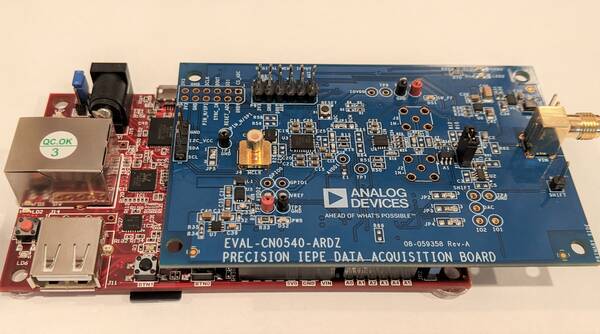
Connect the power, cables, and sensor according to the diagram below.
Ethernet Cable
Sensor Input
Micro USB cable
Boot Sequencing
Once the microSD card and cables have been connected to the CoraZ7-07s and EVAL-CN0540-ARDZ its now time to boot the system.
Connect the other end of the Ethernet cable into a router or other network connection. This will be the easiest way to stream and save the data.
Info
If you don’t have a network available and want to stream data directly from the Ethernet port of the CoraZ7-07s to the Ethernet port of your PC, that is still possible, but requires some extra configuration. Please see the [Wiki] Network Configuration page for complete details.
Using the Arduino pins, plug in the EVAL-CN0540-ARDZ on top of the CoraZ7-07s.
Plug in your sensor into the SMA connector on the EVAL-CN0540-ARDZ.
(You may also connect your sensor into the 2-Pin header found at P1 if your sensor isn’t an SMA output)
Plug in the UART cable into your PC’s USB port.
A driver for the board should automatically be detected and installed on your PC. If this does not happen you may have to manually install that driver in order to continue. Here is a link to the UART Serial Driver
Plug the power supply into the wall outlet and power up the setup
Finding your CN0540
Before you can start streaming data, you first must locate the EVAL-CN0540-ARDZ on your network.
Setup a UART serial communication between your PC and the Cora board using the micro USB cable to USB type A
Using your device manager, locate the COM port assigned to the CoraZ7-07s board
Open Putty, Tera Term, or other serial terminal program and open a terminal between the COM port the Cora board by setting the Baud rate to 115200, and connect.
The serial terminal connection will default to auto login and will place you in the root directory of the SD card.
From here its a good idea to check to see if your devices can be found using the command iio_info into the terminal, and hitting “Enter”
This should provide a list of devices along with their channels and attributes
Type ifconfig into the terminal, hit “Enter”
That should echo back some information where you can pull out the inet address of eth0.
Open up the IIO-Oscilloscope application on your PC
Set the radio button for “Remote Devices” and type the inet address you just found, hit the “Refresh” button, and then click “Ok”.