AD-RPI-T1LPSE-SL

2-port 10BASE-T1L Field Switch with SPoE PSE

General Description

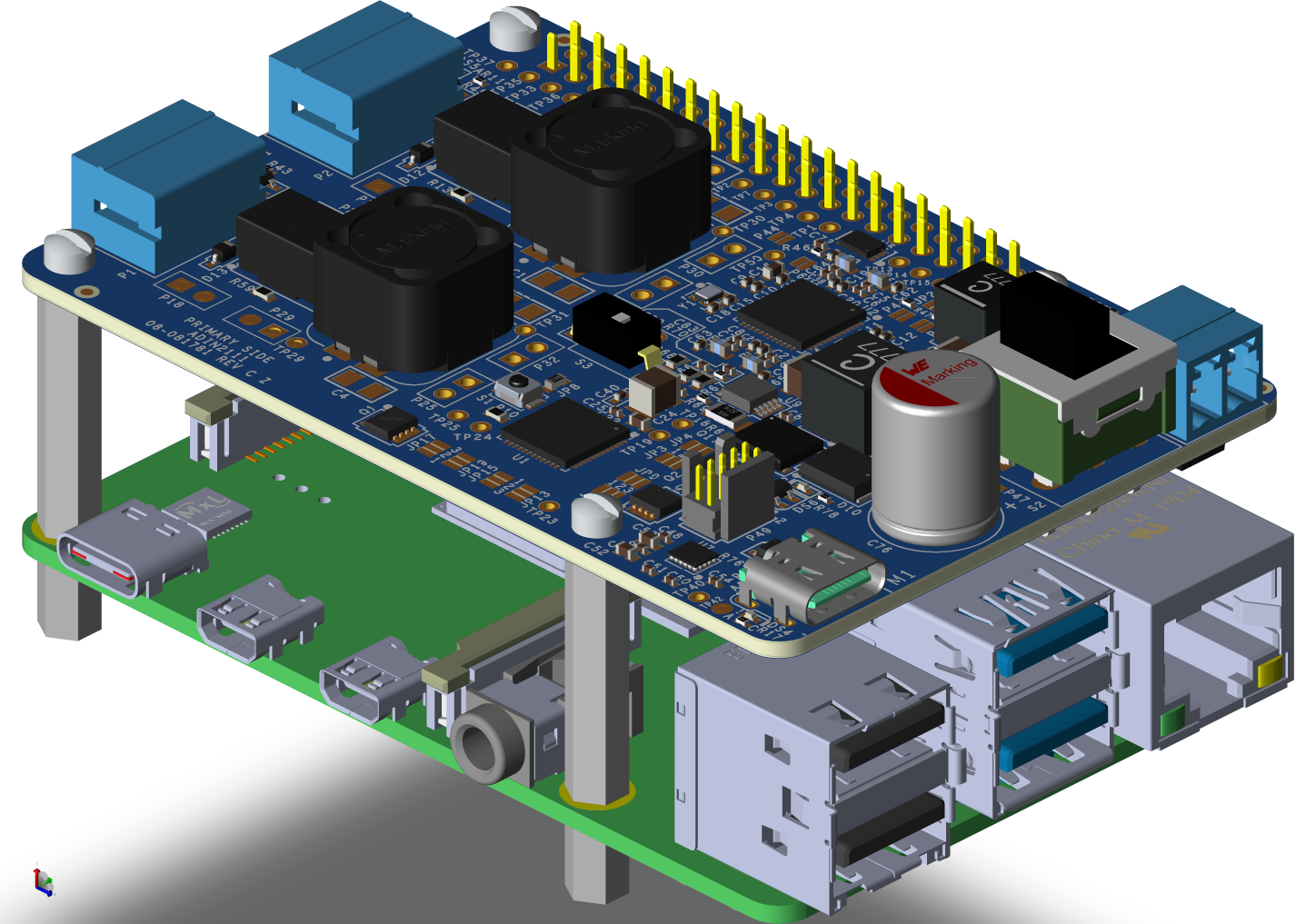
https://media.githubusercontent.com/media/analogdevicesinc/documentation/main/docs/solutions/reference-designs/ad-rpi-t1lpse-sl/ad-rpi-t1lpse-sl-top-iso.png

Figure 1 AD-RPI-T1LPSE-SL Board

The AD-RPI-T1LPSE-SL is a 10BASE-T1L MAC/PHY interface with Single Pair Power over Ethernet (SPoE), designed for developing field devices and applications on the Raspberry Pi platform. It functions as Power Sourcing Equipment (PSE), capable of delivering power to other devices over a 10BASE-T1L network.

The board can be powered via USB-C (M1, up to 20V) or through a Pluggable Terminal Block (P21, up to 60V). A synchronous step-down DC-DC converter supplies a regulated 5V to the Raspberry Pi.

The system supports SPoE Class 10–12 (nominal 24V) and Class 13–14 (nominal 55V), enabling flexible power configurations for various industrial and embedded applications.

Designed for use on the Raspberry Pi platform, the AD-RPI-T1LPSE-SL hardware features a 40-pin GPIO header and uses an extended version of the standard HAT.

Evaluation Board Hardware

Primary Side

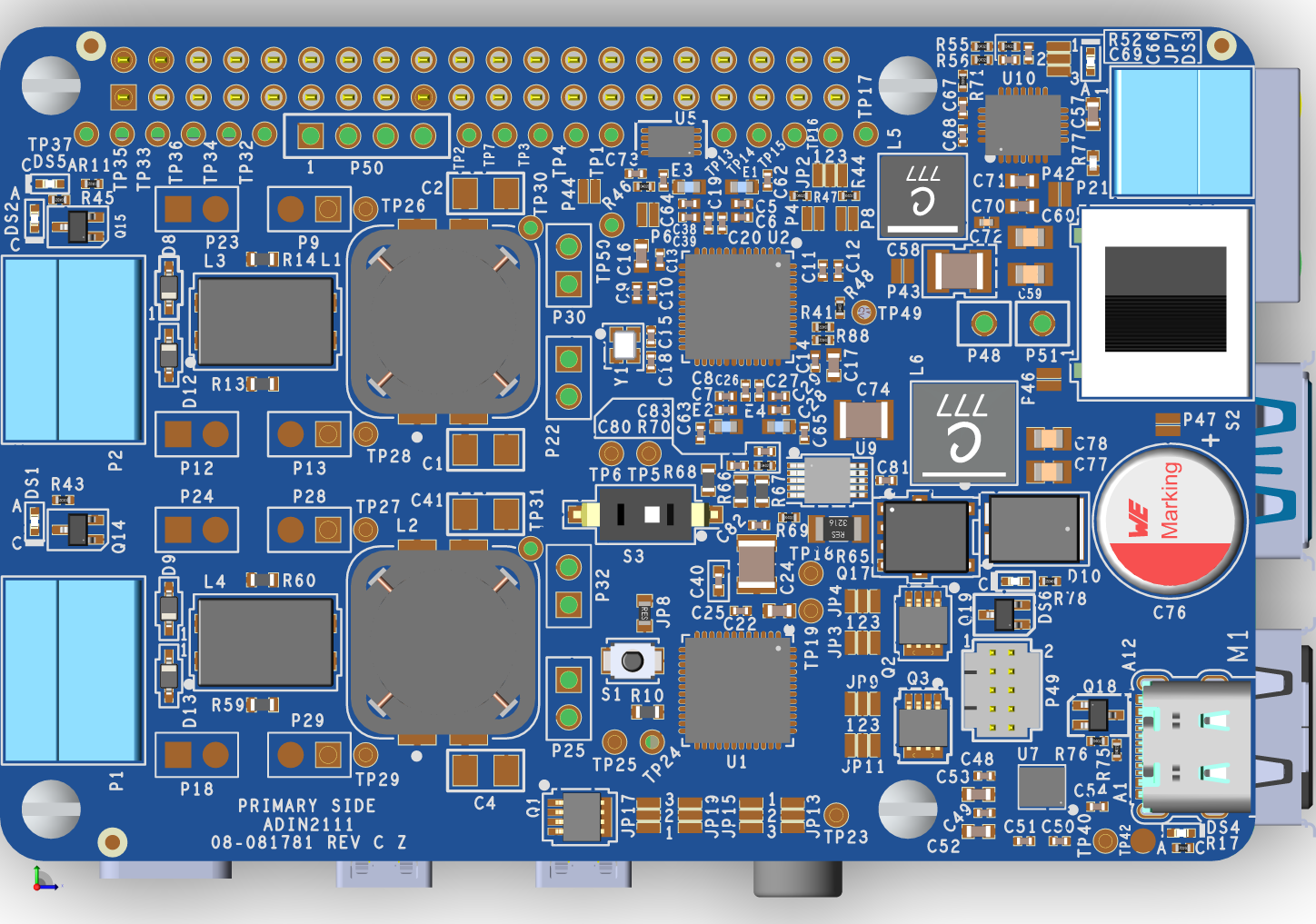
https://media.githubusercontent.com/media/analogdevicesinc/documentation/main/docs/solutions/reference-designs/ad-rpi-t1lpse-sl/ad-rpi-t1lpse-sl-top-with-labels.png

Figure 2 AD-RPI-T1LPSE-SL Primary Side

10BASE-T1L Ports (P1 and P2)
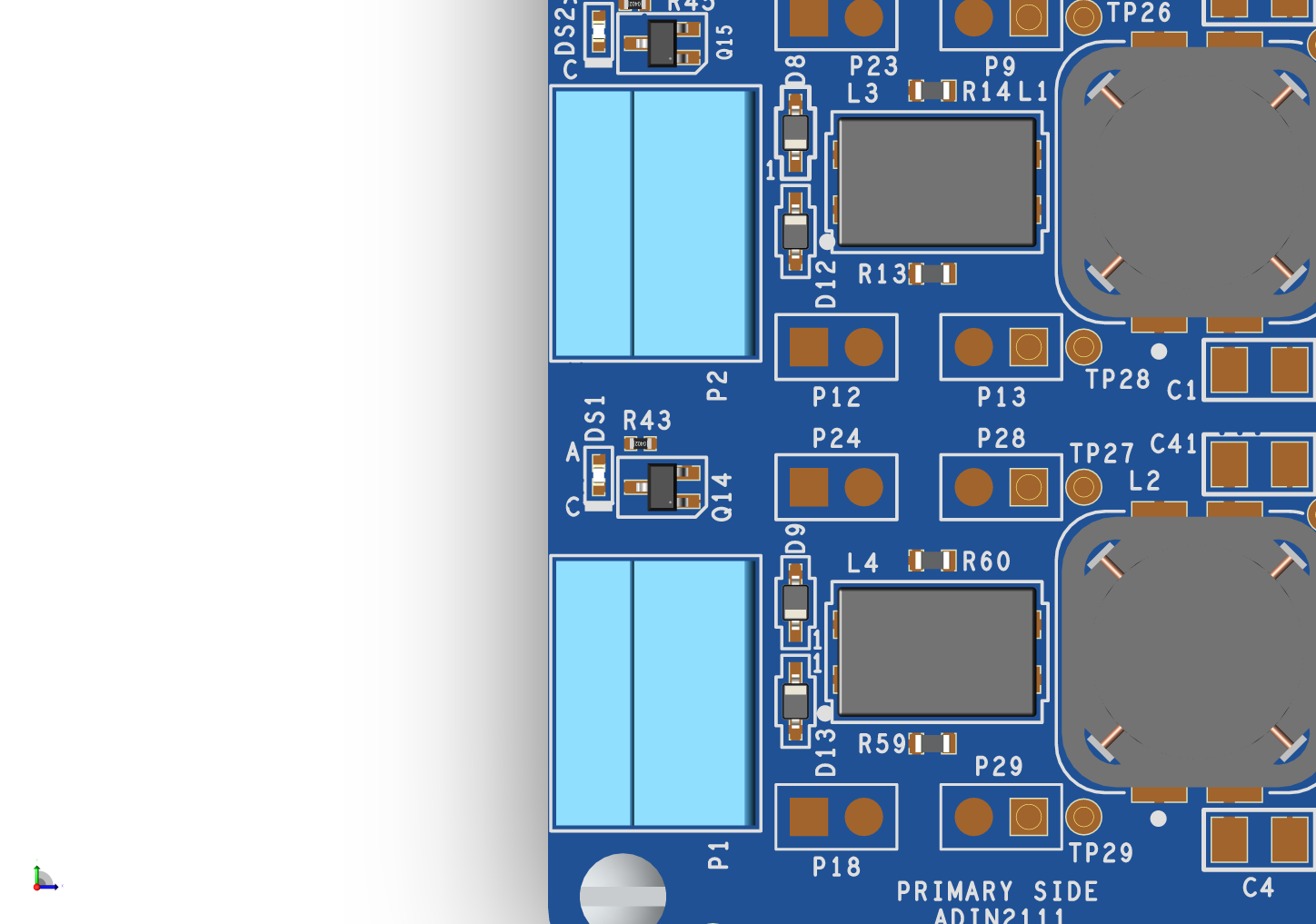
https://media.githubusercontent.com/media/analogdevicesinc/documentation/main/docs/solutions/reference-designs/ad-rpi-t1lpse-sl/ad-rpi-t1lpse-sl-10base-t1l-port.png

Figure 3 10BASE-T1L Ports

The AD-RPI-T1LPSE-SL evaluation board features two 10BASE-T1L ports, allowing connection to up to two PDs. Each port supports independent control of power sourcing and data transmission.

P1 and P2 are 3-pin terminal blocks designed for twisted pair cables, with optional shielding. These ports deliver class-dependent DC voltage to connected PDs and transmit AC-coupled data signals for 10BASE-T1L communication. Both ports include protection against overvoltage and electrostatic discharge (ESD) events.

When the board is powered via USB-C, the default output voltage is 24V, generated by the LT3757A flyback boost converter, suitable for SPoE Classes 10–12. To enable SPoE Classes 13–14, which require 54V, switch S3 to activate the higher voltage output.
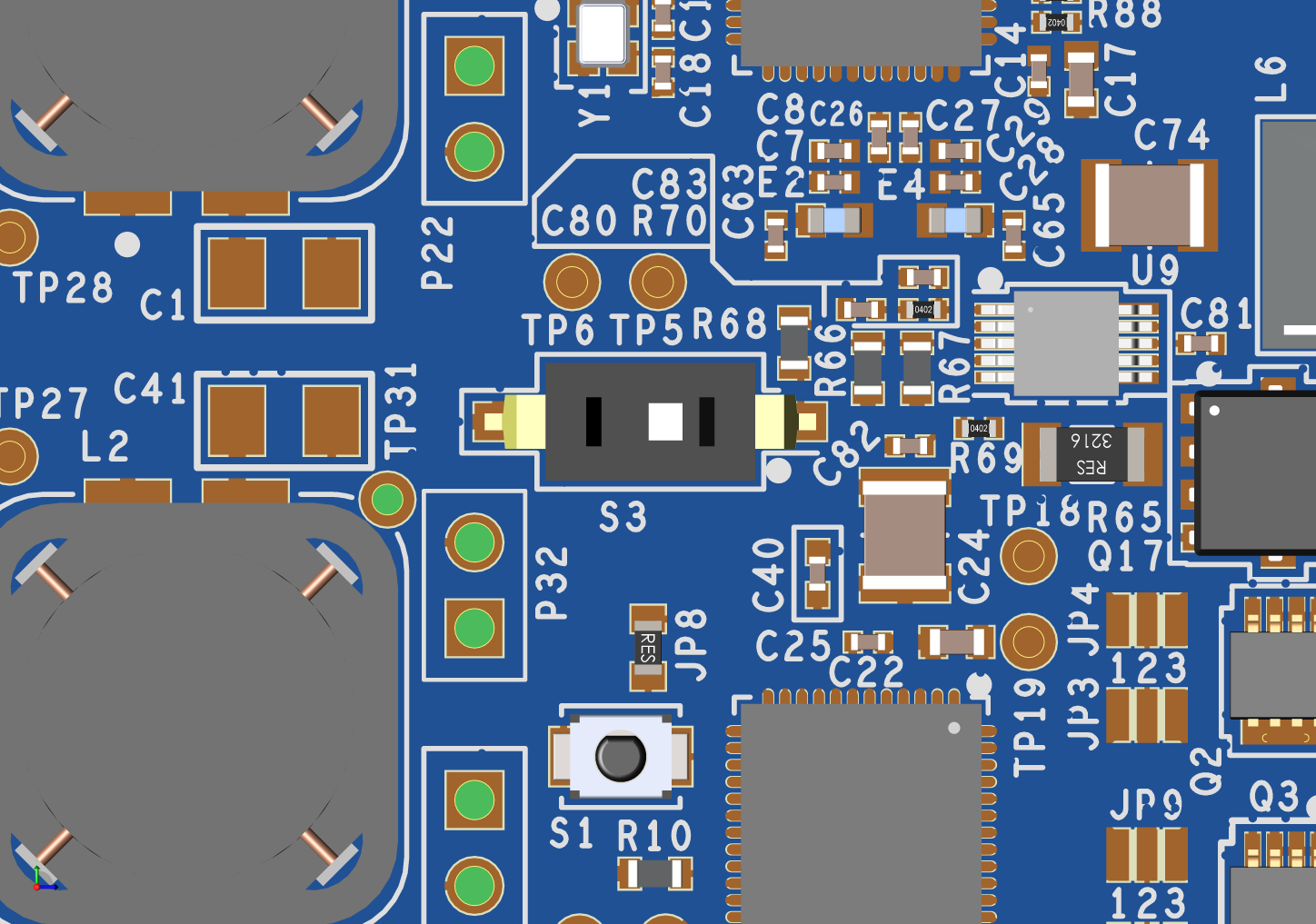
https://media.githubusercontent.com/media/analogdevicesinc/documentation/main/docs/solutions/reference-designs/ad-rpi-t1lpse-sl/ad-rpi-t1lpse-sl-s3-switch.png

Figure 4 SPoE Voltage Switch

The USB-C uses the MAX77958 standalone USB Power Delivery (PD) controller, which can be programmed using the P49 header. When power is supplied via the terminal block P21, the voltage can be set to 24V or 55V using the customers power supply. The supply port can be selected via the S2 switch.

In either of the cases, to power the Raspberry Pi, 5V is generated using the MAX17573.

ADIN2111

The onboard ADIN2111 PHY provides the 10BASE-T1L connection to the host platform board. The ADIN2111 is connected to the Raspberry Pi using the SPI0 port of the Raspberry Pi.

The ADIN2111 features selectable peak-to-peak transmit voltage levels of either 1.1V or 2.4V. These levels can be configured by adjusting the P6 and P4 solder jumpers for PHY1 and PHY2, respectively:

  • Disconnected: 2.4V

  • Shorted: 1.1V

The generic SPI protocol is half duplex. Therefore, it is not possible to write frame data into the MAC_TX register and read from the MAC_RX register at the same time. To achieve full duplex transmission on Ethernet at 10 Mbps, OPEN Alliance SPI must be used. To select which SPI protocol to use, the JP1 (located on the bottom of the board) solder jumper should be configured as follows:

JP3 Position

SPI Mode

Across 1 and 2

AD (Generic SPI)

Across 2 and 3

OA (OPEN Alliance SPI)

The ADIN2111 supports software power-down functionality for each port independently after power-up or reset. To enable this feature:

  • For PHY1, short the P8 jumper.

  • For PHY2, configure the JP2 solder jumper as follows:

JP4 Position

Software Power-down

Across 1 and 2

Disabled

Across 2 and 3

Enabled

LTC4296

The LTC4296 is a five port, single-pair power over Ethernet (SPoE), power sourcing equipment (PSE) controller. The LTC4296-1 is designed for interoperability with powered devices (PDs) in 24 V or 54 V systems. PD classification via the serial communication classification protocol (SCCP) and maintain full voltage signature (MFVS) ensure full operating voltage is only applied to the cable when a PD is present. PD initiated sleep and wake-up are supported. Telemetry, status, and software control features are accessed via SPI bus interface with packet error code (PEC) protection.

The LTC4296 is directly powered from the LT3757A flyback boost converter or from the 24V or 55V power supply connected to the P21 terminal block.

The device by default is configured to operate in SPoE Class 12 (24V nominal) or SPoE Class 14 (54V nominal) mode. In order to use classes 11 and 13, the following solder jumper configurations are required:
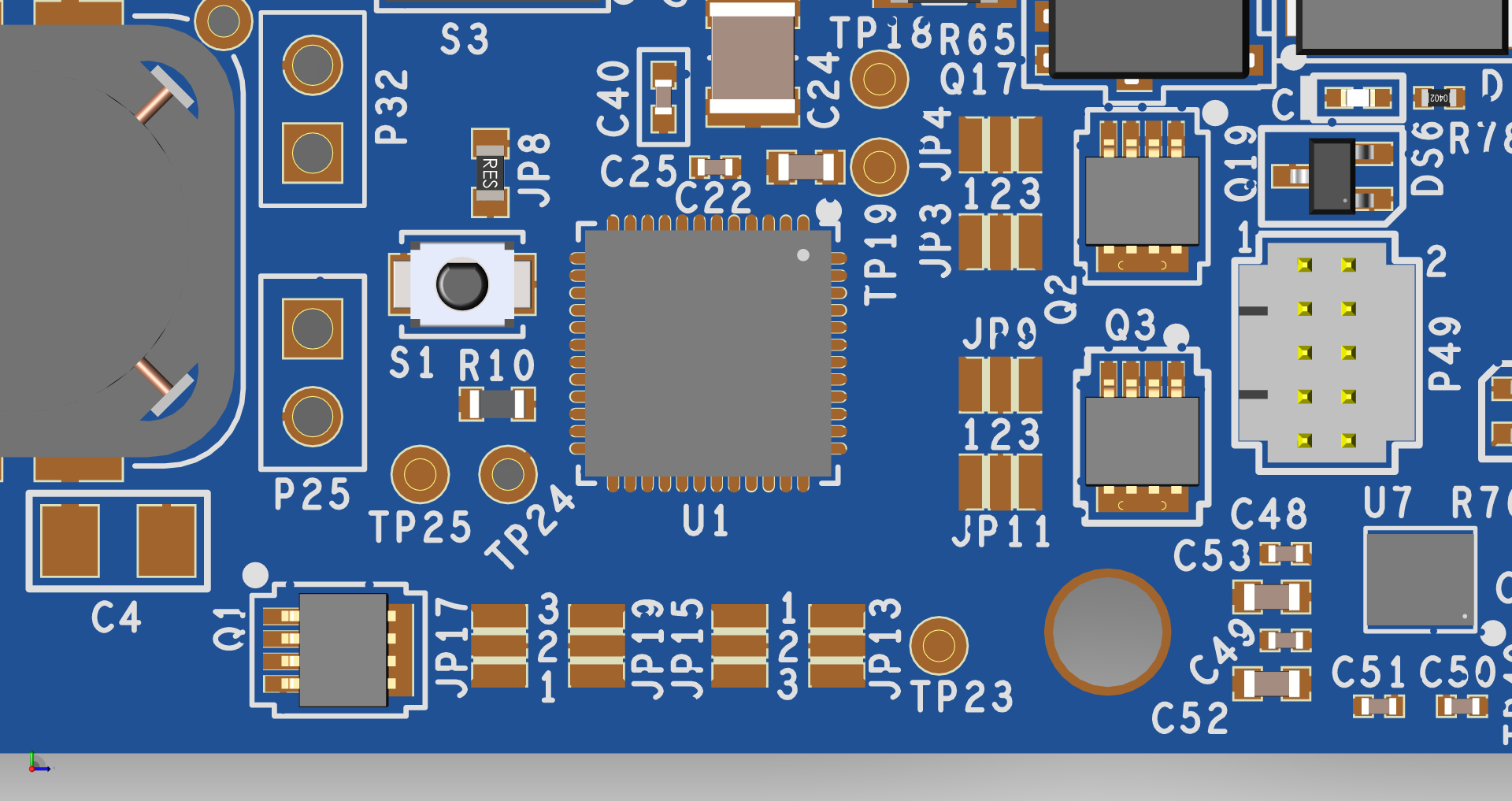
https://media.githubusercontent.com/media/analogdevicesinc/documentation/main/docs/solutions/reference-designs/ad-rpi-t1lpse-sl/ad-rpi-t1lpse-sl-spoe-classes.png

Figure 5 SPoE PD Power Class Jumpers

Table 1 SPoE PSE High Side Circuit Breaker Resistor Selection Table

PD Class

JP3 Position

JP4 Position

JP9 Position

JP11 Position

12/14

Across 1 and 2

Across 1 and 2

Across 1 and 2

Across 1 and 2

11/13

Across 2 and 3

Across 2 and 3

Across 2 and 3

Across 2 and 3

Table 2 SPoE PSE Low Side Sensing Resistor Selection Table

PD Class

JP17 Position

JP19 Position

JP13 Position

JP15 Position

12/14

Across 1 and 2

Across 1 and 2

Across 1 and 2

Across 1 and 2

11/13

Across 2 and 3

Across 2 and 3

Across 2 and 3

Across 2 and 3

The LTC4296 also supports SPoE Class 10. To enable this functionality, specific resistor changes are required:

High-side circuit breaker resistors:

  • For PORT1, replace R15 or R16 with 1.6Ω, 1/10W resistors.

  • For PORT2, replace R49 or R50 with 1.6Ω, 1/10W resistors.

Low-side sensing resistors:

  • For PORT1, replace R19 or R20 with 0.4Ω, 1/10W resistors.

  • For PORT2, replace R53 or R54 with 0.4Ω, 1/10W resistors.

The complete power requirements for the SPoE classes are shown in the table below:
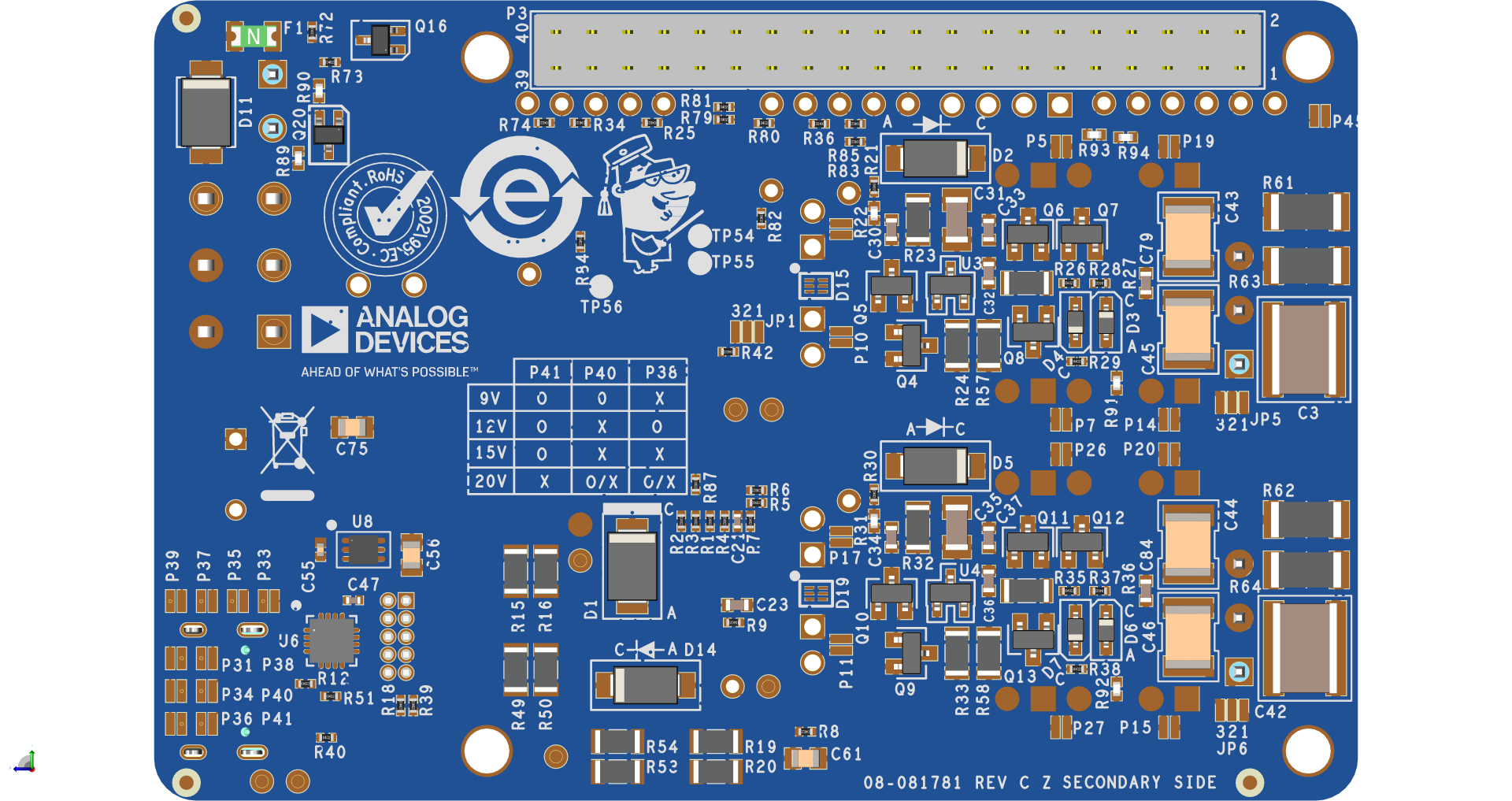
Table 3 SPoE PSE Power Class Requirements

Class Symbol and Unit

Class Description

Class 10

Class 11

Class 12

Class 13

Class 14

Class 15

VPSE (V)

PSE output voltage

20 to 30

20 to 30

20 to 30

50 to 58

50 to 58

50 to 58

IPI (MAX) (mA)

Cable current

92

240

632

231

600

1579

PCLASS (MIN) (W)

PSE output power

1.85

4.8

12.63

11.54

30

79

VPD (MIN) (V)

PD input voltage

14

14

14

35

35

35

PPD (MAX) (W)

PD power

1.23

3.2

8.4

7.7

20

52

RLINK_SEG_LOOP (Ω)

Cable resistance

65

25

9.5

65

25

9.5

Secondary Side

https://media.githubusercontent.com/media/analogdevicesinc/documentation/main/docs/solutions/reference-designs/ad-rpi-t1lpse-sl/ad-rpi-t1lpse-sl-bottom-with-labels.png

Figure 6 AD-RPI-T1LPSE-SL Secondary Side

The secondary side of the AD-RPI-T1LPSE-SL evaluation board features a Raspberry Pi compatible 40-pin GPIO header, which is used to connect the board to the Raspberry Pi and the serial communication and classification protocol (SCCP) drivers. The USB-C uses a standalone USB Power Delivery (PD) controller, can be configured using the following jumper configurations:

Table 4 USB-C Power Delivery Controller Configuration

MIN (MAX)

MIN (MAX)

MIN (MAX)

P36 (P41)

P34 (P40)

P31 (P38)

5V

OPEN

OPEN

OPEN

9V

OPEN

OPEN

SHORT

12V

OPEN

SHORT

OPEN

15V

OPEN

SHORT

SHORT

20V

SHORT

OPEN / SHORT

OPEN / SHORT

Warning

Although the PD supports 5V input, we do not recommend using it because the MAX17573 requires a voltage higher than 5V to reliably generate a stable 5V output for the Raspberry Pi.

Attention

Using a 9V power source is not recommended for Class 14 operation without external active cooling. The boost converter generates significant heat at this voltage, which could potentially damage the Raspberry Pi or the AD-RPI-T1LPSE-SL evaluation board.

Important

A power supply of at least 15V is recommended to help mitigate excess heat and prevent potential damage to the system.

System Setup

Required Equipment

Hardware

  • AD-RPI-T1LPSE-SL Circuit Evaluation Board

  • Raspberry Pi Model 4B+ (or higher)

  • Micro-SD Card for Raspberry Pi

  • 10BASE-T1L media converter, either:

  • Power Source Options:

    • USB-C Input: Powered via a DC power supply using a USB-C connector.

    • External DC Supply: Any external DC power source with an output of either 24V or 55V.

  • Host Windows, Linux, or Mac computer

Software

Documentation

Block Diagram

Setup with DC Power Supply with USB-C or other DC Power Supply
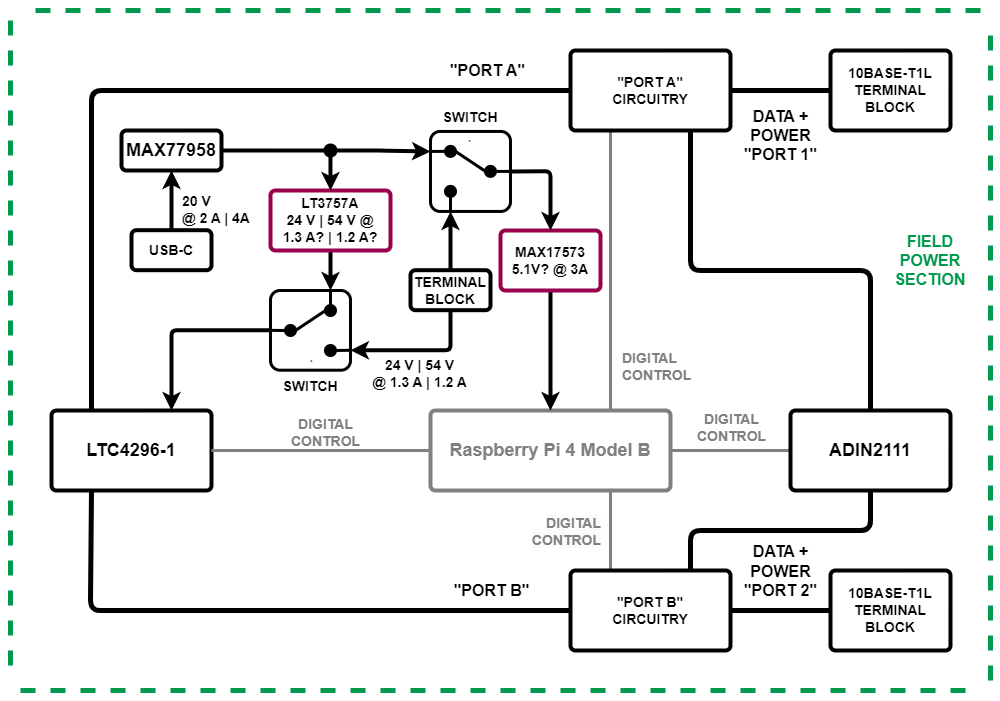
https://media.githubusercontent.com/media/analogdevicesinc/documentation/main/docs/solutions/reference-designs/ad-rpi-t1lpse-sl/ad-rpi-t1lpse-sl-block-diagram.png

Figure 7 AD-RPI-T1LPSE-SL Block Diagram

Software Setup

Building and Flashing the Micro-SD Card

To use the AD-RPI-T1LPSE-SL with the Raspberry Pi, the micro-SD card should be preloaded with Kuiper, a Linux distribution based on Debian, designed specifically for Analog Devices hardware and evaluation boards.

Build steps:

  1. Check prerequisites (Ubuntu 22.04 + Docker for building)

  2. Build your Kuiper image:

    analog@analog:~$
    
    git clone --depth 1 --branch kuiper-AD-RPI-T1LPSE-SL https://github.com/analogdevicesinc/adi-kuiper-gen
    
    analog@analog:~$
    
    cd adi-kuiper-gen
    
    analog@analog:~/adi-kuiper-gen$
    
    sudo ./build-docker.sh
    

    For more details on building the image, please refer to the Quick Start.

  3. Write the built image to the micro-SD card and boot the Raspberry Pi.

Configuring the Micro-SD Card

The Linux kernel requires a matching device tree overlay to identify the devices on the AD-RPI-T1LPSE-SL. The overlay table is included with the Kuiper and simply needs to be enabled.

To do this, follow the Hardware Configuration procedure under Configuring the SD Card for Raspberry Pi Projects in the Kuiper page. Enable the AD-RPI-T1LPSE-SL overlay by adding the following line to config.txt for class 12:

dtoverlay=rpi-t1lpse-class12

or for class 14:

dtoverlay=rpi-t1lpse-class14

Save the changes and reboot the system by entering the following command in the console:

analog@analog:~$
sudo reboot

Setting Up a Static IP

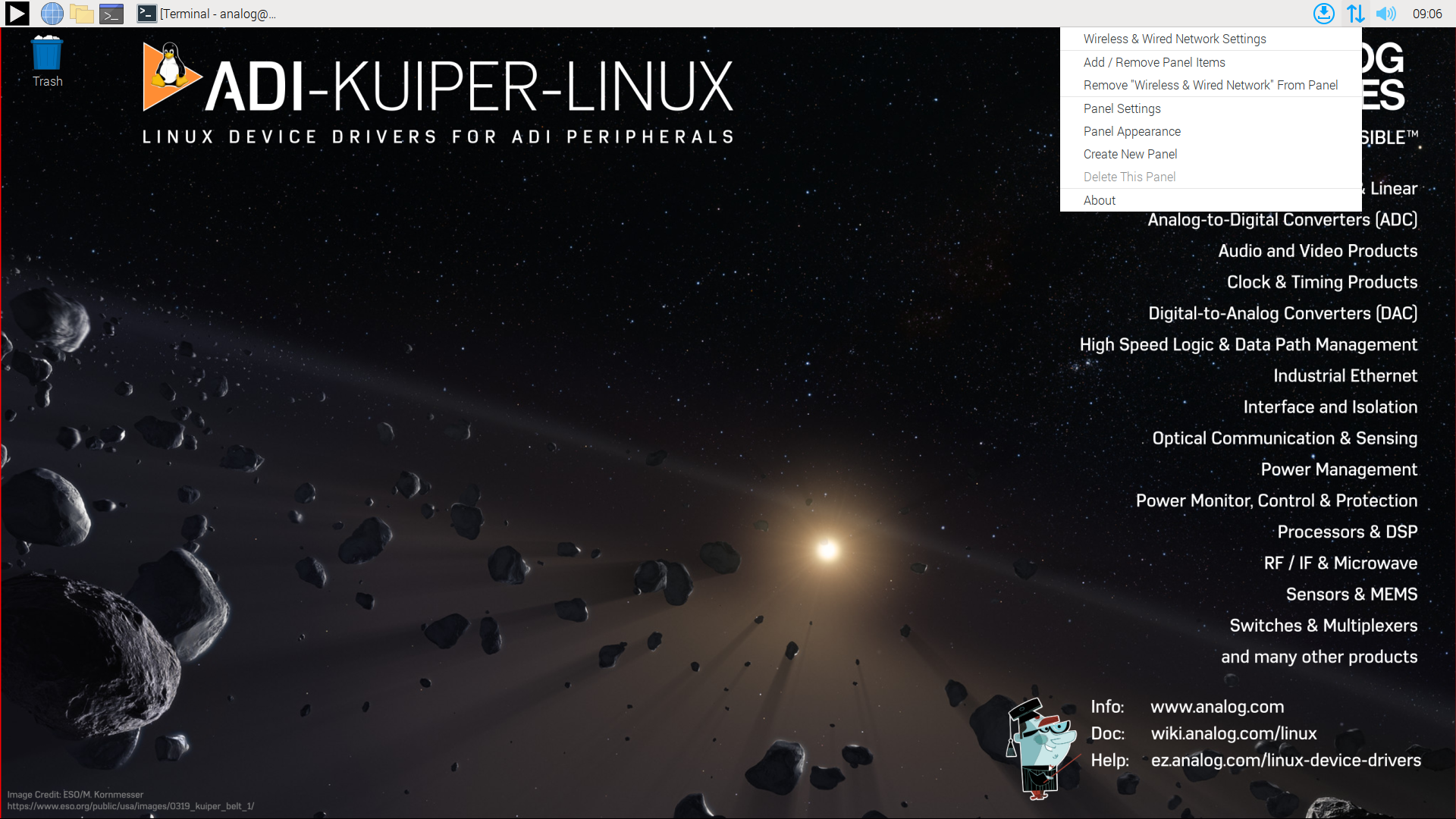
To set up a static IP address for the AD-RPI-T1LPSE-SL, the user has to modify the IPv4 address of the chosen network interface. This can be done by right-clicking in the top right corner the network icon and selecting Wireless & Wired Network Settings.

https://media.githubusercontent.com/media/analogdevicesinc/documentation/main/docs/solutions/reference-designs/ad-rpi-t1lpse-sl/ad-rpi-t1lpse-sl-static-ip-location.png

Figure 8 Network Settings Location

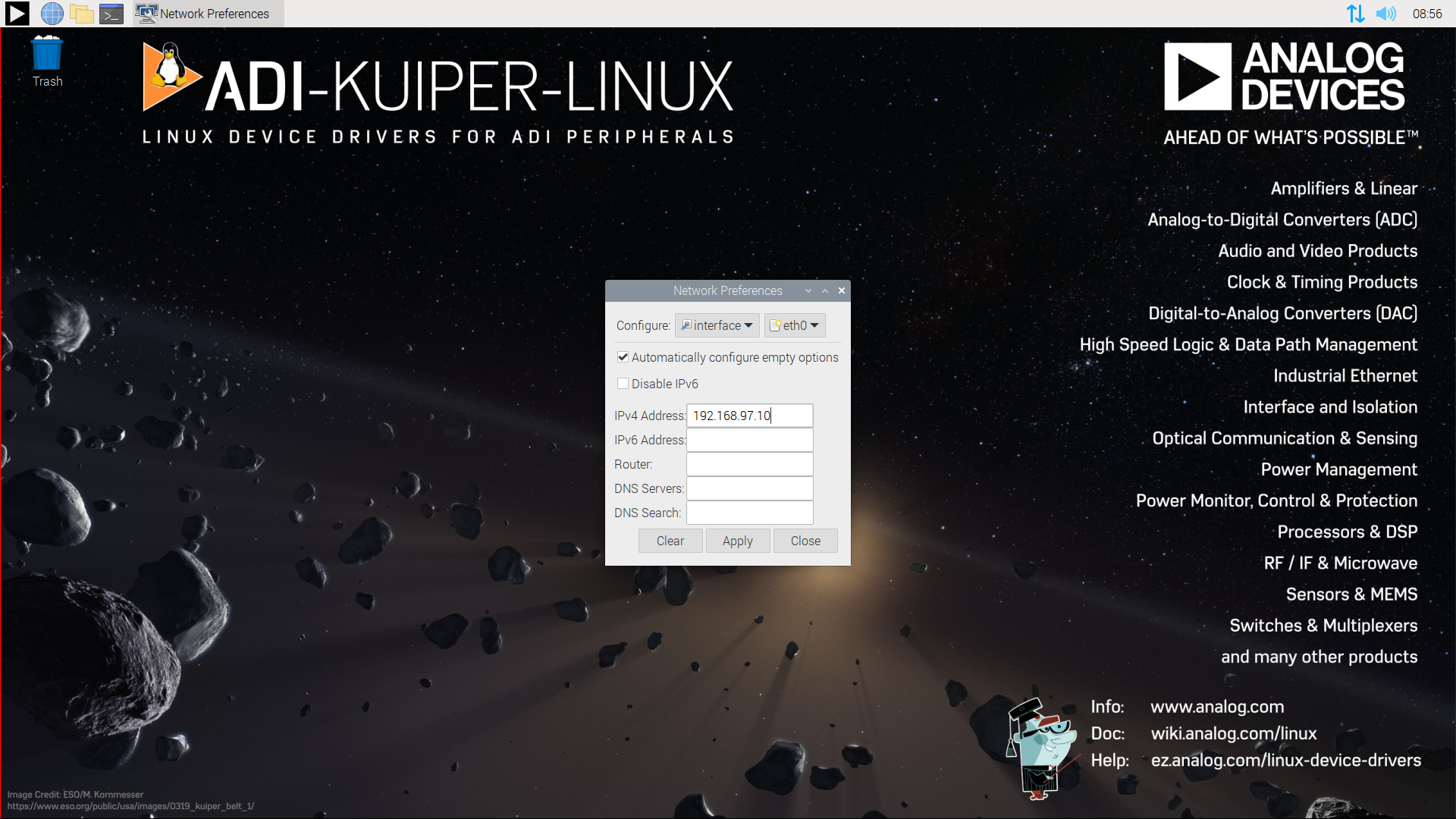
Next to the interface field select the wanted interface (e.g. eth1 / eth2) and type in the chosen IP address as shown below:

https://media.githubusercontent.com/media/analogdevicesinc/documentation/main/docs/solutions/reference-designs/ad-rpi-t1lpse-sl/ad-rpi-t1lpse-sl-static-ip-set-ip.png

Figure 9 Static IP Address Configuration

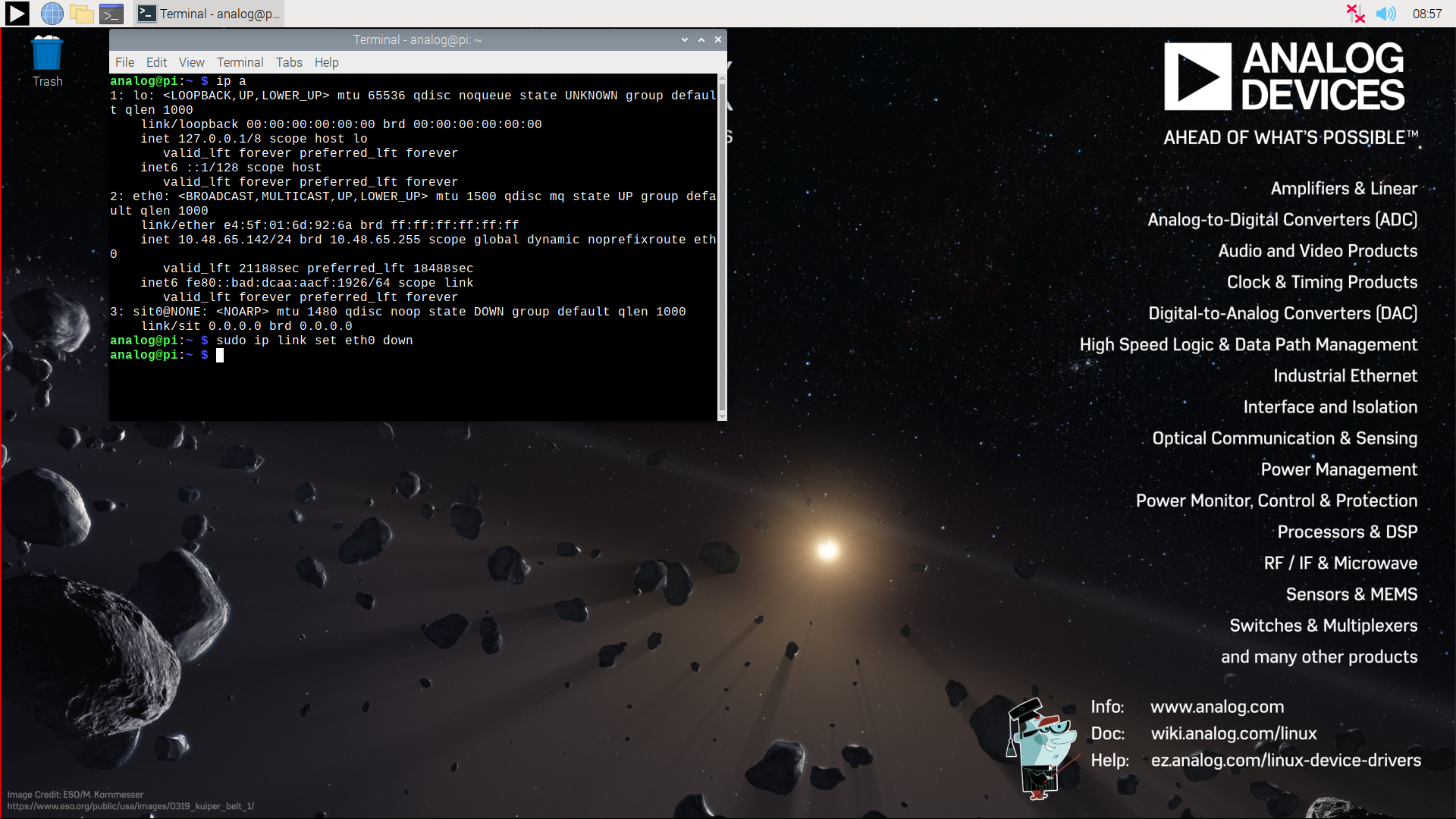
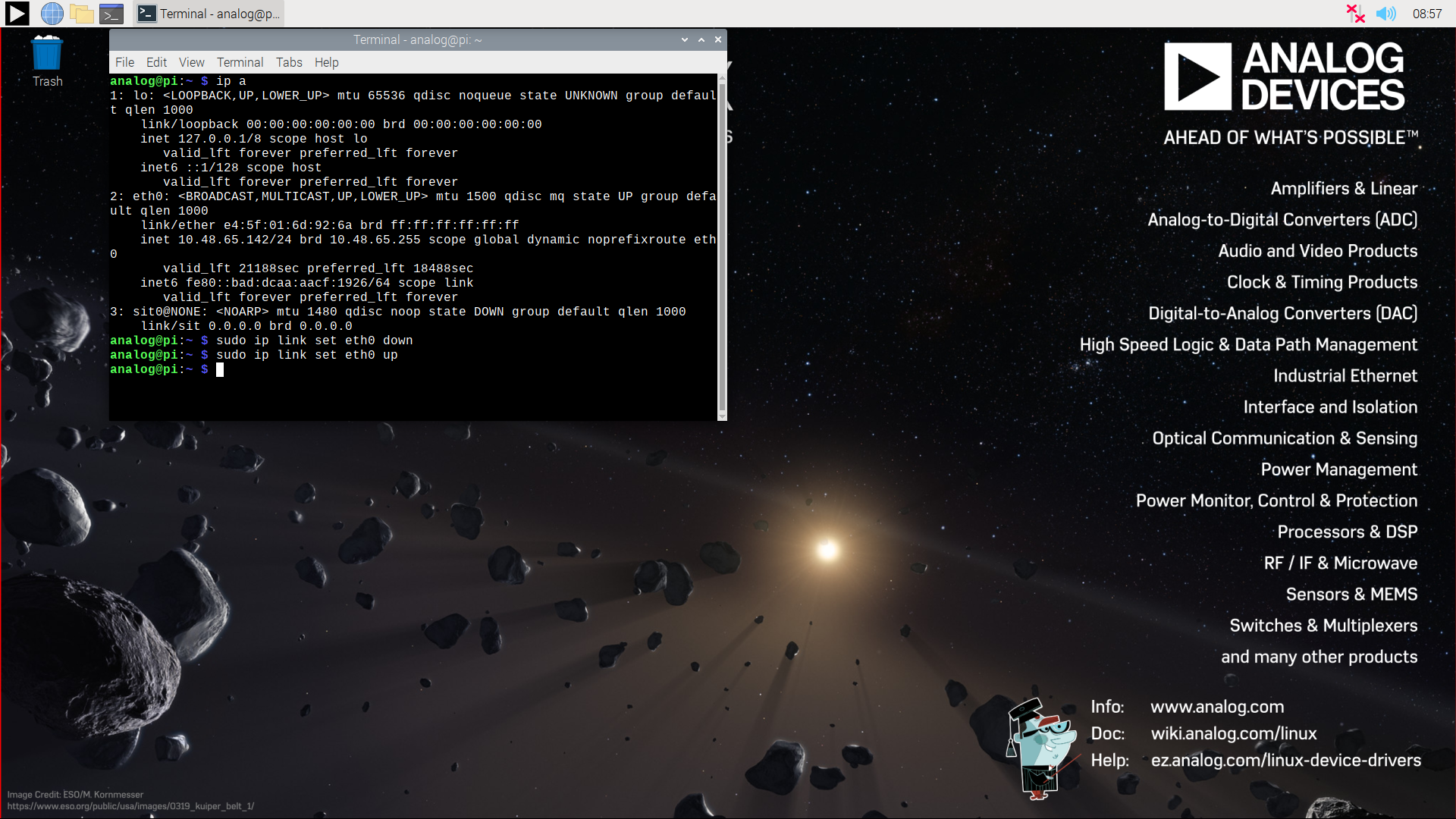
The next set is to reset the ip link, which can be done by entering the following command in a terminal:

analog@analog:~$
sudo ip link set eth0 down
https://media.githubusercontent.com/media/analogdevicesinc/documentation/main/docs/solutions/reference-designs/ad-rpi-t1lpse-sl/ad-rpi-t1lpse-sl-static-ip-set-eth0-down.png

Figure 10 Setting eth0 down

Next, set the interface up again by entering the following command:

analog@analog:~$
sudo ip link set eth0 up
https://media.githubusercontent.com/media/analogdevicesinc/documentation/main/docs/solutions/reference-designs/ad-rpi-t1lpse-sl/ad-rpi-t1lpse-sl-static-ip-set-eth0-up.png

Figure 11 Setting eth0 up

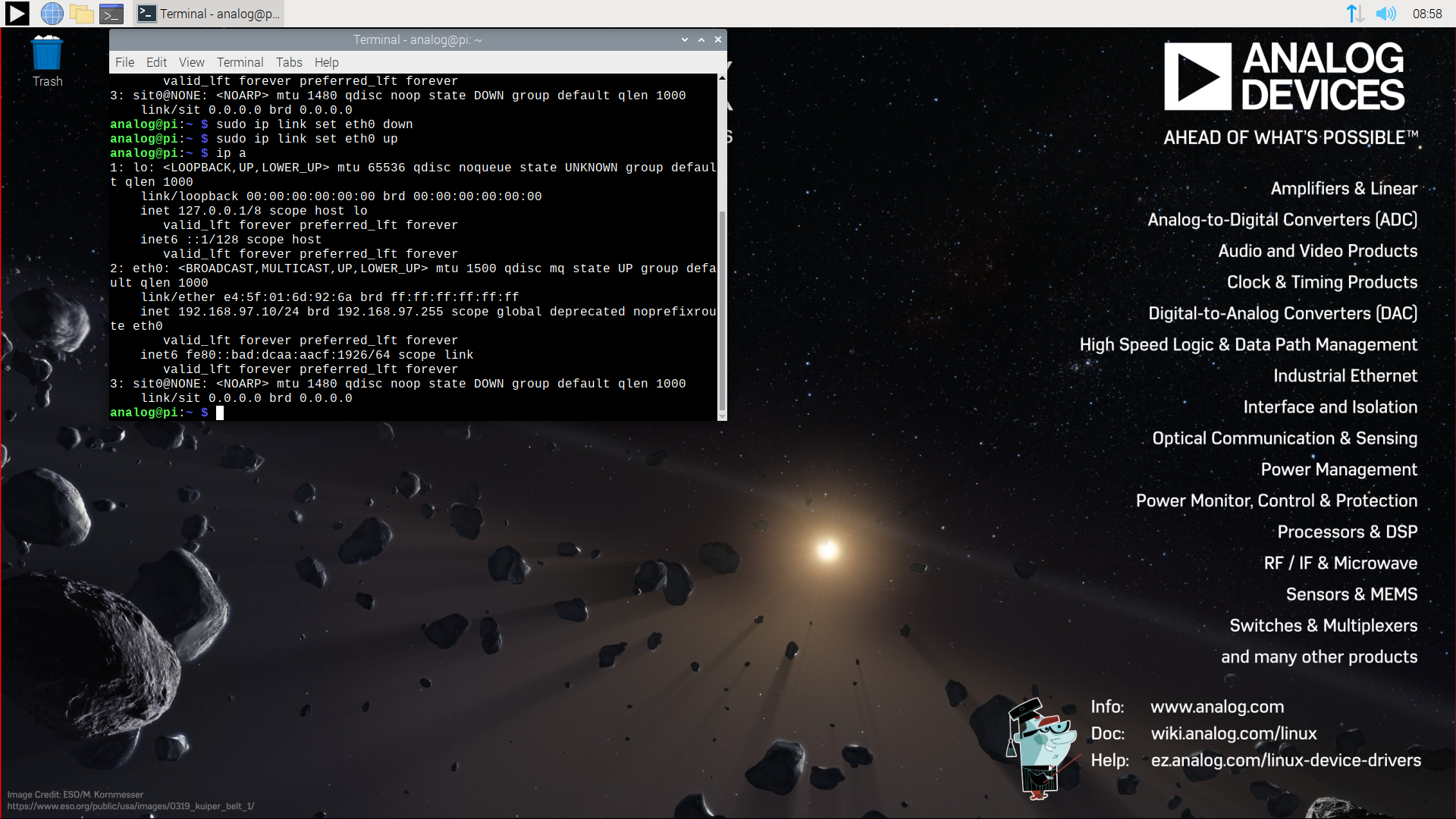
If everything was done correctly the interface should be up and running with the static IP address set. To verify this, enter the following command in the console, the next to the inet field the static IP address should be shown:

analog@analog:~$
ip a
https://media.githubusercontent.com/media/analogdevicesinc/documentation/main/docs/solutions/reference-designs/ad-rpi-t1lpse-sl/ad-rpi-t1lpse-sl-static-ip-result.png

Figure 12 Static IP Address Result

Basic Operation

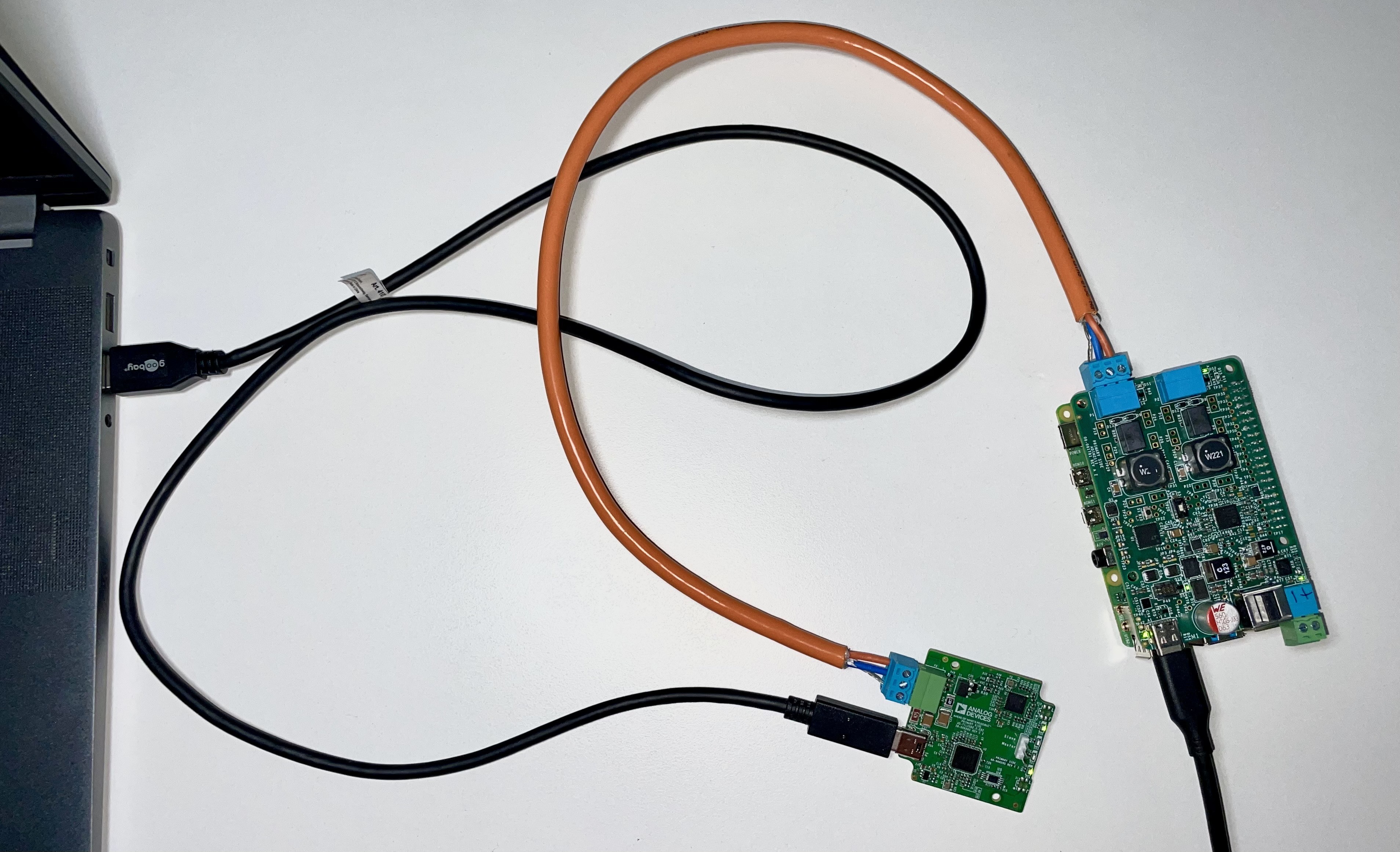
https://media.githubusercontent.com/media/analogdevicesinc/documentation/main/docs/solutions/reference-designs/ad-rpi-t1lpse-sl/ad-rpi-t1lpse-sl-setup.png

Figure 13 Complete Evaluation Setup

To establish a 10BASE-T1L connection to a Raspberry Pi using the AD-RPI-T1LPSE-SL evaluation board and ping the Raspberry Pi follow the below procedure:

  1. Ensure that the jumpers and switches of the EVAL-ADIN1100EBZ are configured to the default settings.

  2. Insert the micro-SD card into its slot on the Raspberry Pi.

  3. Connect the AD-RPI-T1LPSE-SL circuit evaluation board to the Raspberry Pi GPIO header.

  4. Using a twisted-pair cable, connect P2 on the AD-T1LUSB2.0-EBZ USB2.0 to 10BASE-T1L Interface to the P2 terminal block on the AD-RPI-T1LPSE-SL

  5. Using a USB-C cable, connect P1 on the AD-T1LUSB2.0-EBZ evaluation board to a USB port on the computer.

  6. Operation with USB-C DC Power Supply: (Skip to step 7 if using a the P21 terminal block)

    • Set the S3 switch to supply to either 24V (Class 12) or 55V (Class 14), depending on the overlay added to the config.txt.

    • Set the S2 switch towards the USB-C.

  7. Operation with external DC Power Supply (Using the P21 terminal block):

    • Using wires, connect the P21 terminal block on the AD-RPI-T1LPSE-SL

    • Set the S2 switch towards the Terminal Block.

  8. Wait for the DS1 LED on the AD-RPI-T1LPSE-SL circuit evaluation board and the DS1, DS2 LEDs on the EVAL-ADIN1100EBZ evaluation board to turn on and start blinking at the same time. This indicates that a 10BASE-T1L link has been established.

  9. On the host PC, change the IP address of the AD-T1LUSB2.0-EBZ:

    • From the start menu open the Control Panel and click on Network and Internet

    • Click on View network status and tasks

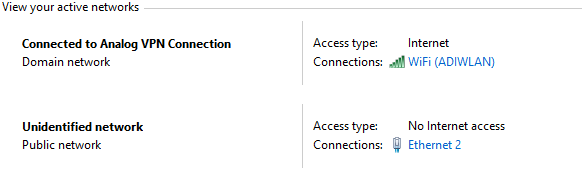
    You should see two networks.

    https://media.githubusercontent.com/media/analogdevicesinc/documentation/main/docs/solutions/reference-designs/ad-rpi-t1lpse-sl/ad-t1lusb2-network.png

    Figure 14 Network Connections

    • Click on the Connections: Ethernet and click on Properties

    • Select Internet Protocol Version 4 (TCP/IPv4) and click on Properties

    • Select Use the following IP address: and type in the following IP address and Subnet mask:

      IP address: 192.168.90.zzz
      Subnet mask: 255.255.0.0
      

      where zzz is a number between 1 and 254, currently unused in the network (for example, 10 cannot be used, since it is used by the AD-RPI-T1LPSE-SL).

    • Click on OK to save the changes and close the dialog boxes.

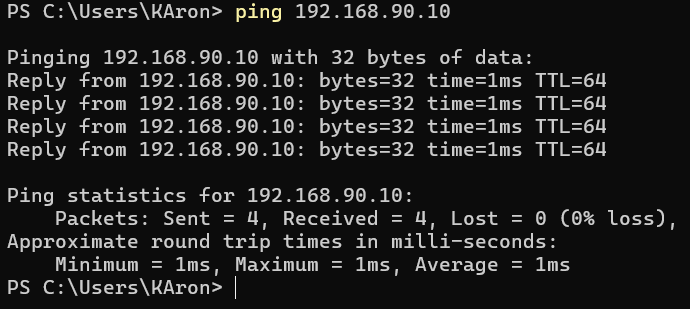
  10. Open up a terminal and ping the AD-RPI-T1LPSE-SL:

    ping 192.168.90.10
    
    https://media.githubusercontent.com/media/analogdevicesinc/documentation/main/docs/solutions/reference-designs/ad-rpi-t1lpse-sl/ping-result.png

    Figure 15 Result

Schematic, PCB Layout, Bill of Materials

Download

AD-RPI-T1LPSE-SL Design & Integration Files

  • Schematics

  • PCB Layout

  • Bill of Materials

  • Allegro Project

Hardware Registration

Tip

Receive software update notifications, documentation updates, view the latest videos, and more when you register your hardware.

Help and Support

For questions and more information about this product, connect with us through the Analog Devices EngineerZone .