2-24 GHz reference design software resources
This guide walks you through setting up a ZCU102 FPGA evaluation board for use with the 2-24 GHz X-Microwave (XMW) TX/RX platform.
SD card setup
You will need to image an SD card with ADI Kuiper Linux and configure it with the relevant files.
Download
Download the latest release of Kuiper Linux from the Kuiper releases page.
Follow the instructions on the Use Kuiper Image page to image your SD card with the downloaded image.
Copy the following three files into the BOOT partition of your SD card, as described on the Configure a SD Card page:
Image
system.dtb
BOOT.BIN
The TX and RX platforms each use their own device tree and FPGA configuration file, which are not part of the standard Kuiper Linux image.
These files are available on request, see Requesting design files.
Important
If you just imaged your SD card following the steps above, you will already have the latest Image file in the BOOT partition.
Be sure to select the appropriate .dtb (device tree file) and BOOT.BIN (FPGA configuration file), depending on whether you are using the TX or RX platform.
Rename your device tree file to system.dtb
ZCU102 configuration
The ZCU102 board can be configured as follows to allow control of the front end platform using the libiio command line tools.
Boot from SD card
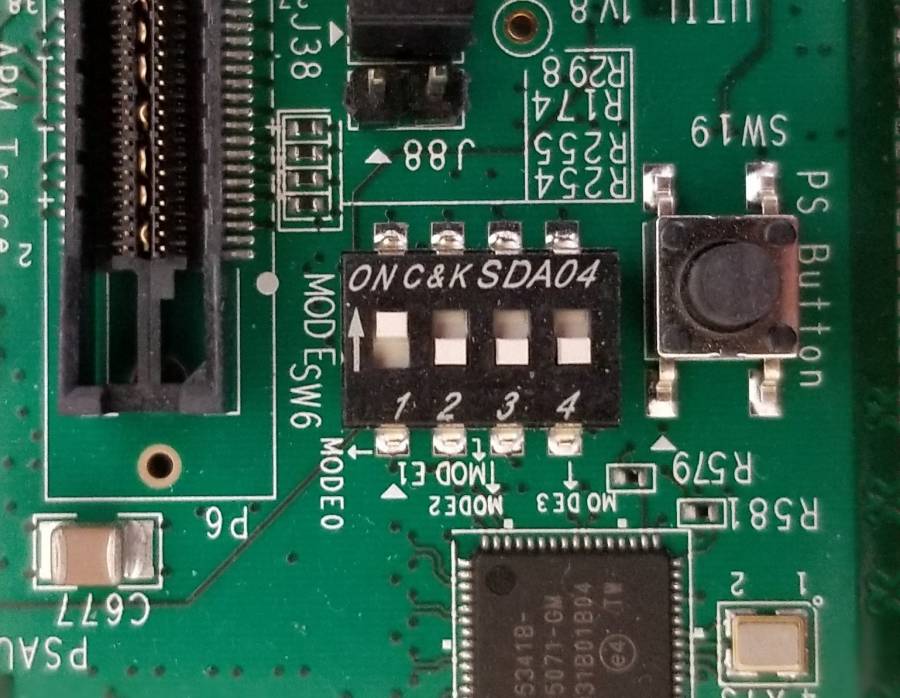
In order to configure the FPGA to boot from the Linux kernel installed on the SD card, SW6 [4:1] on the ZCU102 board needs to be set to 1110 (off, off, off, on) as shown below:
Note
You may refer to the MPSoC Device Configuration section in the ZCU102 User Guide for more information.
USB to UART bridge
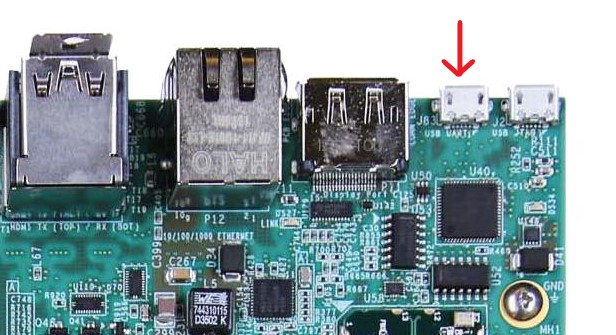
The ZCU102 board uses a micro-B cable to connect the USB UART port on the board (J83) to a host PC.
Note
You may refer to the CP2108 USB UART Interface section in the ZCU102 User Guide for more information.
Network configuration
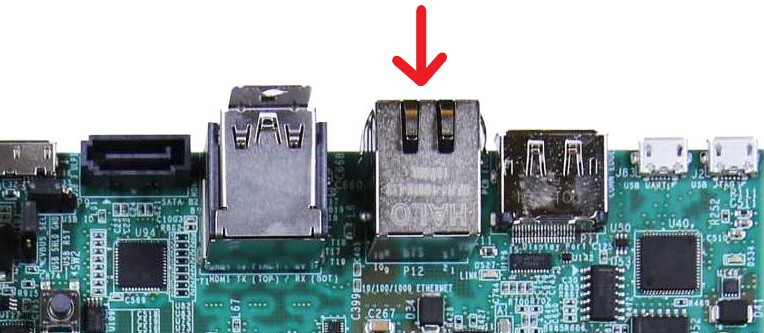
The ZCU102 board uses an RJ45 ethernet cable to connect the ethernet port (P12) to a host PC.
Note
You may refer to the GEM3 Ethernet section in the ZCU102 User Guide for more information.
The ethernet interface can then be used to control the ZCU102 board with higher level user applications based on Python or MATLAB.
Modifications to the network configuration can be made following the guidance detailed on the Kuiper networking page.
User interfaces
Higher level applications can be used to configure the platform, instead of the libiio command-line terminal interface, using the ethernet port to communicate with the ZCU102 board.
Python control
ADI’s pyadi-iio library enables configuration and control of many IIO components using Python. Details on getting started with this library can be found in the PyADI-IIO documentation.
MATLAB control
ADI has also developed an RF Microwave Toolbox which enables users to configure and control IIO components using MATLAB. Details on getting started with this toolbox, including the supported boards, can be found in the RF Microwave Toolbox documentation.