EVALUATING THE AD9695/AD9697 ANALOG-TO-DIGITAL CONVERTER
Preface
This user guide describes the AD9695-1300EBZ evaluation board which provides all of the support circuitry required to operate the AD9695 in its various modes and configurations. The AD9697 ADC can also be evaluated using this board, with identical performance except for power consumption. This guide covers both the hardware and software setup needed to acquire data from the evaluation board.
This guide assumes the usage of the accompanying ADS7-V2EBZ FPGA-based data capture kit. The ADS7-V2 user guide provides additional information for consultation during usage.
Documents and software tools can be found at the HS-ADC Eval Board homepage. For additional information or questions, post on EngineerZone or send an email to highspeed.converters@analog.com.
Typical Setup
Tip
Click on any picture in this guide to open an enlarged version.
Features
Full-featured evaluation board for the AD9695-1300EBZ
JESD204B coded serial digital outputs with support for lane rates up to 16 Gbps/lane
Wide full-power bandwidth supports IF sampling of signals up to 2 GHz
Four integrated wide-band decimation filter and NCO blocks supporting multi-band receivers
Flexible SPI interface controls various product features and functions to meet specific system requirements
Programmable fast over-range detection and signal monitoring
Helpful Documents
AN-905 Application Note, VisualAnalog Converter Evaluation Tool Version 1.0 User Manual
ADI SPI Application Note, ADI Serial Control Interface Standard
AN-835 Application Note, Understanding ADC Testing and Evaluation
Software Needed
Design and Integration Files
Equipment Needed
PC running Windows®
USB 2.0 port and USB 2.0 High-speed A to B cable
AD9695-1300EBZ evaluation board
ADS7-V2EBZ FPGA-based data capture kit
12 V, 6.5 A switching power supply (such as the SL POWER CENB1080A1251F01 supplied with ADS7-V2EBZ)
Low phase noise analog input source and antialiasing filter
Low phase noise sample clock source
Reference clock source
Getting Started
This section provides quick-start procedures for using the AD9695-1300EBZ evaluation board.
Connector Layout
Tip
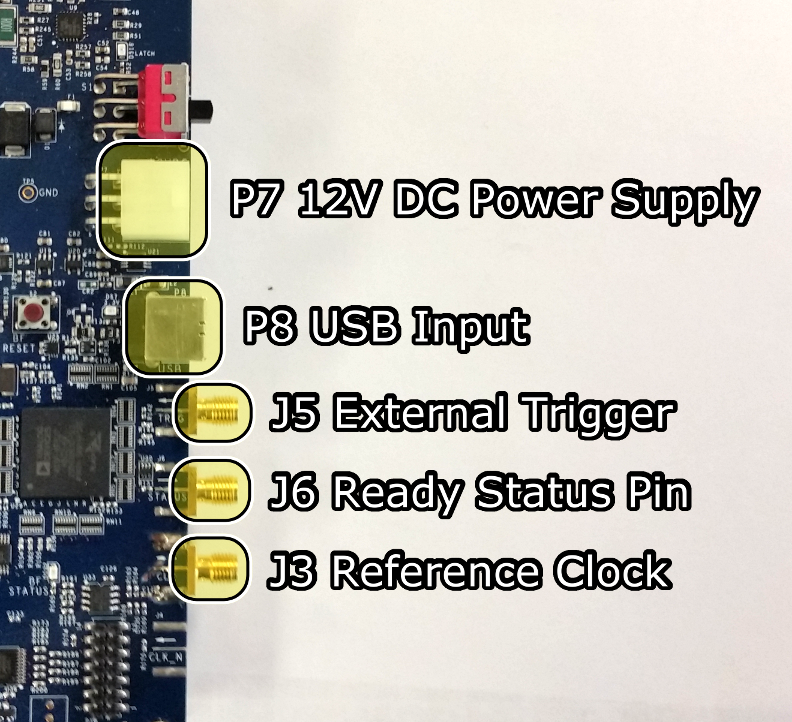
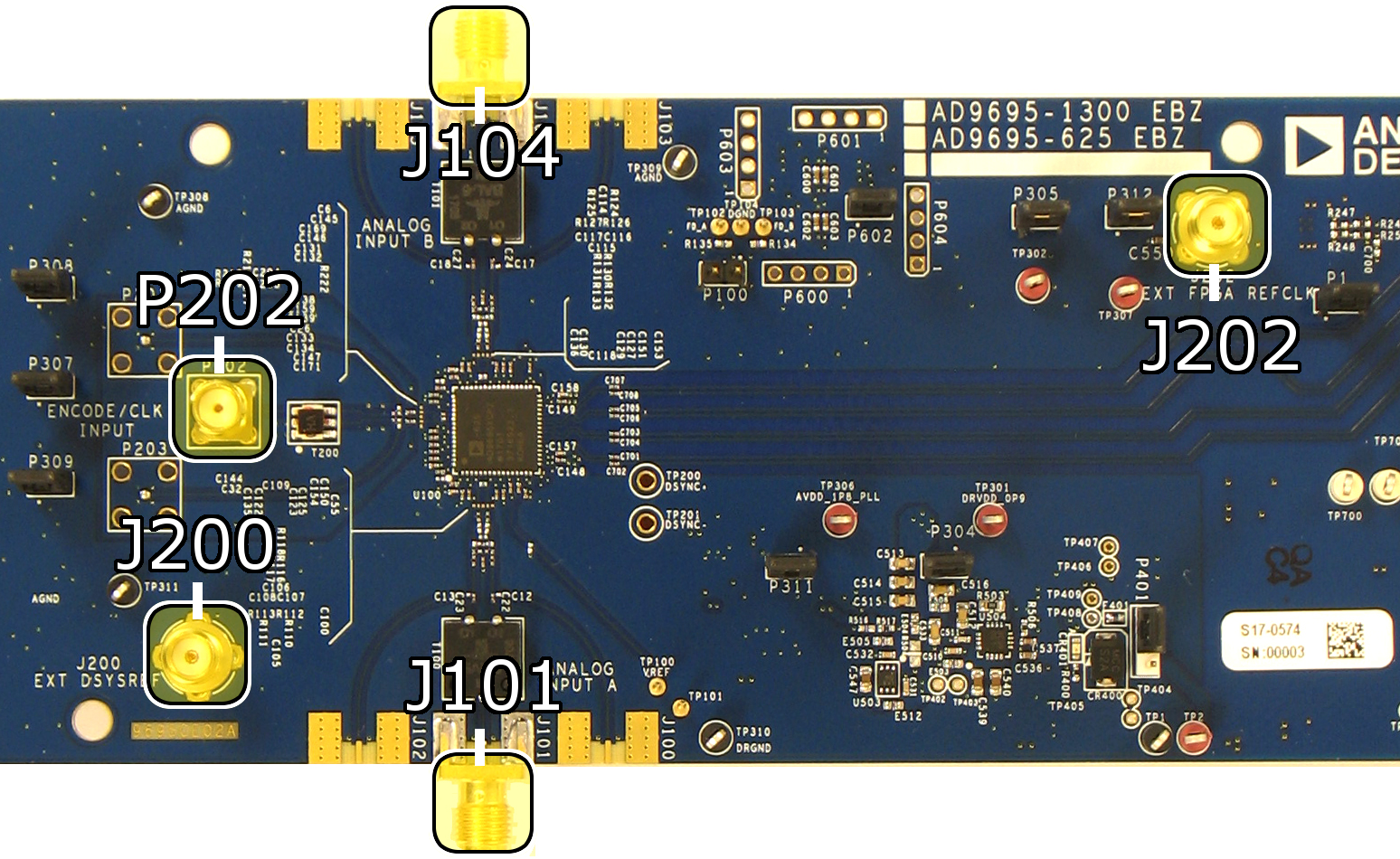
For more information on Sysref (J200), see the JESD204B Survival Guide.
Warning
The AD9695-1300EBZ is electrostatic discharge (ESD) sensitive. Handle the device with care, and employ conducting wrist straps or antistatic bags when handling the board.
Configuring the Board
Before using the software for testing, configure the evaluation boards as follows:
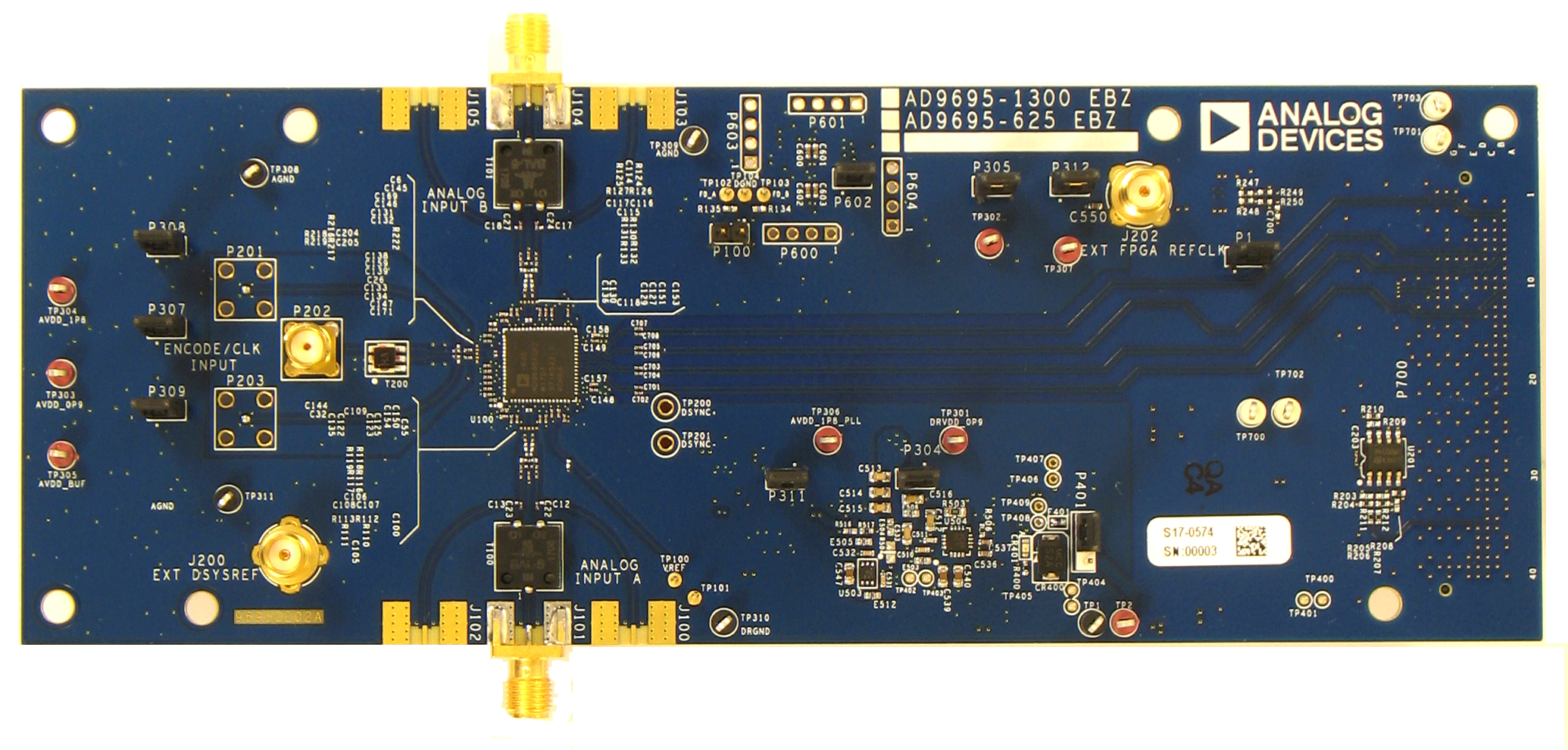
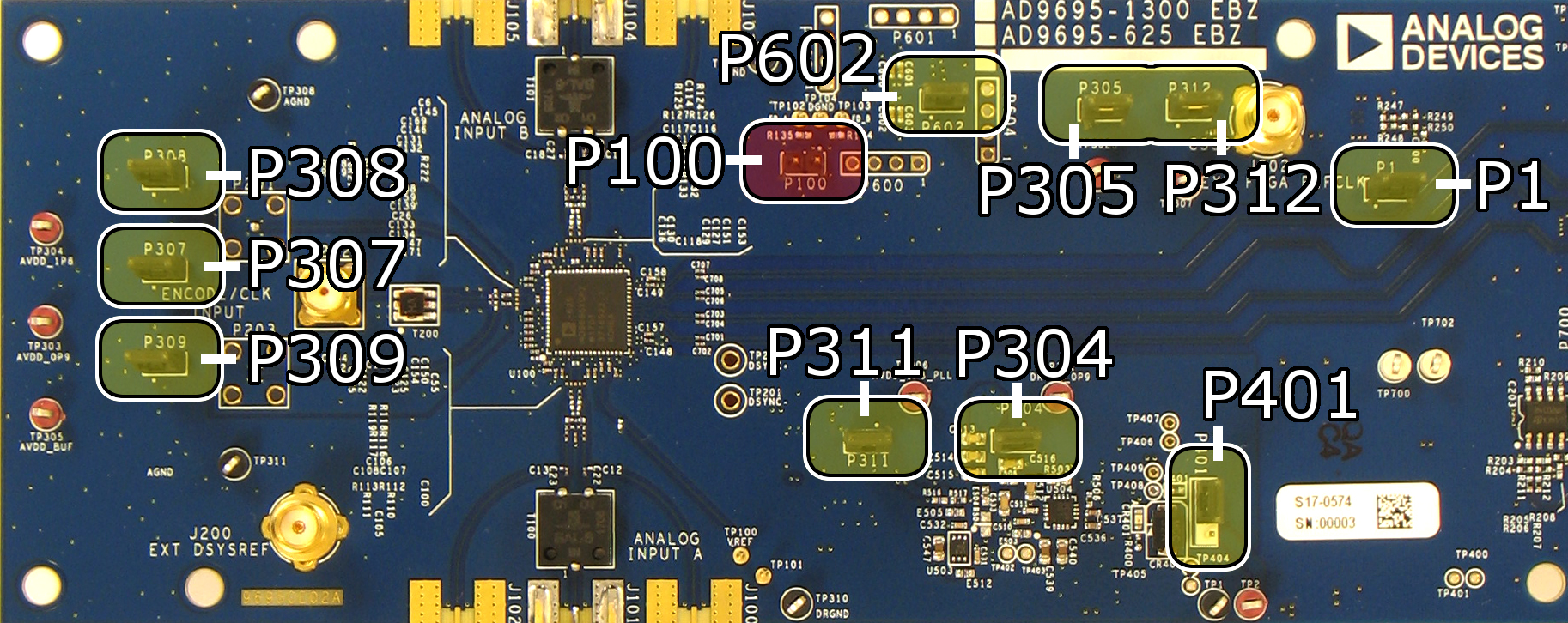
Before connecting the AD9695-1300EBZ to the ADS7-V2, jump the following pins: P307, P308, P309, P311, P304, P305, P312, and P602 (SPI Enable). Do not jump P100 (Power Down/Standby) and P1. Supply the Reference Clock through the ADS7-V2. Jump P401 towards the inside of the board to power the board via FMC. See Figure 5 for all jumper connections.
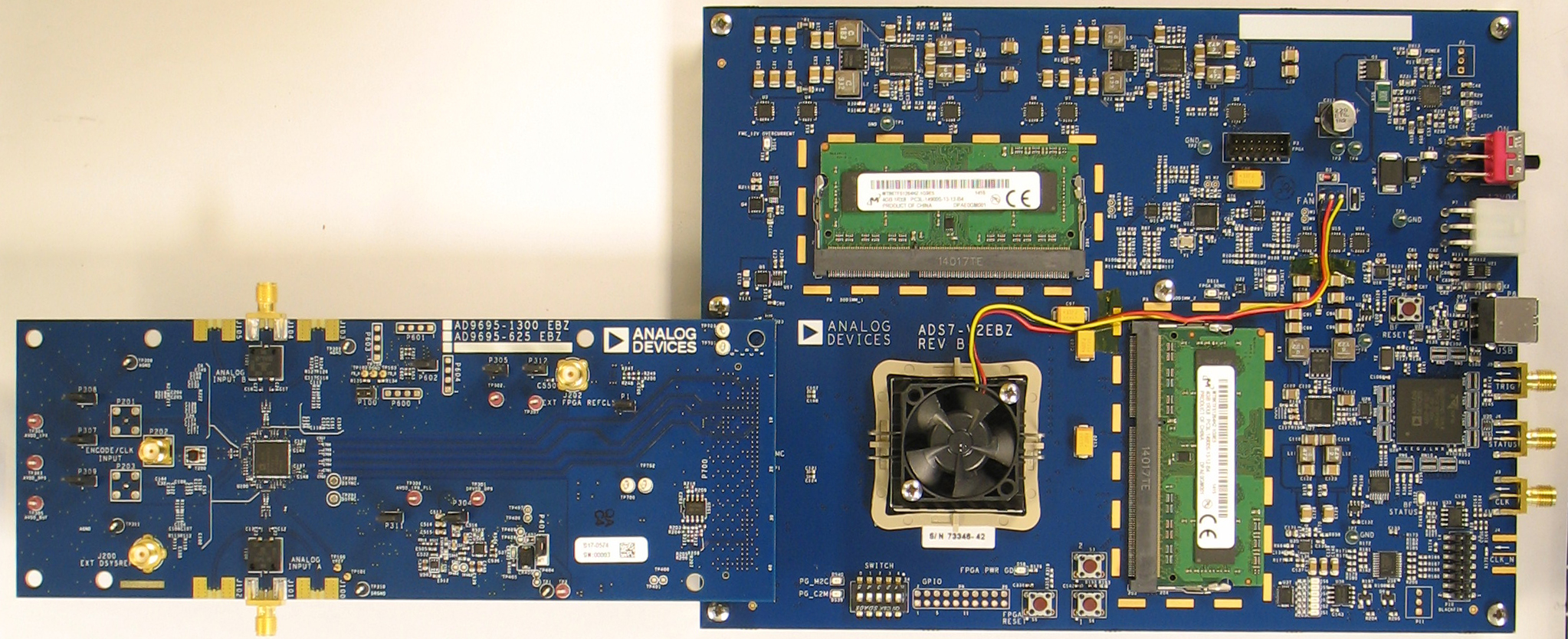
Ensure that the data capture board is switched to “OFF” (S1 on the data capture board). Connect the evaluation board to the data capture board via the FMC connector found on the underside of the board, as shown in Figure 1. Connect the power supply and USB cable to the data capture board.
Turn on the ADS7-V2EBZ.
The ADS7-V2EBZ should appear in the Device Manager as shown in Figure 6.
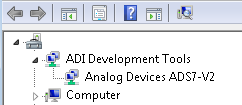
If the Device Manager does not show the ADS7-V2EBZ as in Figure 6, unplug all USB devices from the PC, uninstall and reinstall ACE, and restart the hardware setup from step 1.
On the AD9695-1300EBZ, provide a clean, low-jitter 1300 MHz clock source to connector P202 (preferably via a shielded RG-58 50 Ω coaxial cable) and set the amplitude to 10 dBm. This is the ADC Sample Clock.
On the ADS7-V2, provide a clean, low-jitter clock source to connector J3 and set the amplitude to 10 dBm. This is the Reference Clock for the gigabit transceivers in the FPGA. The REFCLK frequency can be calculated using the following formulas:
\[LaneLineRate = \frac{M \times N' \times (10/8) \times f_{out}}{L} \text{ bps/lane}\]where:
\[f_{out} = \frac{f_{ADC\_SAMPLE\_CLOCK}}{DecimationRatio}\]\[N' = 8 \text{ or } 16\]\[REFCLK = \frac{LaneLineRate}{20}\](Default N’ = 16; DCM = Chip Decimation Ratio (DCM = 1 for Full Bandwidth Mode); M = Virtual Converters; L = Lanes)
On the AD9695-1300EBZ, connect a clean signal generator with low phase noise to J101 or J104 via coaxial cable for channels A and B respectively. It is recommended to use a narrow-band, band-pass filter with 50 Ω terminations and an appropriate center frequency.
ACE Setup
Download and install ACE if it is not already installed.
The AD9695 ACE plug-in can be found under the AD9695 Evaluation Board Software Section, or through ACE’s Plug-In Manager (Tools → Manage Plug-Ins).
Tip
Some browsers (such as Internet Explorer) may save the file as a
.zipfile instead of an.acezipfile. If this happens, download the file and rename it with an.acezipextension.Once the
.acezipfile has been downloaded from the Analog Devices website, right-click on it and install the plug-in, or double-click to install.Click Start → All Programs → Analog Devices → ACE → ACE.
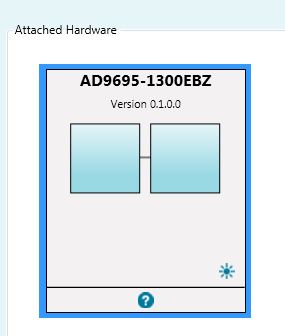
The AD9695 plug-in should appear as in Figure 7 if installed correctly.
If the AD9695 plug-in does not appear, or no board is detected, make sure the ADS7-V2 is powered on and the evaluation board is properly connected. Make sure that ACE has been updated to the most recent version and the necessary plug-ins have been installed.
Note
Differences may occur between ACE plug-in versions, including the version number seen in Figure 7 — however, these will not affect the performance of the part nor the fundamental features described in this user guide.
Click on the plug-in to open it.
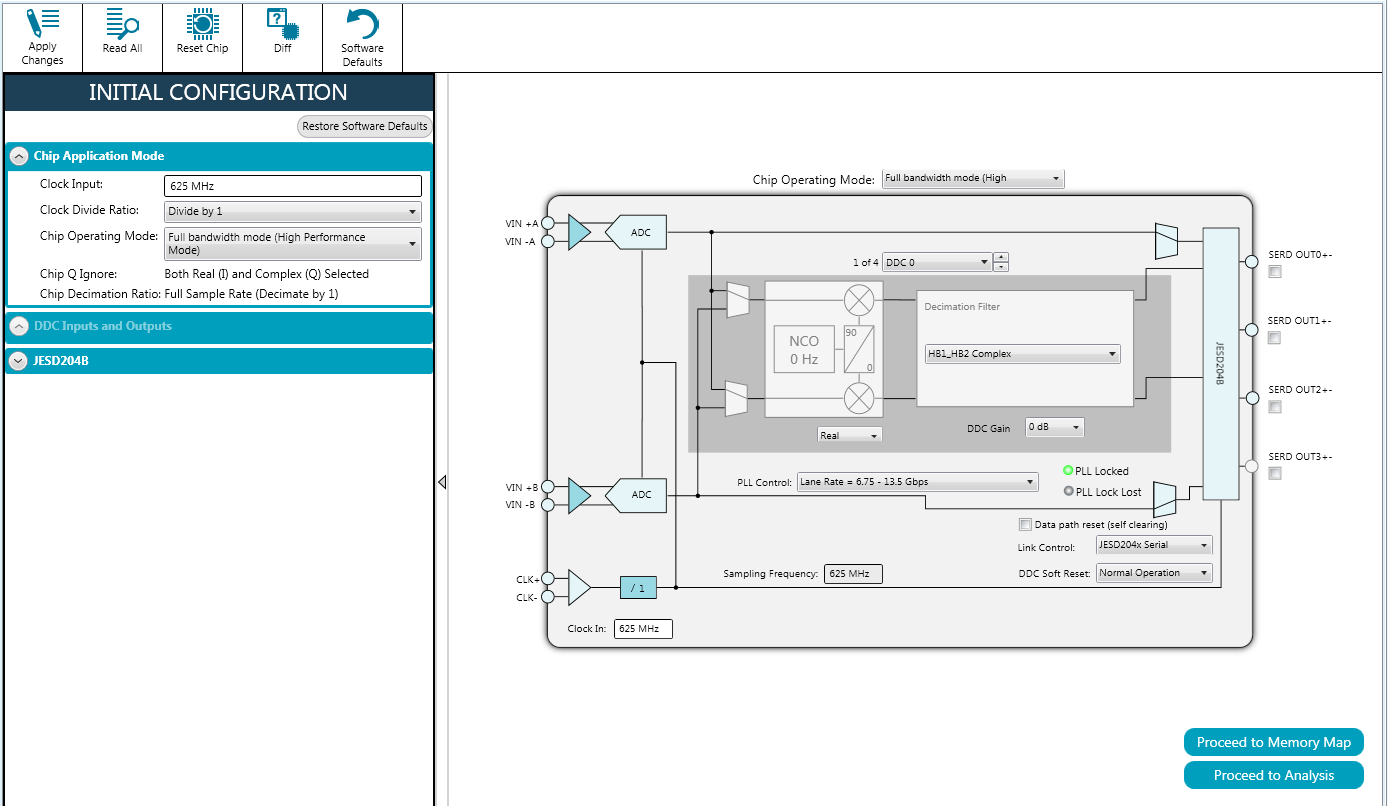
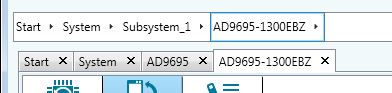
Click on the navigation tab labeled “AD9695-1300EBZ” to open the AD9695 board view.
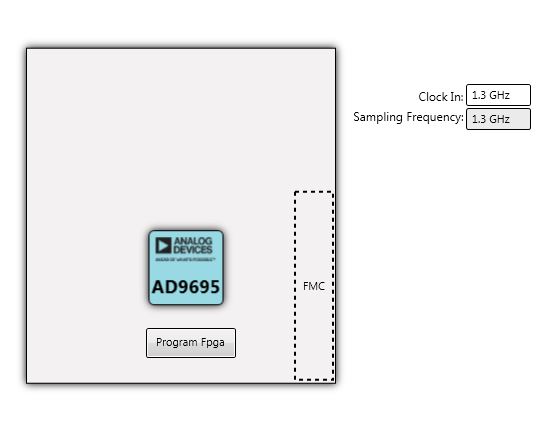
Click on the “Program FPGA” button. This will program the FPGA on the ADS7-V2 to communicate with the AD9695-1300EBZ.
Warning
Programming the FPGA will power the AD9695 evaluation board via the FMC connector. Removing any of the board’s power jumpers (as seen in Figure 5) while the board is on or in operation may cause damage to the board and/or chip. Removing the board while it is being powered via the FMC connector may also cause damage to the board.
Obtaining a Full Bandwidth Capture
Under Initial Configuration, set the Clock Input to 1300 MHz. Set the Number of Lanes to 4. Change the number of Virtual Converters to 1. Change the number of Octets per Frame to 1. Click Apply to apply the chip settings. Set the reference clock to 325 MHz to match these settings.
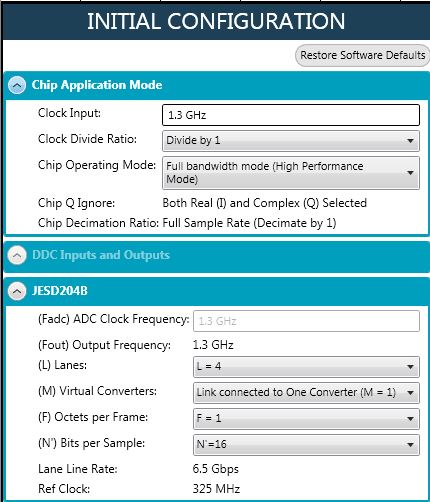
The chip view will update to reflect the changes made to the board. If any changes are made, the chip can be read by clicking the Read All button.
Issue a data path reset to the AD9695 by clicking its checkbox and clicking Apply Changes. The data path reset bit will automatically self-clear.
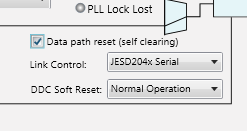

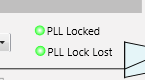
If the PLL Lock Lost indicator lights up, reset it by powering down the JESD link using the Link Control dropdown box and clicking Apply Changes.

Enable the link again and click Apply Changes.

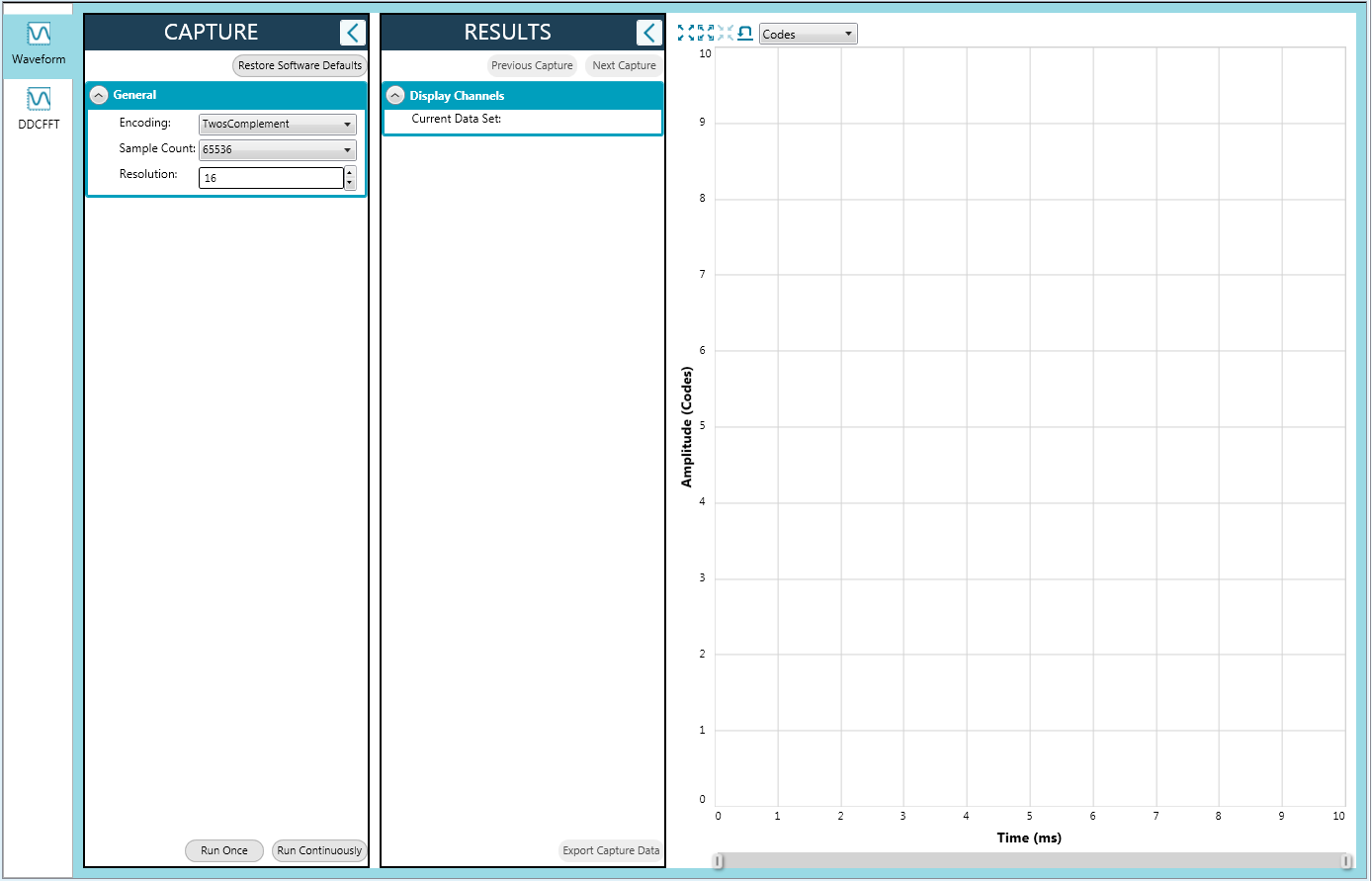
Click Proceed to Analysis. This is ACE’s Analysis tool for data from the ADC, displaying both sample plots and FFTs. Click on DDCFFT and run one capture.

Important
Capturing data using another program (e.g., VisualAnalog, proprietary code, etc.) while using ACE concurrently may cause errors in ACE’s data capture. If this occurs, restart the evaluation boards and work solely via ACE, or set up the part in ACE then capture solely in the other program.
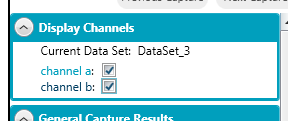
Channel A and Channel B can be selected individually to display their FFTs.
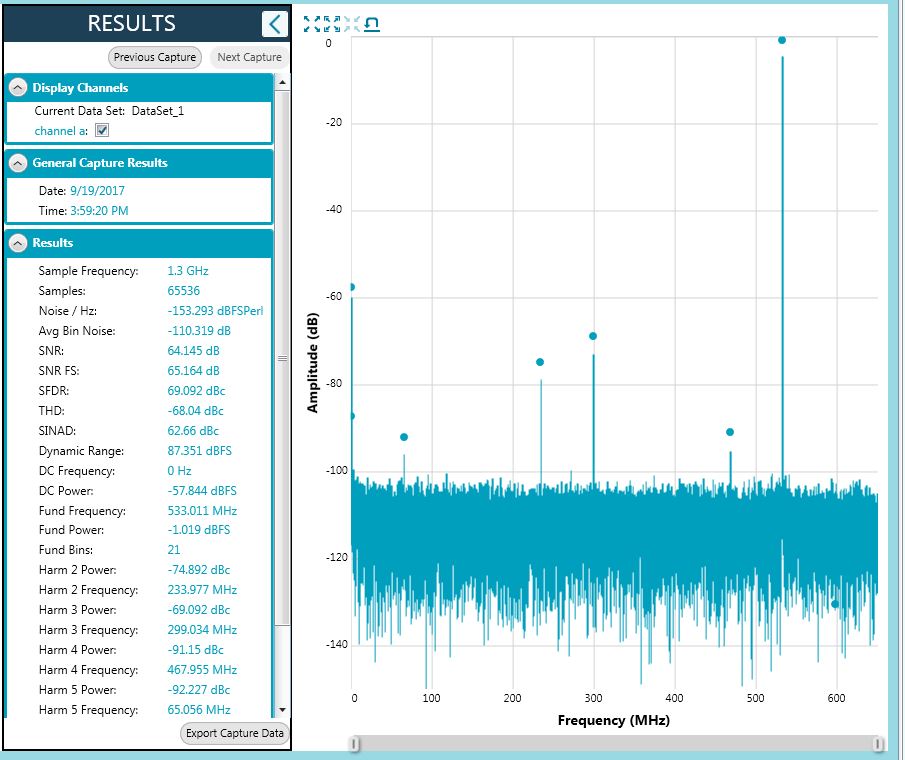
A successful capture is shown below, with a filtered 533 MHz signal input on Channel A.
Obtaining a DDC Capture
Under Initial Configuration, set the Chip Operating Mode for two DDCs. The DDC settings will become available. For the decimation, select “HB1_HB2 Complex” — two half-band filters, i.e., Decimate-by-4. Set the number of lanes to 1, the number of converters to 4, and the number of Octets per Frame to 8. Apply the settings.
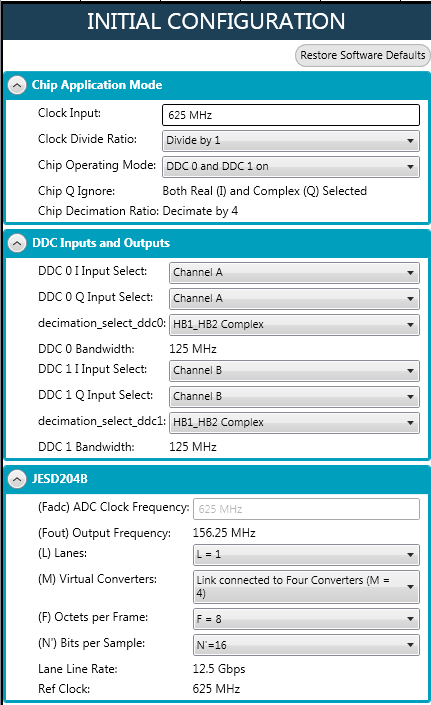
The chip view will update to reflect the changes. Click on the NCO block to change the Noise Controlled Oscillator’s frequency to 500 MHz. Enable the 6 dB gain for the DDC from the dropdown menu. Click Apply Changes to apply both.
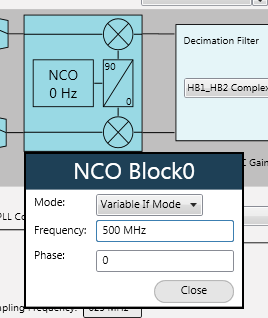
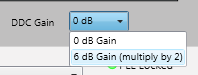
Navigate to the second DDC (DDC1) and make the same changes.
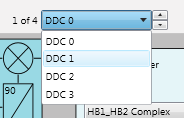
In Analysis, run a capture. DDC0 can be selected from Channel A and DDC1 can be selected from Channel B.
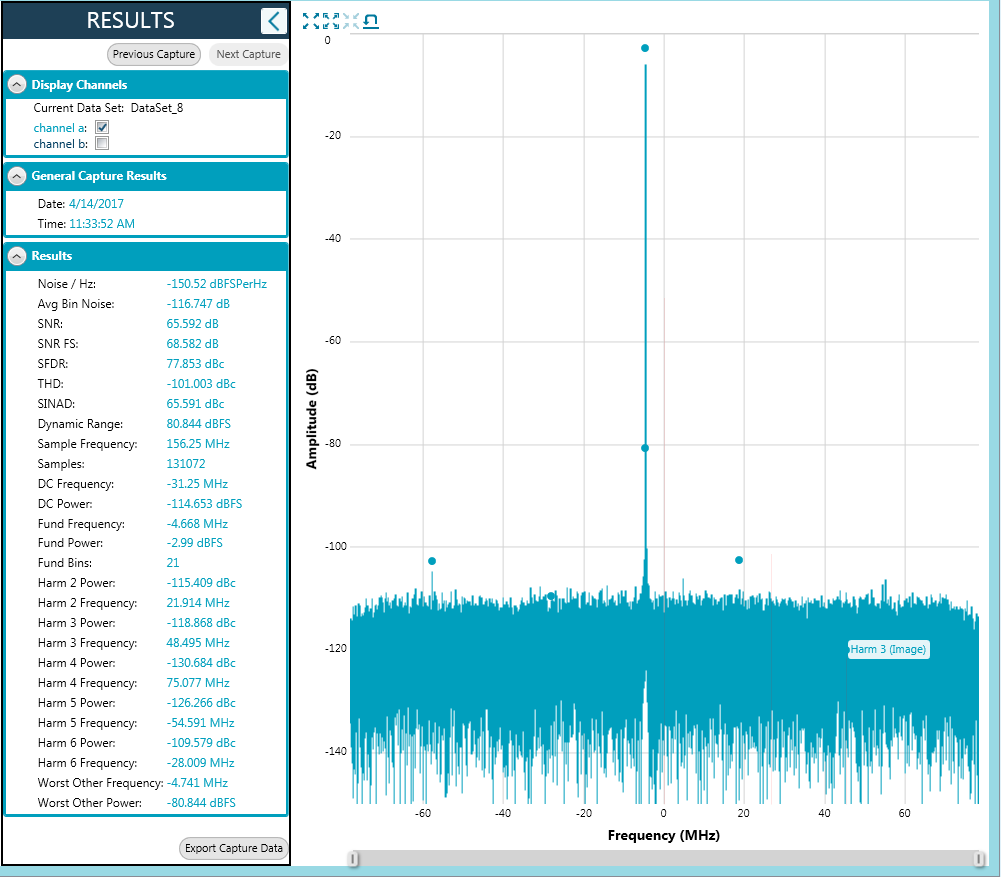
A successful capture is shown below, with a filtered 495 MHz signal input on Channel A / DDC0.
Troubleshooting Tips
Evaluation Board Isn’t Functioning Properly
It is possible that a board component has been rendered inoperable by ESD, removing a jumper during powered operation, accidental shorting while probing, etc. Try checking the supply domain voltages of the board while it is powered. They should be as follows:
Domain |
Jumper |
Test Point |
Approx. Voltage |
|---|---|---|---|
AVDD_0P9 |
P307 |
TP303 |
0.95 V |
AVDD_1P8 |
P308 |
TP304 |
1.80 V |
AVDD_BUF |
P309 |
TP305 |
2.50 V |
DRVDD_0P9 |
P304 |
TP301 |
0.95 V |
AVDD_1P8_PLL |
P311 |
TP306 |
1.80 V |
DVDD_0P9 |
P305 |
TP302 |
0.95 V |
AVDD_1P8_SPI |
P312 |
TP307 |
1.80 V |
If a short is detected between any of the supply domains and ground, or an open is detected across fuse chip F401 (next to P401), a component may have been damaged. This may have occurred from jumper or board removal while being actively powered (see the warning in the ACE Setup section). Refer to the Design and Integration Files section for the schematic and/or bill of materials for the relevant components to test and/or replace.
Evaluation Board Is Not Communicating With the ADS7-V2 / No SPI Communication
Make sure that the FPGA on the ADS7-V2 has been programmed — a lit LED DS15 (FPGA_DONE) on the top of the ADS7-V2 and a powered fan are good indicators of the FPGA being programmed.
Check the common mode voltage on the JESD204B traces. On the evaluation board, the common mode voltage should be roughly two-thirds of DRVDD_0P9. On the ADS7-V2, the common mode voltage should be around 1.2 volts.
Check Test Point 307 — test point for the AVDD_1P8_SPI supply domain, jumper P312 — and make sure it is around 1.8 volts.
To test SPI operation, attempt to both read and write to register 0x000A using ACE’s Register Debugger (View → Register Debugger). This register is an open register available for testing memory reads and writes. If the value written to this register does not reset after writing it, SPI is operational.
All registers reading back as either all ones or all zeros (i.e., 0xFF or 0x00) may indicate no SPI communication.
Register 0x0000 (SPI Configuration A) reading back 0x81 in ACE may indicate no SPI communication as a result of the FPGA on the ADS7-V2 not being programmed.
Evaluation Board Fails to Capture Data
Ensure that the board is functioning properly and that SPI communication is successful — see previous troubleshooting tips.
Check the Clock Detect register 0x011B to see if the inputted clock is being detected. 0x01 indicates detection, 0x00 indicates no clock detected. Check the signal generator inputting on connector P202. Try checking the common mode voltage on the clock pins, which should be roughly two-thirds of AVDD_0P9. Try placing a differential oscilloscope probe on the clock pins to see if the clock signal is reaching the chip.
Check the PLL Locked indicator or register 0x056F (PLL Status). If the register reads back 0x80, the PLL is locked. If it is not locked:
Check the clock being inputted to connector P202 (in this guide, 1300 MHz).
Check the JESD settings under the Initial Configuration. Reference the AD9695 datasheet for supported lane options.
Check the reference clock and make sure it matches your JESD settings.
Make sure P100 (Power Down/Standby Jumper, see Figure 5) is not jumped.