EVAL-AD7386FMCZ User Guide (UG-1615)
Evaluating the AD7386 4-Channel 16-bit, Dual Simultaneous Sampling, SAR ADC
Supported Devices
Evaluation Board
Features
Full-featured evaluation board multichannel, simultaneous sampling ADC
On-board reference, reference buffer, and ADC driver
On-board power supplies
Board-compatible high-speed system demonstration platform EVAL-SDP-CH1Z (SDP-H1) controller
PC software for control and data analysis
Evaluation Kit Contents
EVAL-AD7386FMCZ evaluation board
Instructions to download software
Equipment Needed
EVAL-SDP-CH1Z
Signal source
PC running Windows XP SP3, Windows Vista, Windows 7, or Windows 10 with a USB port
Software Needed
ACE evaluation software
AD738x ACE plugin
General Description
The EVAL-AD7386FMCZ is a full-featured evaluation board designed to evaluate all the features of the AD7386 analog-to-digital converter (ADC). The evaluation board can be controlled by the EVAL-SDP-CH1Z via the 160-way system demonstration platform connector, P7. The EVAL-SDP-CH1Z board controls the evaluation board through the USB port of the PC using the Analysis Control Evaluation (ACE) software, which is available for download from the ACE software page. The EVAL-AD7386FMCZ can evaluate the AD7387, AD7388, AD4684, and AD4685 by using the AD738x ACE plugin found on the EVAL-AD7386FMCZ product page. The only difference is the number of SCLKs that clock out the conversion results, which is dependent on the resolution for each generic. Complete specifications for the AD7386/AD7387/AD7388/AD4684/AD4685 are provided in the AD7386/AD7387/AD7388/AD4684/AD4685 datasheet. Consult these specifications in conjunction with this user guide when using the evaluation board. Full details on the EVAL-SDP-CH1Z are available on the SDP-H1 product page. The comprehensive ACE user guide is available on the ACE software page. Figure 1 shows the typical setup of the EVAL-AD7386FMCZ.
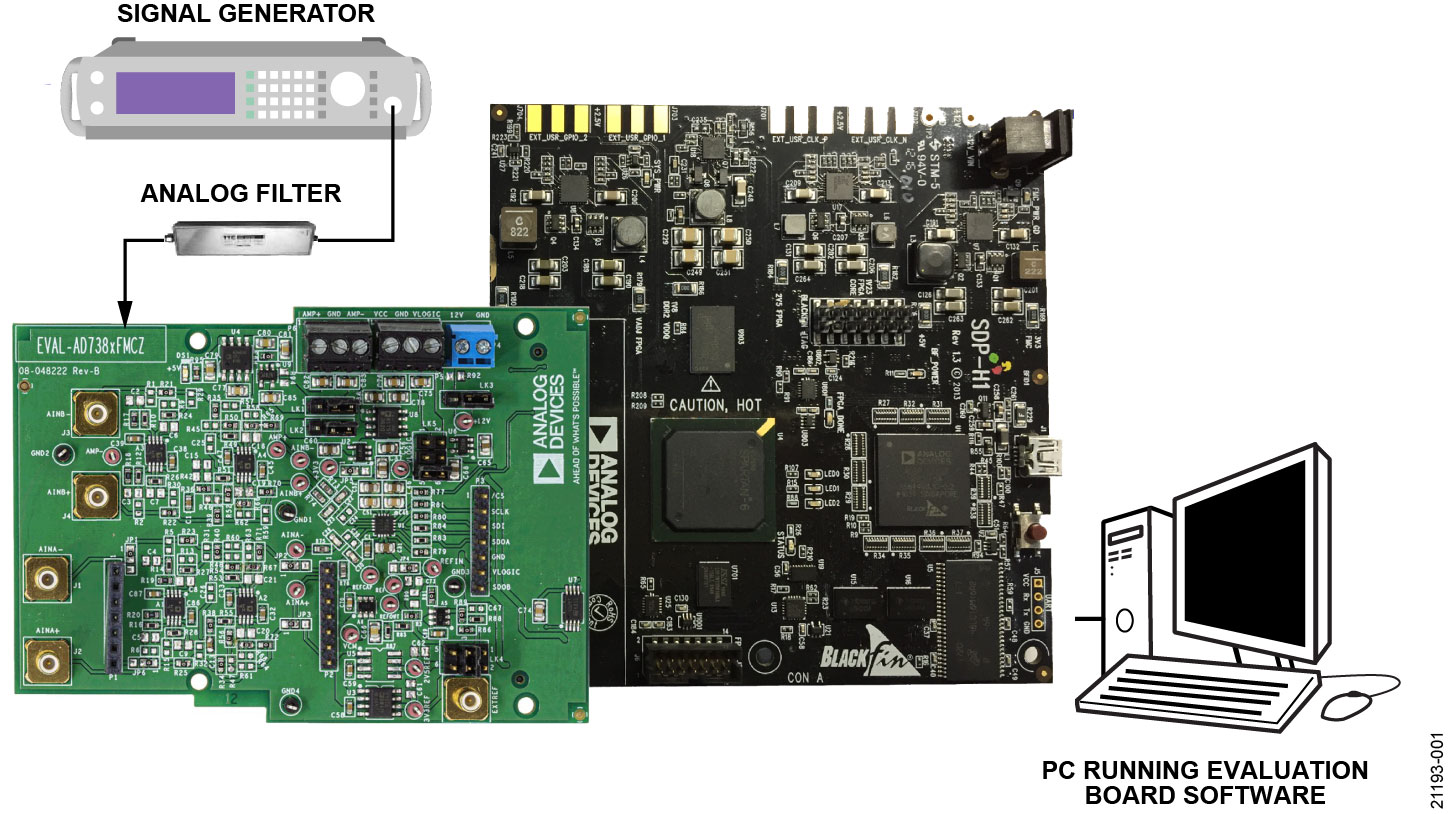
Figure 1 EVAL-AD7386FMCZ Evaluation Board (Left) Connected to SDP-H1 Board (Right)
Evaluation Board Quick Start Guide
The EVAL-AD7386FMCZ is powered by the SDP-H1 board by default. External power supplies can be applied. See Table 1 for a description of connectors required and Table 2 for the link configuration required. To evaluate the AD7386 with the EVAL-AD7386FMCZ, take the following steps:
Download and install the ACE software, which is available on the AD7386 product page. Installation details are found on the internal label of the EVAL-AD7386FMCZ box. Ensure that the SDP-H1 board is disconnected from the USB port of the PC when installing the ACE software. The PC may need to be restarted after the installation.
Ensure that the link options are configured as detailed in Table 2.
Connect the SDP-H1 board to the EVAL-AD7386FMCZ via the 160-way connector, as shown in Table 2.
Connect the SDP-H1 board to the PC via the USB cable.
If using Windows XP, search for the SDP-H1 drivers. Choose to automatically search for the drivers for the SDP-H1 board if prompted by the operating system.
Copy the ACE plugins file, Board.AD738x, and the Chip.AD738x file from the EVAL-AD7386FMCZ evaluation board page to the C:\ProgramData\Analog Devices\ACE\Plugins folder.
Launch the ACE software from the ACE subfolder in the Analog Devices folder in the All Programs menu.
Connect an input signal to AINA0, AINA1, AINB0, or AINB1.
Evaluation Board Connection Diagram
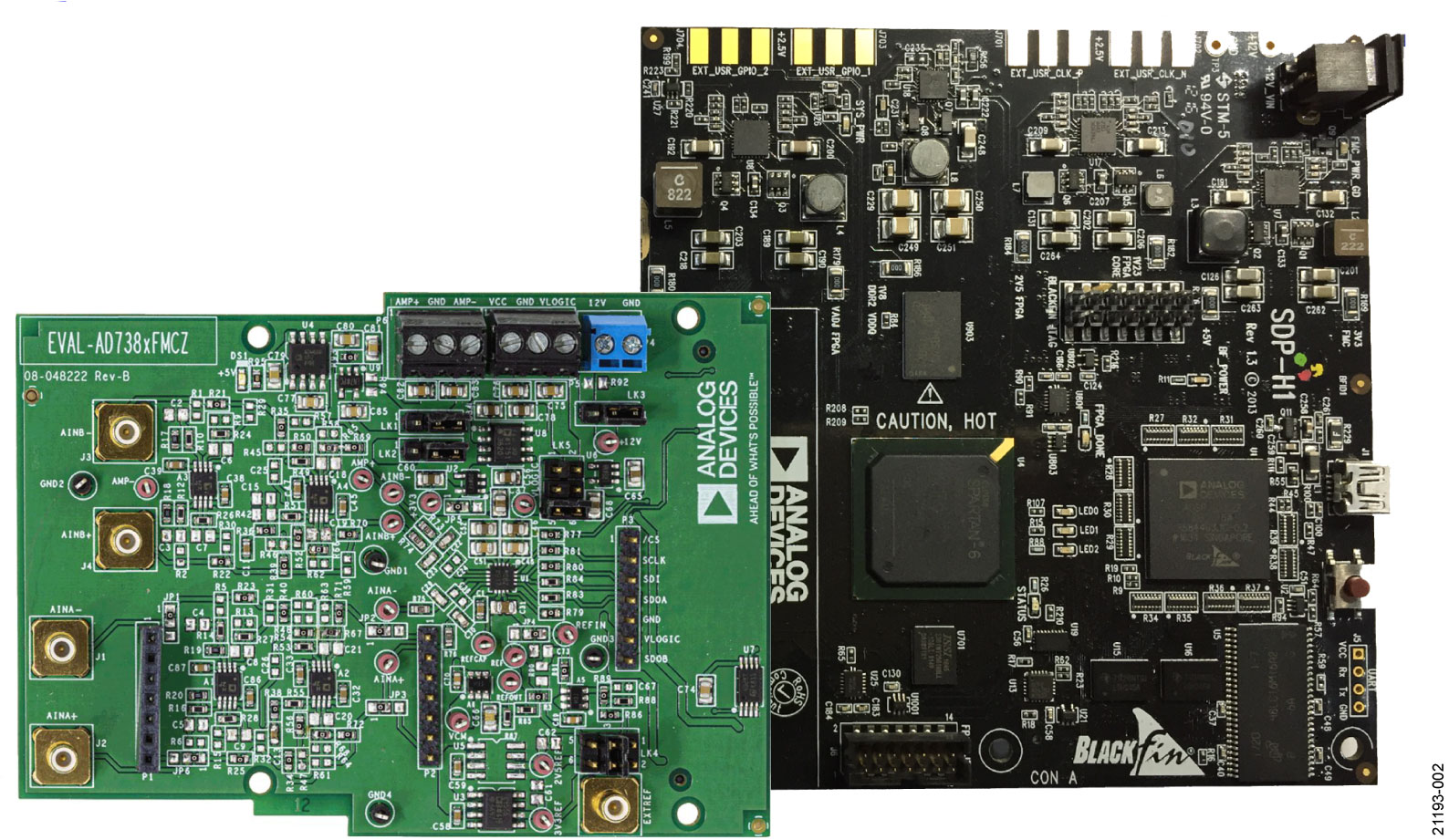
Figure 2 Typical Setup of the EVAL-AD7386FMCZ and the SDP-H1 Board
Evaluation Board Hardware
Power Supplies
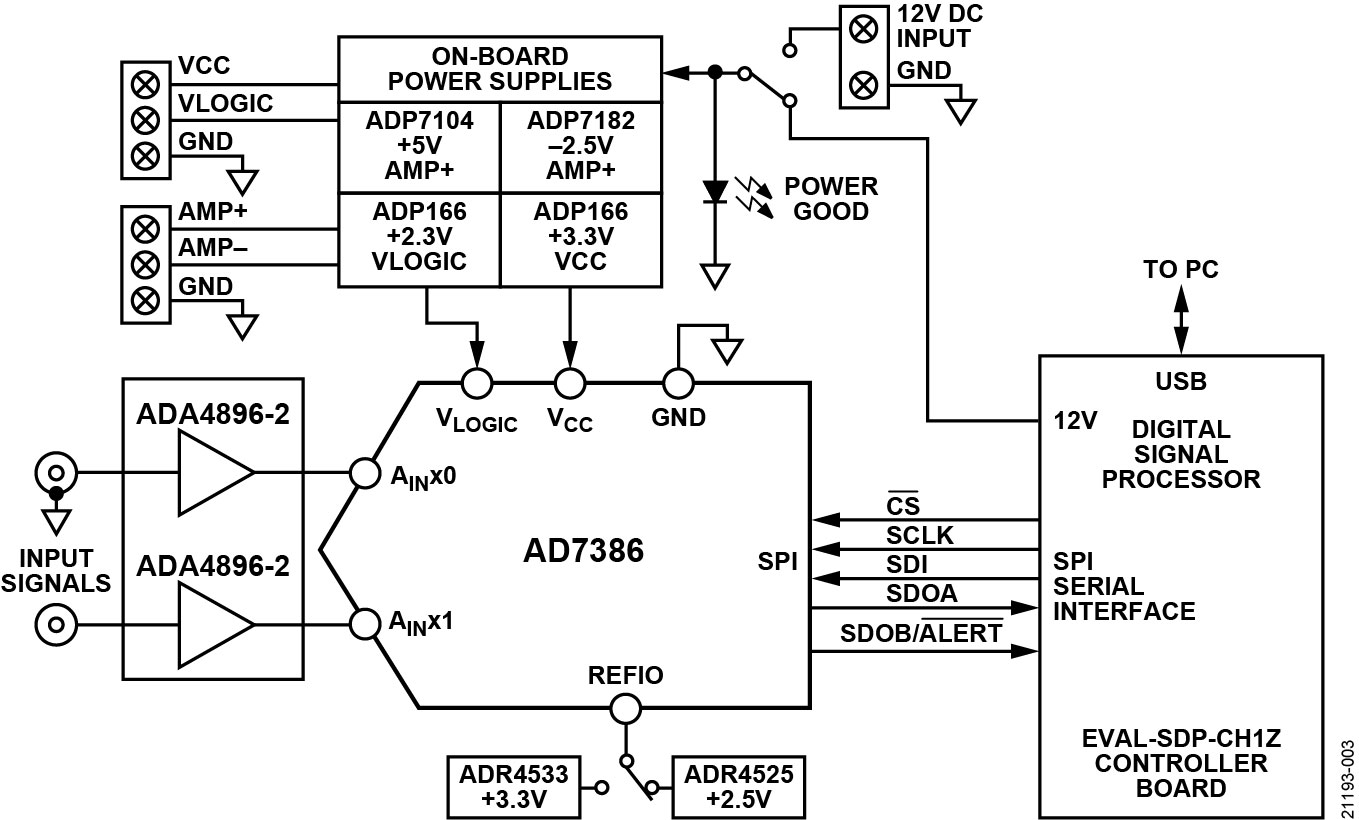
The EVAL-AD7386FMCZ operates from a 12 V power supply. Ensure that all link positions are set according to the required operating mode before applying power and signals to the EVAL-AD7386FMCZ. See Table 2 for the complete list of link options. The EVAL-AD7386FMCZ is powered by the SDP-H1 board by default. External power supplies can also be applied to the board. See Table 1 for a description of the connectors used and Table 2 for the link configurations required. Figure 3 shows the functional block diagram of the EVAL-AD7386FMCZ with the onboard AD7386.
Table 1. Optional External Power Supplies
Power Supply |
Connector |
Voltage Range |
Description |
|---|---|---|---|
12V |
P4-1 |
12+/- 10% |
Mainboard power supply for all internal voltage regulators |
GND |
P4-2 |
0 |
Ground |
EXT_VCC |
P5-1 |
3.3+/- 5% |
ADC analog power supply |
GND |
P5-2 |
0 |
Ground |
EXT_VLOGIC |
P5-3 |
2.3+/- 5% |
Digital serial peripheral input (SPI) power supply |
EXT_AMP_PWR+ |
P6-1 |
5 +/- 5% |
Amplifier positive power supply |
EXT_GND |
P6-2 |
0 |
Ground |
EXT_AMP_PWR- |
P6-3 |
-2.5 +/- 5% |
Amplifier negative power supply |
Link Configuration Options
Multiple link options must be set correctly to select the appropriate operating set up before using the EVAL-AD7386FMCZ. The functions of these options are detailed in Table 2.
Setup Conditions
Ensure that all link positions are set as required by the selected operating mode before applying power and signals to the EVAL-AD7386FMCZ. Table 2 shows the default positions of the links when the EVAL-AD7386FMCZ is packaged.
Table 2. Link Options for EVAL-AD7386FMCZ
Link Name |
Function |
Default Position |
Description |
|---|---|---|---|
LK1 |
Internal or external selection for the negative supply of the amplifier |
1 |
Use the internal −2.5 V from the onboard ADP7182 for the negative supply of the amplifier via the ADP5600. |
LK2 |
Internal or external selection for the positive supply of the amplifier |
1 |
Use the internal 5 V from the onboard ADP7104 for the positive supply of the amplifier. |
LK3 |
Internal or external selection for the 12 V supply |
1 |
Use the 12 V power supply from the SDP-H1 board. Change to Position 3 to use an external supply. |
LK4 |
Selection for the external voltage reference (VREF) of the ADC |
3-4 |
Use the internal 3.3 V from the ADR4533 for VREF. Change to Position 5 connected to Position 6 (Position 5-6) to use the internal 2.5 V from the ADR4525. |
LK5 |
Selection for the logic voltage (VLOGIC) of the ADC |
3-4 |
Change to Position 1-2 (link shorted on Pin 1 and Pin 2) to use the external source. Change to Position 3-4 (link shorted on Pin 3 and Pin 4) to use the onboard ADP166. Change to Position 5-6 (link shorted on Pin 5 and Pin 6) to use VLOGIC from the EVAL-SDP-CH1Z. |
JP1, JP2 |
Amplifier selection for AINA− |
1(SMD resistor) |
Use the onboard ADA4896-2 amplifier for signal conditioning. Change to Position 3 to use an external amplifier mezzanine card (AMC) instead of the onboard ADC driver. |
JP3, JP6 |
Amplifier selection for AINA+ |
1(SMD resistor) |
Use the onboard ADA4896-2 amplifier for signal conditioning. Change to Position 3 to use an external amplifier mezzanine card (AMC) instead of the onboard ADC driver. |
JP4 |
Selection for the VREF of the ADC |
3(SMD resistor) |
The REFIO pin is driven with the on-board reference. Change to position to 2 to use an external voltage reference. |
JP5 |
Selection for the VCC of the ADC |
1(SMD resistor) |
The VCC pin is driven with the on-board reference 3.3V through ADP166. Change to position 3 to use external VCC. |
Evaluation Board Circuitry
Sockets and Connectors
The sockets and connectors on the EVAL-AD7386FMCZ are described in Table 3. The default interface to the EVAL-AD7386FMCZ is via the 160-way connector, which connects the EVAL-AD7386FMCZ to the SDP-H1 board. When using the EVAL-AD7386FMCZ in standalone mode, communication is achieved via the P3 header pins.
Test Points
There are several test points and single-in-line (SIL) headers on the EVAL-AD7386FMCZ. These test points and headers provide access to the evaluation board signals to allow probing, evaluation, and debugging.
Table 3. On-Board Sockets and Connectors
Connector |
Function |
|---|---|
J1 |
Analog Input 0 for Channel A |
J2 |
Analog Input 1 for Channel A |
J3 |
Analog Input 0 for Channel B |
J4 |
Analog Input 1 for Channel B |
P1 |
Amplifier mezzanine card input |
P2 |
Amplifier mezzanine card output |
P3 |
Digital SPI signals |
P4 |
Main board power supply (12 V) for all internal voltage regulators |
P5 |
ADC power supply and digital SPI power supply |
P6 |
Amplifier power supply |
P7 |
Field-programmable gate array (FPGA), mezzanine card (FMC) to low pin count (LPC), SDP connector |
EXT_REF |
External voltage reference |
Evaluation Board Software
Software Installation Procedure
Download the ACE software from the AD7386 product page and install the ACE software on the PC before using the EVAL-AD7386FMCZ. The installation process consists of the ACE software installation and the SDP-H1 driver installation. To ensure that the evaluation system is recognized when it is connected to the PC, install the ACE software and SDP-H1 driver before connecting the EVAL-AD7386FMCZ and the SDP-H1 board to the USB port of the PC.
Installing the ACE Software
To install the ACE software, take the following steps:
Download the ACE software to a Windows-based PC.
Double click the ACEInstall.exe file to begin the installation. By default, the software is saved to the following location: C:\Program Files (x86)\Analog Devices\ACE.
A window appears asking for permission to allow the program to make changes to the PC. Click Yes to begin the installation process.
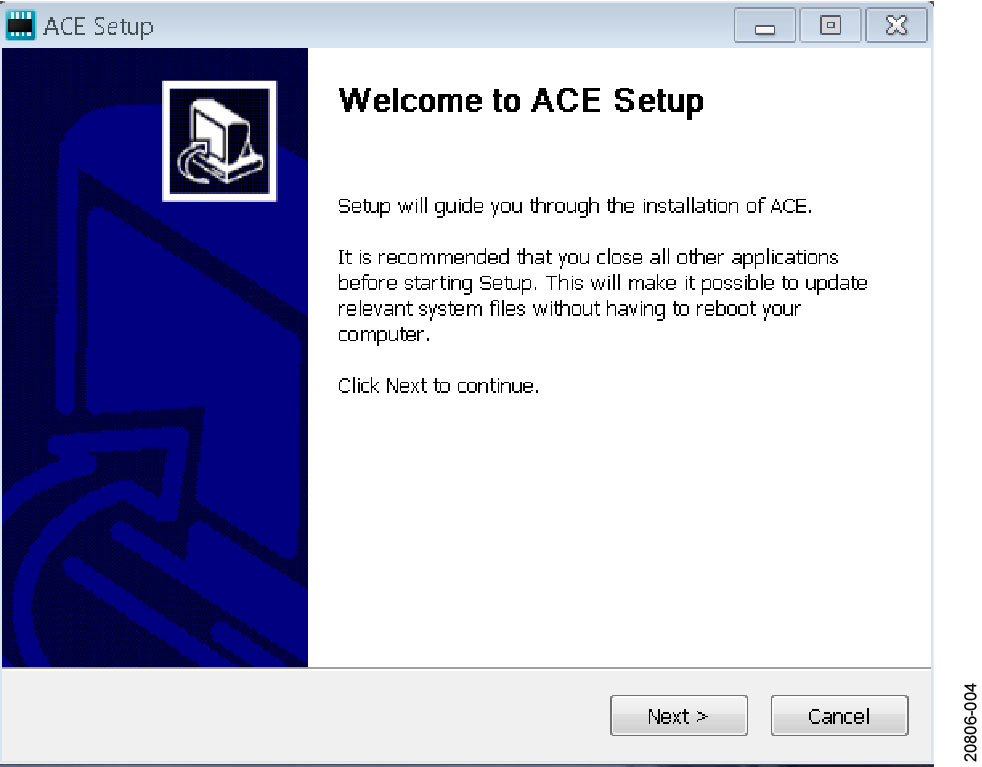
Click Next > to continue the installation, as shown in Figure 4.
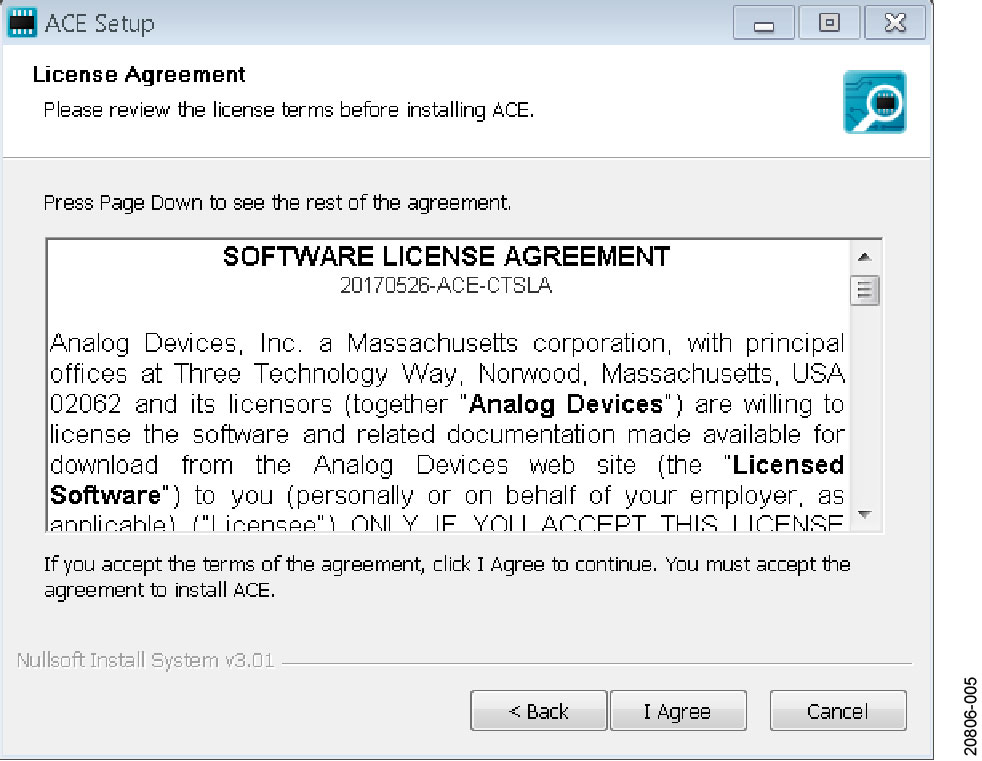
Read the software license agreement and click I Agree (see Figure 5).
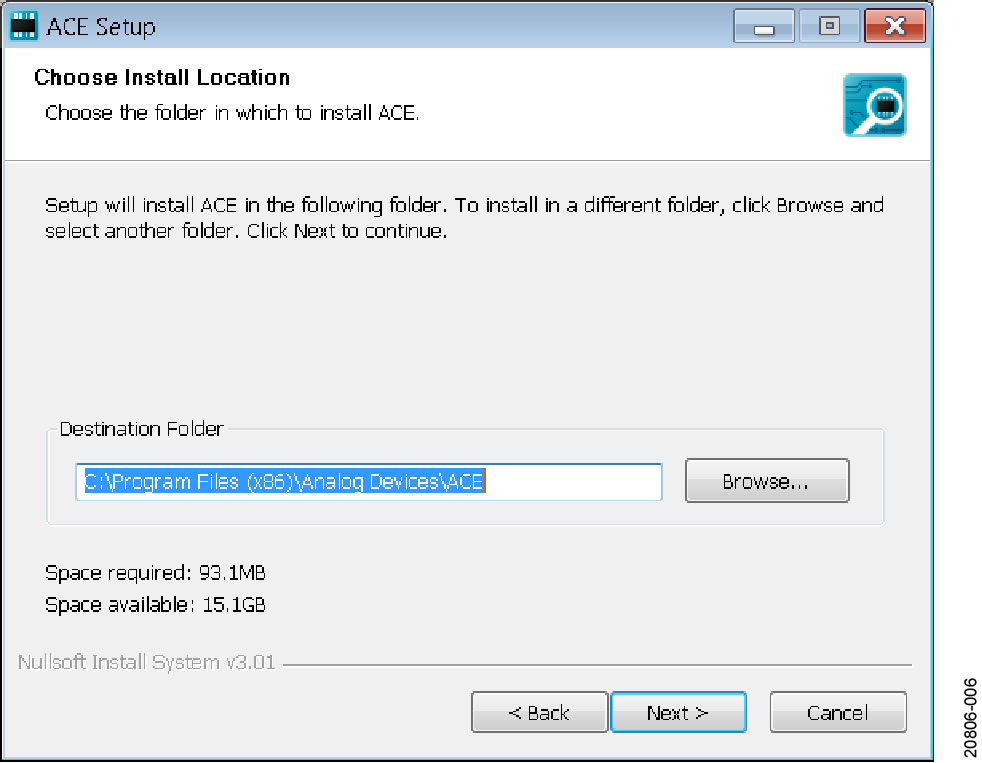
Choose an installation location and click Next > (see Figure 6).
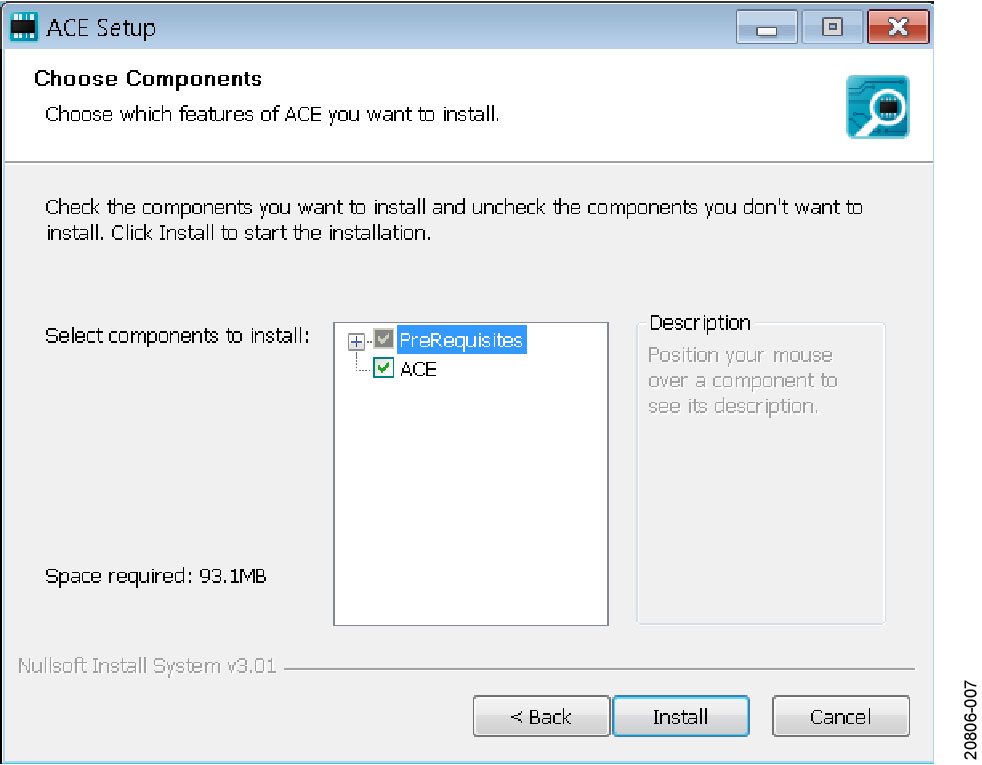
Select the PreRequisites checkbox to include the installation of the SDP-H1 driver and click Install (see Figure 7).
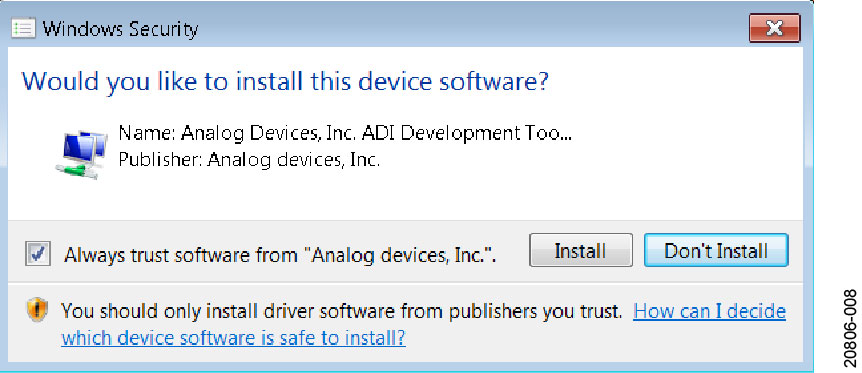
The Windows Security window appears. Click Install (see Figure 8). The installation is in progress. No action is required (see Figure 9).
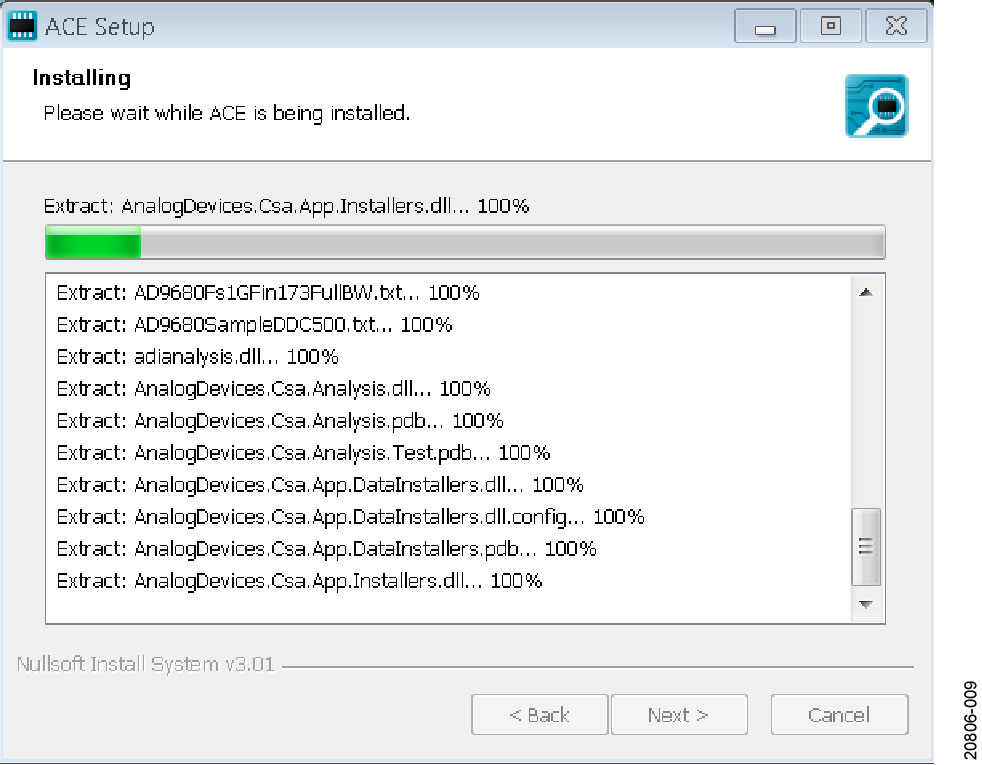
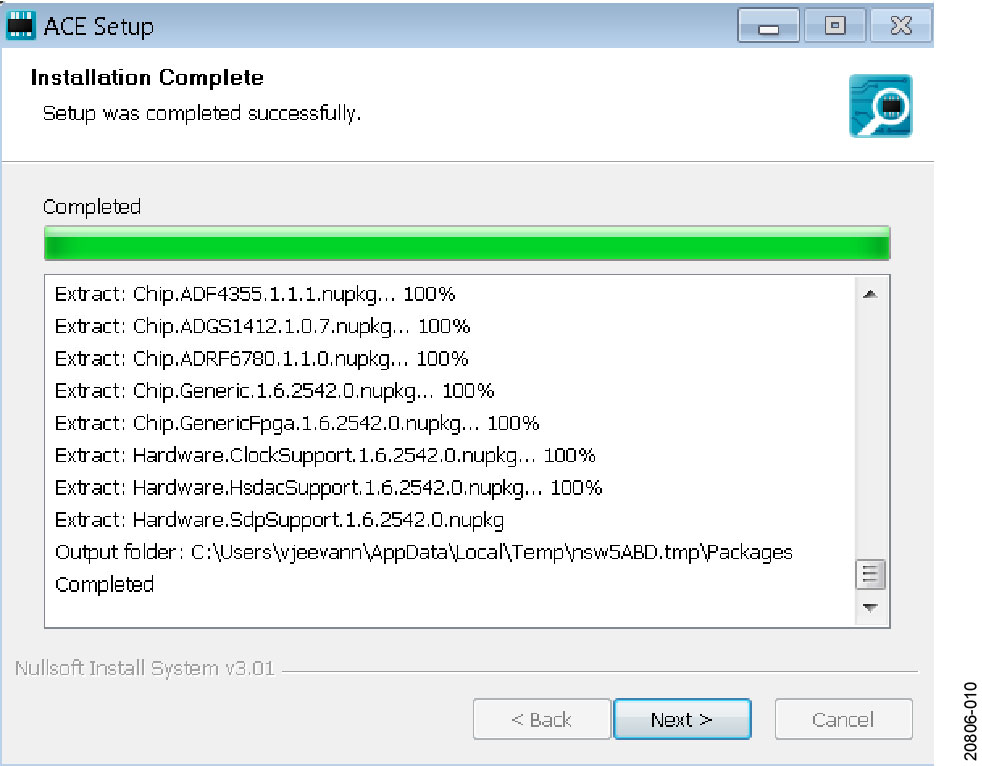
When the installation is complete (see Figure 10), click Next > and then click Finish to complete.
Evaluation Board Setup Procedures
Figure 2 shows a diagram of the connections between the EVAL-AD7386FMCZ and the SDP-H1 board. To ensure that the evaluation system is recognized when it is connected to the PC, install the ACE software and SDP-H1 driver before connecting the EVAL-AD7386FMCZ and the SDP-H1 board to the USB port of the PC. When the ACE software installation is complete, set up the EVAL-AD7386FMCZ and the SDP-H1 board as described in the following sections.
Connecting the EVAL-AD7386FMCZ and the SDP-H1 Board to the PC
To connect the EVAL-AD7386FMCZ and the SDP-H1 board to the PC, take the following steps:
Ensure that all configuration links are in the appropriate positions, as detailed in Table 2.
Connect the EVAL-AD7386FMCZ securely to the P7 connector on the SDP-H1 board. The EVAL-AD7386FMCZ does not require an external power supply adapter.
Connect the SDP-H1 board to the PC via the USB cable enclosed in the SDP-H1 kit.
Connect a −2.5 V supply to the AMP− pin of the P6 connector terminal.
Verifying Board Connection
To verify the board connection, take the following steps:
When the SDP-H1 board is plugged into the PC, allow the Found New Hardware Wizard to run. If using Windows XP, search for the SDP-H1 drivers. If prompted by the operating system, choose to automatically search for the drivers for the SDP-H1 board.
A window may appear asking for permission to allow the program to make changes to the computer. In this case, click Yes. The Computer Management window opens.
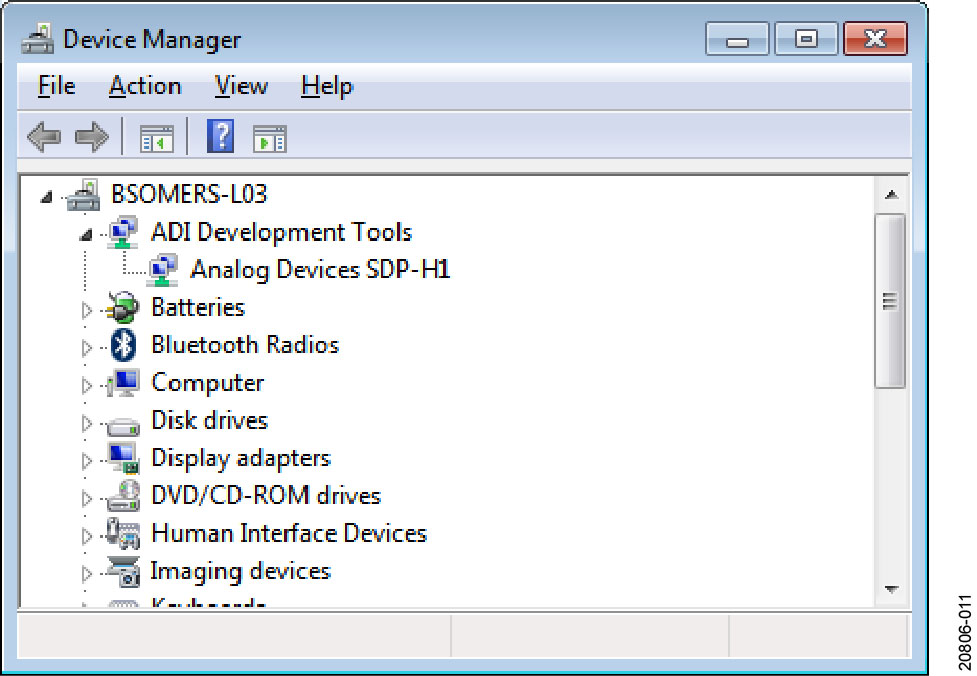
Under System Tools, click Device Manager and use the Device Manager window to ensure that the SDP-H1 board is connected to the PC properly. If the SDP-H1 driver software is installed and the board is connected to the PC properly, Analog Devices SDP-H1 appears under ADI Development Tools in the Device Manager window, as shown in Figure 11.
Disconnecting the EVAL-AD7386FMCZ
Always remove power from the SDP-H1 board and the EVAL-AD7386FMCZ or click the reset tact switch located alongside the USB port before disconnecting the EVAL-AD7386FMCZ from the SDP-H1 board.
Using the ACE Software for Testing
Launching ACE Software
When the EVAL-AD7386FMCZ and SDP-H1 boards are properly connected to the PC, launch the ACE software. To launch the ACE software, take the following steps:
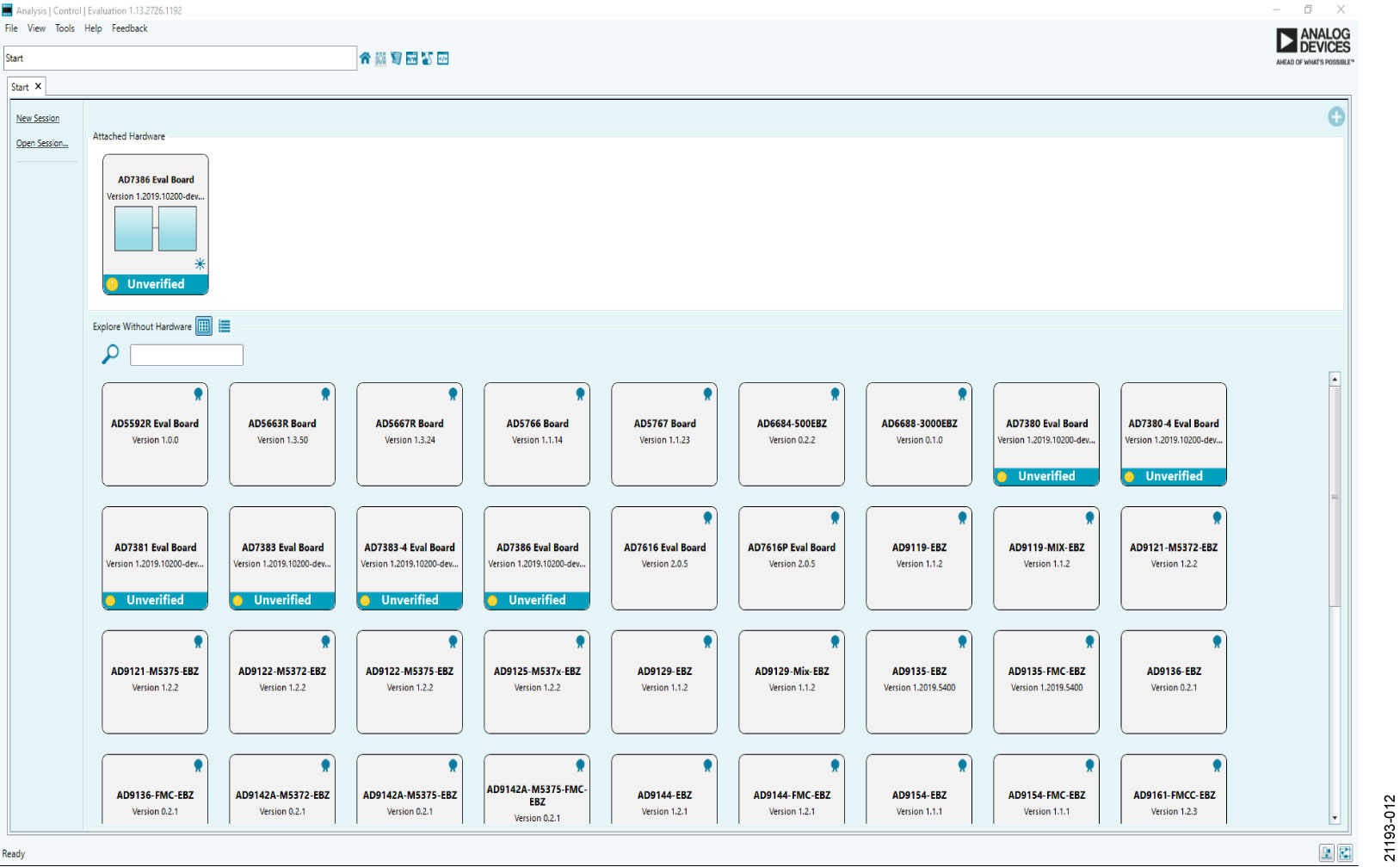
From the Start menu, select All Programs > Analog Devices > ACE > ACE.exe to open the main software window, as shown in Figure 12.
The AD7386 Eval Board icon appears in the Attached Hardware section. If the EVAL-AD7386FMCZ is not connected to the USB port via the SDP-H1 board when the software is launched, the AD7386 Eval Board icon does not appear in the Attached Hardware section. In this case, connect the EVAL-AD7386FMCZ and SDP-H1 board to the USB port of the PC, wait a few seconds, and then continue following these instructions.
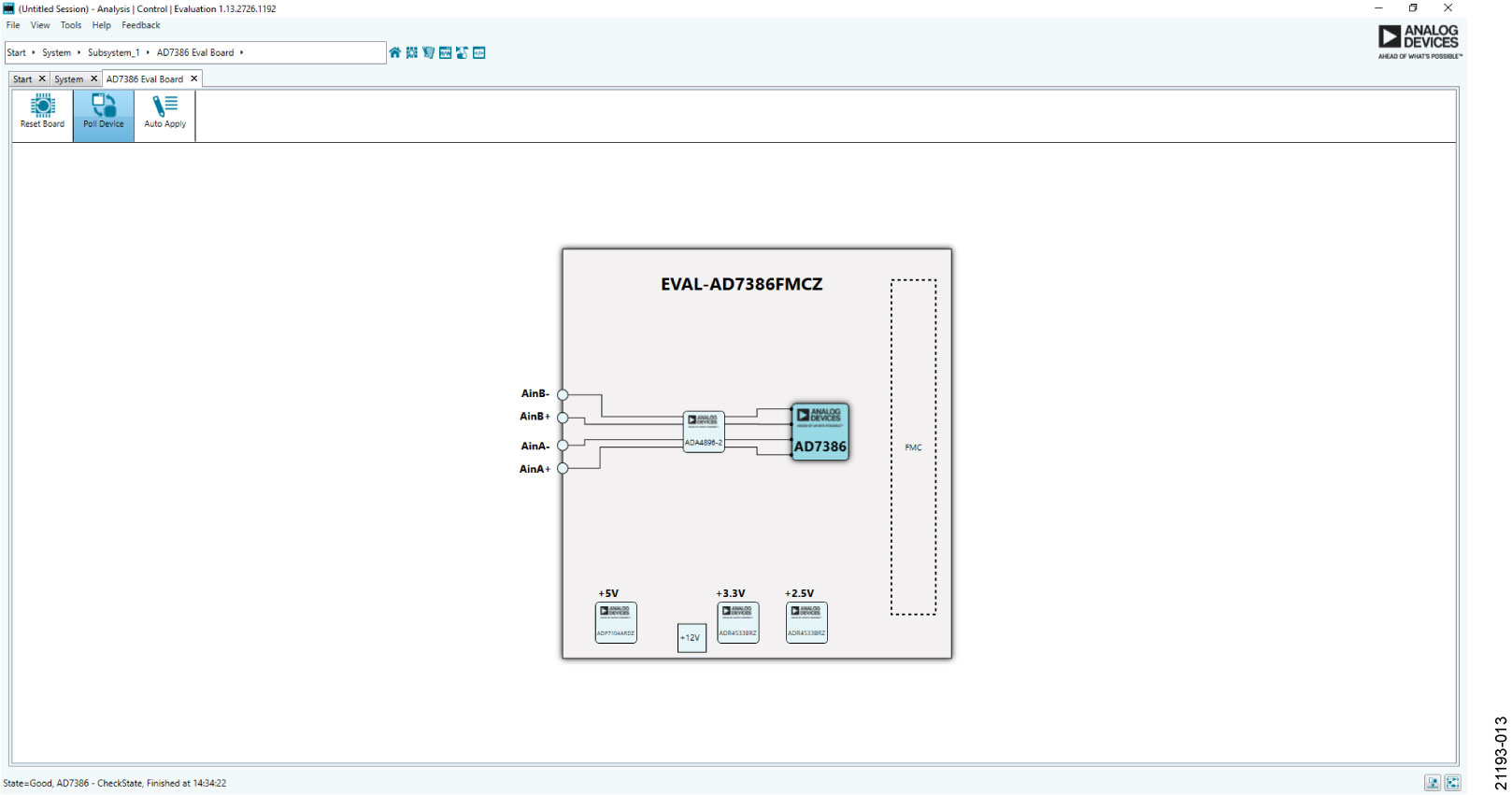
Double click the AD7386 Eval Board icon to open the board view window shown in Figure 13.
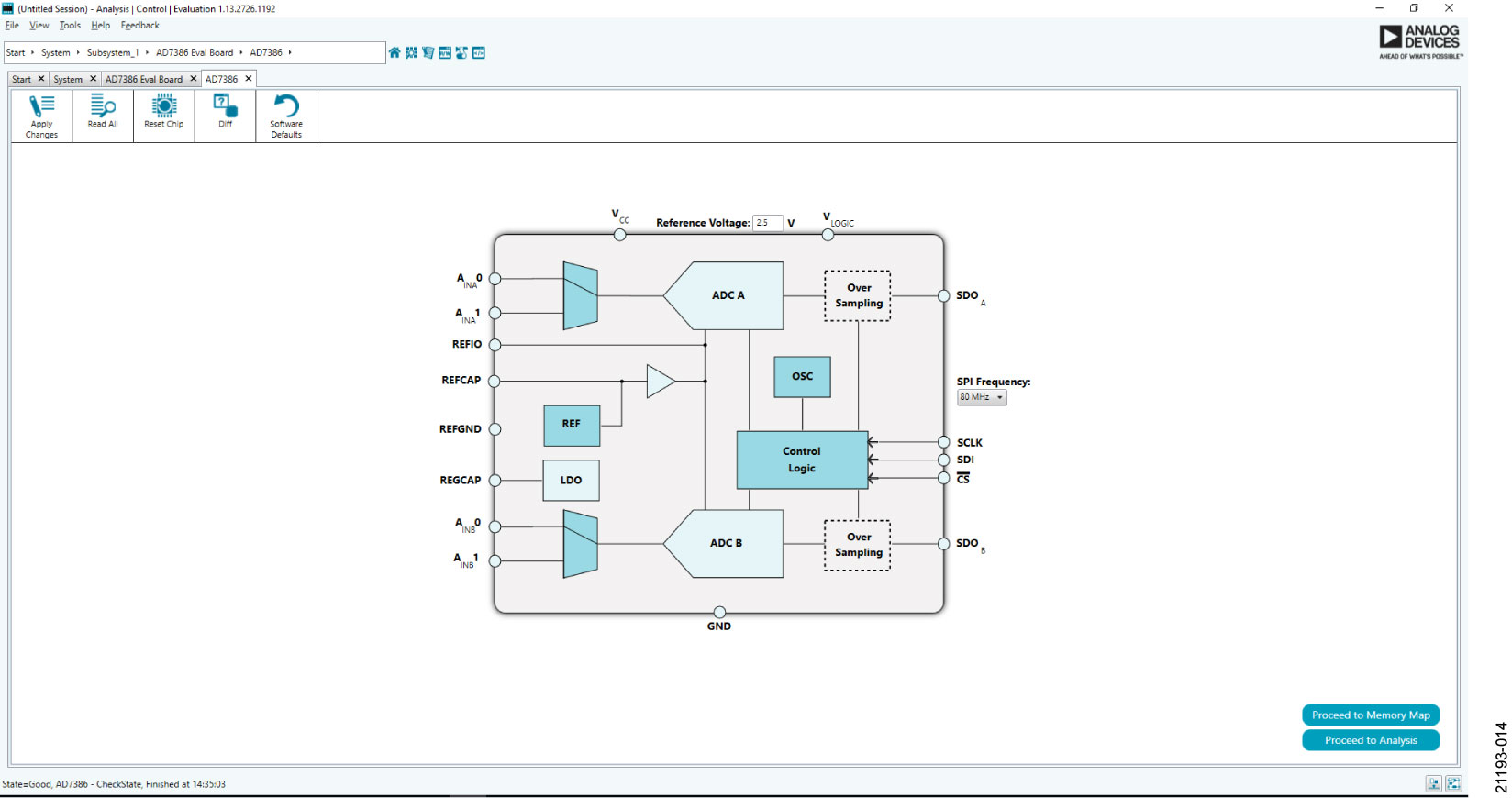
Double click the AD7386 chip icon to open the chip window shown in Figure 14.
Click Software Defaults and then click Apply Changes.
Chip View
After completing the steps in the Software Installation Procedures section and the Evaluation Board Setup Procedures section, set up the system for data capture as follows:
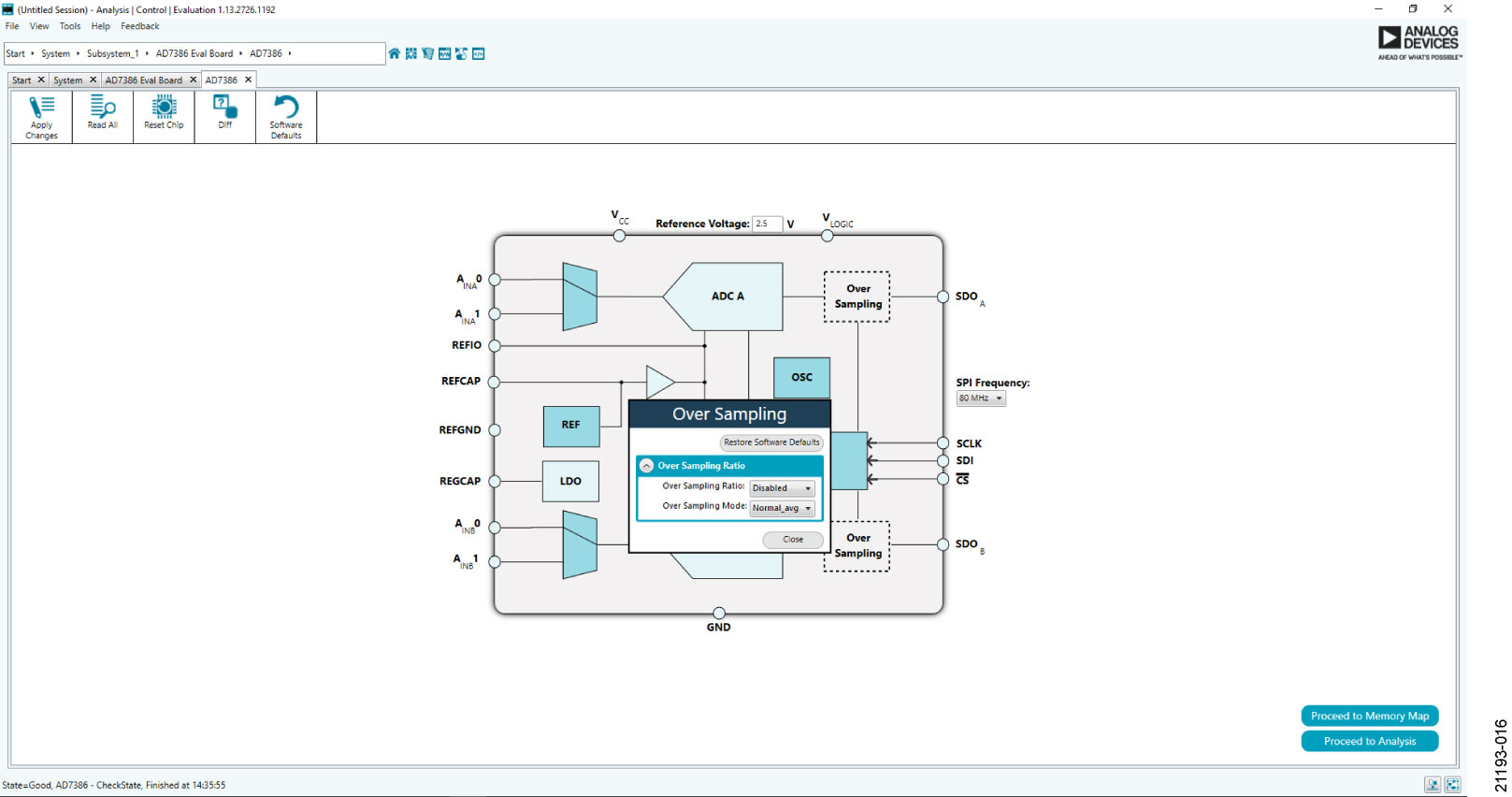
Block icons that are dark blue are programmable blocks. Click a dark blue block icon to open a configurable pop-up window that allows customization for data capture, as shown in the oversampling block in Figure 15.
Type the value of the reference voltage in the Reference Voltage box when External Reference is selected (click the REF block in Figure 15 to access this option). The default value for the external reference is set to 3.3 V and 2.5 V for the internal reference. See the Software Installation Procedures section and the Evaluation Board Setup Procedures section for additional information.
Description of Chip View
Click the AD7386 chip icon in the board view to open the window shown in Figure 14. The chip view shows the configurable block diagram of AD7386.
Channel Selection
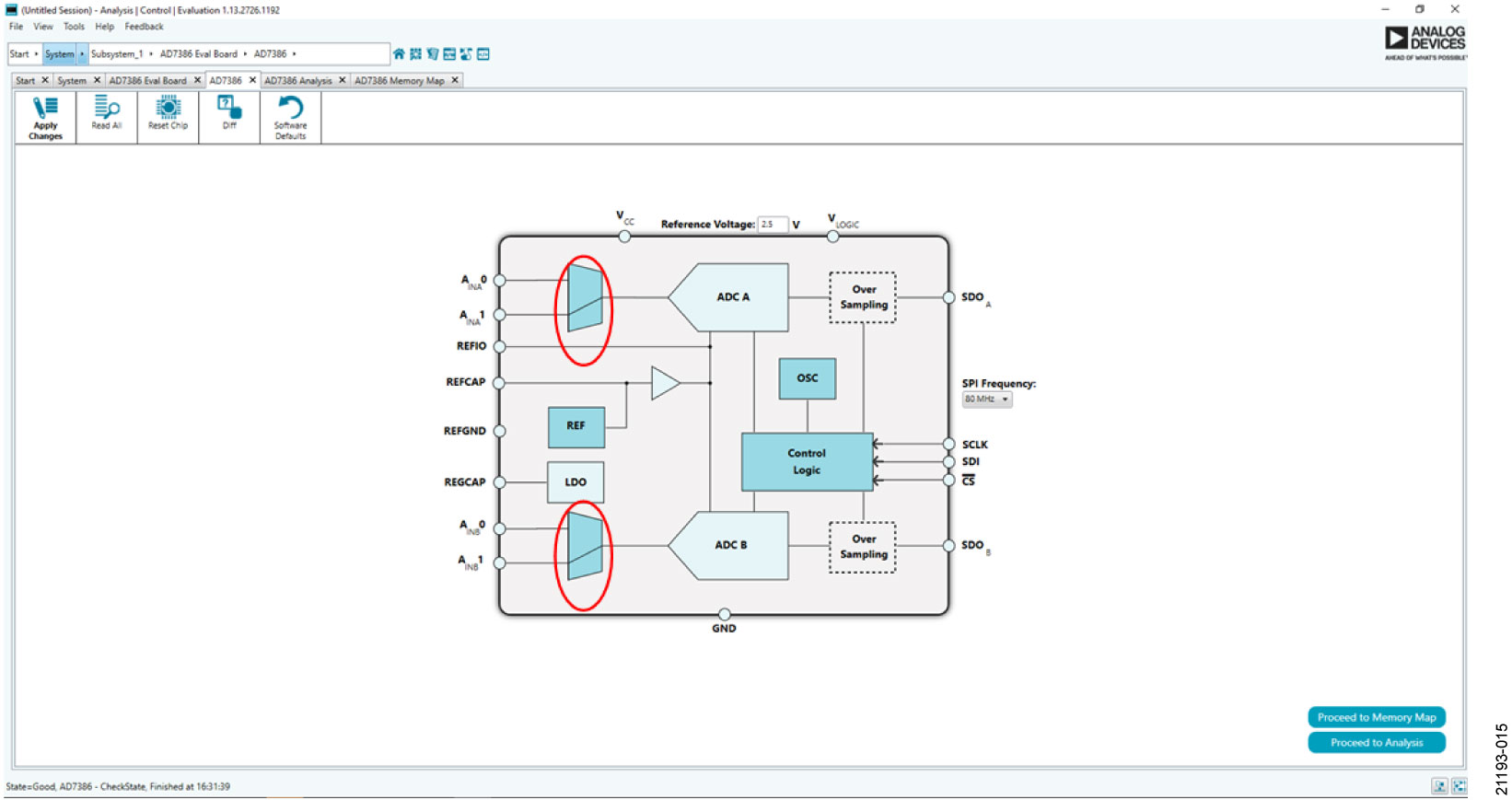
Click the multiplexer icons circled in red (see Figure 15) to select the ADC channel pairs for conversion (AINA0/AINB0 and AINA1/AINB1).
Oversampling
The AD7386 offers an oversampling function on-chip and has two user-configurable oversampling modes, normal average and rolling average. Click the OSC block to configure the oversampling ratio.
Reference
The AD7386 offers an oversampling function on-chip and has two user-configurable oversampling modes, normal average and rolling average. Click the OSC block to configure the oversampling ratio.
Serial Mode
The AD7386 offers an option to have a 1-wire or a 2-wire configuration for serial communication. Click the Control Logic block to configure this option.
Serial 2-wire Mode
Configure 2-wire mode by setting the SDO bit in the CONFIGURATION2 register (Address 0x02) to 0. In 2-wire mode, the conversion result for ADC A is output on the SDOA pin, and the conversion result for ADC B is output on the SDOB/ALERT pin.
Serial 1-wire Mode
In applications where slower throughput rates are allowed, or normal average oversampling is used, the serial interface can operate in 1-wire mode. In 1-wire mode, the conversion results from ADC A and ADC B are output on the SDOA. Additional SCLK cycles are required to propagate all data. ADC A data is output first, followed by ADC B conversion results.
Description of Memory Map Window
Click Proceed to Memory Map in the bottom right corner of the chip view window to open the window shown in Figure 17. The memory map shows all registers of AD7386.
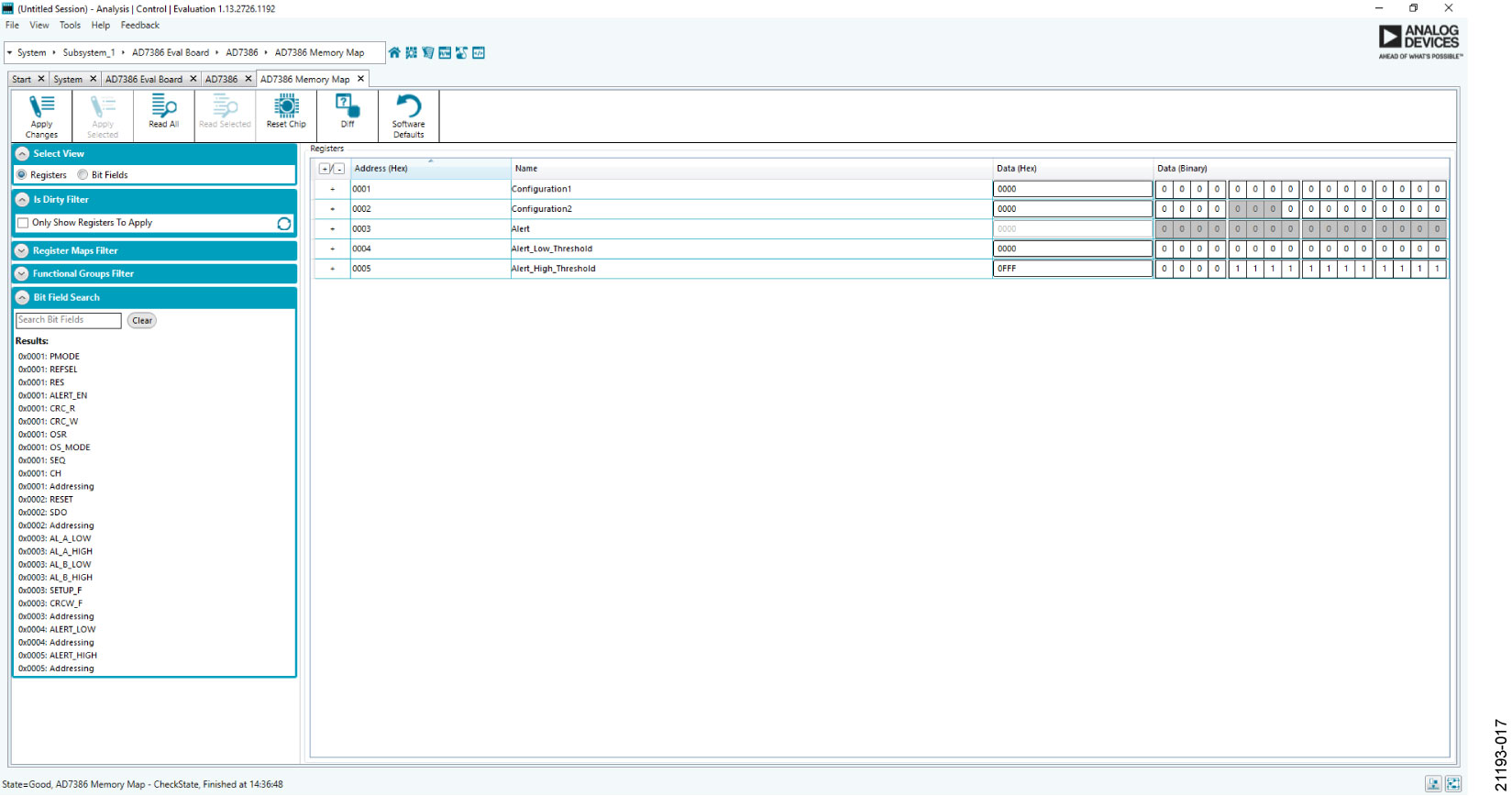
Apply Changes
The registers are populated with default values when powered up. To implement the values changed in all the registers, click Apply Changes to write to the registers.
Apply Selected
To implement changes on a selected register when the values of a register are changed, click Apply Selected to write the new value on the selected register to the AD7386.
Read All
Click Read All to read the values of all the registers from the chip.
Read Selected
Click Read Selected to read the selected register from the chip.
Reset Chip
Click Reset Chip to prompt the software to reset the AD7386.
Diff
Click Diff to check for differences in register values between the software and the chip.
Software Defaults
To revert all the register values to their defaults, click Software Defaults and then Apply Changes to write to the AD7386.
Description of Analysis Window
Click Proceed to Analysis in the chip view to open the window shown in Figure 18. The analysis view contains the Waveform tab, Histogram tab, and FFT tab.
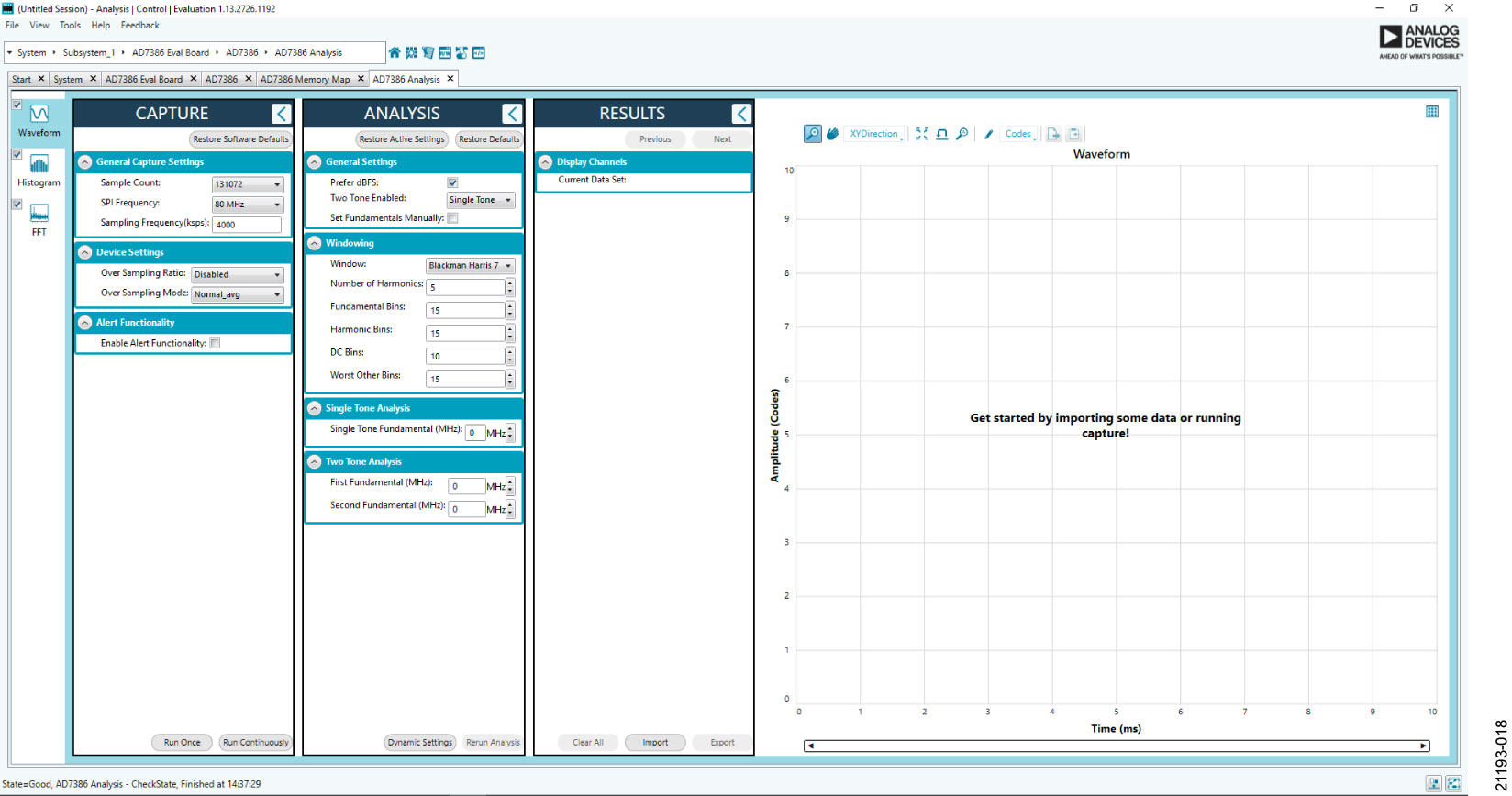
Waveform Tab
The Waveform tab displays data in the form of time vs. discrete data values with the results (see Figure 19). The CAPTURE pane contains capture settings that apply to the registers automatically before data capture.
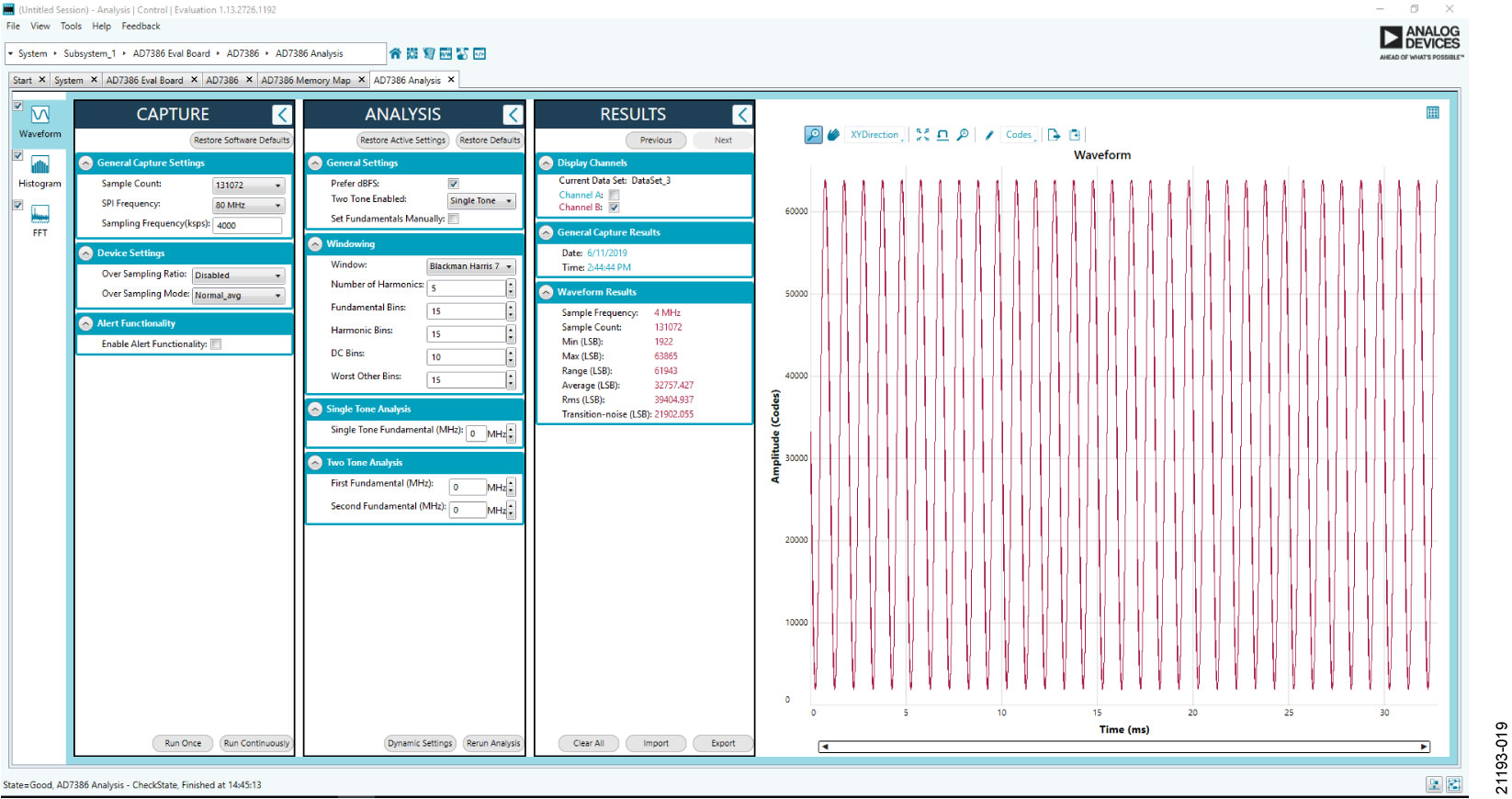
CAPTURE PANE
General Capture Settings
The Sample Count dropdown list allows the user to select the number of samples per channel per capture. The SPI Frequency (MHz) dropdown list allows the user to select the SPI clock frequency used to transfer data between the FPGA device and the AD7386 during device register reads and writes and during data capture. This frequency must be set relatively higher than the set throughput rate. The user can enter the input sample frequency in kSPS in the Sampling Frequency (ksps) box. Refer to the AD7386 datasheet to determine the maximum sampling frequency for the selected mode.
Device Settings
The Over Sampling Ratio box includes options to disable the oversampling ratio function (Disabled) or to set the oversampling ratio between 2 and 32, which, when selected, automatically enables the oversampling ratio function and provides an improved signal to noise ratio (SNR) performance. Refer to the AD7386 datasheet to determine the maximum oversampling ratio for the selected oversampling mode. When an option other than Disabled is selected, a drop-down list appears. Select 18-Bit Resolution to enter 18-bit resolution mode. The resolution boost is used in conjunction with the oversampling rate to provide two extra bits of resolution. The Over Sampling Mode dropdown list allows the user to select the mode of oversampling. This setting is only applicable when oversampling is enabled.
Run Once
Click Run Once to start a data capture of the samples at the sample rate specified in the Sample Count dropdown list box. These samples are stored on the FPGA device and are transferred to the PC only when the sample frame is complete.
Run Continuously
Click Run Continuously to start a data capture that gathers samples continuously with one batch of data at a time. This option runs the Run Once operation continuously.
Results Pane (Waveform Tab)
Display Channels
Display Channels allow the user to select the channels to capture. The channel data is shown only if that channel is selected before the capture.
Waveform Results
Waveform Results display amplitude, sample frequency, and noise analysis data for the selected channels.
Export Capture Data
Click Export to export the captured data. The waveform, histogram, and FFT data are stored in .xml files along with the values of parameters at capture.
Waveform Graph
The data Waveform graph shows each successive sample of the ADC output. The user can zoom and pan the waveform using the embedded waveform tools. The channels to display can be selected in the Display Channels section.
Display Units and Axis Controls
Click the display units dropdown list to select whether the data graph displays in units of hexadecimal, volts, or codes. The axis controls are dynamic. When selecting either y-scale dynamic or x-scale dynamic, the corresponding axis width automatically adjusts to show the entire range of the ADC results after each batch of samples.
Histogram Tab
The Histogram tab contains the histogram graph and the results pane, as shown in Figure 20.
Results Pane (Histogram Tab)
The RESULTS pane displays the information related to the dc performance.
Histogram Graph
The histogram graph displays the number of hits per code within the sampled data. This graph is useful for dc analysis and indicates the noise performance of the device.
FFT Tab
Figure 21 shows the FFT tab, which displays fast Fourier transform (FFT) information for the last batch of samples gathered.
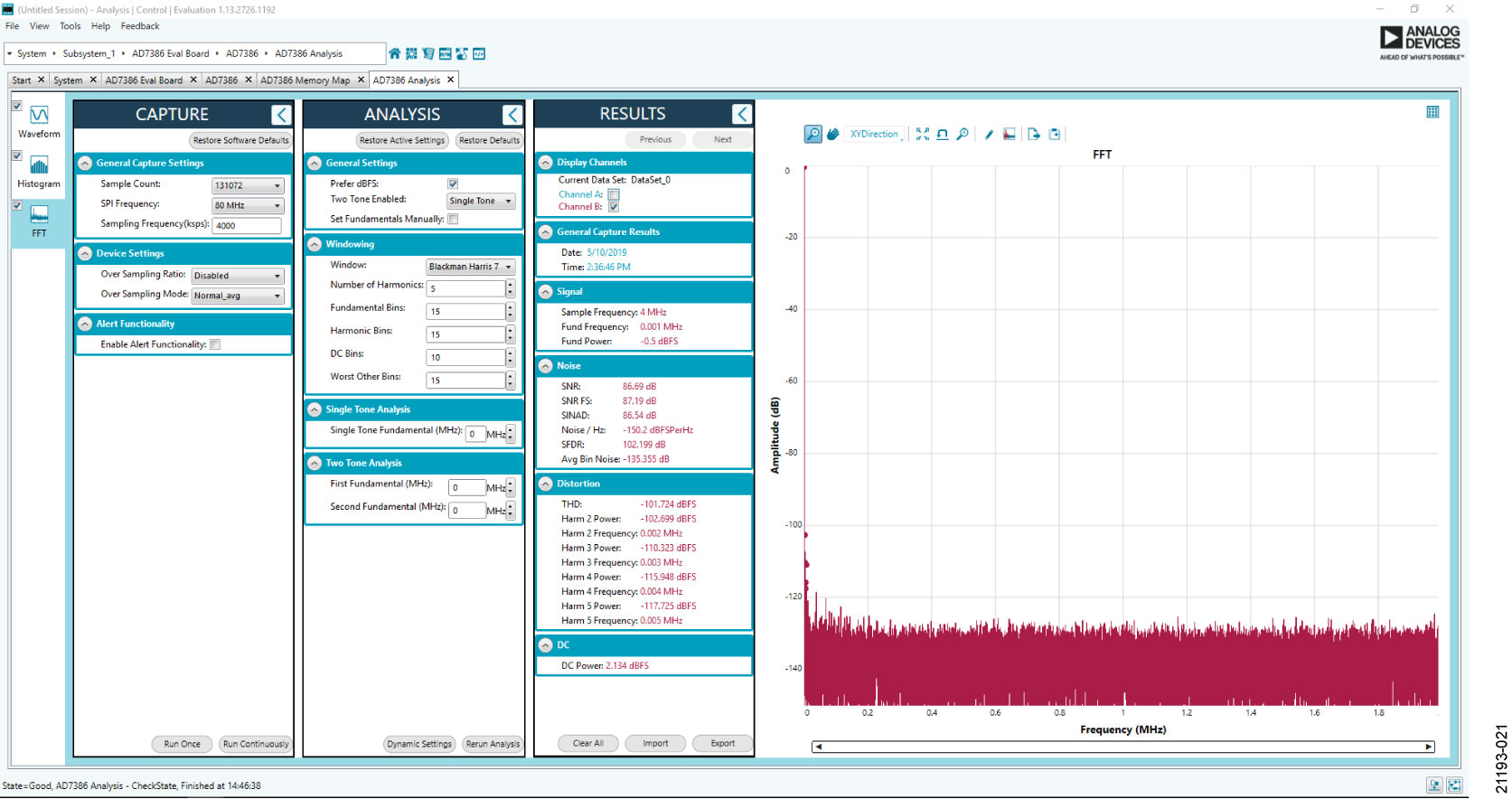
Analysis Pane
General Settings
This section sets up the preferred configuration of the FFT analysis, including the number of tones analyzed and whether the fundamental is set manually.
Windowing
This section sets up the preferred windowing type used in the FFT analysis. The number of harmonic bins and fundamental bins that must be included in the analysis are also set up in this section.
Single Tone and Two-Tone Analysis
These sections set up the fundamental frequency included in the FFT analysis. Type in the values for the Two-Tone Analysis section when two frequencies are analyzed.
Results Pane (FFT Tab)
Signal
Signal displays the sampling frequency, fundamental frequency, and fundamental power.
Noise
Noise displays the SNR and other noise performance results.
Distortion
Distortion displays the harmonic content of the sampled signal and dc power when viewing the FFT analysis.
Exiting Software
To exit the software, click File and Exit.
Evaluation Board Design Files
Board schematic, layout and BOM files: ad7386_eval_board_design_files.zip