Raspberry Pi Software Setup
At this point, your Raspberry Pi should have successfully booted up, and you are now looking at the Kuiper Linux Desktop:
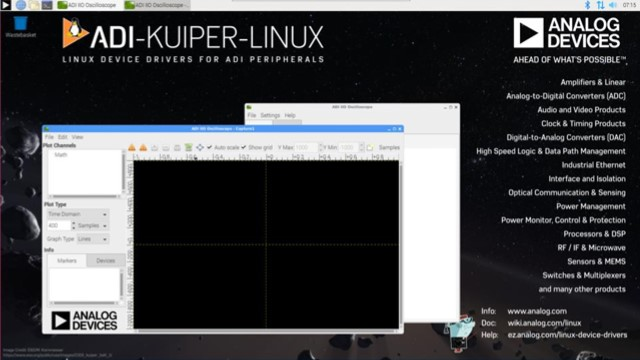
If you are using the VNC Configuration, then you can login to:
hostname:  analog.local
password:  analog
Note that the hostname will change to phaser.local after the steps below.
There are some configuration settings that need to be performed on the SD card. The easiest way to do this is by running a setup script. This does require a wired or wireless internet connection, but it is much easier than doing things manually. Once connected to a network, run the following commands (and take a look at the setup script if you’re suspicious, and note that there may be some updates as newer versions of Kuiper Linux are released.) The script is commented if you want a detailed description of what it’s doing.
Open a command prompt and type:
wget https://github.com/thorenscientific/rpi_setup_stuff/raw/main/phaser/phaser_sdcard_setup.sh
sudo chmod +x phaser_sdcard_setup.sh
./phaser_sdcard_setup.sh
sudo reboot
The password is analog. After typing reboot, wait a few minutes for the system to reboot.
Note: After running the script, the hostname will be phaser.local
If you are going to be running scripts and other software directly on the Raspberry Pi, it’s a good idea set a few options using the Raspberry Pi configuration utility. This can be accessed from the Start Menu under Preferences, or by running:
sudo raspi-config
Set the locale, keyboard, timezone, and wifi country (if you’ll be connecting to your network by wifi.)
You’ll also need to downgrade the numpy version to fix a compatibility issue with our existing example python scripts:
sudo pip install –force-reinstall numpy==1.22
Appendix: Configuration Script Notes
To manually edit config.txt, add the following:
# Phaser board overlay:
dtoverlay=rpi-cn0566
# Heartbeat blinky:
dtparam=act_led_gpio=26
dtparam=act_led_trigger=heartbeat

# Short GPIO121 (pin 40) to ground for shutdown:
dtoverlay=gpio-shutdown,gpio_pin=21,active_low=1,gpiopull=up
If you will be logging in via VNC, see this article
Also if running “headless” without a monitor, set the HDMI group and mode accordingly:
# dtoverlay=vc4-kms-v3d

# uncomment to force a specific HDMI mode (this will force 1920x1080)
hdmi_group=2
hdmi_mode=82
Note
For questions or help with the Phaser, please visit: EngineerZone