Unboxing Pluto
At this point, you’ve installed the correct software drivers for your operating system. Now let’s plug Pluto into the computer and do some simple tests. The first question is which of the two micro USB ports should you use?
Micro USB Ports
There are two microUSB connectors on along the bottom edge of Pluto. In general, we only use the center USB port.
When connecting this middle USB port to your computer, Pluto will behave like a small Linux computer (which it is — ARM running Linux). When you plug Pluto into your PC, this single connector enumerates as multiple devices:
USB Ethernet (RNDIS)
USB Mass Storage (the “PlutoSDR” drive with info.html)
Serial console
IIO USB backend
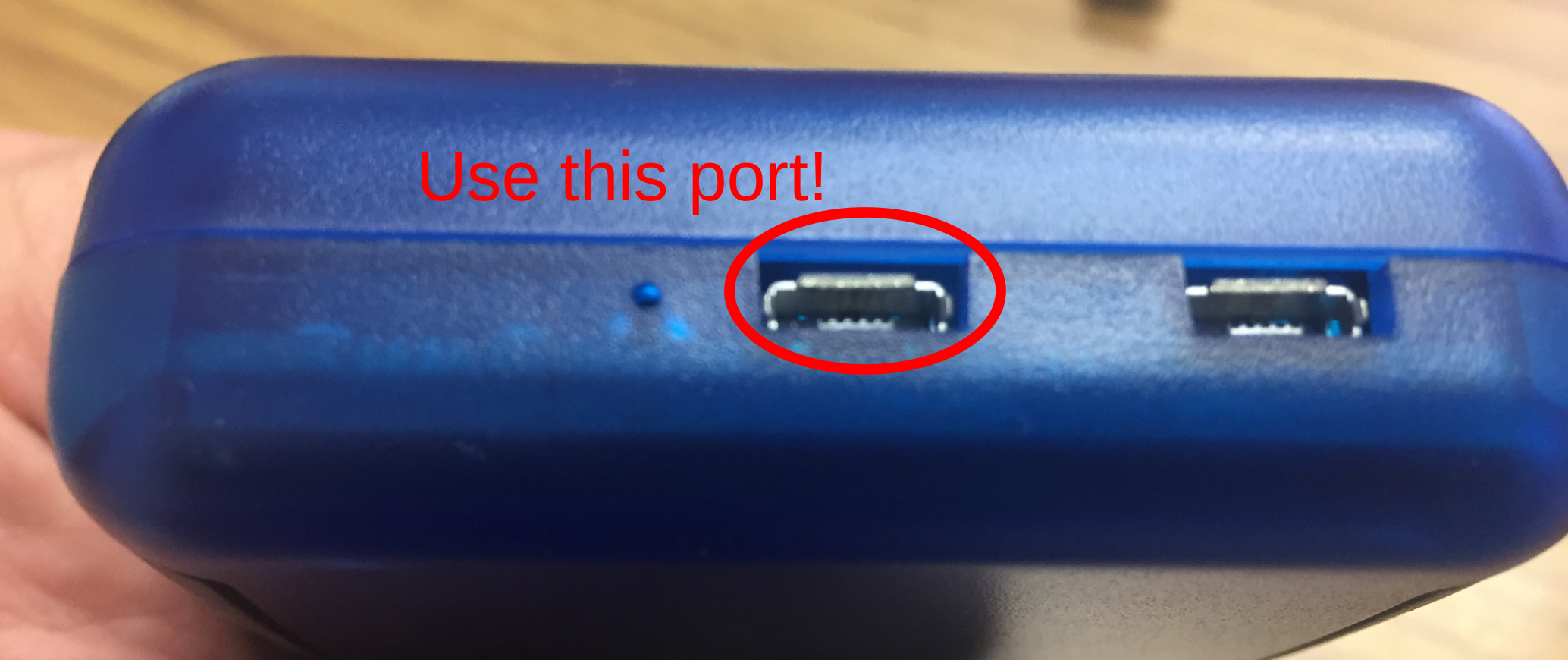
This center port also provides power to Pluto. Therefore, it is generally not necessary to use the other (right edge) USB port. There are two cases where you would apply power to the right USB port:
If, for some reason, the power supplied to the center port is insufficient, then you can use the right port supply additional power to Pluto. When there is insufficient power to the center port, Pluto will disconnect randomly, and then reconnect. So if you see this occurring, try adding a micro USB power supply to the right hand port. Then both ports will supply power and this should eliminate any random shutting down of Pluto.
The center port is capable of acting as a USB OTG (on-the-go) connector. It can be the USB host (cabled to a USB peripheral) or it can be the USB peripheral (cabled to a USB host). Ether way, when the center port is used for OTG, then power must be supplied to Pluto through the right USB connector.
Common USB OTG peripherals that are used with Pluto include:
USB flash drives
Wi-Fi dongles
USB Ethernet adapters
USB hubs
More information on Pluto’s USB OTG can be found here.
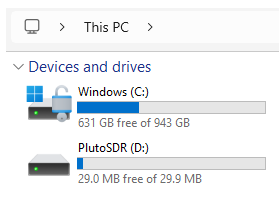
Now connect that center micro USB port to your computer. You will notice that Pluto appears as a mass storage device. This is a convenient feature of Pluto! There is more that we’ll do with the Pluto drive. But for now, it’s just good to know that it is connected.
Using IIO Scope to Test Pluto
The first test to try with Pluto is to plot data using ADI’s IIO Scope utility. We suggested you install IIO Scope during the driver setup. But if you didn’t do that, go back and do that now.
Once installed, launch IIO-Scope by finding its shortcut (“IIO-Oscilloscope”) or by searching for the application (“osc”). When “osc.exe” opens, you will see a connection screen. Press the “Refresh” button:
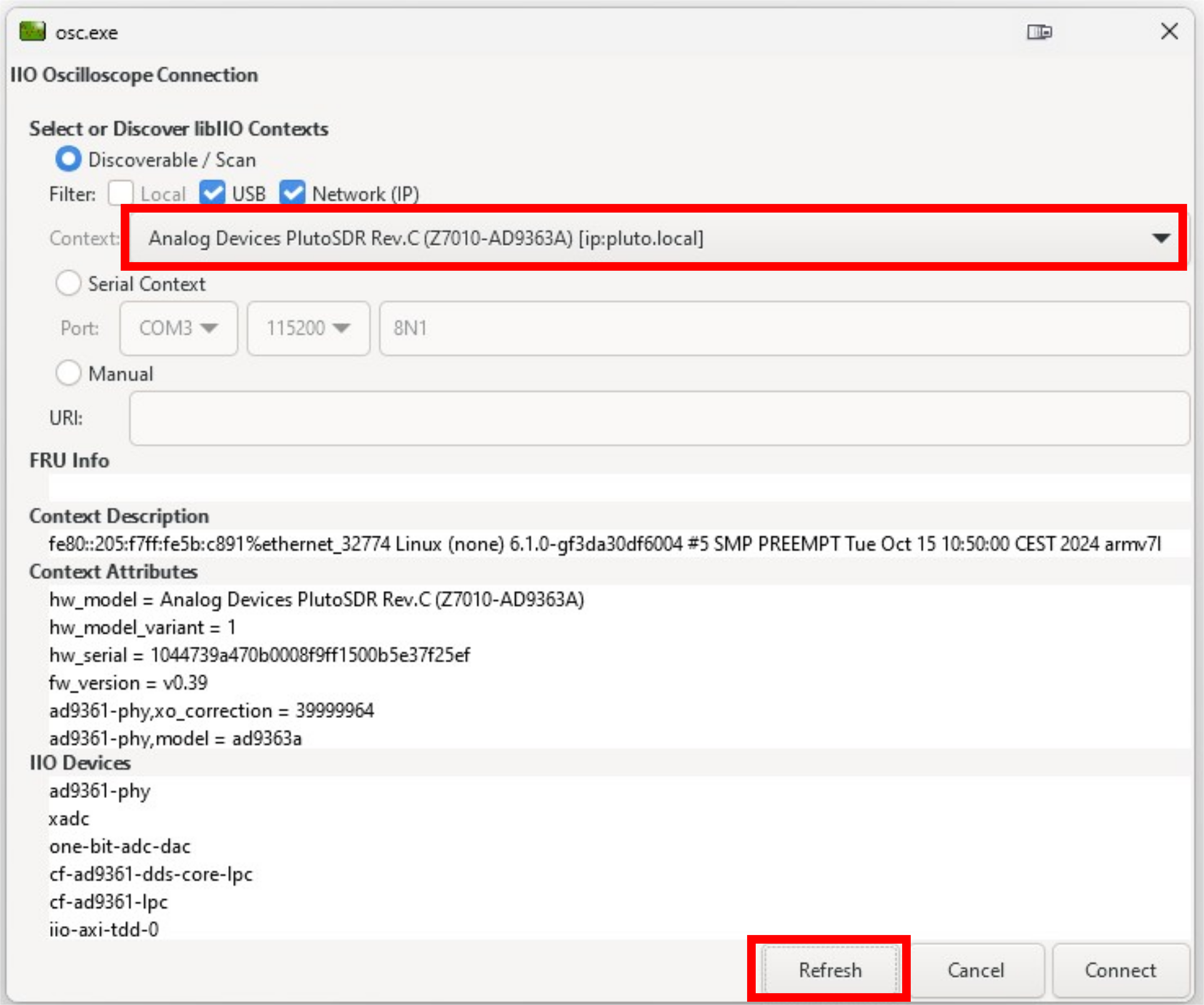
In the “Context” field, several address for Pluto will show up. All of these are valid, and sometimes there’s a reason to choose one over the other. But for now, choose one of them and click “Connect”. Two windows will now open: the main control window and the plotting window.
In the plotting window, click “Enable All” and then press “Play”:
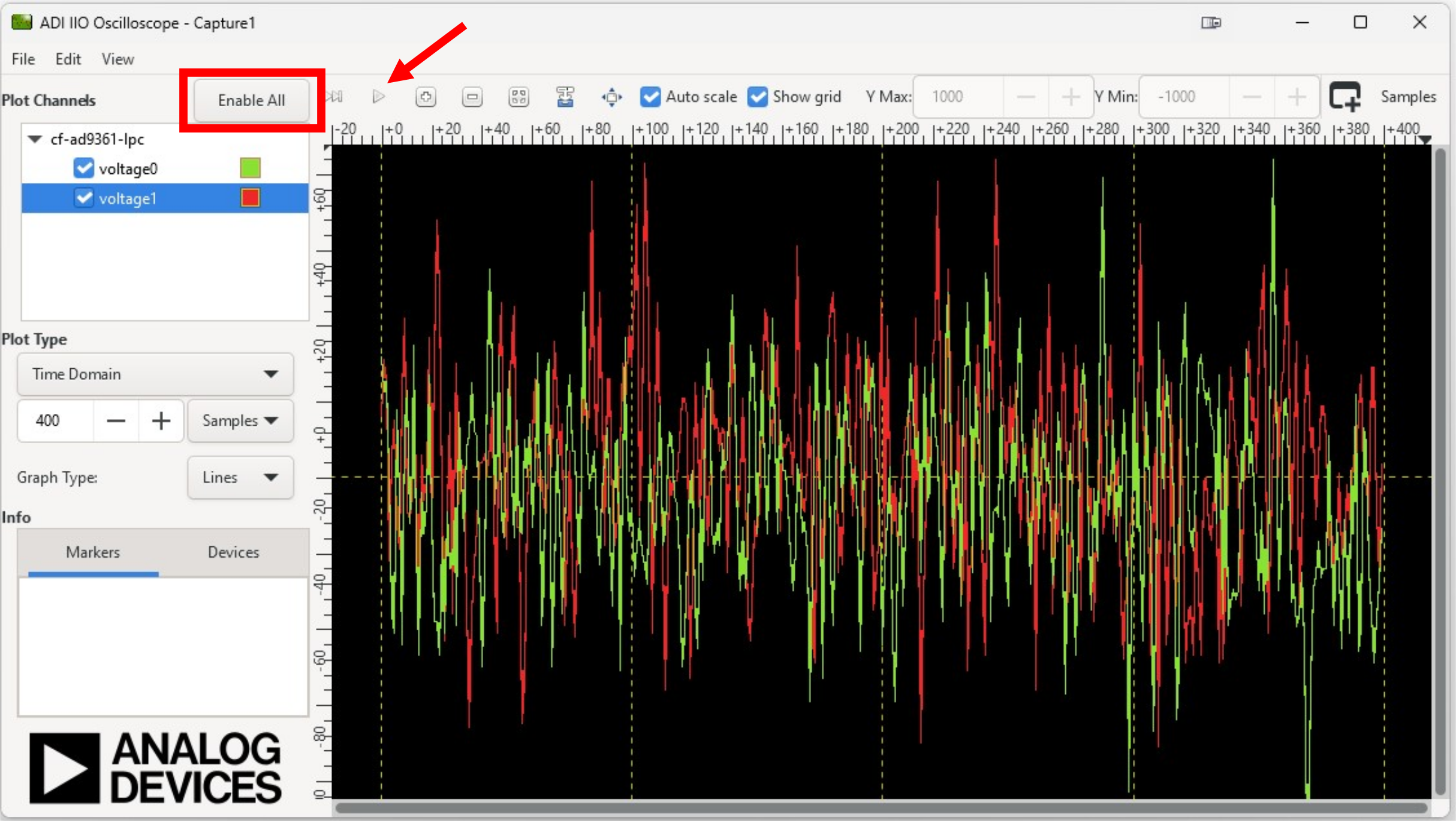
Congratulations! You just made your first plot with Pluto! What did you plot? It was just random noise. But let’s fix that now. Go now to the other window that opened, the main control window. In that window, you’ll see several tabs. Click on the “AD936X” tab and you’ll see how Pluto is currently configured. Change the two highlighted values:
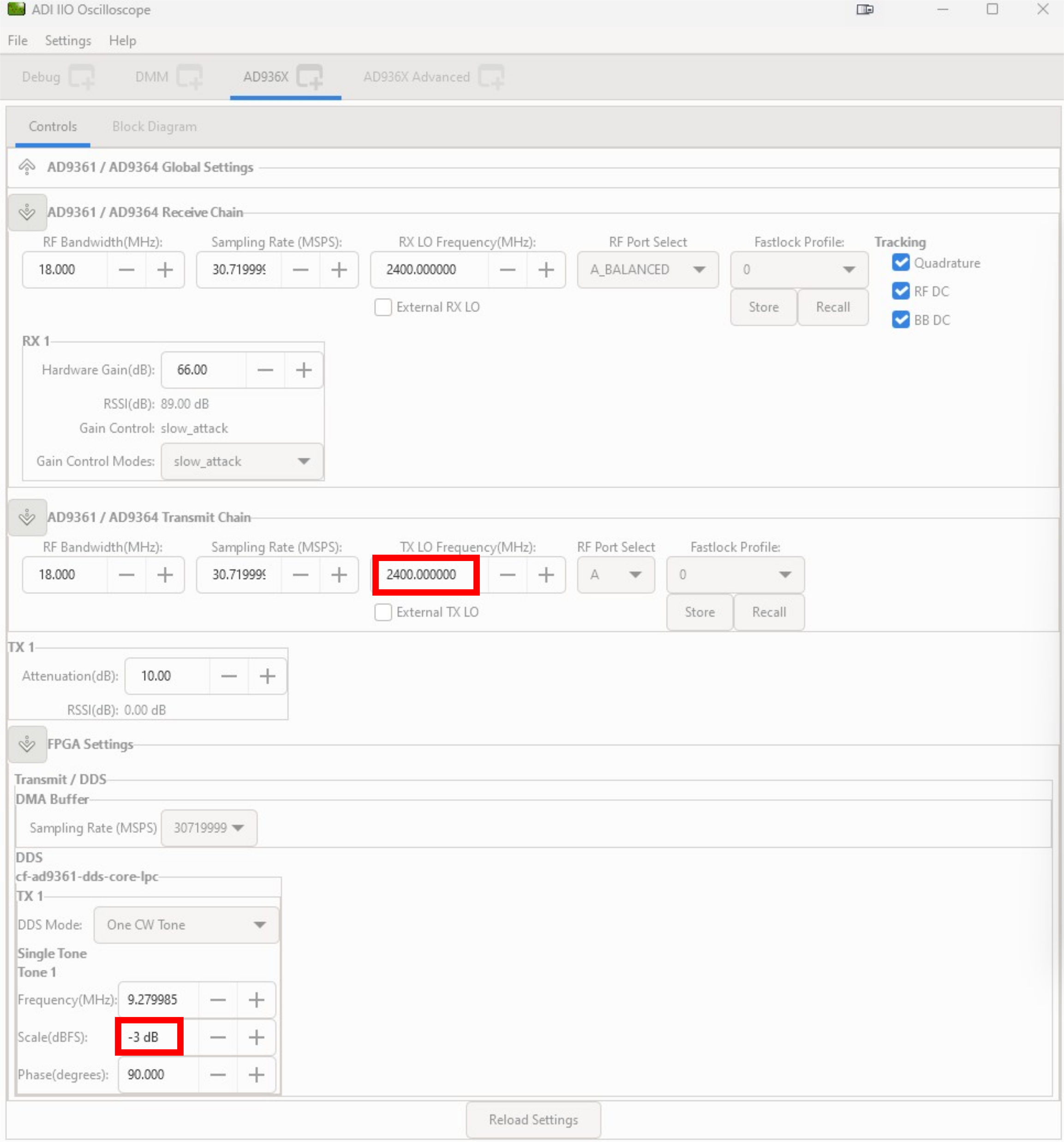
We’ll learn more about all these controls. But for now, the key message is we configured Pluto to both up and down convert a waveform at 2.4 GHz (2400 MHz). That waveform is a sine wave (“One CW Tone”) that is 9.239985 MHz away from 2400 MHz. And it has scale, relative to the full scale DAC output, of -3 dB. Go back to the plot window, and observe the change.
The plot will be easier to see in the frequency domain. So click the “Stop” button, and select Plot Type of “Frequency Domain”:
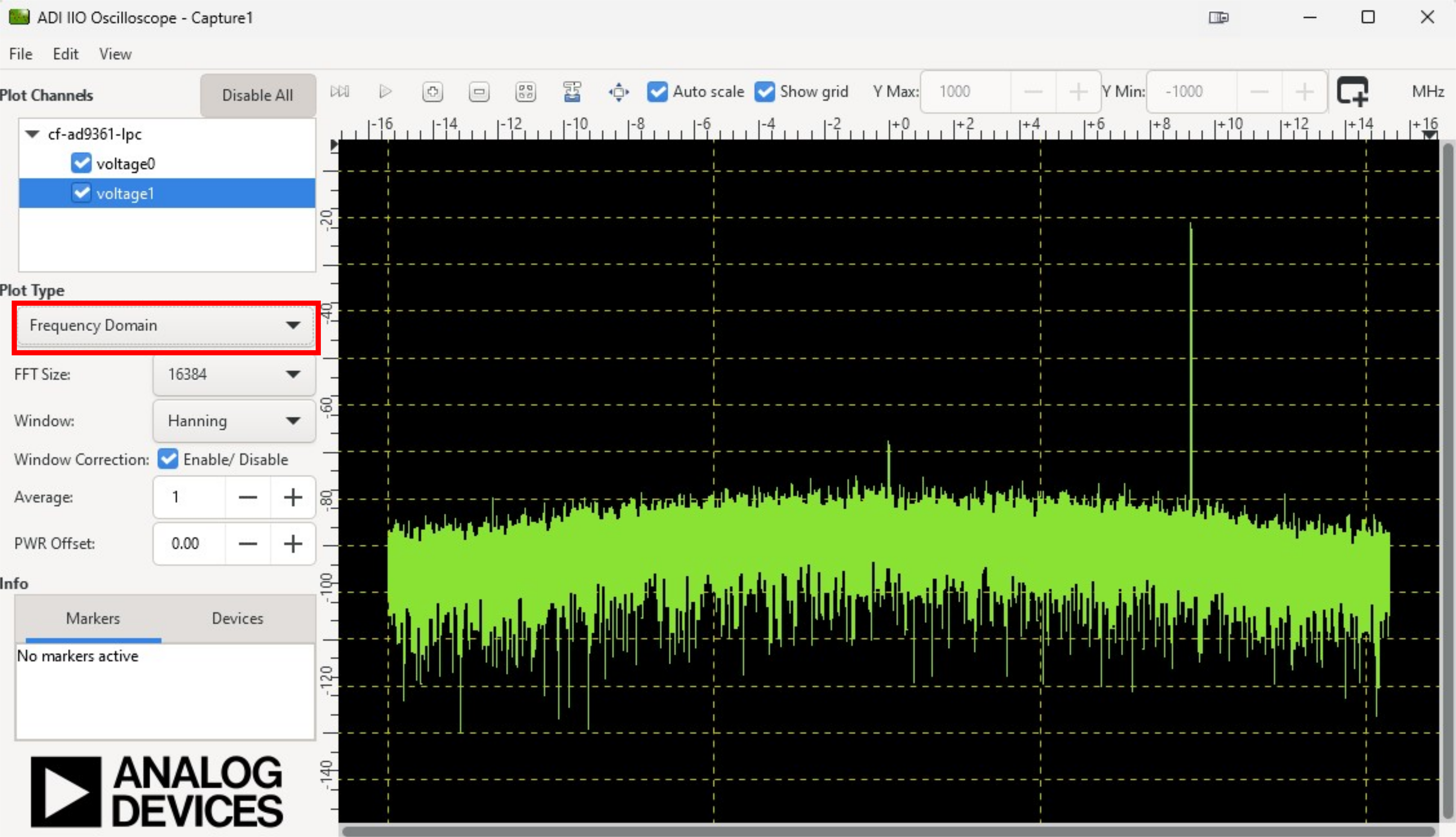
You should see a large FFT spike, right at 9.24 MHz. To verify, right click on the plot and select “Peak Markers.”
If this all worked, then you’re ready for the next step! If something here did not work, then I’d recommend going back through this guide and making sure you’ve followed all the steps–particularly the driver setup. It’s also possible that your firmware is badly out of date. In which case, try the next step (“Firmware Upgrade”), and then come back and try this exercise.
Note
For questions or help with the Pluto SDR, please visit: EngineerZone