GNU Radio Installation and Examples
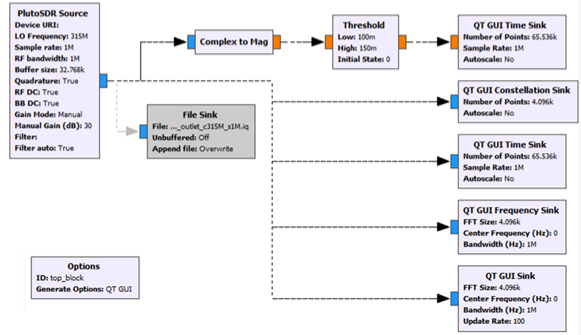
GNU Radio is a powerful open-source software development toolkit that provides signal processing blocks to implement software-defined radios and signal processing systems. You can use GNU Radio to create flowgraphs that interface with PlutoSDR and process the data it receives. To use PlutoSDR with GNU Radio, you need to install the gr-iio module, which provides blocks for interfacing with IIO devices like PlutoSDR. Once you have the gr-iio module installed, you can create a flowgraph in GNU Radio Companion (GRC) that includes the IIO Source block to read samples from PlutoSDR and process them using other GNU Radio blocks.
GNU Radio Installation
Windows Install
GNU Radio Companion (GRC), works best in Linux. However, if you need to use it with a Windows operating system, then the best way to do this is through Radioconda:
Download the most recent “radioconda-Windows-x86_64.exe” Radioconda install package here.
Update Radioconda to the latest version of PYADI-IIO
Delete Radioconda’s “adi” folder in radioconda/lib/site-packages
Clone the pyadi-iio repo. Or just download the repo by clicking on the green “Code” button and selecting “Download ZIP”
Unzip and copy the “adi” folder in that cloned PYADI-IIO repo to radioconda/lib/site-packages
Linux Installation
(Ubuntu 24, etc…)
Just install GNU Radio by following these instructions: https://wiki.gnuradio.org/index.php/UbuntuInstall
ADI-Kuiper Linux
(Instructions for Raspberry Pi are given)
(instructions for Raspberry Pi 4 are given):
Download the latest ADI-Kuiper Linux image here.
Just click on the first “workflow run”
Download the kuiper_full_64_image (only the “full” image has GNU Radio pre installed)
Write ADI-Kuiper-full.img to an SD card
Windows users can use Win32 Disk Imager. Writing img files to an SD card will work even on computers with bitlocker or where normally writing to an SD card is encrypted.
Install SD Card into Raspberry Pi, and boot up. First boot may take a few minutes extra
GNU Radio is installed by default on ADI-Kuiper Linux (full)
Test the Installation
Whichever operating system you use, let’s test the GRC installation now.
Open the installed GNU Radio Companion application.
Find the “Python Module” block and place it in the workflow.
Open that “Python Module” and click “Open in Editor”
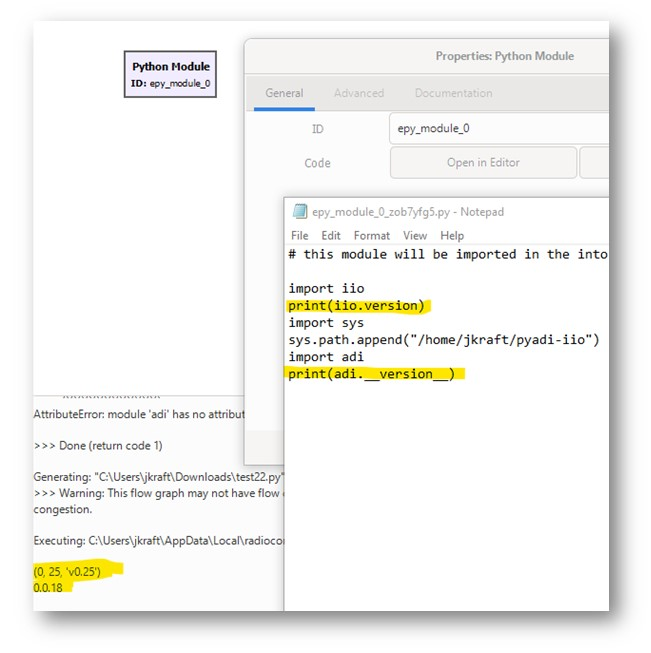
In the editor, type:
import iio
print(iio.version)
import adi
print(adi.__version__)
Save that text file and then click “Run” in GRC
The command line should print the pyLIBIIO and PyADI-IIO library versions
Sometimes it is necessary to include the path to the cloned pyadi-iio directory (as shown in the image below)
Delete that “Python Module”
Now click on “Find” and type “pluto”
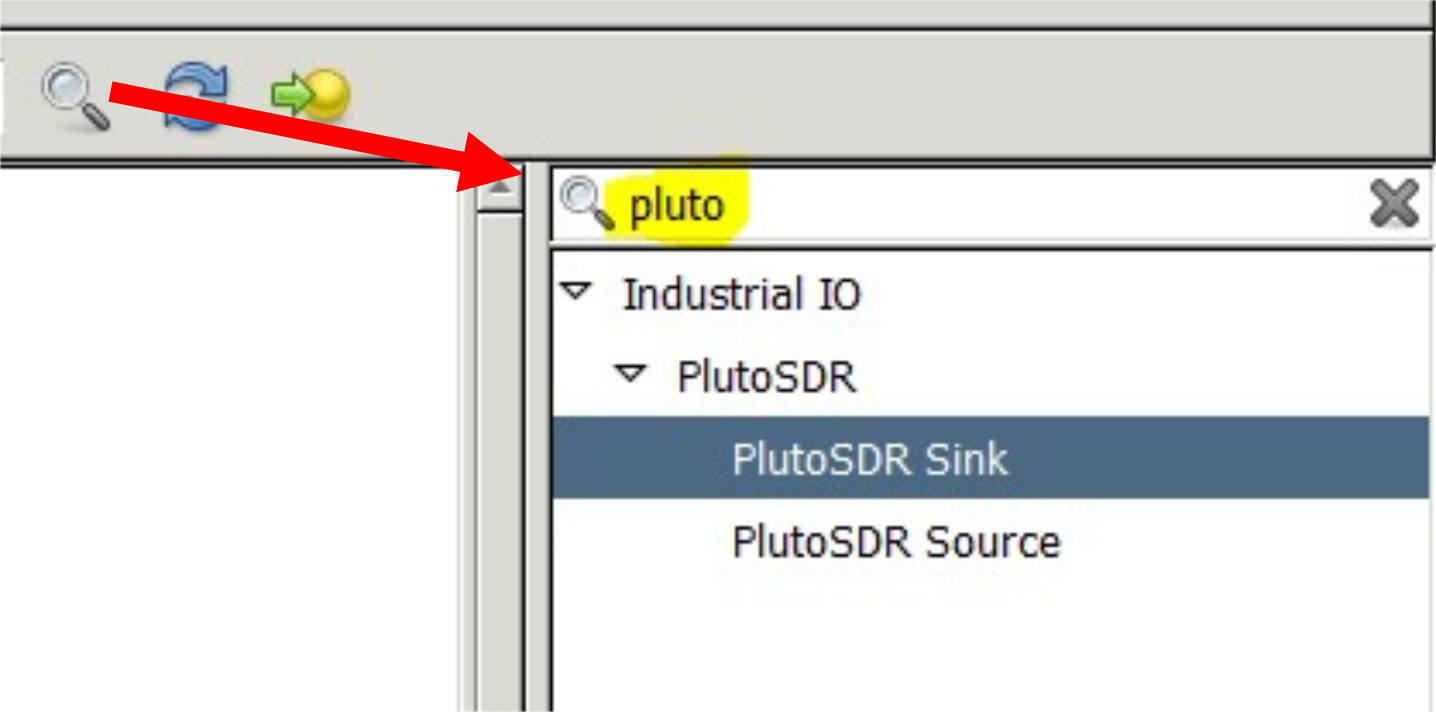
Place a “PlutoSDR Sink” and “PlutoSDR Source” into the flowgraph:
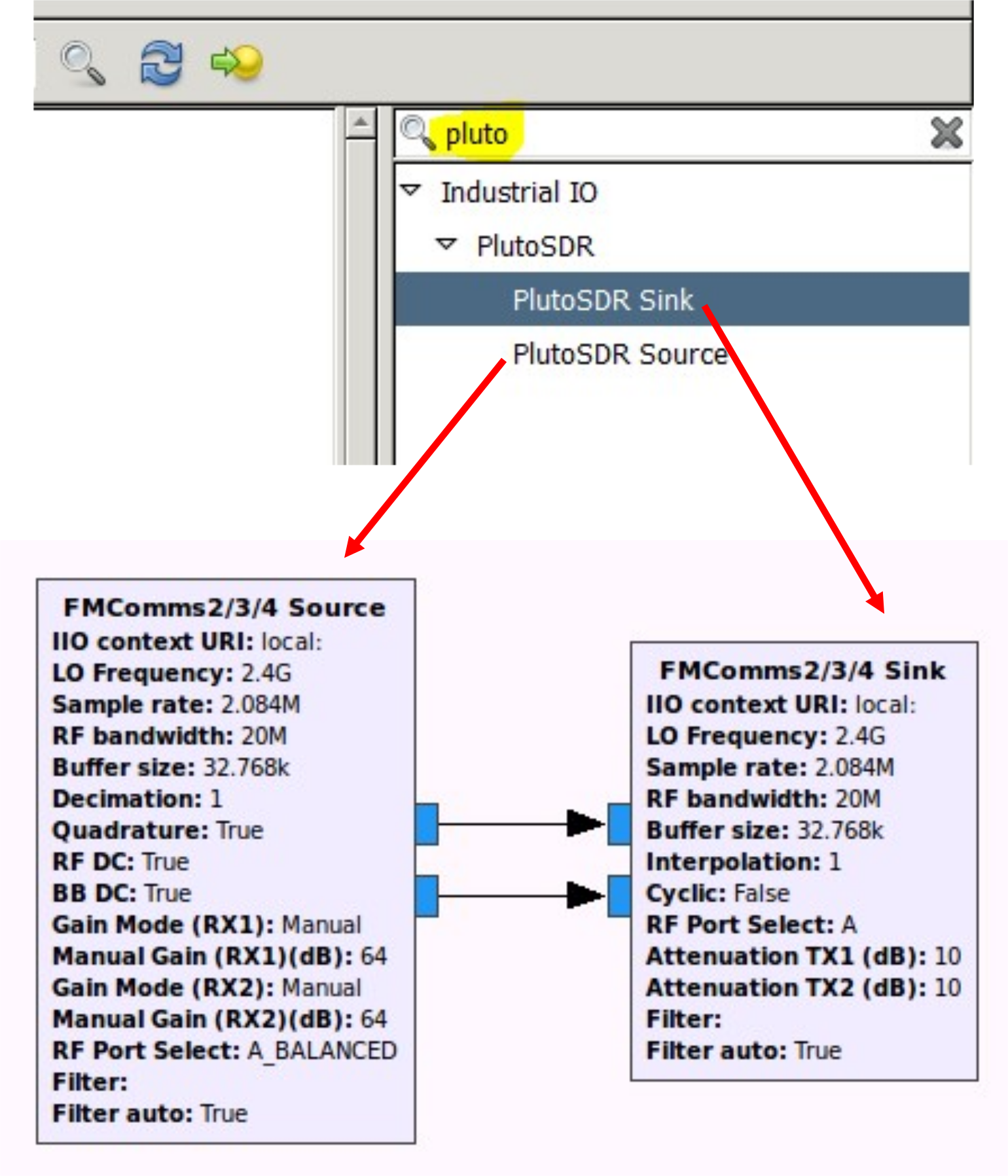
Double click on the blocks and set the context as follows:
IIO context URI: ‘ip:192.168.2.1’
There are other contexts you could use, but this ip address method works the best
Try out some of the graph sink objects:
Pluto GNU Radio Resources
Note
For questions or help with the Pluto SDR, please visit: EngineerZone