DE10-Nano Quickstart
This guide provides quick instructions on how to set up the EVAL-CN0561 on:
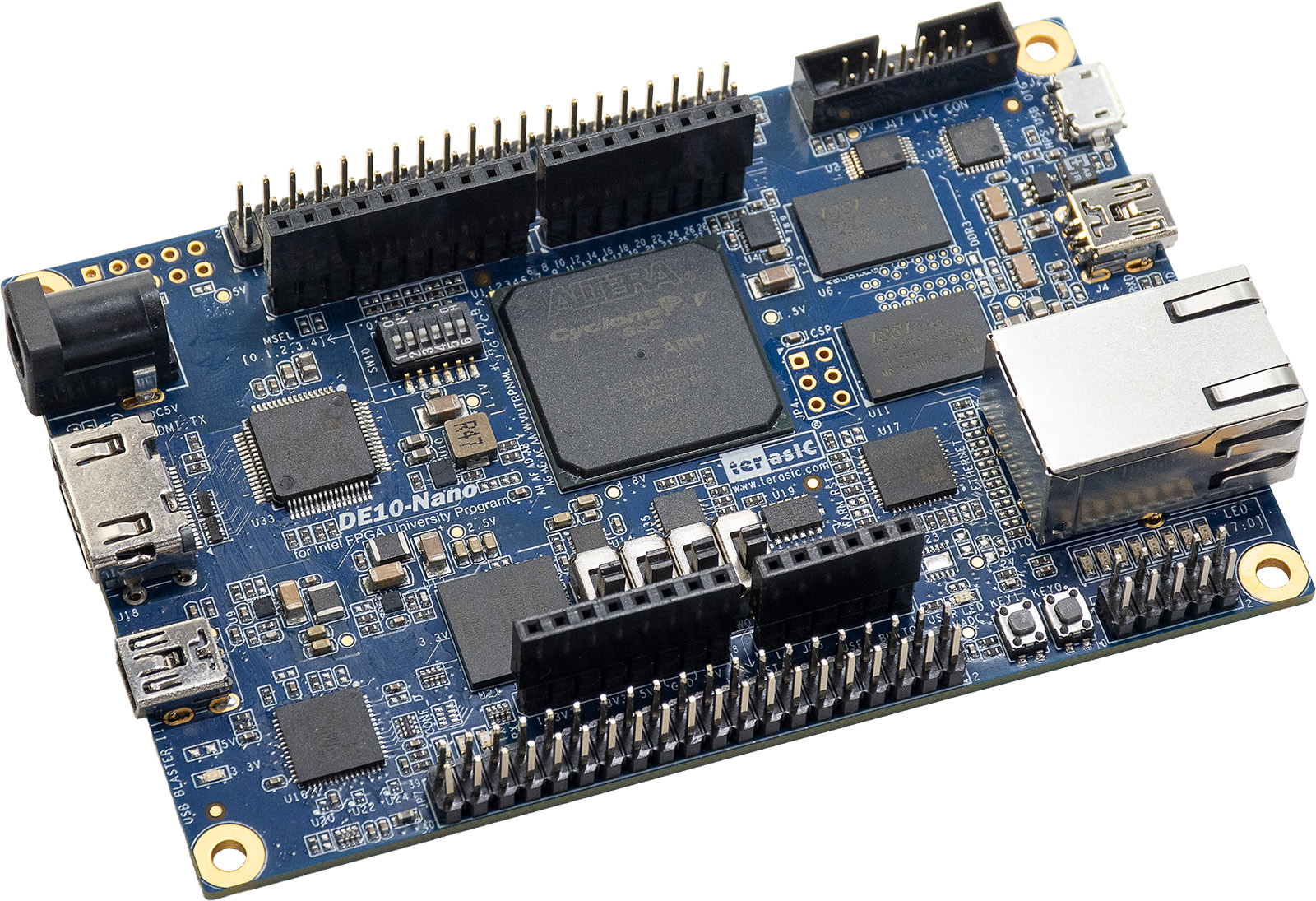
DE10-Nano on Arduino shield connector
All the products described on this page include ESD (electrostatic discharge) sensitive devices. Electrostatic charges as high as 4000V readily accumulate on the human body or test equipment and can discharge without detection. Although the boards feature ESD protection circuitry, permanent damage may occur on devices subjected to high-energy electrostatic discharges. Therefore, proper ESD precautions are recommended to avoid performance degradation or loss of functionality. This includes removing static charge on external equipment, cables, or antennas before connecting to the device.
Using Linux as software
Necessary files
Note
The SD card includes several folders in the root directory of the BOOT partition. In order to configure the SD card to work with a specific FPGA board and ADI hardware, several files must be copied onto the root directory. Using the host PC, drag and drop the required files onto the BOOT partition, and use the EJECT function when removing the SD card from the reader.
The following files are needed for the system to boot:
HDL boot image: stored on the SD card
Linux Kernel image:
zImageLinux device tree:
socfpga.dtb
They can either be taken from the SD card – already generated by us, or you can build them manually:
Instructions on how to choose the boot files from the SD card can be found in the Platform-Specific Manual Steps section from here: Hardware Configuration.
Instructions on how to manually build the boot files from source can be found here:
CN0561 HDL project build documentation. More HDL build details at Build an HDL project.
Important
Some projects provide multiple devicetree files in the SD card’s boot folders. Make sure you select the devicetree that matches your specific use case.
Required Software
SD Card 16GB imaged with Kuiper (check out that guide on how to do it, then come back to this section)
A UART terminal (Putty/Tera Term/Minicom, etc.) with baud rate 115200 (8N1)
Required Hardware
DE10-Nano FPGA board
5V/2A wall power supply with barrel jack (comes with DE10-Nano)
Mini-USB to USB Type A cable (comes with DE10-Nano)
EVAL-CN0561-ARDZ evaluation board
Class 10 16GB SD Card
External 9V power supply for the EVAL-CN0561-ARDZ (connected via P16)
LAN cable (Ethernet)
IEPE compatible sensor
More details as to why you need these can be found at Prerequisites.
Testing
Creating the setup
EVAL-CN0561-ARDZ/DE10-Nano
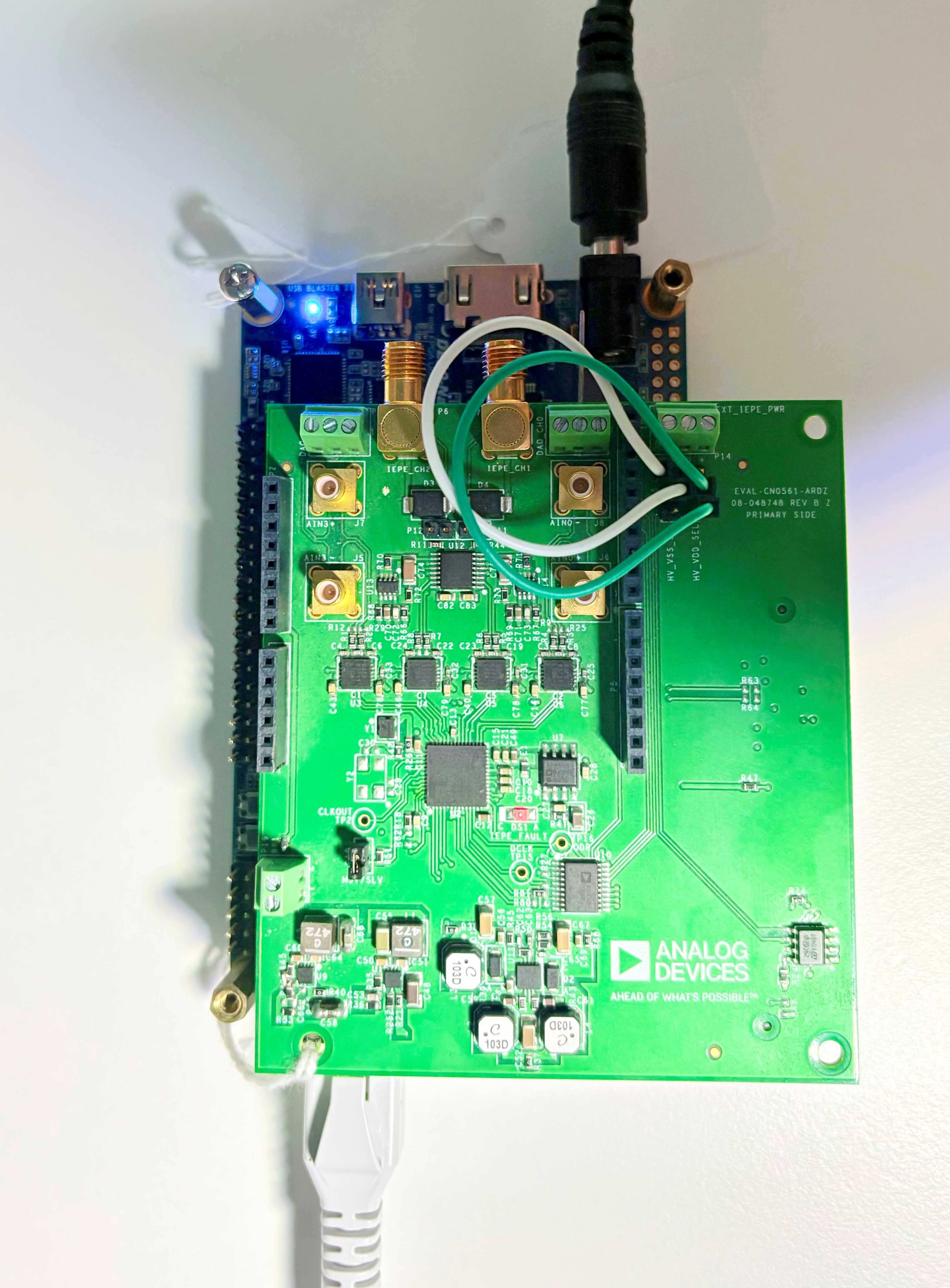
In the following example, we will prepare the evaluation setup by connecting the cn0561 board to the DE10-Nano and applying a test input signal.
Follow the steps in this order, to avoid damaging the components:
Get the DE10-Nano
Verify the FPGA Configuration Mode Switch (S10) is configured properly:
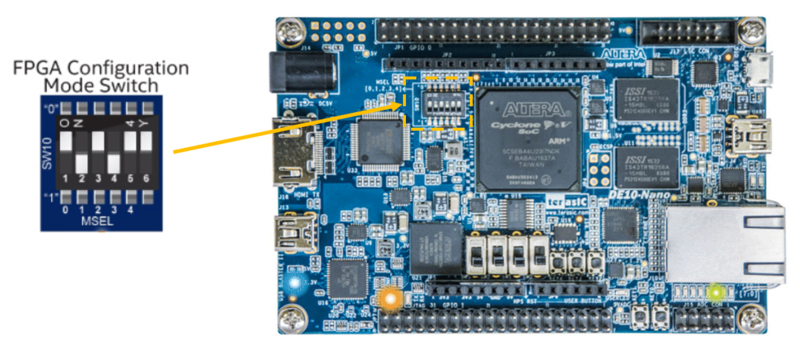
The DE10-Nano comes ready to use out of the box, but it is important to double check that the FPGA Configuration Mode Switch (S10) is set correctly. If more information is needed, check out the DE10-Nano Getting Started Guide.
Prepare the SD card:
Validate, Format, and Flash the SD Card following the Use Kuiper Image guide.
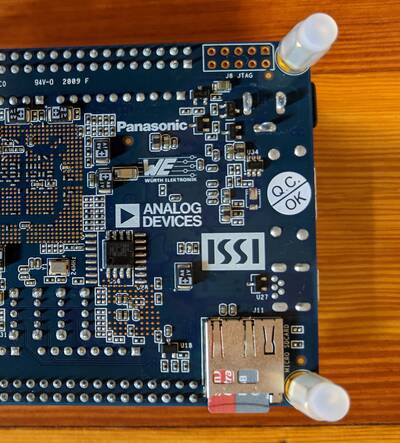
Insert the microSD card into the DE10-Nano card slot
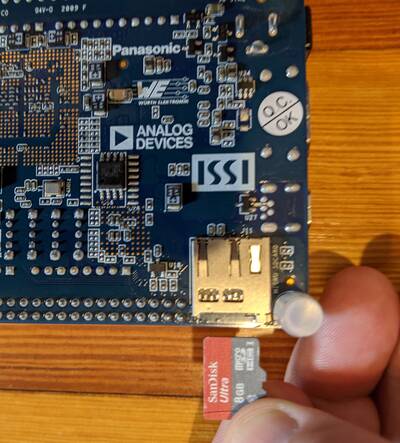
Plug-in an Ethernet cable from your router/switch to the Ethernet port on the FPGA board
Info
If you don’t have a network available and want to stream data directly from the Ethernet port of the DE10-Nano to the Ethernet port of your PC, that is still possible, but requires some extra configuration. Please see the [Wiki] Network Configuration page for complete details.
Using the Arduino pins, plug the EVAL-CN0561-ARDZ on top of the DE10-Nano
Connect your sensor into the SMA connector on the EVAL-CN0561-ARDZ (you may also connect your sensor into the 2-Pin header found at P1 if your sensor isn’t an SMA output)
Connect the UART port of DE10-Nano to a PC via Mini-USB cable (DO NOT power on the device yet)
Note
A driver for the board should automatically be detected and installed on your PC. If this does not happen, you may need to manually install the driver. Here is a link to the UART Serial Driver.
Plug the 5V/2A power supply into the wall outlet and power up the setup
Observe Kernel and serial console output messages on your terminal
Boot messages
The following is what is printed in the serial console, after you have connected to the proper ttyUSB or COM port:
Useful commands for the serial terminal
The below commands are to be run in the serial terminal connected to the FPGA.
Login Information
user: analog password: analog
To find out the IP of the FPGA board, run the following command and take the IP specified at “eth0 inet”:
~$
ifconfig
To see the IIO devices detected, run:
~$
iio_info | grep iio:device
To power off the system, run the following command, and wait for the final message to be printed, then power off the FPGA board from the switch as well.
~$
poweroff
To reboot the system, run:
~$
reboot
Important
Even though this is Linux, this is a persistent file system. Care should be
taken not to corrupt the file system – please shut down things, don’t just
turn off the power switch. Depending on your monitor, the standard power off
could be hiding. You can do this from the terminal as well with sudo
shutdown -h now or the above-mentioned command for powering off.
Scopy
Important
Make sure to download/update to the latest version of Scopy.
Scopy can be used as a signal generator to drive the analog inputs of the evaluation board via jumper wires.
Configure the Signal Generator plugin with the desired waveform and frequency:
IIO Oscilloscope
Important
Make sure to download/update to the latest version of IIO Oscilloscope.
Once done with the installation or an update of the latest IIO Oscilloscope, open the application. The user needs to supply a URI which will be used in the context creation of the IIO Oscilloscope.
Press
Refreshto display available IIO Devices and pressConnect.After the board is connected and a channel is enabled, hit the play button. Then the data capture window can be seen like in the shown picture.