Connecting to PlutoSDR
In the previous section we covered the prerequisites of using PlutoSDR. In this section we will cover how to connect to Pluto.
There are two ways to connect to Pluto:
USB Ethernet (RNDIS)
Virtual COM port (Serial)
Connecting via USB Ethernet (RNDIS)
The PlutoSDR connects to the host system through its micro‑USB port, but it enumerates as a USB Ethernet interface rather than a standard USB device. This creates a point‑to‑point network connection that is largely transparent to the user and avoids the need for a serial console. The USB Ethernet architecture also enables more flexible device discovery and addressing methods.
Specifically, with USB Ethernet, we can address Pluto as:
192.168.2.1 (changeable in the config.txt file on the Pluto USB drive)
pluto.local
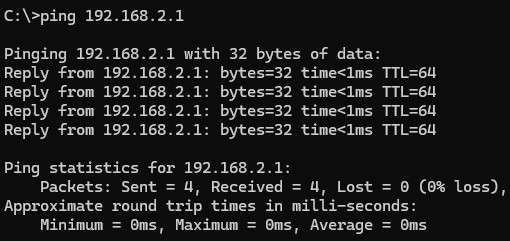
You can try this out for yourself by opening a terminal and pinging “192.168.2.1” or pluto.local
Connecting via SSH or Serial (Virtual COM Port)
Another way to connect to Pluto is via SSH or a virtual COM port. This allows you to access the command line interface (CLI) of Pluto, which can be useful for advanced users who want to configure Pluto or run custom scripts.
To connect to Pluto via SSH or Serial, follow these steps:
Connect Pluto to your computer using the USB cable. (Remember to use the center USB port)
Use a terminal program (such as PuTTY on Windows or
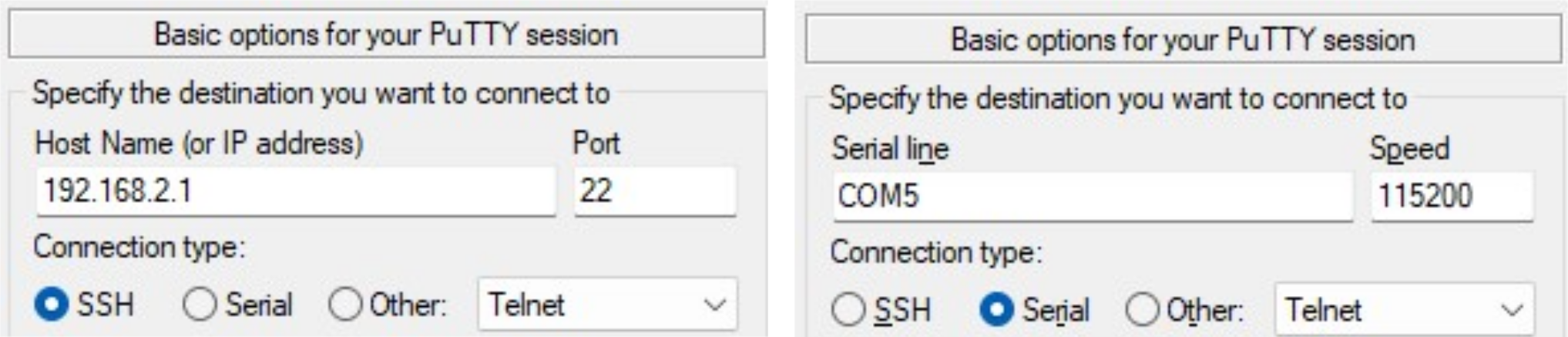
minicomon Linux).SSH: Just enter 192.168.2.1
Serial: First find the COM port assigned to Pluto, then select serial and set baud rate to ‘115200’
COM port can be found with device manager (Windows) or
ls /dev/tty*command (Linux)
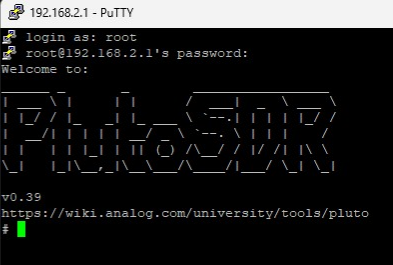
When prompted: username is root password is analog
With either method, you should now see the command line interface (CLI) of Pluto. You can use this interface to run commands, configure settings, and access advanced features of Pluto.
Note
For questions or help with the Pluto SDR, please visit: EngineerZone