Updating the Firmware
Shortly after plugging Pluto in your PC it should appear as a storage device:
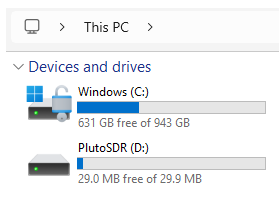
Open Pluto and click on info.html. Click on the Firmware (or Version) button:
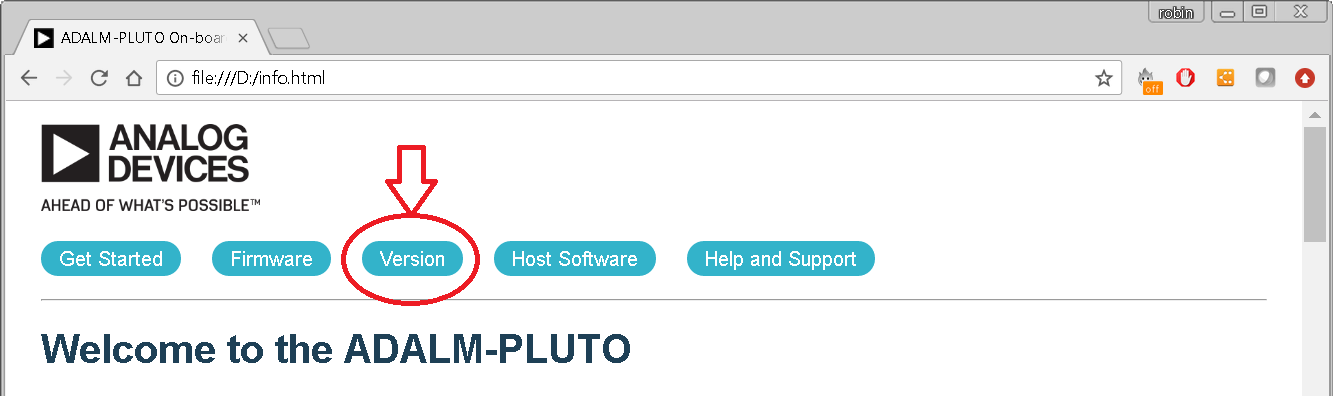
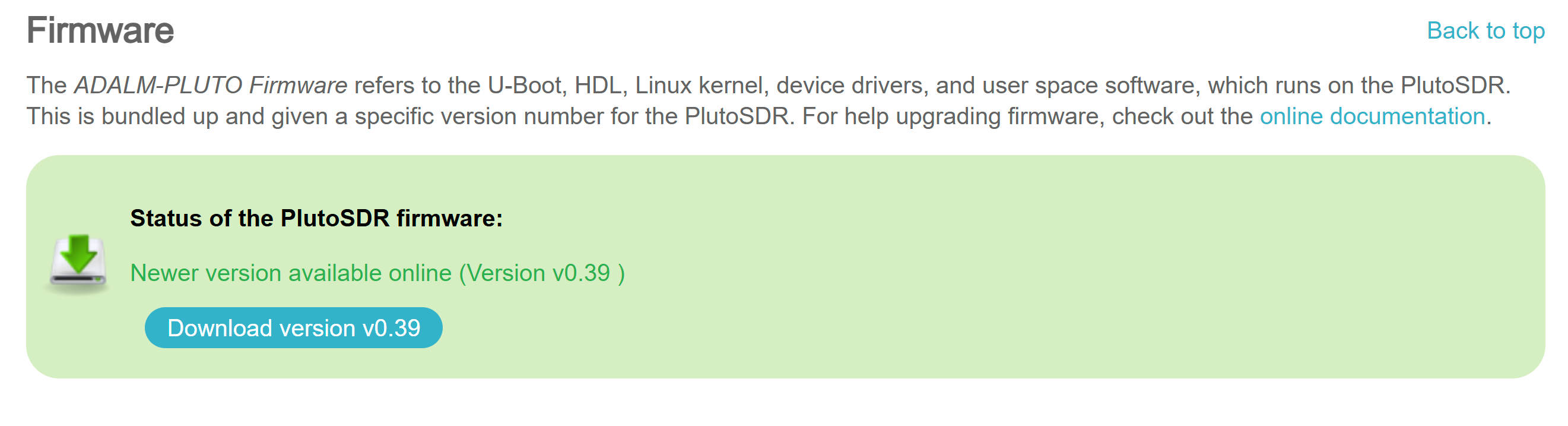
If you are able to do so, upgrade the firmware version by visiting:
Click on “Latest ADALM-PLUTO (PlutoSDR) Release” and download the “plutosdr-fw-v0.xx.zip” file. At the time of this guide, that release was 0.39. Copy “pluto.frm” to the PlutoSDR USB drive. This is the only file necessary for a firmware upgrade, however, copying all 5 of the files can sometimes resolve a rare issues with Pluto setup. And it doesn’t hurt anything–so I normally just copy all the files.
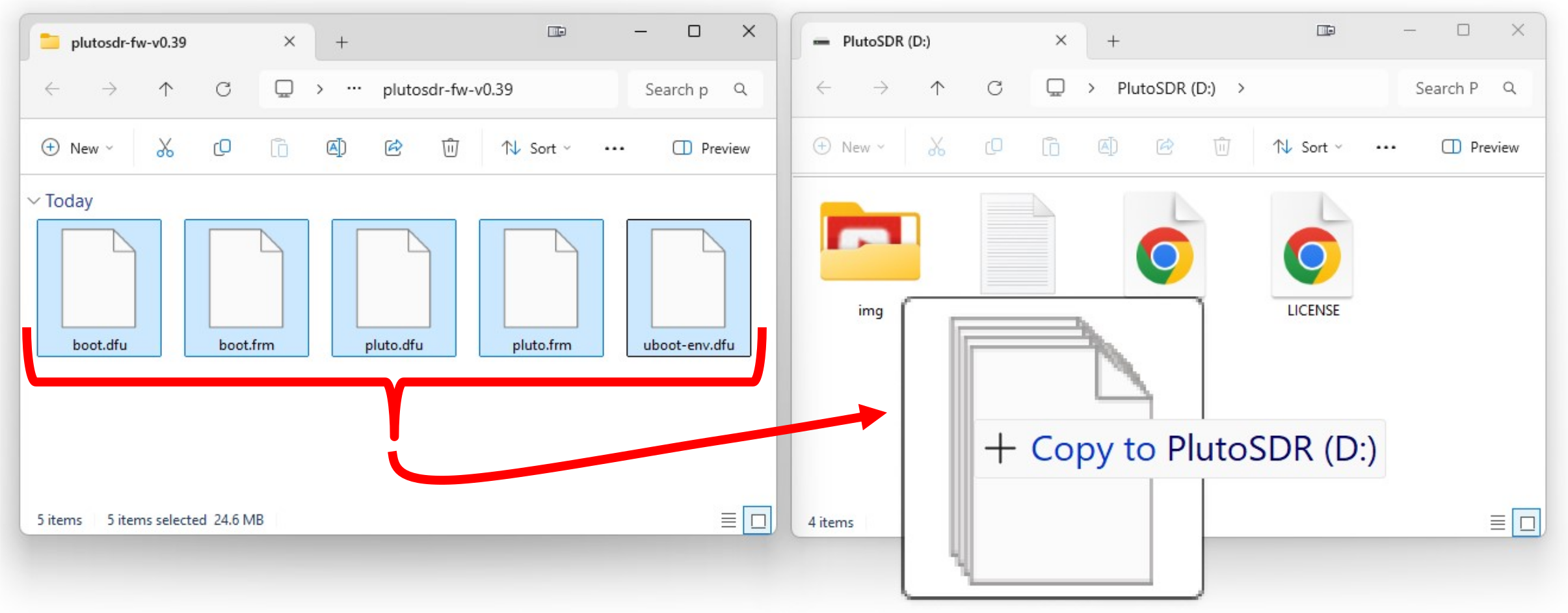
After copying the file(s), you MUST do a software eject of Pluto. For Windows systems, just right click on PlutoSDR and select “Eject”:
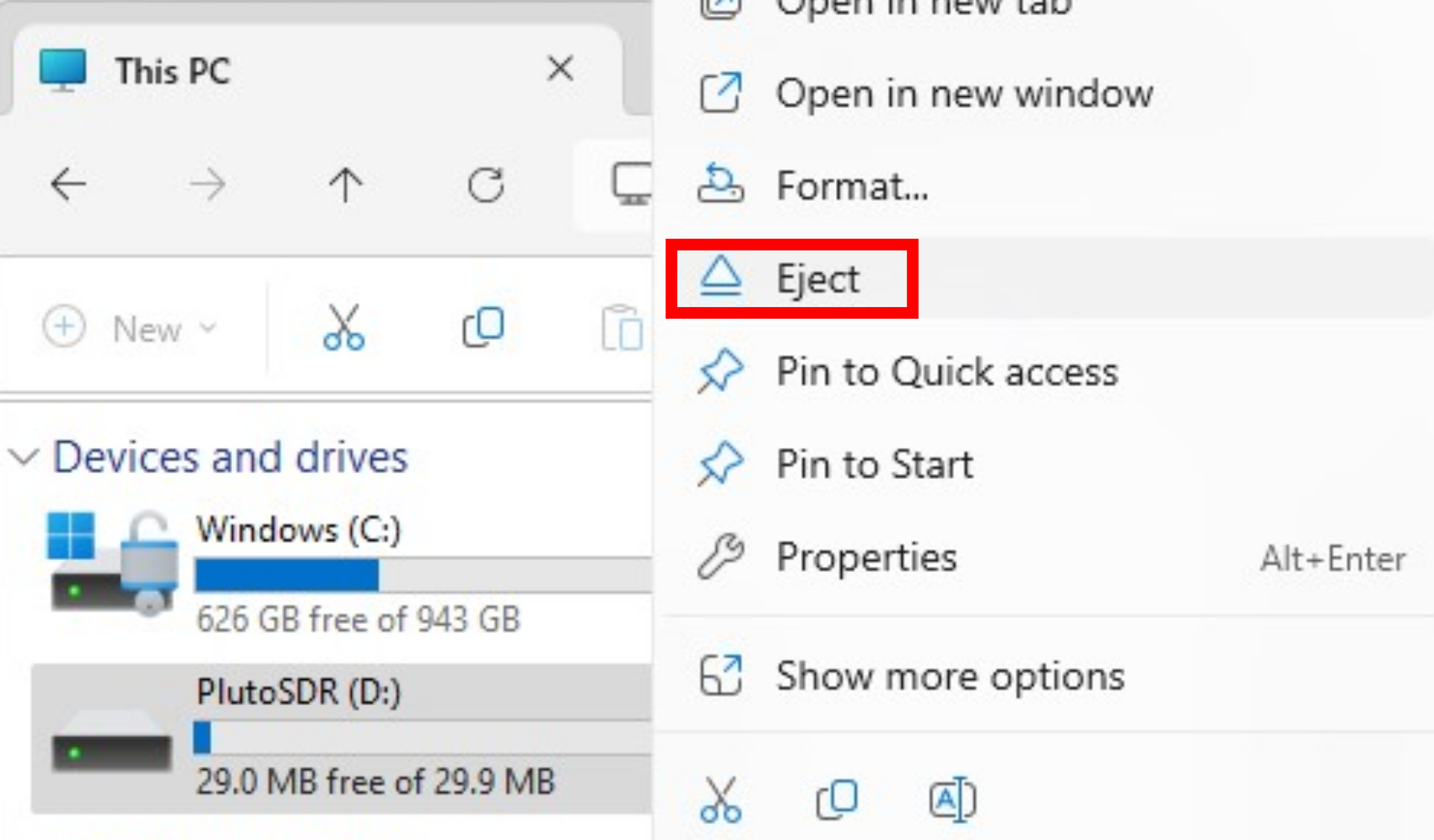
Pluto’s blue LED will rapidly flash whilst it updates(less the 2 minutes). When it is complete, PlutoSDR will again appear as a mounted USB drive. It is VERY IMPORTANT that you do not interrupt this process. DO NOT unplug PlutoSDR while this firmware upgrade is occurring. If this should happen, and Pluto becomes unresponsive, follow the DFU Update Procedure to attempt to recover the PlutoSDR.
Warning
Once PlutoSDR has begun the firmware upgrade and its blue LED is flashing rapidly do not disconnect Pluto! Instead, wait patiently (less the 2 minutes) for the upgrade process to finish. You will know it is finished because Pluto will appear as a USB drive and the blue LED will flash slowly (not rapidly).
If you have made any “hacks” to Pluto – such as frequency expansion or enabling the second channels, you will likely have to redo those hacks after a firmware upgrade (particularly if you copied all the files, instead of just pluto.frm).
Variations of this procedure exist for other operating systems (i.e. Linux). See this page for instructions. Additionally, if you have a computer that does not allow writing to a USB drive, you can instead update Pluto over the network. Follow the instructions here.
You can now head straight over to the Software section.
Further Reading
Note
For questions or help with the Pluto SDR, please visit: EngineerZone