CFAR Target Processing
The key parameter in the CFAR algorithm is the probability of false alarm, which remains constant (hence the name). CFAR assumes gaussian noise and looks for outliers in the collected data. The number of standard deviations that the outliers must be considered a detection is based on this probability of false alarm. If the probability of false alarm is set to a higher value, we will see more false alarms but also reduce the likelihood that we miss a true target detection. If the probability of false alarm is set to a lower value, we will see fewer false alarms but also increase the likelihood that we miss a true target detection.
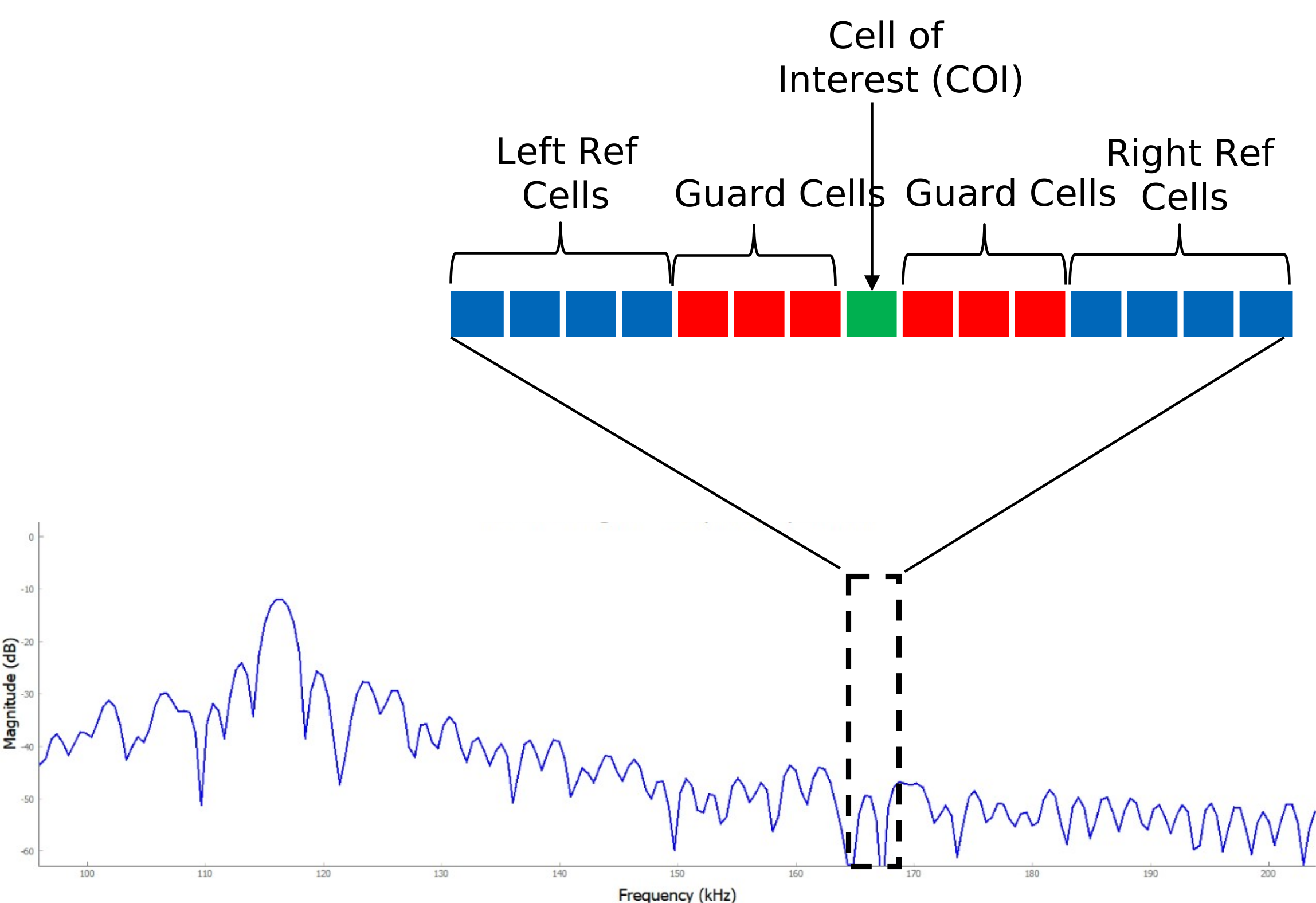
Here’s an example of setting the CFAR threshold value with a “Cell Averaging CFAR” algorithm:
Acquire the range (FFT) data
Pick one range bin as a COI (Cell of Interest)
Move some number of cells away (guard cells)
Average some number of cells (reference cells)
Multiply the average by some bias to give a threshold.
Compare that threshold to the COI
If that threshold is < COI, then Target!
Lab Instructions
In this lab, adjust the guard and training (reference) cells, based on our observations, to maximize detection performance.
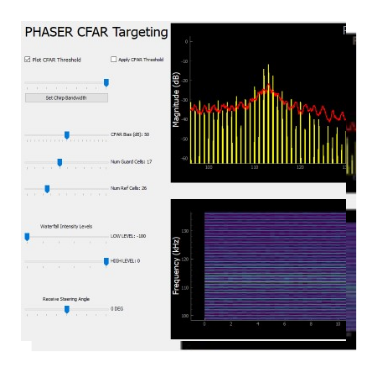
Download CFAR_RADAR_Waterfall_ChirpSync.py and target_detection_dbfs.py
Open “CFAR_RADAR_Waterfall_ChirpSync.py” and click Run
Click “Plot CFAR Threshold”, but don’t click “Apply CFAR Threshold”
Adjust “CFAR Bias”, “Num Guard Cells”, and “Num Ref Cells” so that the red line is below the target peak, but above the clutter peaks
Once you have good values, try it out by clicking “Apply CFAR Threshold”
Move back and forth (SLOWLY!) and see if only your target is now captured.
MOVE SLOWLY!! This is a lot of calculations….
Keep adjusting your values and try to improve! DON’T “cheat” by changing the Waterfall Intensity Levels!! Leave those at -100 and 0!
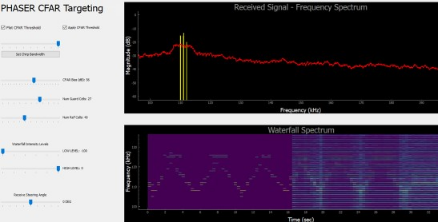
You can find a video walkthrough of this lab here:
Note
For questions or help with the Phaser, please visit: EngineerZone