MATLAB Installation and Examples
MATLAB is another popular choice for working with PlutoSDR, especially for those who are already familiar with MATLAB’s signal processing capabilities. You can use the Communications Toolbox Support Package for Analog Devices ADALM-Pluto Radio in MATLAB to interface with PlutoSDR. This toolbox provides functions for configuring Pluto and accessing its data.
MATLAB Pluto Toolbox Installation
To use PlutoSDR with MATLAB, you need to install:
These can all be found in the MATLAB “Add-Ons”:
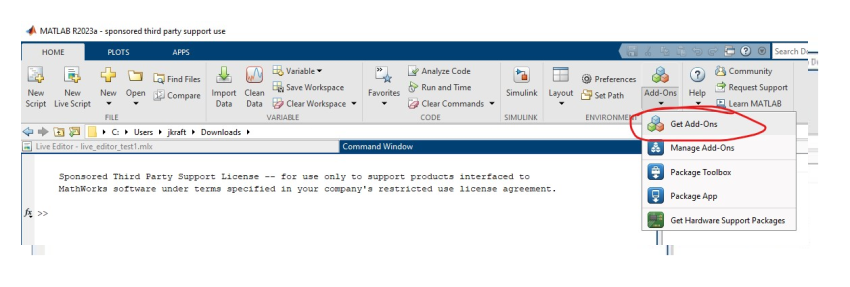
Then search for the desired toolbox:
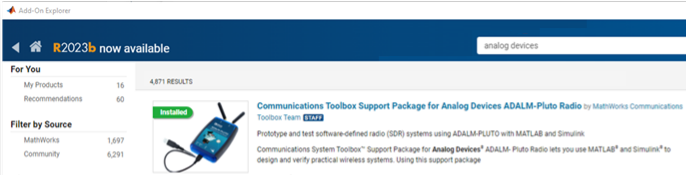
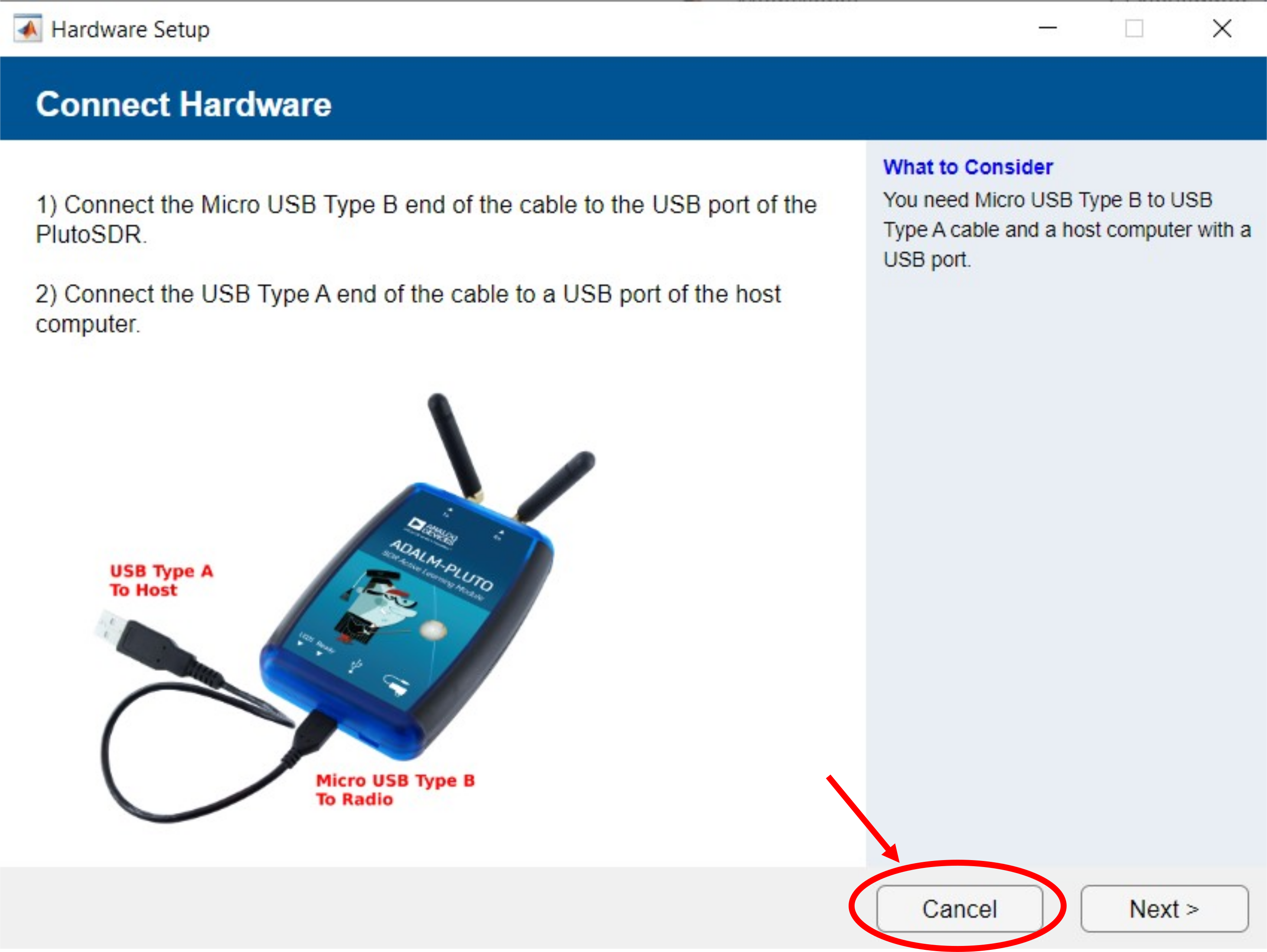
When installing the Pluto Toolbox, a “Connect Hardware” window will open. Just select cancel. Do not allow MATLAB to update Pluto’s firmware.
Caution
When installing this Pluto Toolbox, MATLAB may prompt you to update or reinstall Pluto’s firmware.
⚠️Do not allow MATLAB to modify Pluto’s firmware!⚠️
Instead, follow the Upgrading Firmware section of this guide to ensure you have the latest firmware, with the correct configuration for the Phaser.
MATLAB Pluto (2T/2R) Installation
If you are using Pluto in the 2T2R configuration, then you’ll also need to install the toolboxes necessary for the AD9361 control. They are found in the MATLAB Add On manager. The toolboxes to install are:
After installing these toolboxes, you need to run these commands from a MATLAB prompt:
A=adi.utils.libad9361
A.download_libad9361
Test MATLAB Pluto (1T/1R) Installation
Once you have the Pluto Toolbox installed, perform a simple test just to make sure everything is working. With Pluto connected to the center USB port, type:
rx = sdrrx('Pluto', 'RadioID', 'ip:192.168.2.1');
data = rx();
data(1:10)
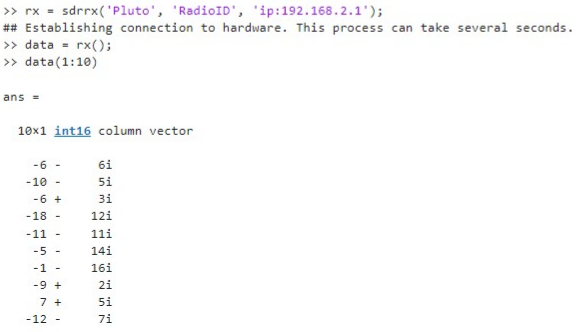
This first creates a Pluto receive object (“rx”). For the context, it is best to use the ip address of Pluto – which by default is 192.168.2.1. Then the rx() command grabs one buffer of receive data from Pluto. Finally, the first 10 samples are printed out. The results should look like this:
Here’s another example, this time setting more attributes and plotting the result:
% Create PlutoSDR receiver
rx = sdrrx('Pluto', ...
    'RadioID', 'ip:192.168.2.1', ...
    'CenterFrequency',      2.4e9, ...      % 2.4 GHz
    'BasebandSampleRate',   1e6, ...        % 1 MSPS
    'SamplesPerFrame',      4096, ...
    'OutputDataType',       'double');      % convenient for plotting/processing

% Optional: verify connection and settings
info(rx)

% Receive one frame of samples
samples = rx();   % Complex baseband I/Q

% Plot first 1000 samples (real part)
N = min(1000, numel(samples));
plot(real(samples(1:N)));
xlabel('Sample Index');
ylabel('Amplitude');
title('Received Samples from PlutoSDR (Real Part)');
grid on

% Cleanup (recommended when done)
release(rx);
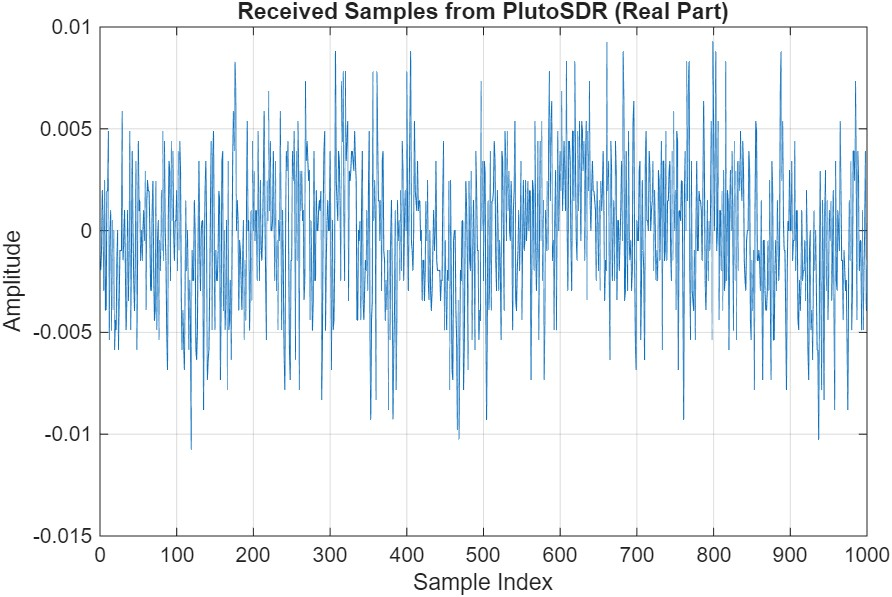
You should see something like the plot below (Pluto is just measuring noise):
Test MATLAB Pluto (2T/2R) Installation
If you are using Pluto as a 2T/2R device, then you need to address it as a AD9361, and not as a Pluto. That means that instead of using the Pluto Toolbox, you’ll use the Analog Devices Transceiver Toolbox. The setup is very similar though. Here are some examples:
Simple example (just a check that you’ve installed the Transceiver Toolbox)
sdr = adi.AD9361.Rx;
sdr.uri = 'ip:192.168.2.1';
data = sdr();
data(1:10)
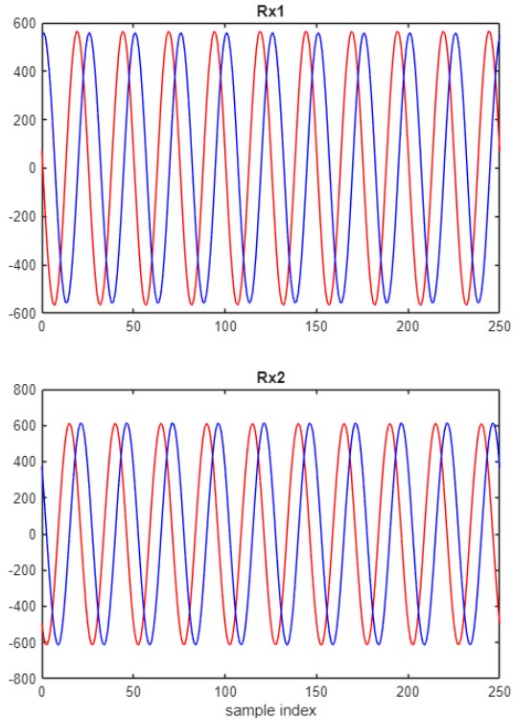
Here’s a more complete example showing how to create a waveform, transmit it, and process both channels of receive data:
clear all;

amplitude = 2^15; frequency = 0.12e6;
swv1 = dsp.SineWave(amplitude, frequency);
swv1.ComplexOutput = true;
swv1.SamplesPerFrame = 1024;
swv1.SampleRate = 3e6;
y = swv1();

% Setup receive
rx = adi.AD9361.Rx('uri', 'ip:192.168.2.1');
rx.EnabledChannels = [1,2];
rx.CenterFrequency = 2.e9;
rx.kernelBuffersCount = 2;
rx.GainControlModeChannel0 = 'slow_attack';
rx.GainControlModeChannel1 = 'slow_attack';
rx.SamplingRate = 3e6;
rx.SamplesPerFrame = 1024;

% Setup transmit
tx = adi.AD9361.Tx('uri', 'ip:192.168.2.1');
tx.EnabledChannels = [1,2];
tx.CenterFrequency = rx.CenterFrequency;
tx.AttenuationChannel0 = -10;
tx.AttenuationChannel1 = -10;
tx.DataSource = "DMA";
tx.EnableCyclicBuffers = true;

tx([y,y]);

%% Run
for k=1:10
    valid = false;
    while ~valid
        [data, valid] = rx();
    end
end
%tx.release();
%rx.release();

rx1 = data(:,1);
rx2 = data(:,2);
num_points = numel(rx1);

figure(1);
plot(0:num_points-1, real(rx1), 'r', 0:num_points-1, imag(rx1), 'b');
xlim([0 250]); title("Rx1");
figure(2);
plot(0:num_points-1, real(rx2), 'r', 0:num_points-1, imag(rx2), 'b');
xlim([0 250]); title("Rx2"); xlabel('sample index');
Useful Pluto MATLAB Links
Note
For questions or help with the Pluto SDR, please visit: EngineerZone