Triton Platform Initialisation
This section will cover the setup and initialisation of the Triton Platform
400MHz REF Clock Connection
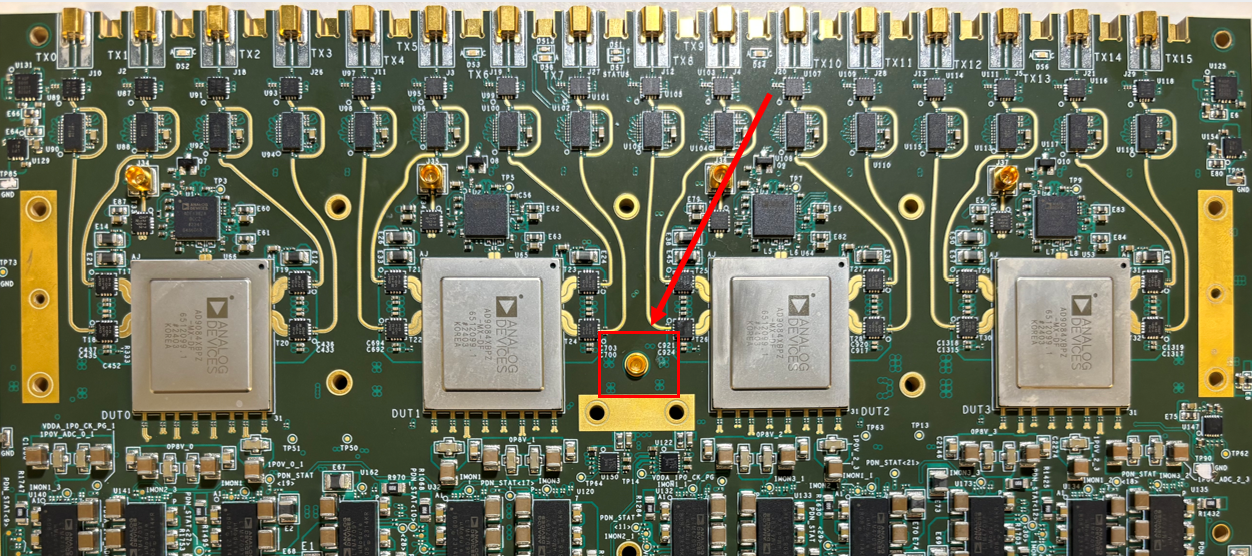
Each Triton board requires a 400 MHz REF_CLOCK connected to the board before the system is powered on. This should be connected to SMP RF Connector J34 as shown below on each of the boards.
Once this clock is connected to the Triton Platform, you can move to the next step
Triton JTAG Programming & Boot Up
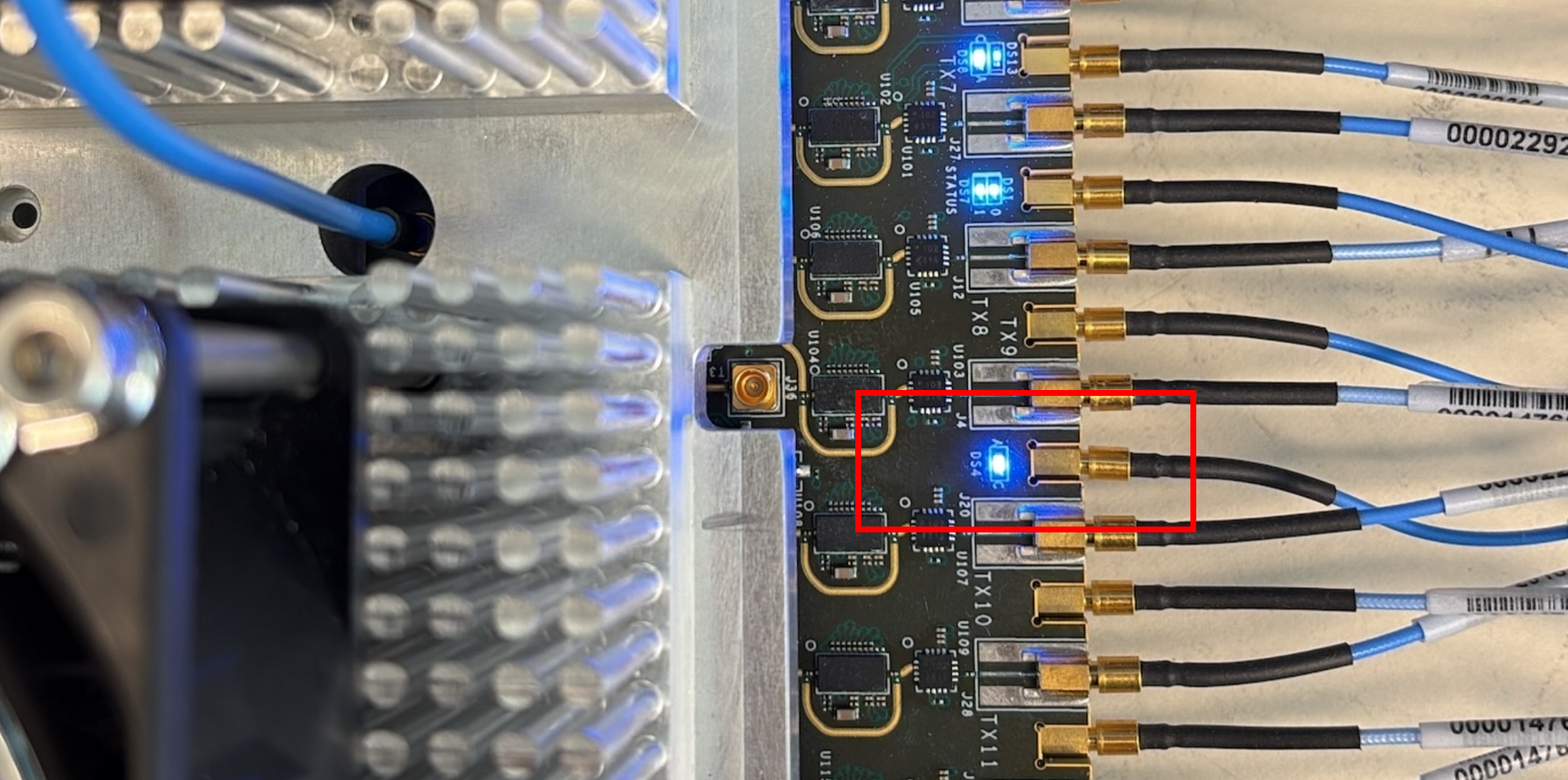
With the 400 MHz REF_CLK connected, you can now power up the VCU118 and the Triton Board. You should observe the Fans turning on above the Triton Heatsink and you should also see a blue LED illuminated confirming that the 400 MHz clock is connected correctly, reference the image below
Note: From Triton Rev C boards onwards, the fans will be on once the 12VDC is applied, regardless of the switch position.
Triton JTAG Programming
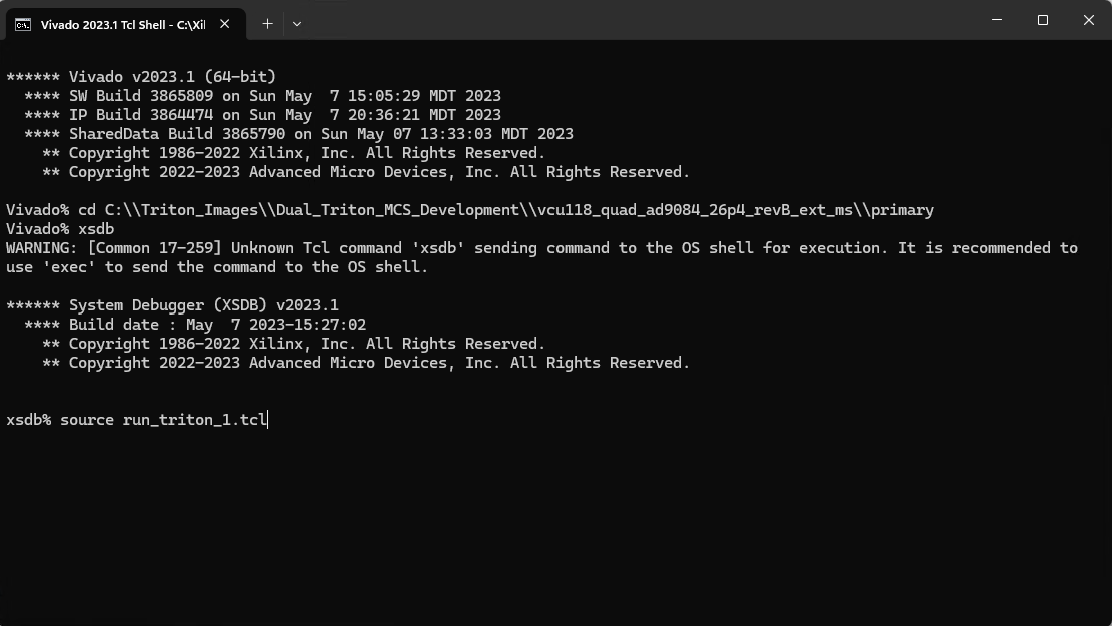
On your PC, open a Vivado 2023.1 Tcl Shell, this will appear similar to a cmd or powershell window. It will communicate with the VCU118 over USB JTAG and program the FPGA and Microblaze image after which the Triton Platform will boot to Linux. You should also open a COMM port connection to the Triton #1 board, this can be identified in your PC’s Device Manager.
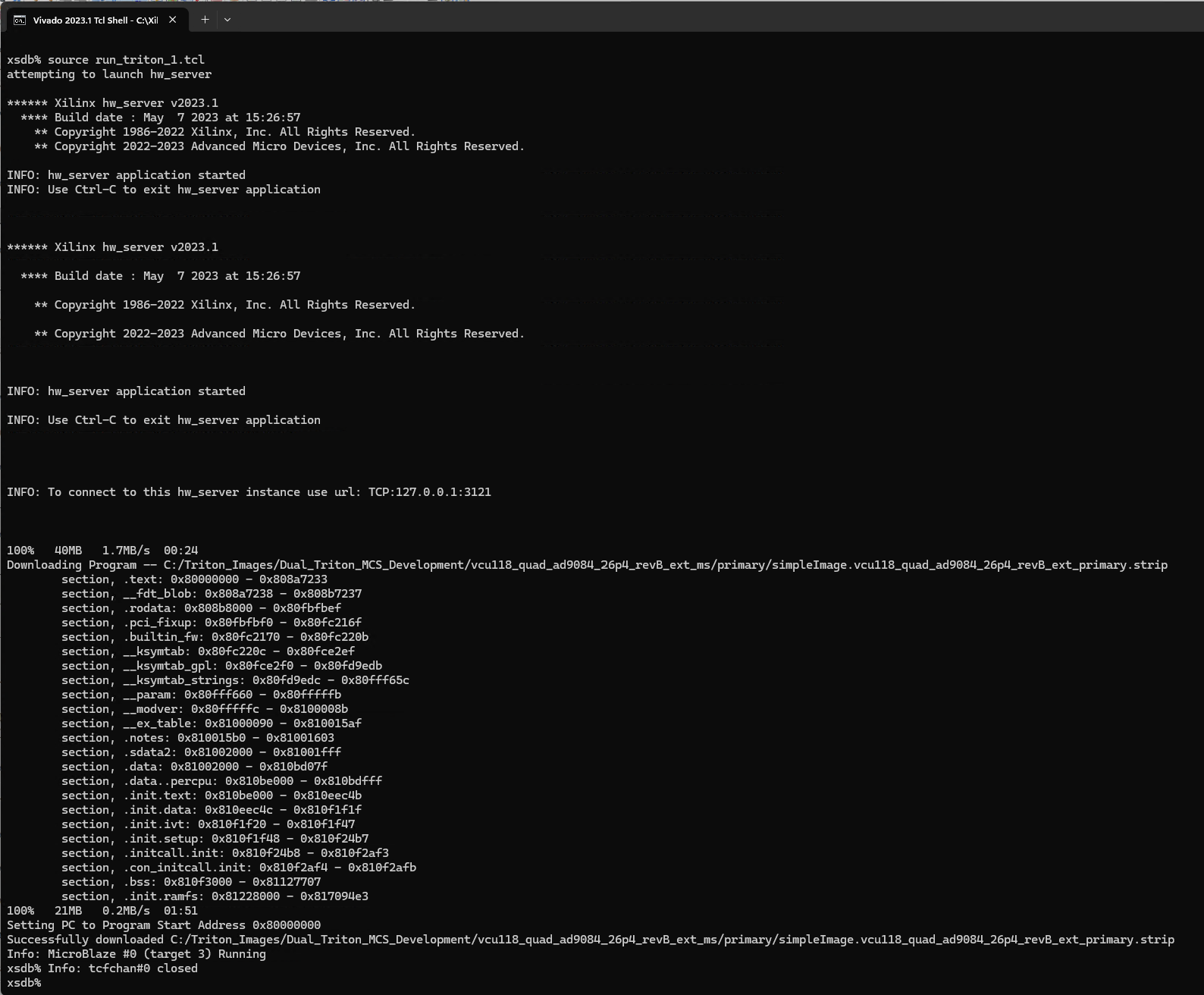
With the Vivado Tcl Shell open, you need to navigate to the location where you have stored the Triton image, load the debug shell and then program the platform. This can be achieved using the following commands. Reference the images below for guidance on pre-programming commands as well as expected response.
cd C:\\Triton_Images\\vcu118_quad_ad9084_26p4_revB_ext_primary-2026-02-24

xsdb

source run.tcl
Triton UART Boot Up Verification
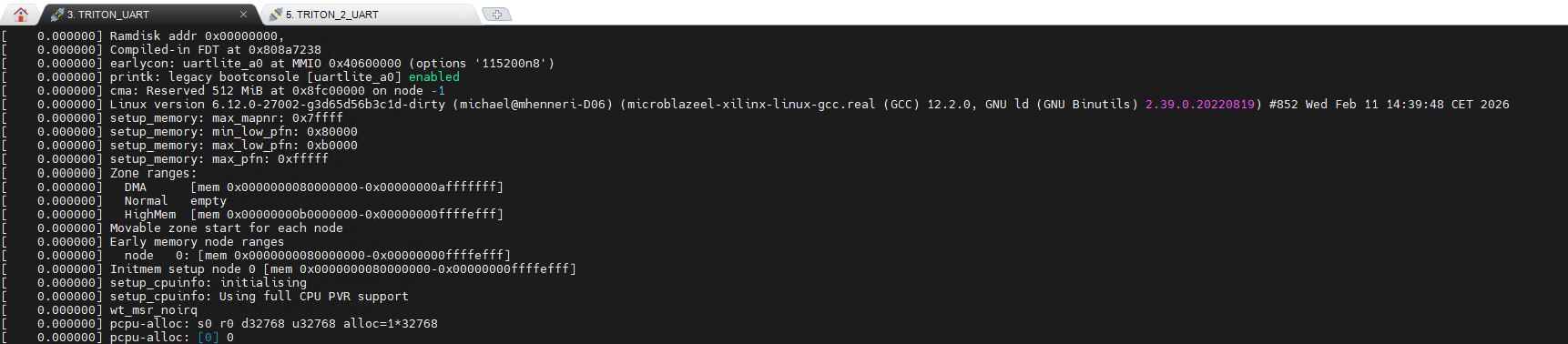
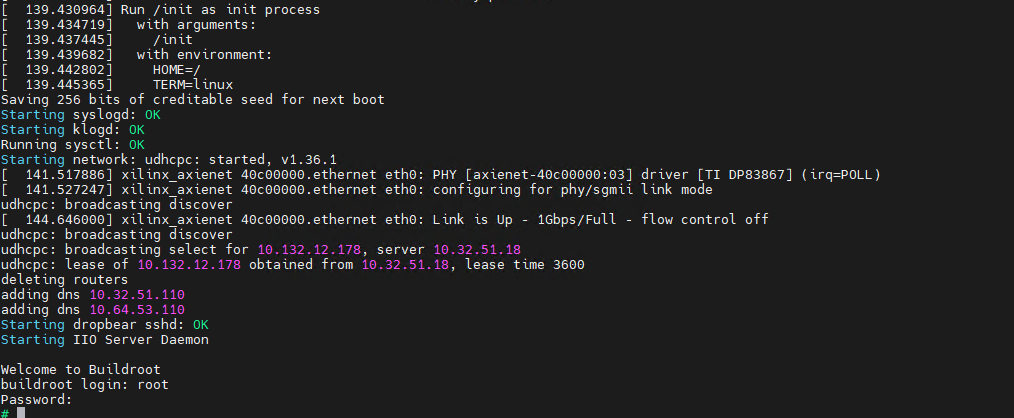
Having successfully programmed the Triton Platform over JTAG, you should move to monitor the COMM port console using the application of your choosing, e.g. Putty. As shown in the screenshots below, you will see an initial console output and then after about 2.5 mins, the system will complete its boot up sequence and you will be prompted to login to the system.
Username: root

Password: analog
IP Address Verification
By default the Triton board will come up with IP Address 192.168.2.1. Therefore you when connecting your PC to the system, you should setup the Ethernet port to an IP Address in the same netmask, e.g. 192.168.2.100
However, you also have the option to connect the Triton platform to the ADI network and in this case, on each boot up it will be assigned an IP address from the ADI network. It is important to note that this can change each time you boot up the system so it needs to be checked each time you bring up the system.
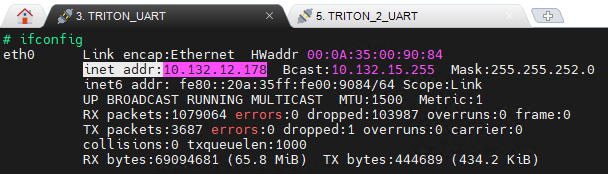
We can check what the IP address of the platform is using the ifconfig on the UART console and we will note the address as it will be needed for the MATLAB code execution. The image below shows the response from a platform connected to the ADI network.
IIO Device Verification
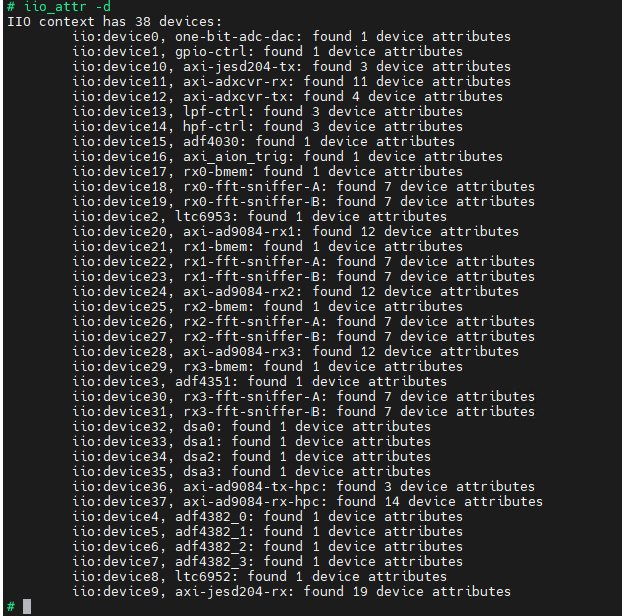
The MATLAB script will communicate using IIO so we need to ensure that we have the expected devices listed on each of the systems. We can check these using the iio_attr -d and review the response for the expected 38 devices as shown below.
IMPORTANT: If you do not see the same number of devices, please check that you have loaded the correct image.
JESD Status Verification
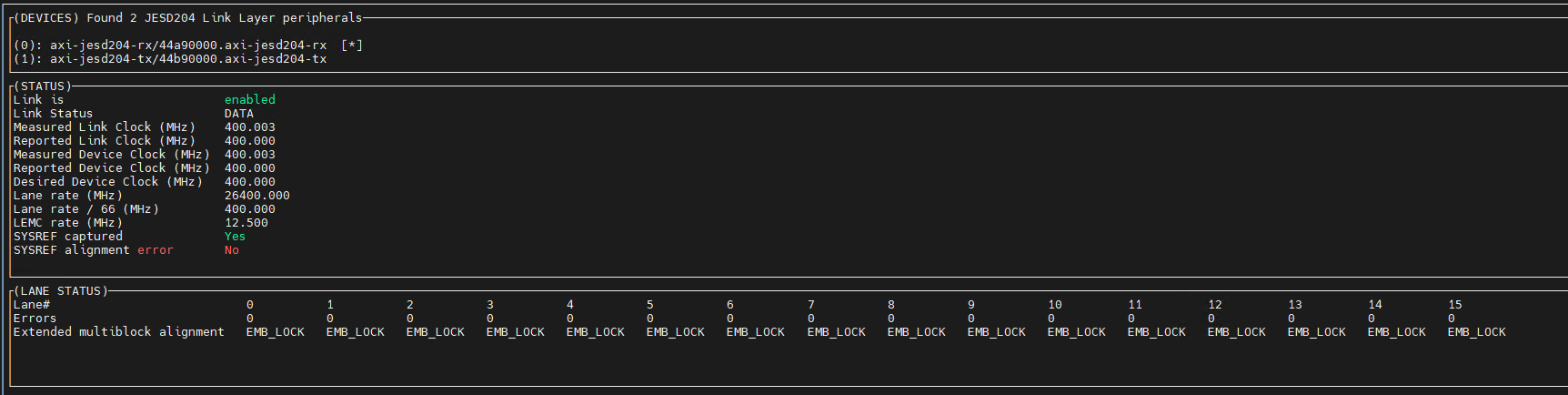
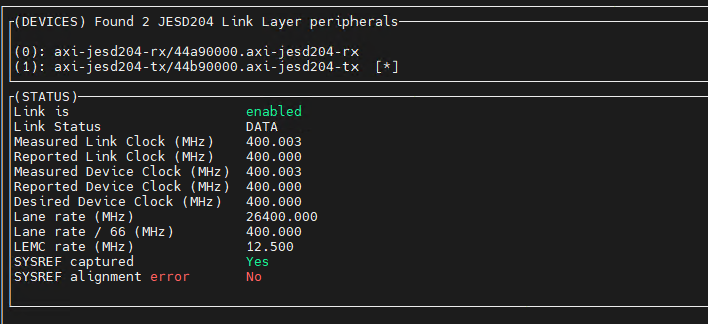
The last check we need to execute on each of the platforms before moving to the MATLAB code execution is to check the JESD status. We can check this using the jesd_status command and this will show the status for both DAC’s and ADC’s. You can toggle between the two using the ‘a’ key. Ahead of running the command however, to ensure the formatting of the response is correct, we need to send a resize command to the UART terminal.
For both the ADC and DAC JESD Status’, the checks you are looking for are:
Ensure the Link is response is enabled
Ensure the Link Status response is DATA
Ensure the Device and Link Clocks are response is 400 MHz approx
Ensure the Lane Rate MHz response is 26400.000
Ensure the Lane Rate / 66 MHz response is 400.000
Ensure the SYSREF captured response is Yes
Ensure the SYSREF alignment error response is No

DSA Configuration
By default the digital step attenuators (DSA) on the Rx RF Front End are set to 31.5dB. For the purposes of the initialisation demo we need to remove this attenuation and set the DSA’s to 0dB. This is achieved using the following commands.
iio_attr -c dsa0 voltage0 hardwaregain 0
iio_attr -c dsa1 voltage0 hardwaregain 0
iio_attr -c dsa2 voltage0 hardwaregain 0
iio_attr -c dsa3 voltage0 hardwaregain 0
Attention
The Triton board is now initialised and configured as needed and you can move to the MATLAB configuration steps