VCU118 Quickstart

This guide provides step-by-step instructions on how to set up the ADMX6001-EBZ on:

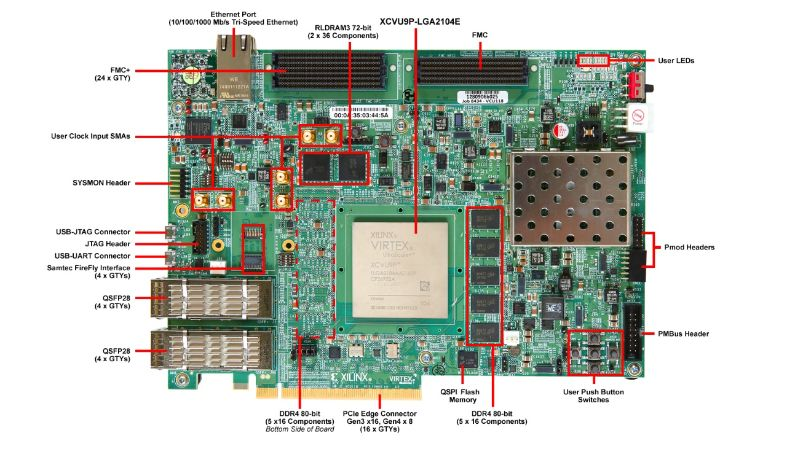
  • VCU118 on FMC+ HSPC (J22) port

VCU118

All the products described on this page include ESD (electrostatic discharge) sensitive devices. Electrostatic charges as high as 4000V readily accumulate on the human body or test equipment and can discharge without detection. Although the boards feature ESD protection circuitry, permanent damage may occur on devices subjected to high-energy electrostatic discharges. Therefore, proper ESD precautions are recommended to avoid performance degradation or loss of functionality. This includes removing static charge on external equipment, cables, or antennas before connecting to the device.

Using Linux as software

Necessary files

The following files are needed for the system to boot:

Required software

  • AMD Xilinx Vivado and Vitis (downloading Vitis from here will include Vivado as well)

  • Silicon Labs USB-to-UART VCP drivers (for serial console access)

  • UART terminal (Putty/Tera Term/Minicom, etc.) with baud rate 115200 (8N1)

Required hardware

  • VCU118 Virtex UltraScale+ FPGA board and its power supply (12 V / 65 W)

  • ADMX6001-EBZ FMC+ evaluation board and its power supply (12 V / 65 W)

  • A benchtop function generator

  • SMA connector for signal from function generator

  • Micro-USB cable ×2

  • LAN cable (Ethernet)

  • (Optional) USB keyboard and mouse, monitor

More details as to why you need these can be found at Prerequisites.

Testing

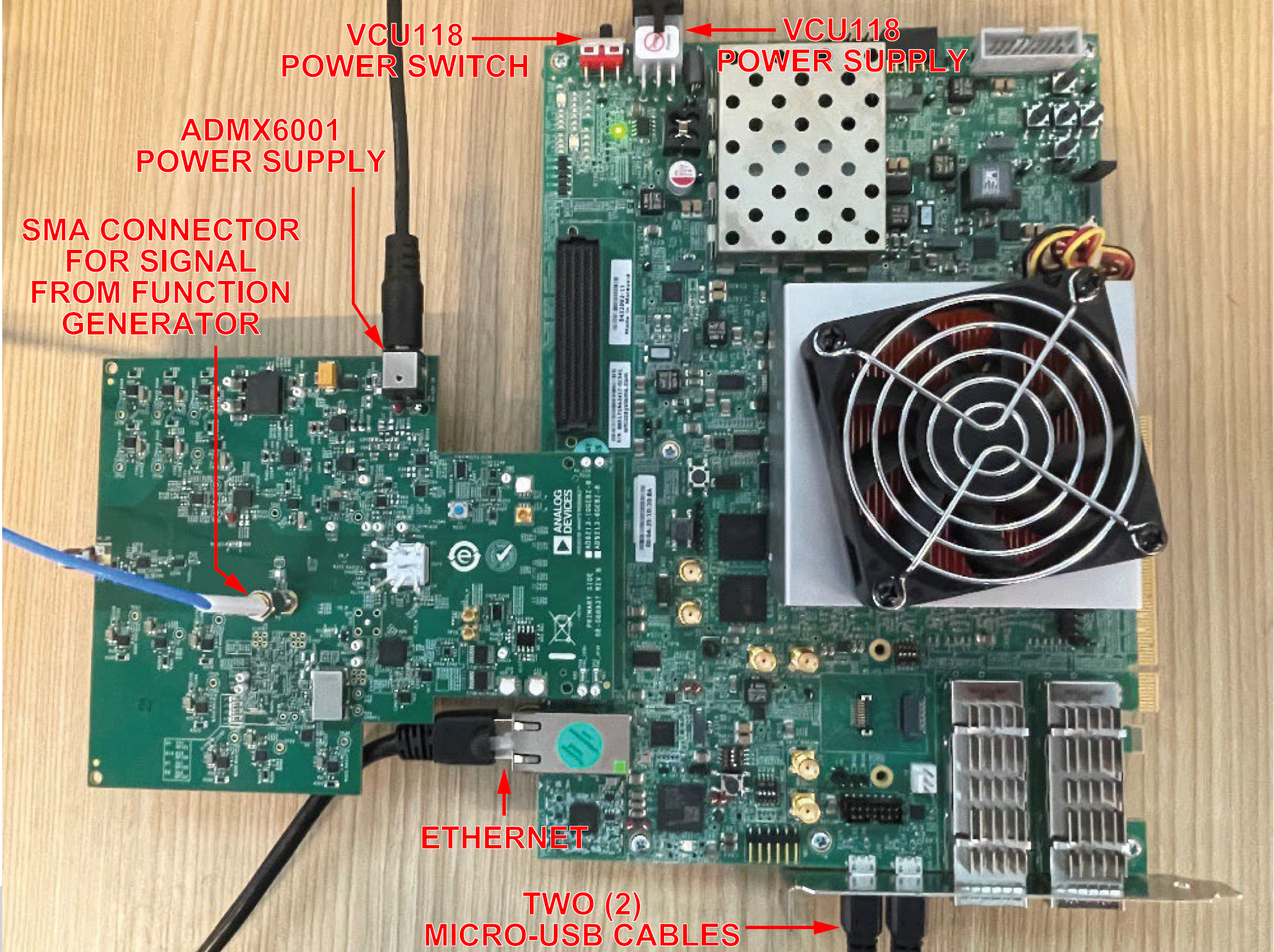
Creating the setup

https://media.githubusercontent.com/media/analogdevicesinc/documentation/main/docs/solutions/reference-designs/admx6001_ebz/images/vcu118_admx6001_setup.png

Follow the steps in this order, to avoid damaging the components:

  1. Connect the ADMX6001-EBZ to the FMC+ HSPC connector on the VCU118.

  2. Connect the Ethernet cable from your router/switch to the Ethernet port on the VCU118.

  3. Connect both Micro-USB cables to the UART ports on the VCU118.

  4. Connect the power supply to the ADMX6001-EBZ and power it on first.

  5. Connect the power supply to the VCU118 and power it on second.

Warning

Always power the ADMX6001-EBZ before the VCU118. Power down in reverse order.

Configuring the host PC network

Follow these steps to configure the Ethernet IP address:

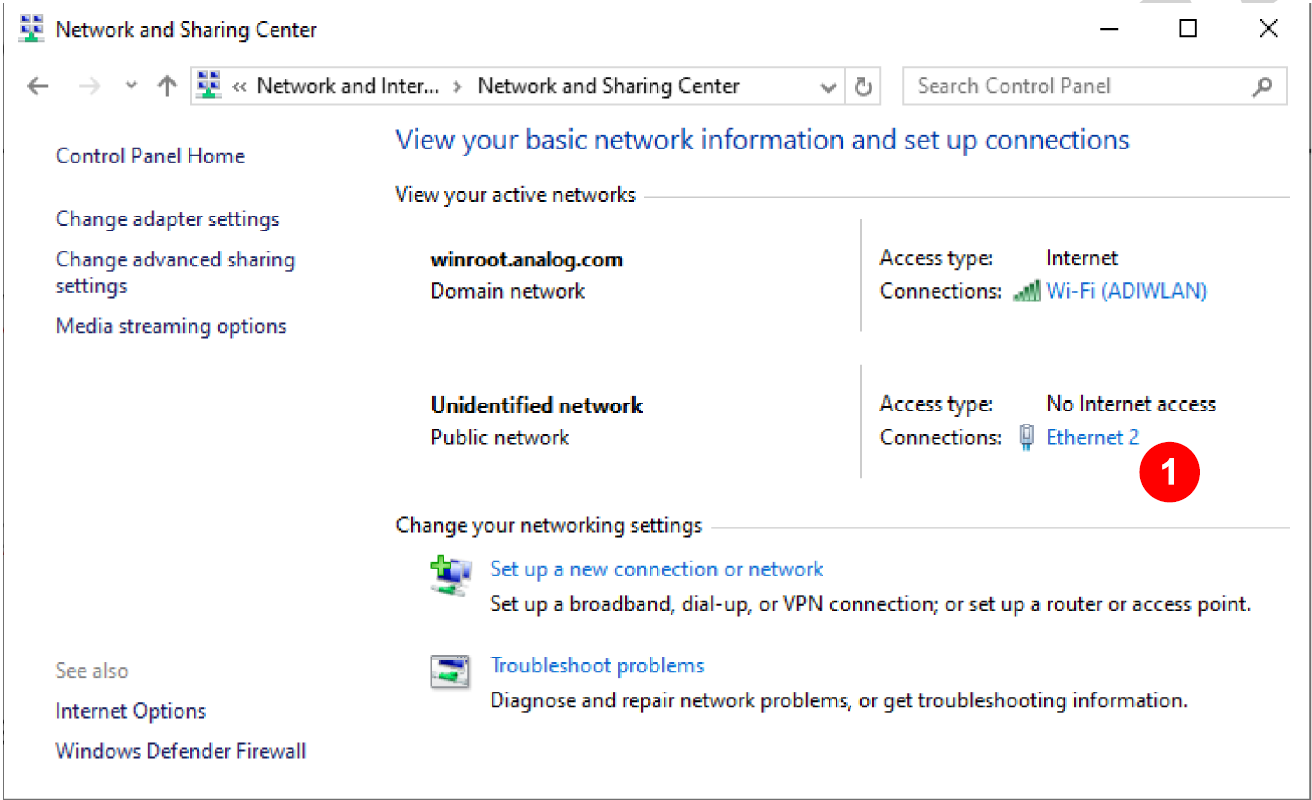
  1. Control Panel -> Network and Sharing Center -> click Ethernet to open the Ethernet Status window, as shown in figure below.

    https://media.githubusercontent.com/media/analogdevicesinc/documentation/main/docs/solutions/reference-designs/admx6001_ebz/images/ip_network.png
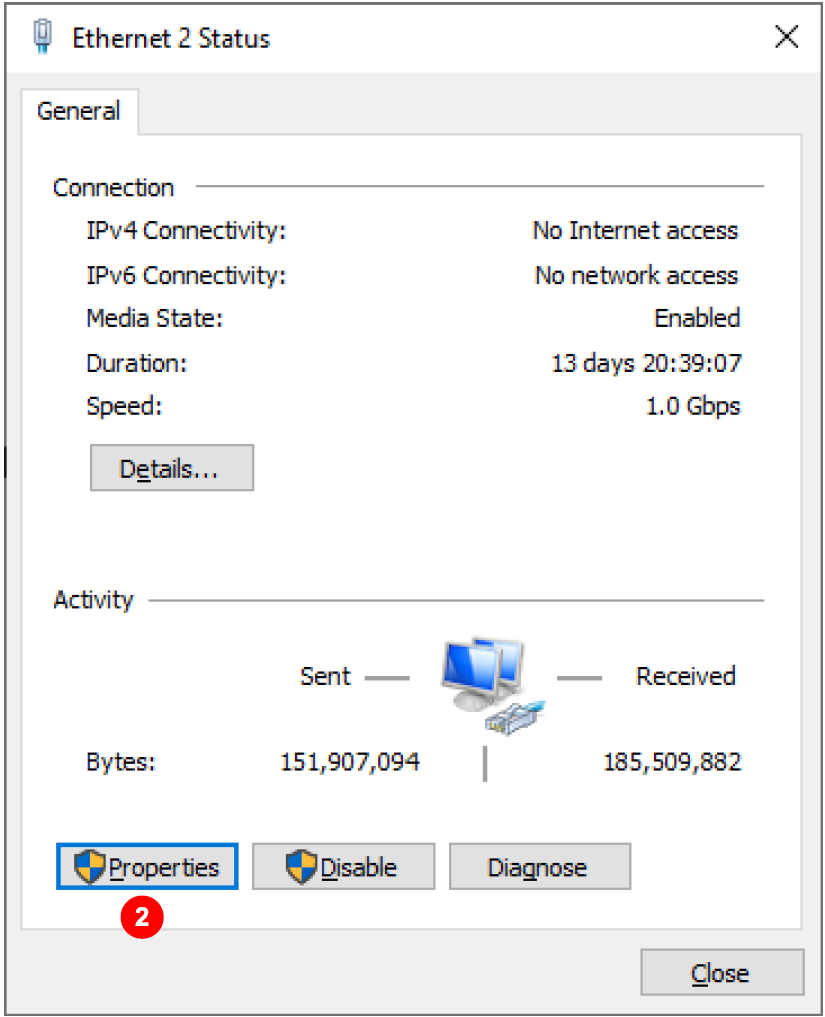
  2. Click Properties to open the Ethernet Properties window.

    https://media.githubusercontent.com/media/analogdevicesinc/documentation/main/docs/solutions/reference-designs/admx6001_ebz/images/ip_properties.png
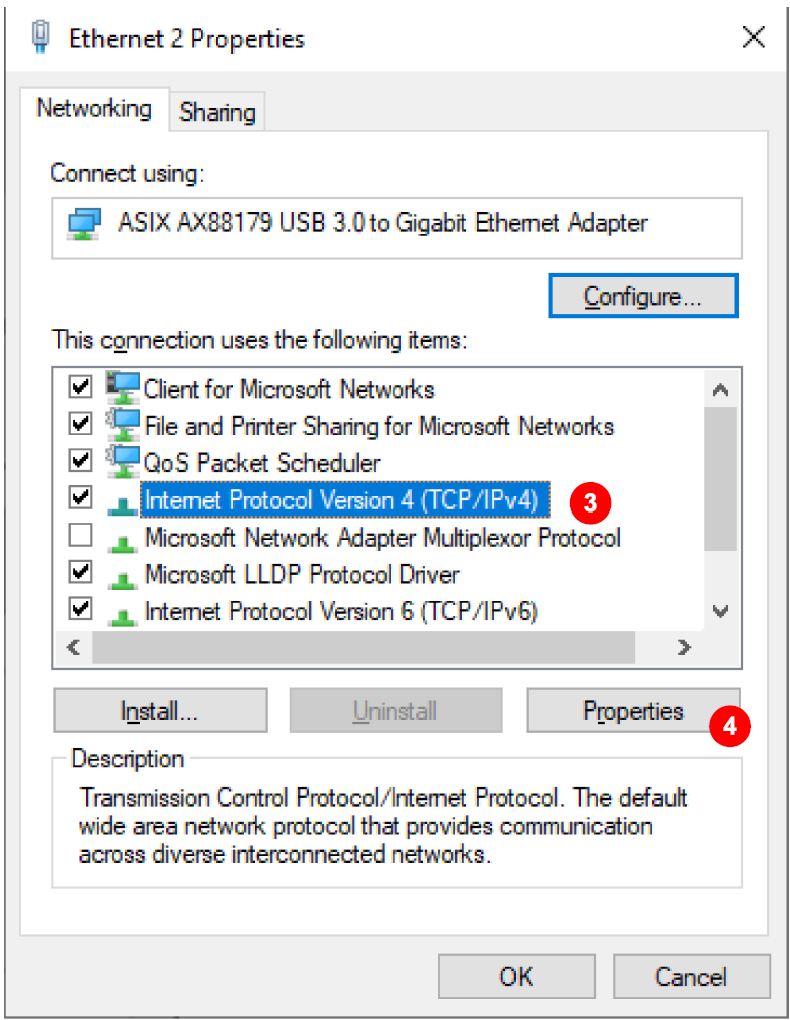
  3. Select Internet Protocol Version 4 (TCP/IP) and then click Properties to open the Internet Protocol Version 4 (TCP/IPv4) Properties window.

    https://media.githubusercontent.com/media/analogdevicesinc/documentation/main/docs/solutions/reference-designs/admx6001_ebz/images/ip_tcpip.png
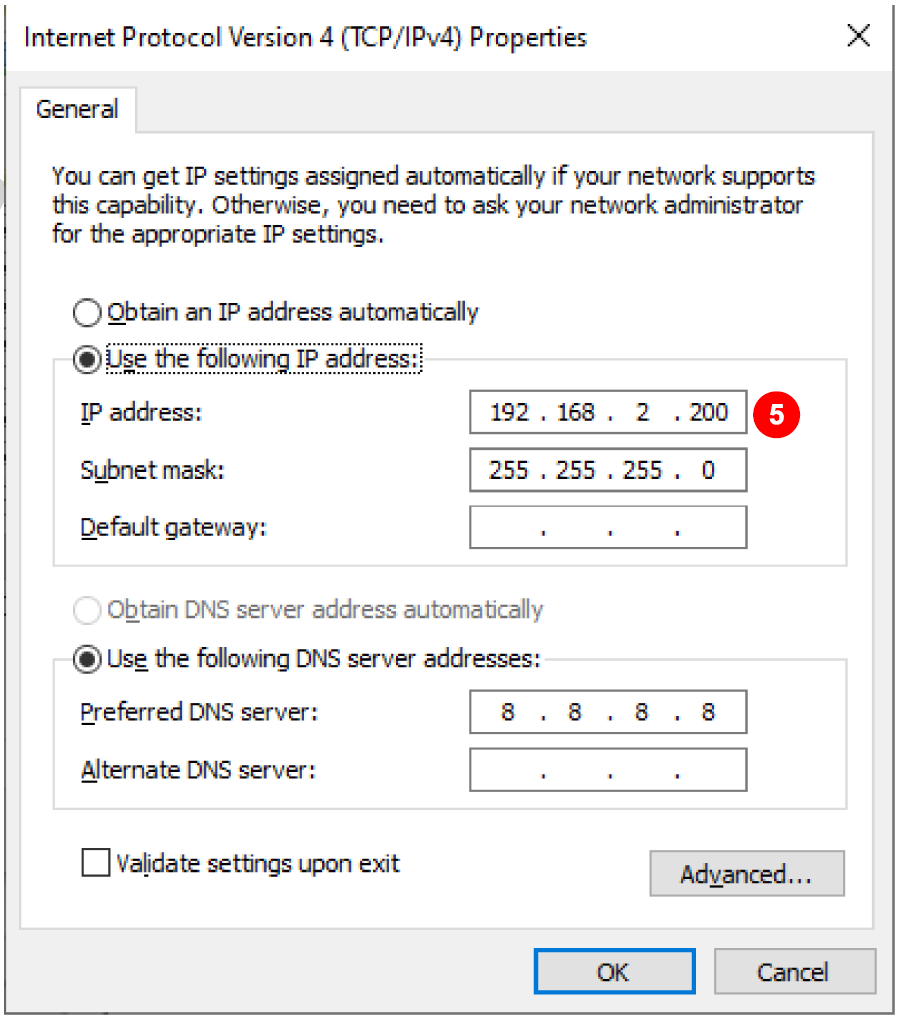
  4. Review/change IP address.

    https://media.githubusercontent.com/media/analogdevicesinc/documentation/main/docs/solutions/reference-designs/admx6001_ebz/images/ip_ipreview.png
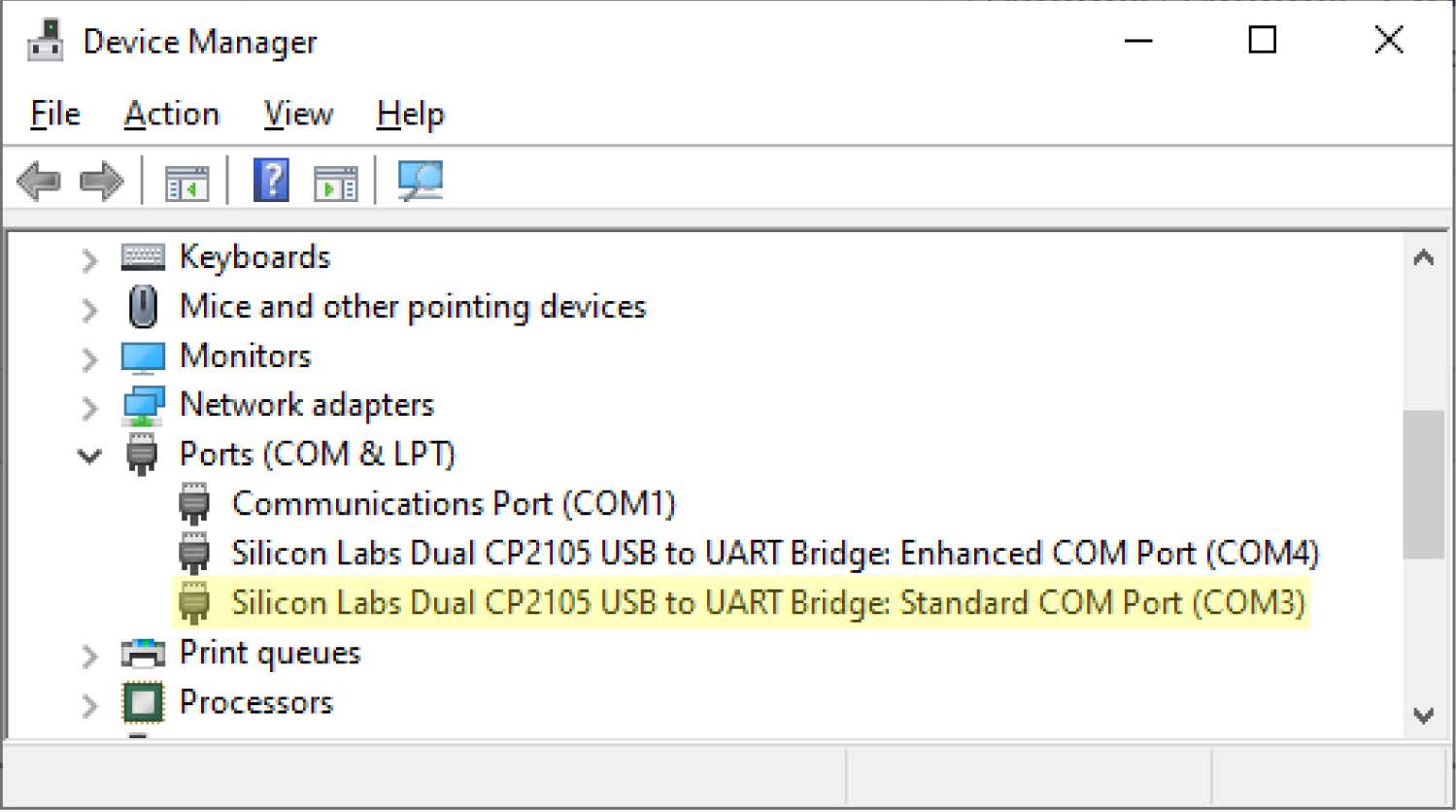
  5. Find the UART COM port of the Xilinx VCU118 board by opening Device Manager and expanding Ports (COM & LPT). Locate Silicon Labs Dual CP2105 USB to UART Bridge Standard COM Port (COMx) to get the COM port number for the Tera Term serial terminal connection. The user may need to update the CP210x USB to UART Bridge VCP drivers.

    https://media.githubusercontent.com/media/analogdevicesinc/documentation/main/docs/solutions/reference-designs/admx6001_ebz/images/uart.jpg

FPGA programming

The programming files for Xilinx VCU118 FPGA are provided as a .zip file. Unzip the files to a working folder for all of the required files.Refer to the Hardware Setup section. The 12V power adapters to both the ADMX6001-EBZ board and the Xilinx VCU118 FPGA board must be unplugged from the wall outlets before turning on the boards.

Turn on the boards sequentially. First, make sure that the connection of the 12V power adapter output to the barrel connector (P4) on the ADMX6001-EBZ board is securely in place, then turn on the ADMX6001-EBZ board by plugging in the 12V power supply to the wall outlet. The DS10 and DS11 on the same edge as the barrel connector on the ADMX6001-EBZ board must be lit. Otherwise, unplug the 12V power adapter from the wall outlet and wait for about 10 seconds before plugging the 12V power supply back to the wall outlet. Second, make sure that the power switch on the Xilinx VCU118 board is in the OFF position and the output of the 12V power supply is securely in place. Plug in the 12V power adapter for the Xilinx VCU118 board to the wall outlet, then turn on the Xilinx board by turning the power switch to the ON position.

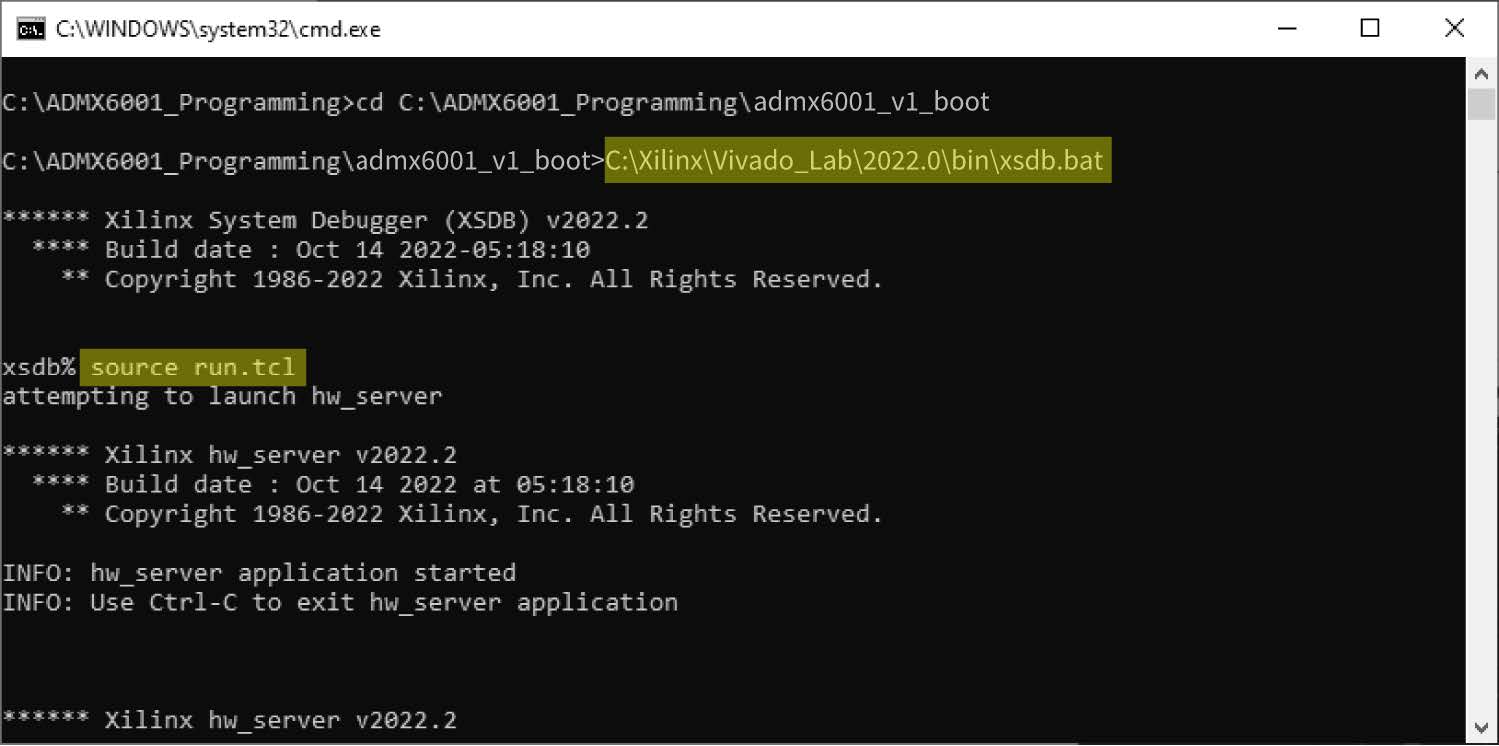
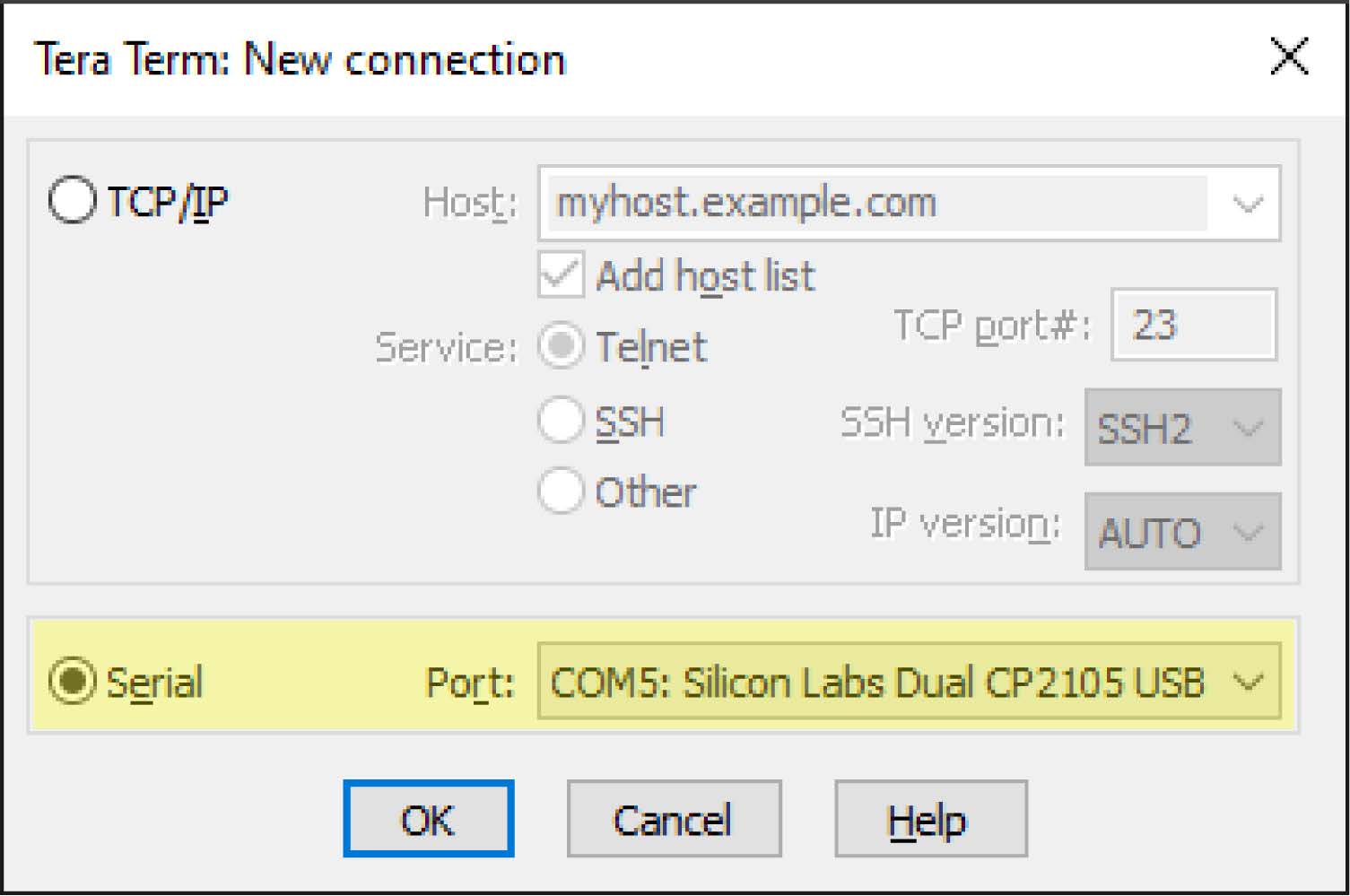
Before programming the Xilinx VCU118 board, it is important to configure Ethernet to an IP 192.168.2.xx where xx can be any number between 2 and 255. If a USB adapter with Ethernet port is used, plug in the USB adapter before reviewing and/or configuring the IP address. Install the Silicon Labs VCP drivers and verify the UART COM port appears in Windows Device Manager. Open Tera Term and connect to the detected COM port at 115200 baud, 8N1 to monitor the boot process. Launch an xsdb shell from Vivado Lab Edition:

xsdb

Program the VCU118 FPGA board:

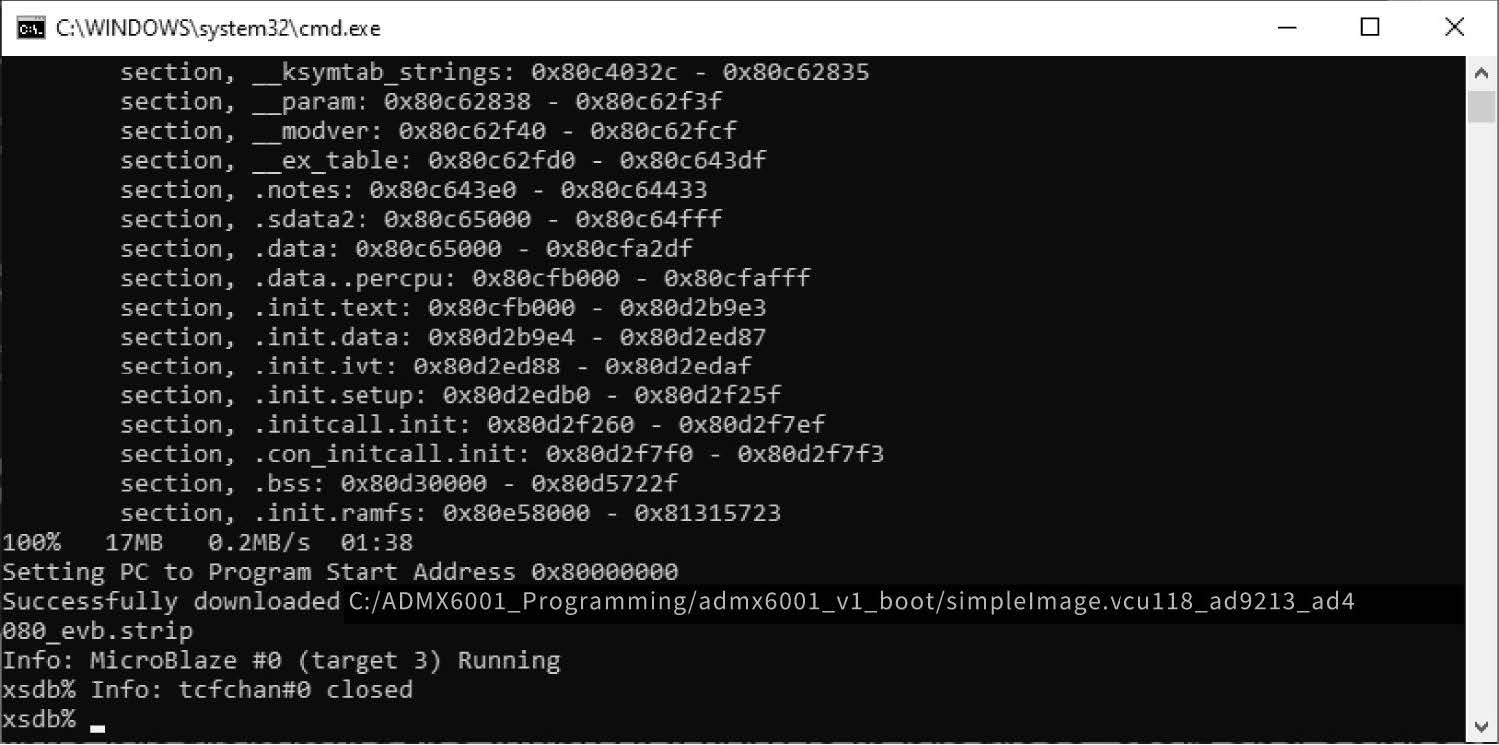
xsdb% source run.tcl
https://media.githubusercontent.com/media/analogdevicesinc/documentation/main/docs/solutions/reference-designs/admx6001_ebz/images/programming_with_vivado_lab.jpg
https://media.githubusercontent.com/media/analogdevicesinc/documentation/main/docs/solutions/reference-designs/admx6001_ebz/images/programming_with_vivado_lab_xsdb.jpg

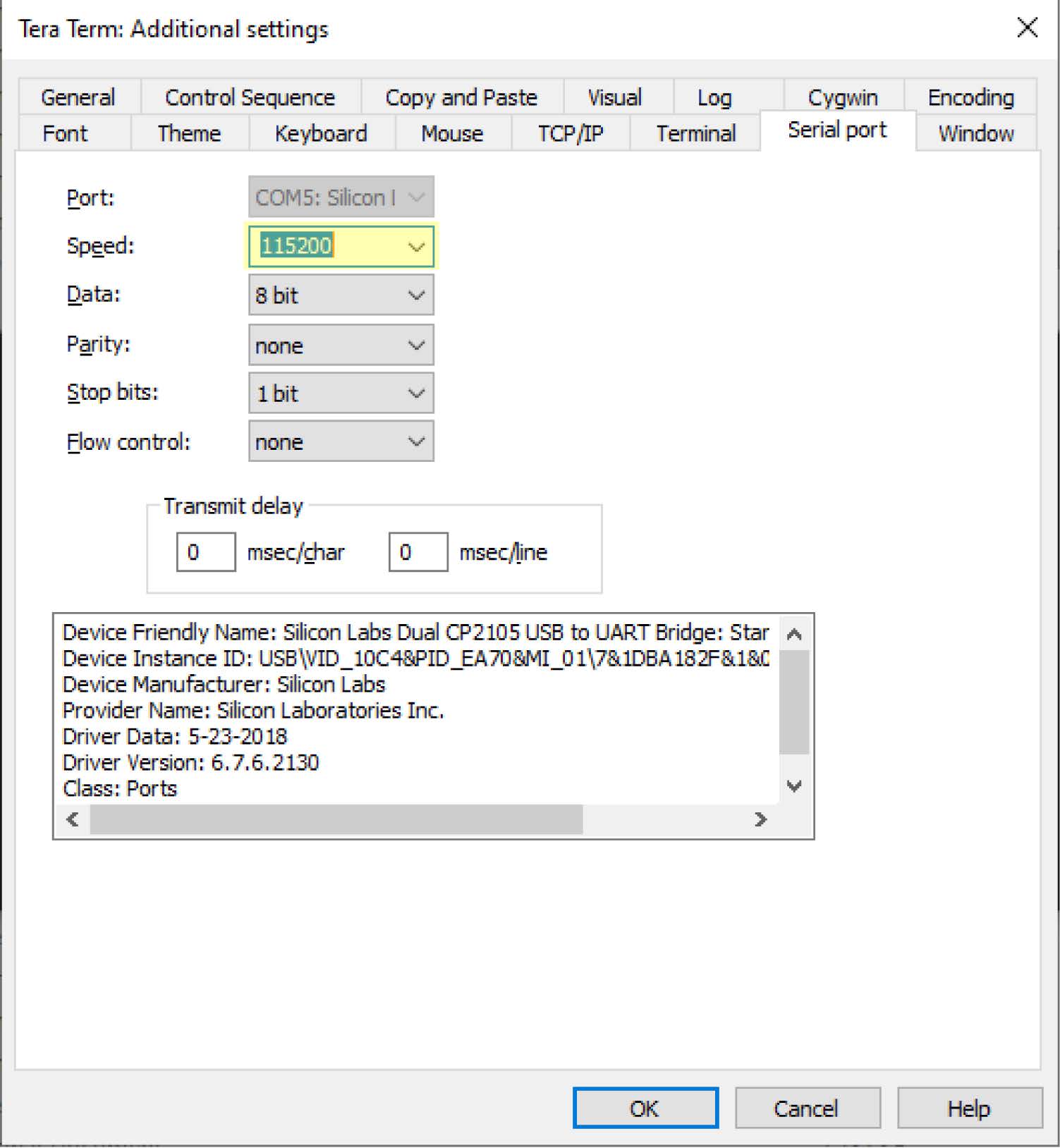
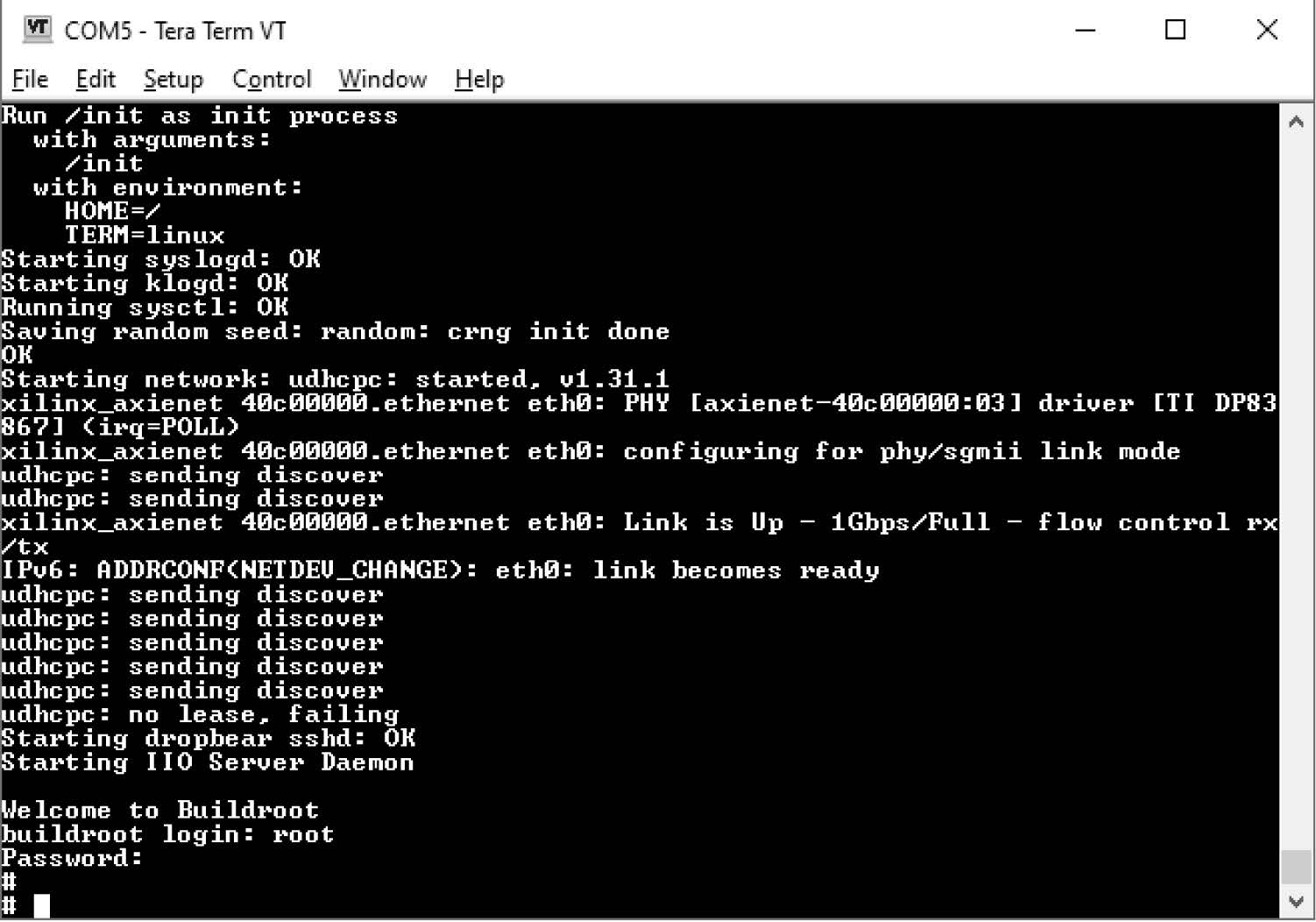
While programming the Xilinx VCU118 is in progress, open and start the serial terminal Tera Term session to observe the boot process and log in to the Xilinx VCU118. Start and connect the serial terminal Tera Term session using the COM port found previously. In Tera Term, click Setup -> Serial port … to set the speed to 115200. Continue monitoring the Xilinx VCU118 boot process. Once the process is complete, log in with the following information:

Login: root Password: analog
https://media.githubusercontent.com/media/analogdevicesinc/documentation/main/docs/solutions/reference-designs/admx6001_ebz/images/terra_term_new_connection.jpg
https://media.githubusercontent.com/media/analogdevicesinc/documentation/main/docs/solutions/reference-designs/admx6001_ebz/images/tera_term_change_speed.jpg
https://media.githubusercontent.com/media/analogdevicesinc/documentation/main/docs/solutions/reference-designs/admx6001_ebz/images/tera_term_login.jpg

Note the following:

For the Xilinx Vivado Lab version, only xsdb.bat is available (C:XilinxVivado_Lab2024binxsdb.bat).

It is required to program the Xilinx VCU118 board twice in the Vivado Lab window. Run source run.tcl and wait for the login message to appear in the Tera Term window. Run source run.tcl a second time. Observe the boot process in the Tera Term window and log in. If using Python scripts is preferred, skip the Configure and Control the ADMX6001-EBZ With IIO Oscilloscope section and the ADMX6001-EBZ Data Acquisition With IIO Oscilloscope section, and go directly to the Configure and Control ADMX6001-EBZ With Python Scripts section.

Console output

The following is what is printed in the serial console, after you have connected to the proper ttyUSB or COM port:

Ramdisk addr 0x00000000,
Compiled-in FDT at 0x80801c90
earlycon: uartlite_a0 at MMIO 0x40600000 (options '115200n8')
printk: bootconsole [uartlite_a0] enabled
cma: Reserved 512 MiB at 0x8fc00000 on node -1
Linux version 6.6.0-25246-g37f8917d03f1-dirty (qsong@qsong-lx01.engus1.analog.com) (microblazeel-xilinx-linux-gcc.real (GCC) 12.2.0, GNU ld (GNU Binutils) 2.39.0.20220819) #3 Wed Sep 10 14:28:07 EDT 2025
setup_memory: max_mapnr: 0x7ffff
setup_memory: min_low_pfn: 0x80000
setup_memory: max_low_pfn: 0xb0000
setup_memory: max_pfn: 0xfffff
Zone ranges:
  DMA      [mem 0x0000000080000000-0x00000000afffffff]
  Normal   empty
  HighMem  [mem 0x00000000b0000000-0x00000000ffffefff]
Movable zone start for each node
Early memory node ranges
  node   0: [mem 0x0000000080000000-0x00000000ffffefff]
Initmem setup node 0 [mem 0x0000000080000000-0x00000000ffffefff]
setup_cpuinfo: initialising
setup_cpuinfo: Using full CPU PVR support
wt_msr_noirq
pcpu-alloc: s0 r0 d32768 u32768 alloc=1*32768
pcpu-alloc: [0] 0
Kernel command line: earlycon
Dentry cache hash table entries: 131072 (order: 7, 524288 bytes, linear)
Inode-cache hash table entries: 65536 (order: 6, 262144 bytes, linear)
Built 1 zonelists, mobility grouping on.  Total pages: 522751
mem auto-init: stack:all(zero), heap alloc:off, heap free:off
Memory: 1533684K/2097148K available (8199K kernel code, 696K rwdata, 6804K rodata, 201K init, 187K bss, 39176K reserved, 524288K cma-reserved, 1310716K highmem)
SLUB: HWalign=32, Order=0-3, MinObjects=0, CPUs=1, Nodes=1
NR_IRQS: 64, nr_irqs: 64, preallocated irqs: 0
irq-xilinx: mismatch in kind-of-intr param
irq-xilinx: /amba_pl/interrupt-controller@41200000: num_irq=16, edge=0xffffc5f0
/amba_pl/timer@41c00000: irq=1
clocksource: xilinx_clocksource: mask: 0xffffffff max_cycles: 0xffffffff, max_idle_ns: 19112604467 ns
xilinx_timer_shutdown
xilinx_timer_set_periodic
sched_clock: 32 bits at 100MHz, resolution 10ns, wraps every 21474836475ns
Console: colour dummy device 80x25
printk: console [tty0] enabled
printk: bootconsole [uartlite_a0] disabled
Ramdisk addr 0x00000000,
Compiled-in FDT at 0x80801c90
earlycon: uartlite_a0 at MMIO 0x40600000 (options '115200n8')
printk: bootconsole [uartlite_a0] enabled
cma: Reserved 512 MiB at 0x8fc00000 on node -1
Linux version 6.6.0-25246-g37f8917d03f1-dirty (qsong@qsong-lx01.engus1.analog.com) (microblazeel-xilinx-linux-gcc.real (GCC) 12.2.0, GNU ld (GNU Binutils) 2.39.0.20220819) #3 Wed Sep 10 14:28:07 EDT 2025
setup_memory: max_mapnr: 0x7ffff
setup_memory: min_low_pfn: 0x80000
setup_memory: max_low_pfn: 0xb0000
setup_memory: max_pfn: 0xfffff
Zone ranges:
  DMA      [mem 0x0000000080000000-0x00000000afffffff]
  Normal   empty
  HighMem  [mem 0x00000000b0000000-0x00000000ffffefff]
Movable zone start for each node
Early memory node ranges
  node   0: [mem 0x0000000080000000-0x00000000ffffefff]
Initmem setup node 0 [mem 0x0000000080000000-0x00000000ffffefff]
setup_cpuinfo: initialising
setup_cpuinfo: Using full CPU PVR support
wt_msr_noirq
pcpu-alloc: s0 r0 d32768 u32768 alloc=1*32768
pcpu-alloc: [0] 0
Kernel command line: earlycon
Dentry cache hash table entries: 131072 (order: 7, 524288 bytes, linear)
Inode-cache hash table entries: 65536 (order: 6, 262144 bytes, linear)
Built 1 zonelists, mobility grouping on.  Total pages: 522751
mem auto-init: stack:all(zero), heap alloc:off, heap free:off
Memory: 1533684K/2097148K available (8199K kernel code, 696K rwdata, 6804K rodata, 201K init, 187K bss, 39176K reserved, 524288K cma-reserved, 1310716K highmem)
SLUB: HWalign=32, Order=0-3, MinObjects=0, CPUs=1, Nodes=1
NR_IRQS: 64, nr_irqs: 64, preallocated irqs: 0
irq-xilinx: mismatch in kind-of-intr param
irq-xilinx: /amba_pl/interrupt-controller@41200000: num_irq=16, edge=0xffffc5f0
/amba_pl/timer@41c00000: irq=1
clocksource: xilinx_clocksource: mask: 0xffffffff max_cycles: 0xffffffff, max_idle_ns: 19112604467 ns
xilinx_timer_shutdown
xilinx_timer_set_periodic
sched_clock: 32 bits at 100MHz, resolution 10ns, wraps every 21474836475ns
Console: colour dummy device 80x25
printk: console [tty0] enabled
printk: bootconsole [uartlite_a0] disabled
Calibrating delay loop... 113.04 BogoMIPS (lpj=565248)
pid_max: default: 32768 minimum: 301
Mount-cache hash table entries: 2048 (order: 1, 8192 bytes, linear)
Mountpoint-cache hash table entries: 2048 (order: 1, 8192 bytes, linear)
devtmpfs: initialized
clocksource: jiffies: mask: 0xffffffff max_cycles: 0xffffffff, max_idle_ns: 19112604462750000 ns
futex hash table entries: 256 (order: -1, 3072 bytes, linear)
NET: Registered PF_NETLINK/PF_ROUTE protocol family
DMA: preallocated 256 KiB GFP_KERNEL pool for atomic allocations
DMA: preallocated 256 KiB GFP_KERNEL|GFP_DMA pool for atomic allocations
pps_core: LinuxPPS API ver. 1 registered
pps_core: Software ver. 5.3.6 - Copyright 2005-2007 Rodolfo Giometti <giometti@linux.it>
PTP clock support registered
jesd204: created con: id=0, topo=0, link=0, /amba_pl/spi@44A71000/hmc7044@0 <-> /amba_pl/axi-adxcvr-rx@44a60000
jesd204: created con: id=1, topo=0, link=0, /amba_pl/axi-adxcvr-rx@44a60000 <-> /amba_pl/axi-jesd204-rx@44a90000
jesd204: created con: id=2, topo=0, link=0, /amba_pl/axi-jesd204-rx@44a90000 <-> /amba_pl/spi@44a70000/ad9213@0
jesd204: /amba_pl/spi@44a70000/ad9213@0: JESD204[0:0] transition uninitialized -> initialized
jesd204: found 4 devices and 1 topologies
vgaarb: loaded
clocksource: Switched to clocksource xilinx_clocksource
NET: Registered PF_INET protocol family
IP idents hash table entries: 16384 (order: 5, 131072 bytes, linear)
tcp_listen_portaddr_hash hash table entries: 1024 (order: 0, 4096 bytes, linear)
Table-perturb hash table entries: 65536 (order: 6, 262144 bytes, linear)
TCP established hash table entries: 8192 (order: 3, 32768 bytes, linear)
TCP bind hash table entries: 8192 (order: 4, 65536 bytes, linear)
TCP: Hash tables configured (established 8192 bind 8192)
UDP hash table entries: 512 (order: 1, 8192 bytes, linear)
UDP-Lite hash table entries: 512 (order: 1, 8192 bytes, linear)
NET: Registered PF_UNIX/PF_LOCAL protocol family
RPC: Registered named UNIX socket transport module.
RPC: Registered udp transport module.
RPC: Registered tcp transport module.
RPC: Registered tcp-with-tls transport module.
RPC: Registered tcp NFSv4.1 backchannel transport module.
PCI: CLS 0 bytes, default 32
workingset: timestamp_bits=30 max_order=19 bucket_order=0
Key type cifs.idmap registered
jffs2: version 2.2. (NAND) (SUMMARY)  © 2001-2006 Red Hat, Inc.
romfs: ROMFS MTD (C) 2007 Red Hat, Inc.
bounce: pool size: 64 pages
io scheduler mq-deadline registered
io scheduler kyber registered
Serial: 8250/16550 driver, 4 ports, IRQ sharing disabled
40600000.serial: ttyUL0 at MMIO 0x40600000 (irq = 4, base_baud = 0) is a uartlite
printk: console [ttyUL0] enabled
uartlite 41400000.serial: error -EINVAL: could not read current-speed
uartlite: probe of 41400000.serial failed with error -22
brd: module loaded
xilinx_axienet 40c00000.ethernet: TX_CSUM 2
xilinx_axienet 40c00000.ethernet: RX_CSUM 2
i2c_dev: i2c /dev entries driver
pca954x 0-0075: supply vdd not found, using dummy regulator
i2c i2c-0: Added multiplexed i2c bus 1
at24 2-0050: supply vcc not found, using dummy regulator
at24 2-0050: 256 byte 24c02 EEPROM, writable, 1 bytes/write
i2c i2c-0: Added multiplexed i2c bus 2
i2c i2c-0: Added multiplexed i2c bus 3
at24 4-0054: supply vcc not found, using dummy regulator
at24 4-0054: 1024 byte 24c08 EEPROM, writable, 1 bytes/write
i2c i2c-0: Added multiplexed i2c bus 4
i2c i2c-0: Added multiplexed i2c bus 5
i2c i2c-0: Added multiplexed i2c bus 6
i2c i2c-0: Added multiplexed i2c bus 7
i2c i2c-0: Added multiplexed i2c bus 8
pca954x 0-0075: registered 8 multiplexed busses for I2C switch pca9548
pca954x 0-0074: supply vdd not found, using dummy regulator
si570 9-005d: registered, current frequency 148500000 Hz
i2c i2c-0: Added multiplexed i2c bus 9
i2c i2c-0: Added multiplexed i2c bus 10
i2c i2c-0: Added multiplexed i2c bus 11
i2c i2c-0: Added multiplexed i2c bus 12
i2c i2c-0: Added multiplexed i2c bus 13
i2c i2c-0: Added multiplexed i2c bus 14
i2c i2c-0: Added multiplexed i2c bus 15
i2c i2c-0: Added multiplexed i2c bus 16
pca954x 0-0074: registered 8 multiplexed busses for I2C switch pca9548
ad9213 spi0.0: AD9213 PLL UNLOCKED
ad9213 spi0.0: ad9213 Probed
iio_dmaengine_buffer_alloc:295 width 0 (DMA width >= 256-bits ?)
admc_adc 44a10000.axi-adrv9213-rx-hpc: ADI AIM (0xA0300) at 0x44A10000 mapped to 0x(ptrval), probed ADC AD-MC-ADC as MASTER
ltc2664 spi3.0: supply vcc not found, using dummy regulator
ltc2664 spi3.0: supply iovcc not found, using dummy regulator
ltc2664 spi3.0: supply v-neg not found, using dummy regulator
hmc7044 spi1.0: PLL1: Holdover, CLKIN3 @ 125000000 Hz, PFD: 6250 kHz - PLL2: Locked @ 2500.000000 MHz
jesd204: /amba_pl/spi@44A71000/hmc7044@0,jesd204:3,parent=spi1.0: Using as SYSREF provider
axi_adxcvr_drv 44a60000.axi-adxcvr-rx: AXI-ADXCVR-RX (17.05.a) using QPLL on GTY4. Number of lanes: 16.
jesd204: /amba_pl/spi@44a70000/ad9213@0,jesd204:0,parent=spi0.0: JESD204[0:0] transition initialized -> probed
jesd204: /amba_pl/spi@44a70000/ad9213@0,jesd204:0,parent=spi0.0: JESD204[0:0] transition probed -> initialized
jesd204: /amba_pl/spi@44a70000/ad9213@0,jesd204:0,parent=spi0.0: JESD204[0:0] transition initialized -> probed
jesd204: /amba_pl/spi@44a70000/ad9213@0,jesd204:0,parent=spi0.0: JESD204[0:0] transition probed -> idle
jesd204: /amba_pl/spi@44a70000/ad9213@0,jesd204:0,parent=spi0.0: JESD204[0:0] transition idle -> device_init
ad9213: ad9213_jesd204_link_init
jesd204: /amba_pl/spi@44a70000/ad9213@0,jesd204:0,parent=spi0.0: JESD204[0:0] transition device_init -> link_init
jesd204: /amba_pl/spi@44a70000/ad9213@0,jesd204:0,parent=spi0.0: JESD204[0:0] transition link_init -> link_supported
jesd204: /amba_pl/spi@44a70000/ad9213@0,jesd204:0,parent=spi0.0: JESD204[0:0] transition link_supported -> link_pre_setup
jesd204: /amba_pl/spi@44a70000/ad9213@0,jesd204:0,parent=spi0.0: JESD204[0:0] transition link_pre_setup -> clk_sync_stage1
ad9213: ad9213_jesd204_clks_sync2
jesd204: /amba_pl/spi@44a70000/ad9213@0,jesd204:0,parent=spi0.0: JESD204[0:0] transition clk_sync_stage1 -> clk_sync_stage2
jesd204: /amba_pl/spi@44a70000/ad9213@0,jesd204:0,parent=spi0.0: JESD204[0:0] transition clk_sync_stage2 -> clk_sync_stage3
jesd204: /amba_pl/spi@44a70000/ad9213@0,jesd204:0,parent=spi0.0: JESD204[0:0] transition clk_sync_stage3 -> link_setup
jesd204: /amba_pl/spi@44a70000/ad9213@0,jesd204:0,parent=spi0.0: JESD204[0:0] transition link_setup -> opt_setup_stage1
jesd204: /amba_pl/spi@44a70000/ad9213@0,jesd204:0,parent=spi0.0: JESD204[0:0] transition opt_setup_stage1 -> opt_setup_stage2
jesd204: /amba_pl/spi@44a70000/ad9213@0,jesd204:0,parent=spi0.0: JESD204[0:0] transition opt_setup_stage2 -> opt_setup_stage3
jesd204: /amba_pl/spi@44a70000/ad9213@0,jesd204:0,parent=spi0.0: JESD204[0:0] transition opt_setup_stage3 -> opt_setup_stage4
jesd204: /amba_pl/spi@44a70000/ad9213@0,jesd204:0,parent=spi0.0: JESD204[0:0] transition opt_setup_stage4 -> opt_setup_stage5
jesd204: /amba_pl/spi@44a70000/ad9213@0,jesd204:0,parent=spi0.0: JESD204[0:0] transition opt_setup_stage5 -> clocks_enable
jesd204: /amba_pl/spi@44a70000/ad9213@0,jesd204:0,parent=spi0.0: JESD204[0:0] transition clocks_enable -> link_enable
jesd204: /amba_pl/spi@44a70000/ad9213@0,jesd204:0,parent=spi0.0: JESD204[0:0] transition link_enable -> link_running
jesd204: /amba_pl/spi@44a70000/ad9213@0,jesd204:0,parent=spi0.0: JESD204[0:0] transition link_running -> opt_post_running_stage
axi-jesd204-rx 44a90000.axi-jesd204-rx: AXI-JESD204-RX (1.07.a). Encoder 8b10b, width 4/4, lanes 16, jesd204-fsm.
axi_sysid 45000000.axi-sysid-0: AXI System ID core version (1.01.a) found
axi_sysid 45000000.axi-sysid-0: [ad9213_evb] on [vcu118] git branch <admx6001_v1> git <3b6a43372011b6ee1b4009c13e509bbe8a6c89a2> clean [2025-05-21 08:45:56] UTC
Initializing XFRM netlink socket
NET: Registered PF_INET6 protocol family
Segment Routing with IPv6
In-situ OAM (IOAM) with IPv6
sit: IPv6, IPv4 and MPLS over IPv4 tunneling driver
NET: Registered PF_PACKET protocol family
NET: Registered PF_KEY protocol family
Key type dns_resolver registered
Key type encrypted registered
cf_axi_adc 44a00000.ad4080: ADI AIM (10.03.) probed ADC AD4080 as MASTER
clk: Disabling unused clocksFreeing unused kernel image (initmem) memory: 200K
This architecture does not have kernel memory protection.
Run /init as init process
  with arguments:
    /init
  with environment:
    HOME=/
    TERM=linux
Starting syslogd: OK
Starting klogd: OK
Running sysctl: OK
Saving 256 bits of non-creditable seed for next boot
Starting network: udhcpc: started, v1.36.1
xilinx_axienet 40c00000.ethernet eth0: PHY [axienet-40c00000:03] driver [TI DP83867] (irq=POLL)
xilinx_axienet 40c00000.ethernet eth0: configuring for phy/sgmii link mode
random: crng init done
udhcpc: broadcasting discover
xilinx_axienet 40c00000.ethernet eth0: Link is Up - 1Gbps/Full - flow control off
udhcpc: broadcasting discover
udhcpc: no lease, failing
Starting dropbear sshd: OK
Starting IIO Server Daemon

Welcome to Buildroot
buildroot login: root
Password:
#

Using IIO Oscilloscope

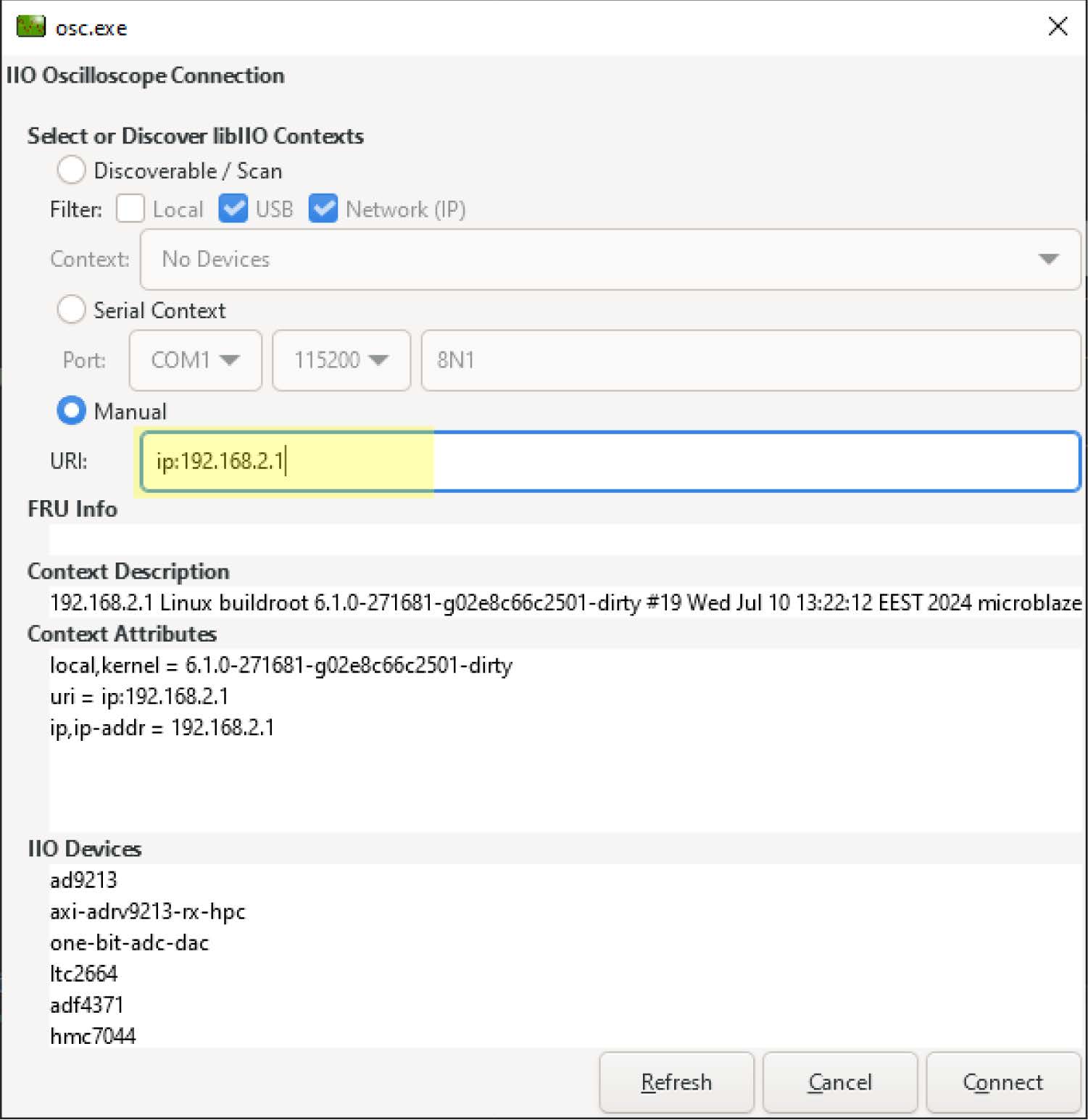
  1. Open IIO Oscilloscope on your host PC.

  2. Launch the IIO-Oscilloscope application and go to**Settings → Connect**. In the popup window, connect to Xilinx VCU118 with manual URI ip. Once the IIO device is connected, the user can read/write registers and view the plot of captured data

    https://media.githubusercontent.com/media/analogdevicesinc/documentation/main/docs/solutions/reference-designs/admx6001_ebz/images/launch_iio_oscilloscope.jpg
    https://media.githubusercontent.com/media/analogdevicesinc/documentation/main/docs/solutions/reference-designs/admx6001_ebz/images/register_write_read.jpg

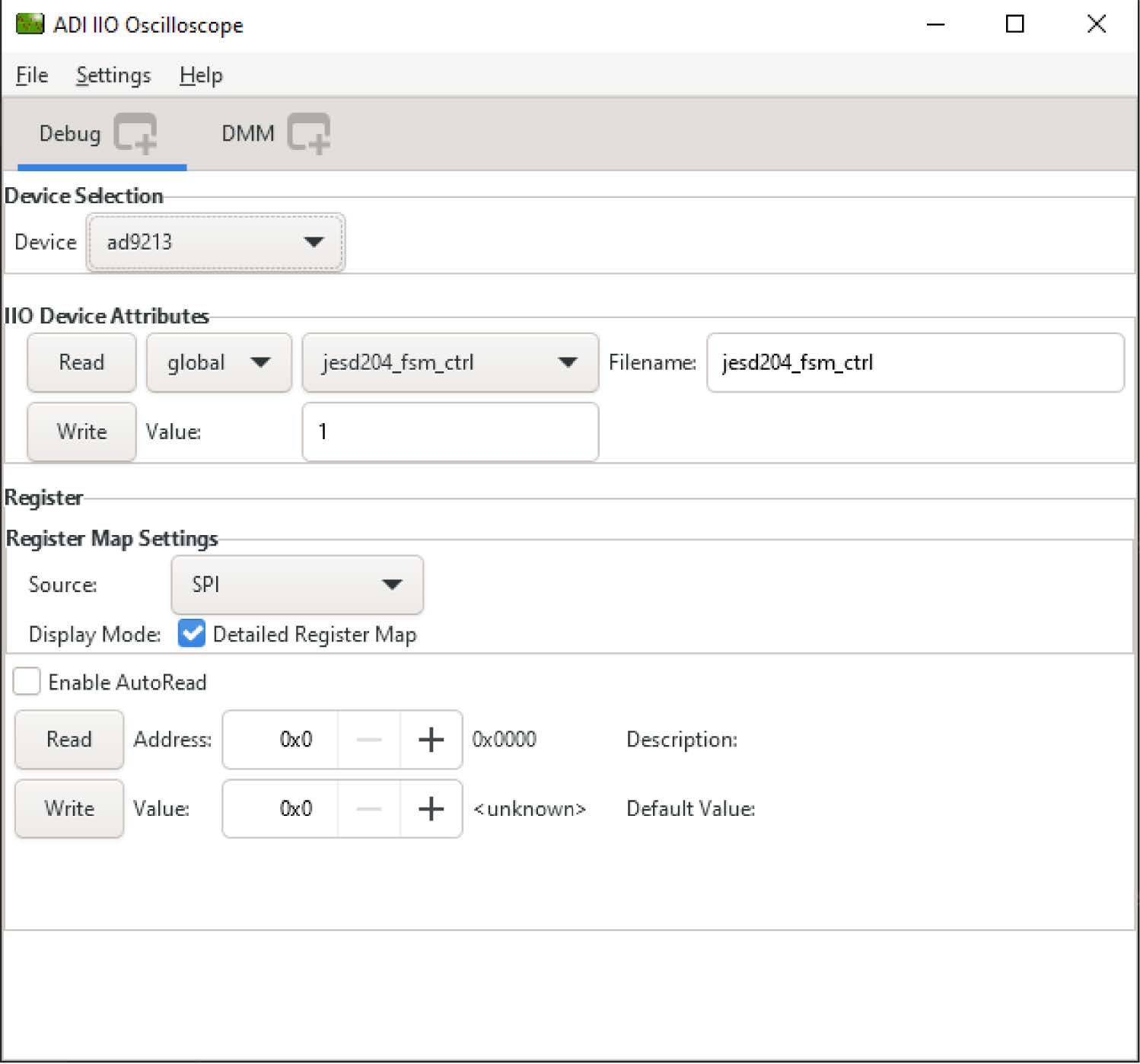
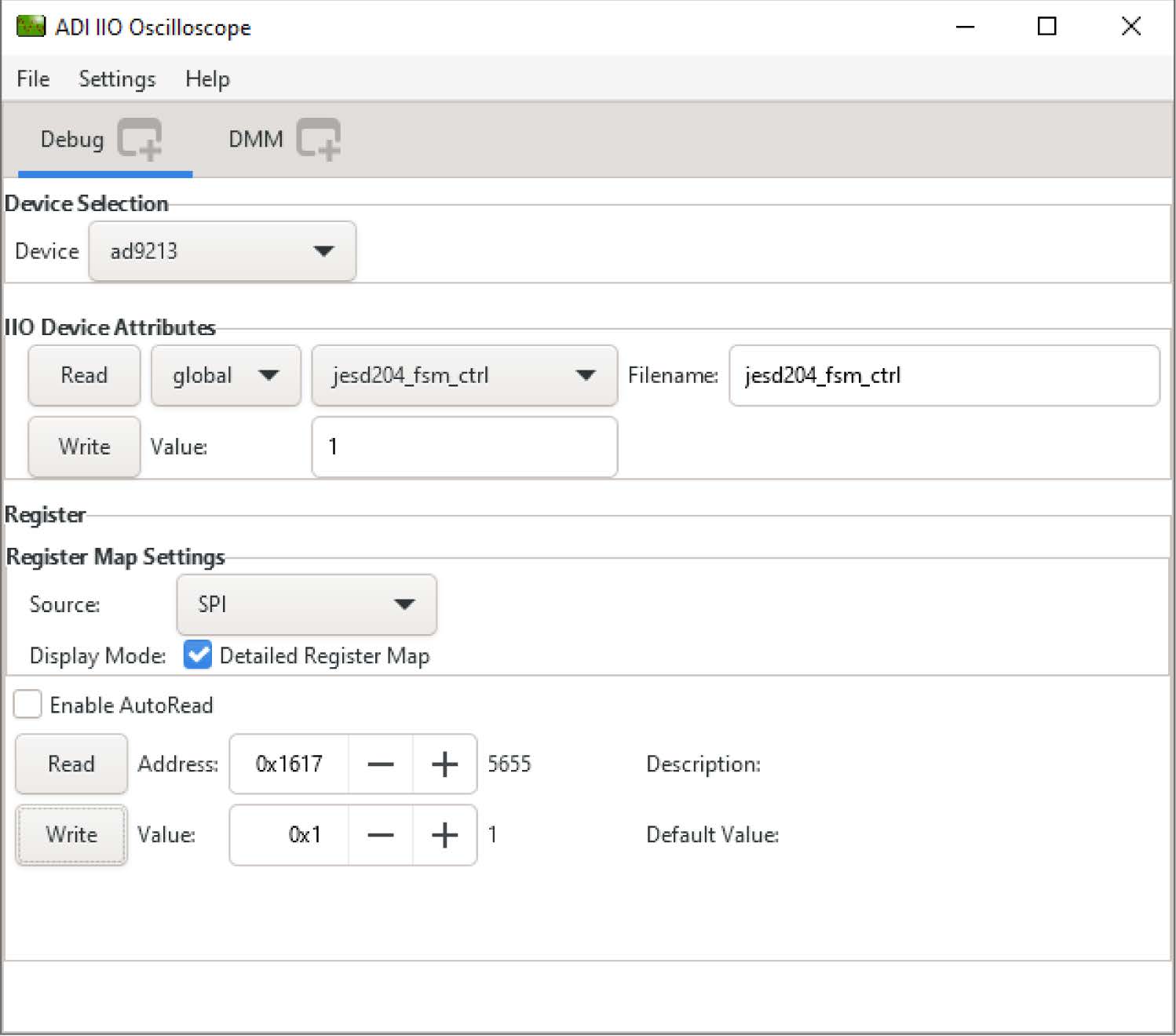
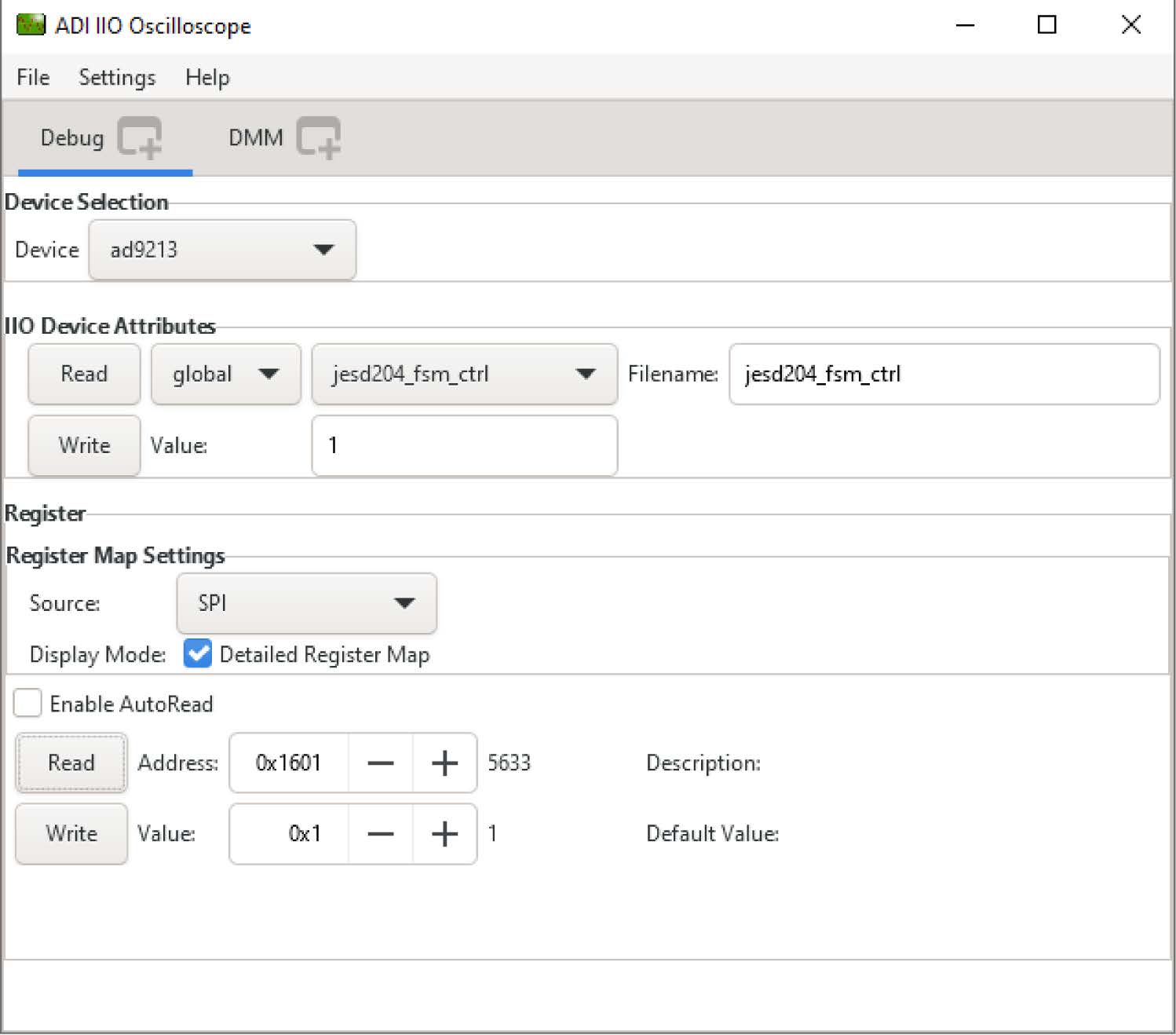
Configure the AD9213 high-speed path

Set the following registers for the AD9213 high-speed path:

Register

Value

0x1617

0x01

0x1601

0x01

ltc2664_clr

1

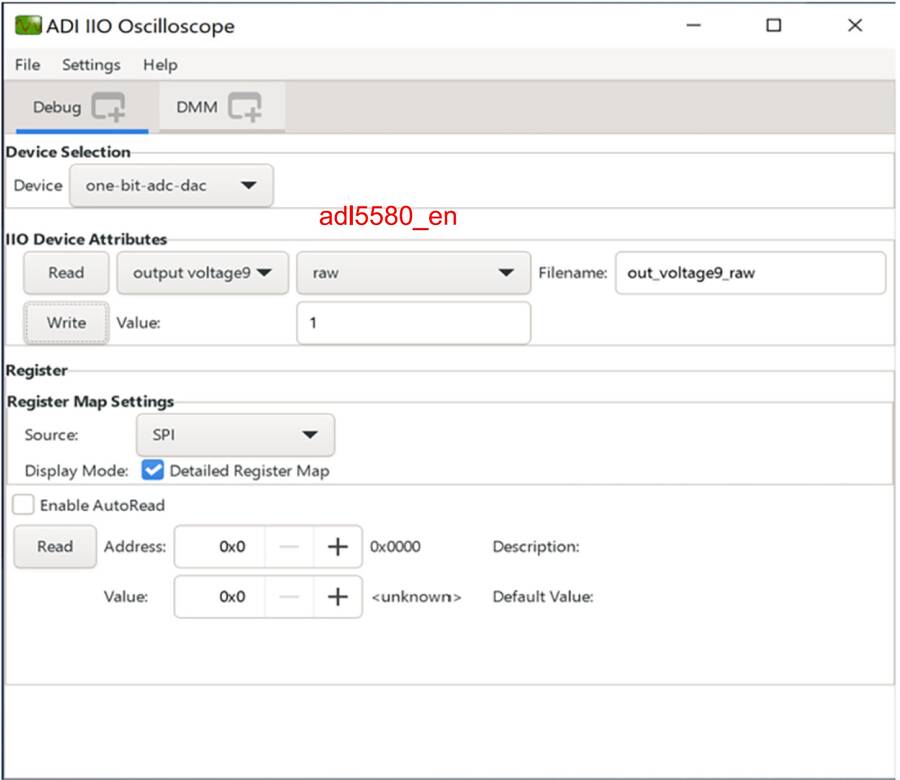
adl5580_en

1

The AD9213 high-speed path is ready for capturing data.

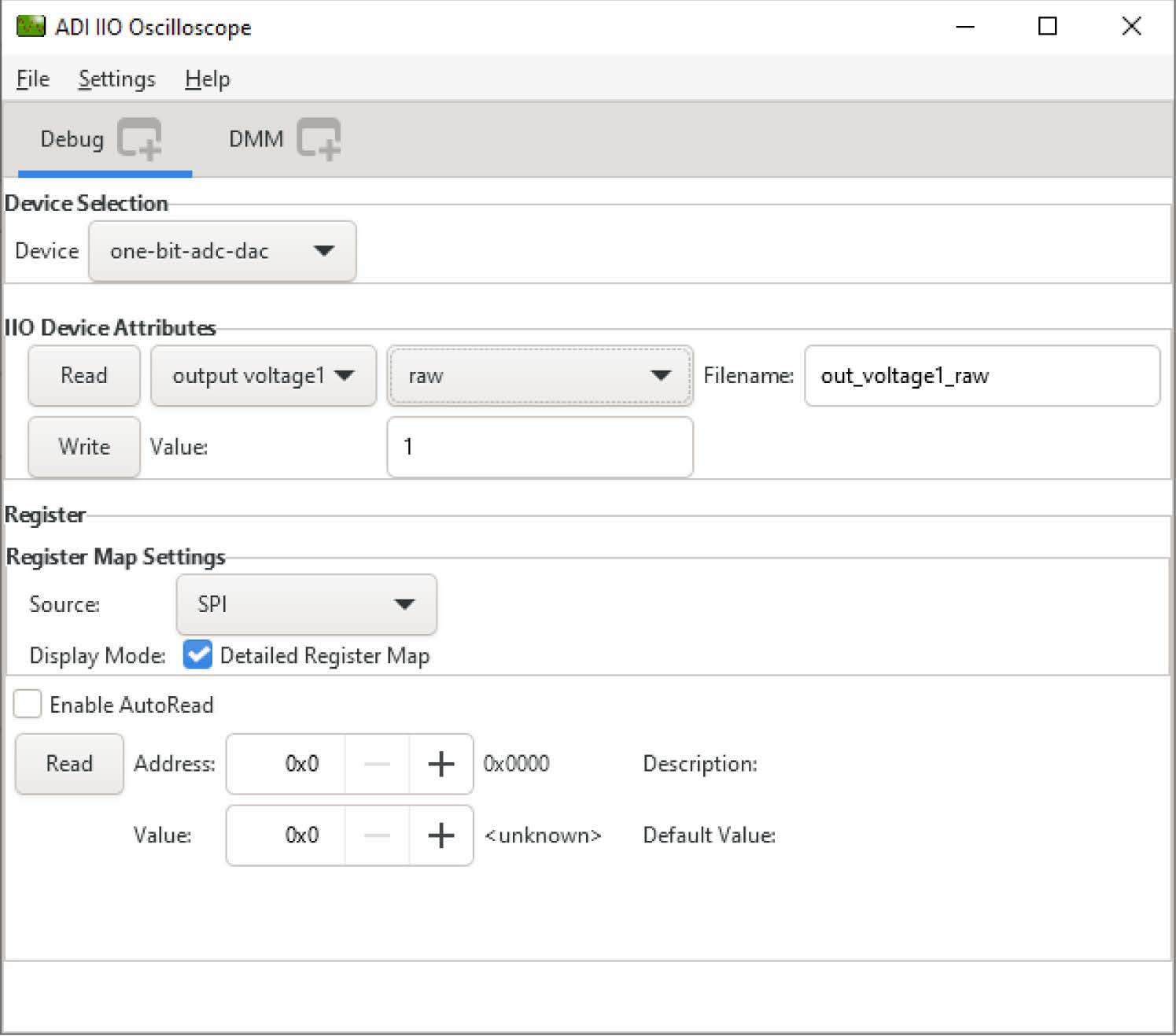
Configure the AD4080 precision path

Before capturing the AD4080 precision path data with the IIO Oscilloscope, a few registers need to be set.

Register

Value

ltc2664_clr

1

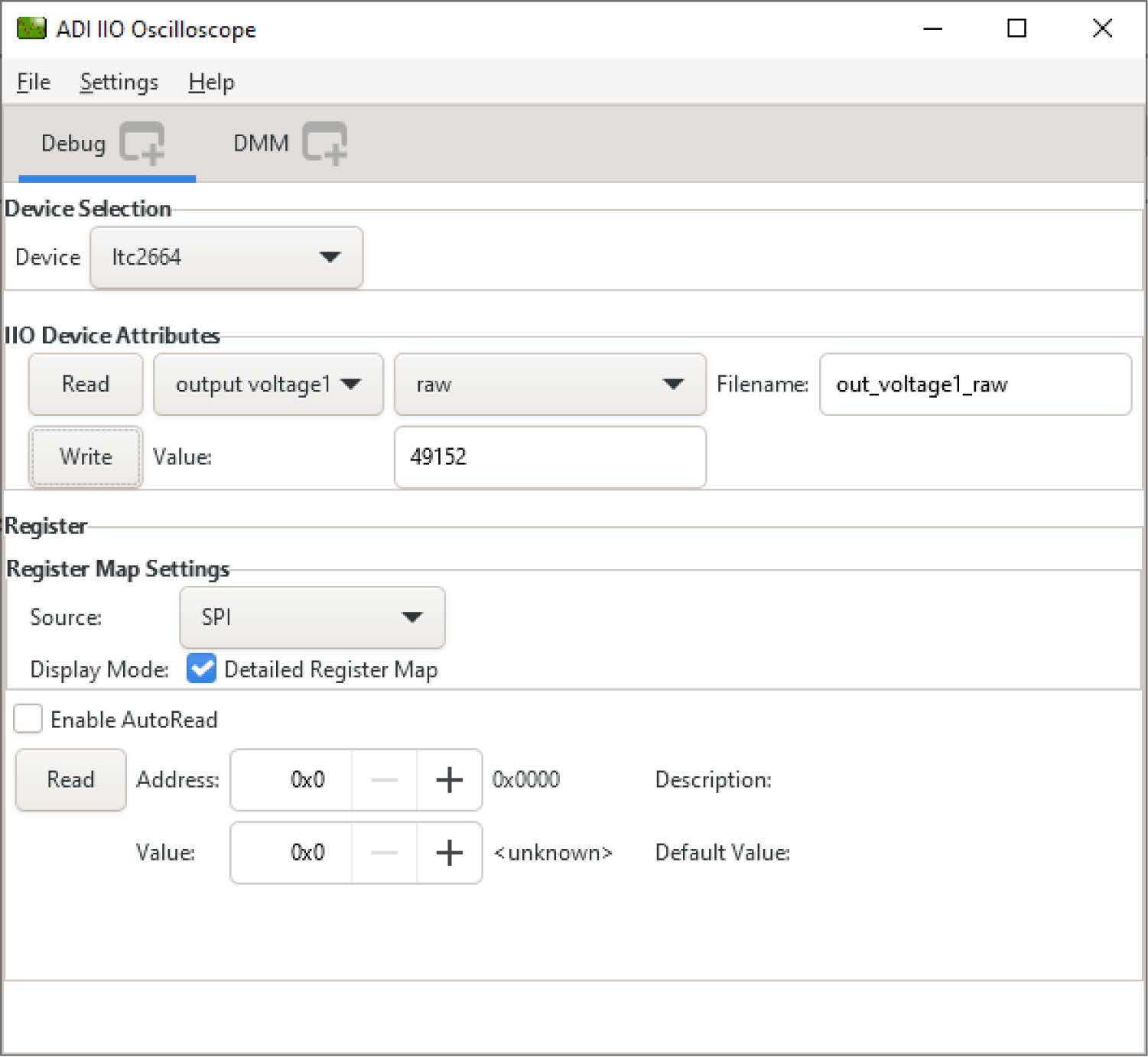
ltc2664 output_voltage1 raw

49152

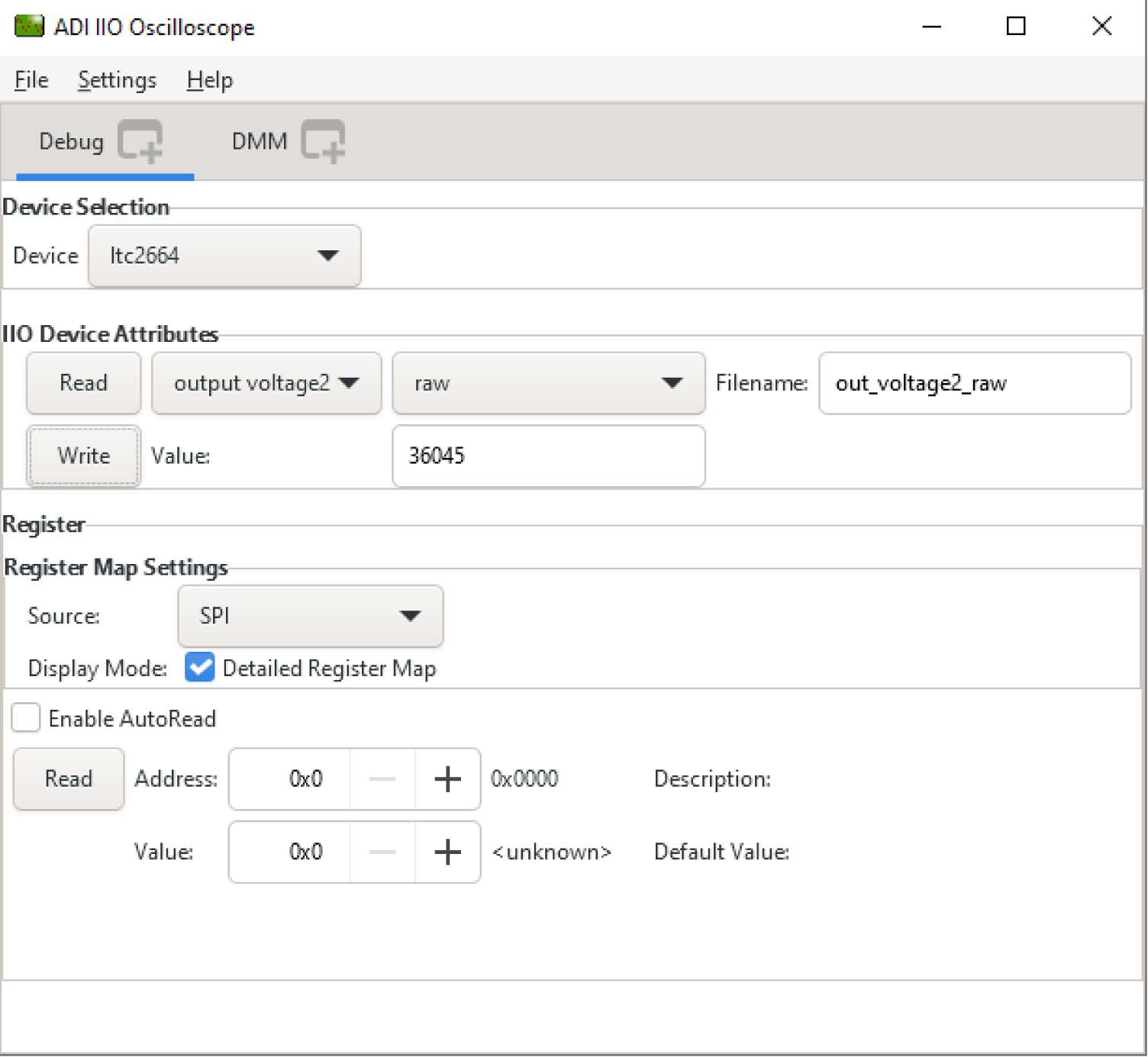
ltc2664 output_voltage2 raw

36045

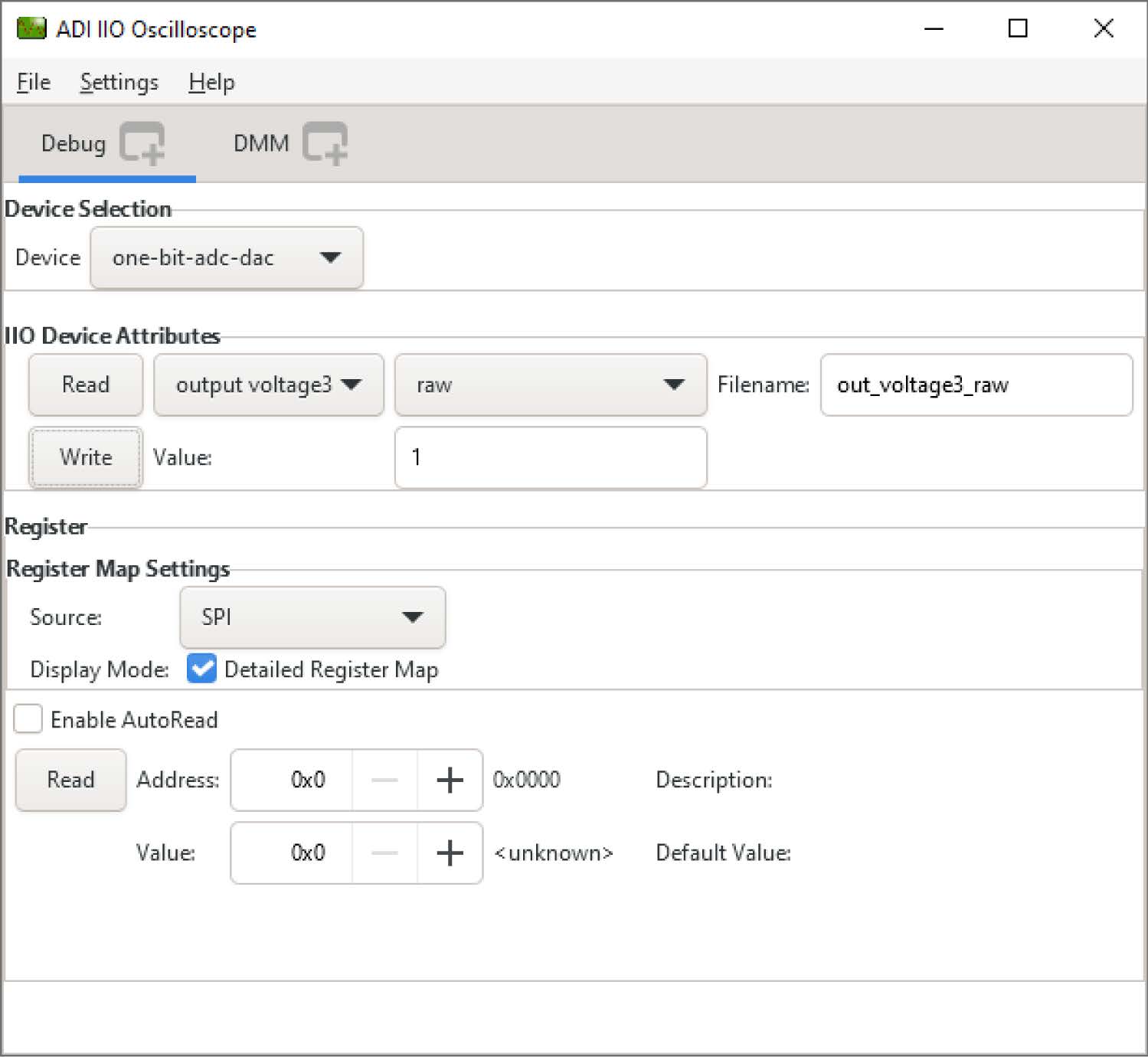
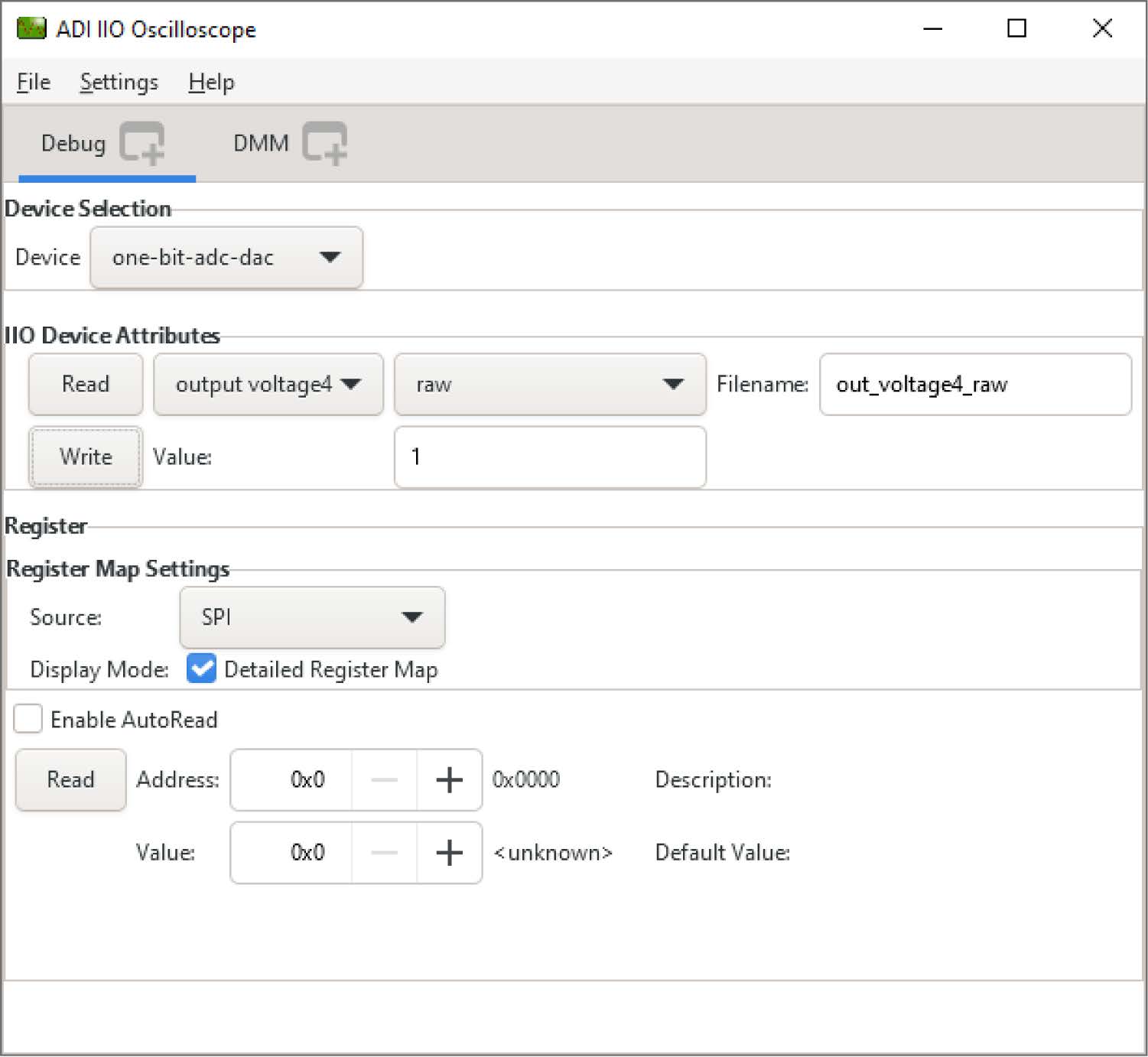
ada4945_disable (one-bit-adc-dac → output_voltage3)

1

adg5419_ctrl (one-bit-adc-dac → output_voltage4)

1

https://media.githubusercontent.com/media/analogdevicesinc/documentation/main/docs/solutions/reference-designs/admx6001_ebz/images/ltc2664_output_voltage1.jpg
https://media.githubusercontent.com/media/analogdevicesinc/documentation/main/docs/solutions/reference-designs/admx6001_ebz/images/ltc2664_output_voltage2.jpg
https://media.githubusercontent.com/media/analogdevicesinc/documentation/main/docs/solutions/reference-designs/admx6001_ebz/images/ada4945_disable.jpg
https://media.githubusercontent.com/media/analogdevicesinc/documentation/main/docs/solutions/reference-designs/admx6001_ebz/images/adg5419_ctrl.jpg

AD4080 data interface configuration registers

The AD4080 low voltage differential signaling (LVDS) data interface is highly configurable. In the ADMX6001-EBZ design, the AD4080 is configured to output the result data on single data lane. The AD4080 data interface configuration Register 0x15 and Register 0x16 need to be configured so that the Xilinx VCU118 controls are aligned with AD4080 conversion data for correct data output.

Complete the following steps for setting the AD4080 data interface configuration registers:

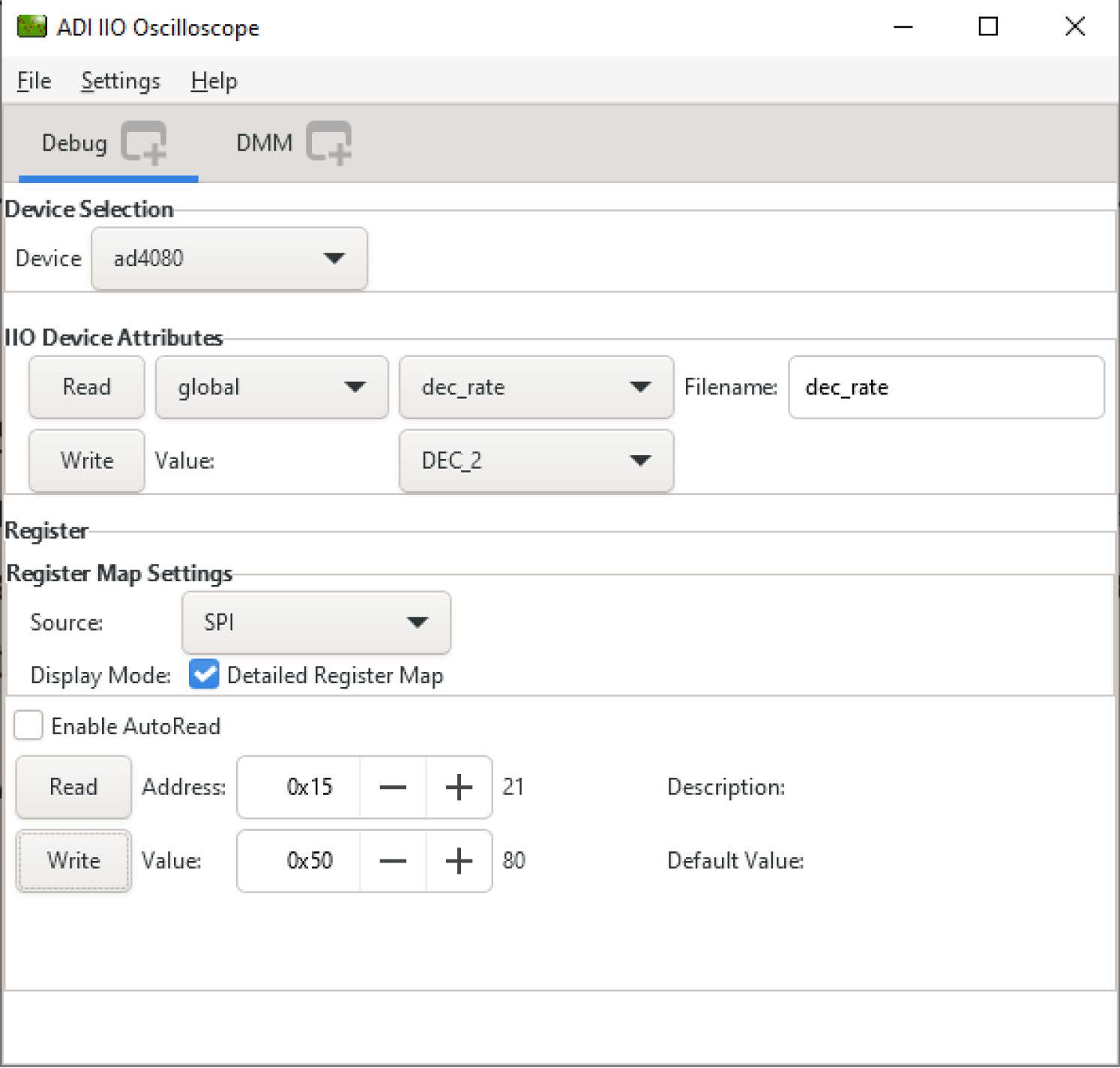
AD4080 Register 0x15 set to 0x50 to enable the fixed pattern test, as shown in Figure 26. This step sets AD4080 in test mode.

In test mode, the 20-bit AD4080 data is expected to be binary 1010 1100 0101 1101 0110, decimal −342570, or hexadecimal 0xAC5D6. Save the AD4080 data to a .csv file in IIO Oscilloscope and check the value. Refer to the ADMX6001-EBZ Data Acquisition With IIO Oscilloscope section for saving data in IIO Oscilloscope.

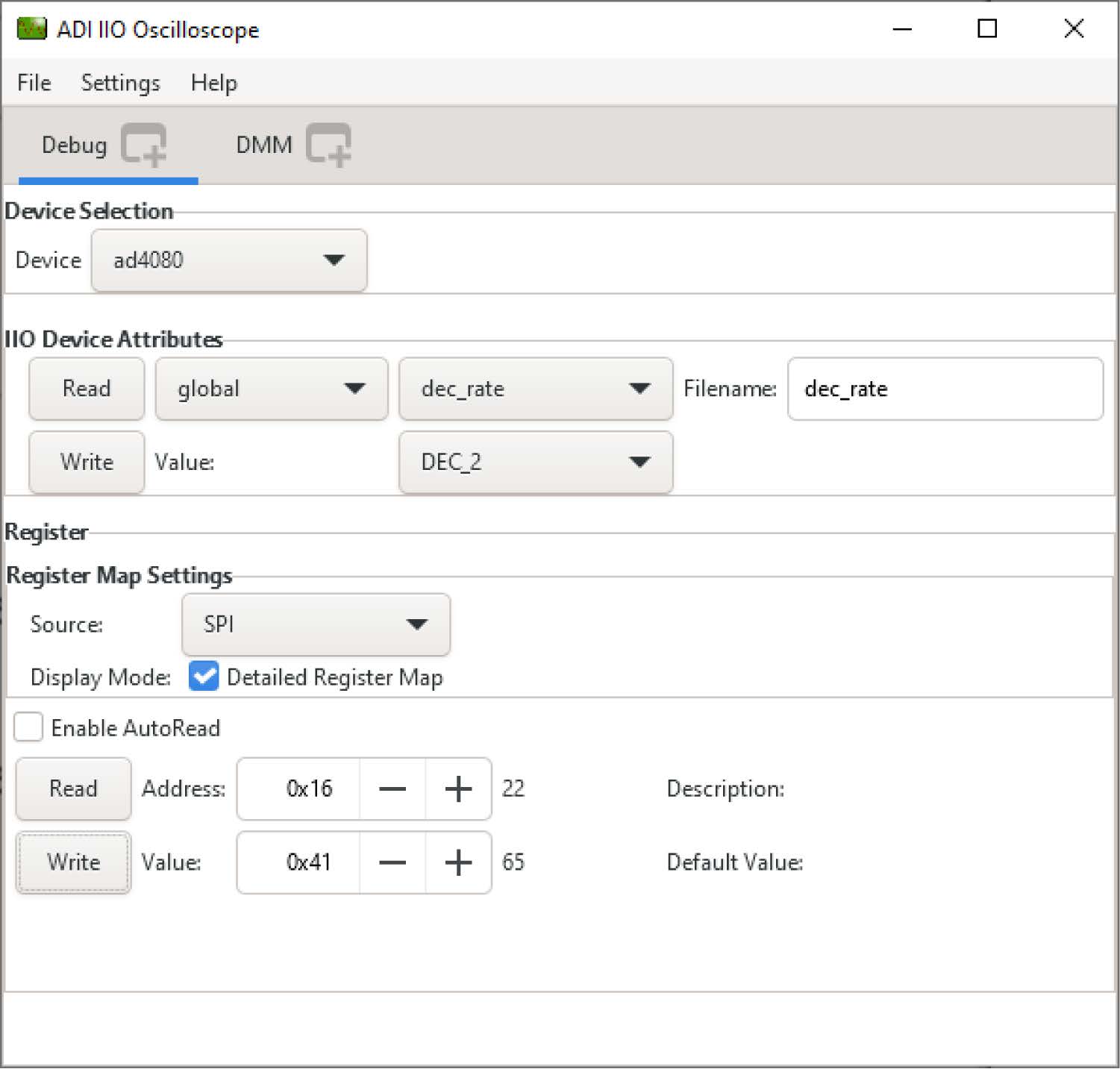
If the AD4080 data is different from the expected decimal −342570, set the AD4080 Register 0x15 to one of the following values: 0x51, 0x61, 0x71, 0x81, 0x91, 0x01, 0x11, 0x21, 0x31, or 0x41, as shown in Figure 27. Save the data to a .csv file and check the value. Repeat this step with a value in the list until the AD4080 data is exactly −342570. The AD4080 register setting is completed.

Set AD4080 Register 0x15 back to 0x40 to disable the fixed pattern test and enable AD4080 normal mode.

The AD4080 data interface configuration registers are set and the AD4080 is ready for data acquisition.

https://media.githubusercontent.com/media/analogdevicesinc/documentation/main/docs/solutions/reference-designs/admx6001_ebz/images/normal_data_acquisition_mode.jpg
https://media.githubusercontent.com/media/analogdevicesinc/documentation/main/docs/solutions/reference-designs/admx6001_ebz/images/register0x16_setting.jpg

IIO-OSCILLOSCOPE plot window

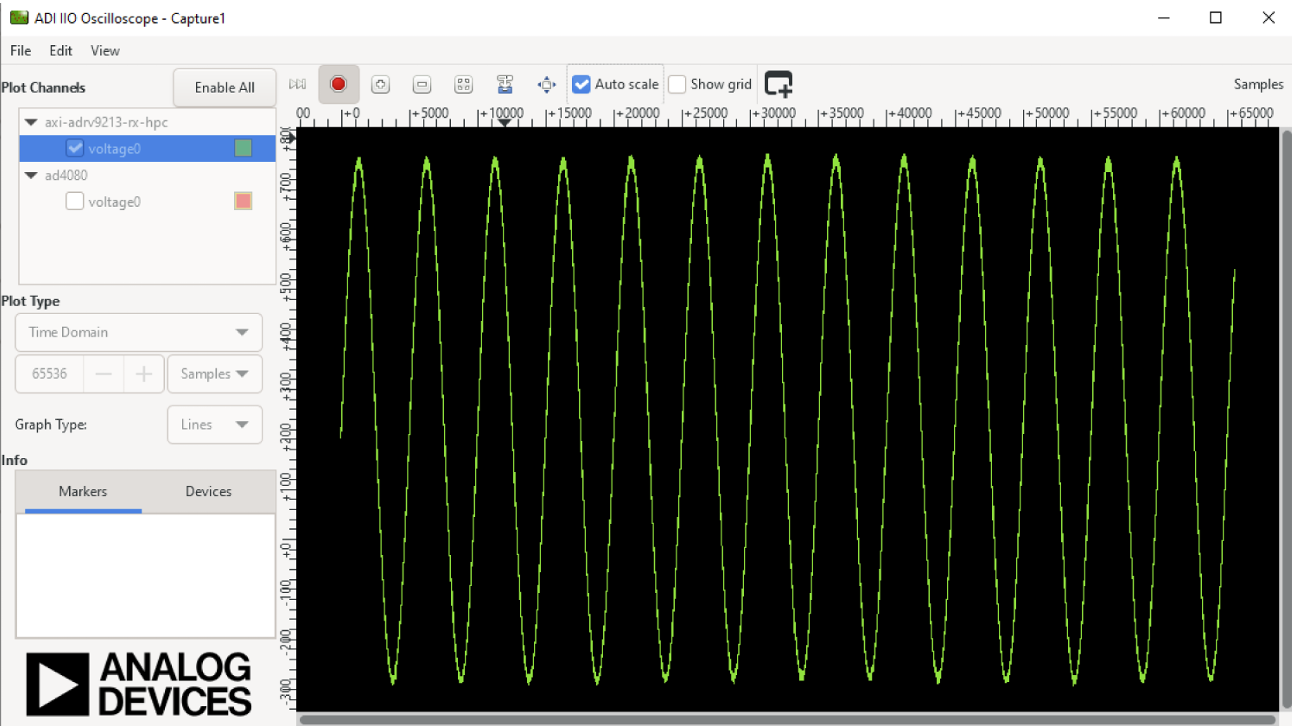
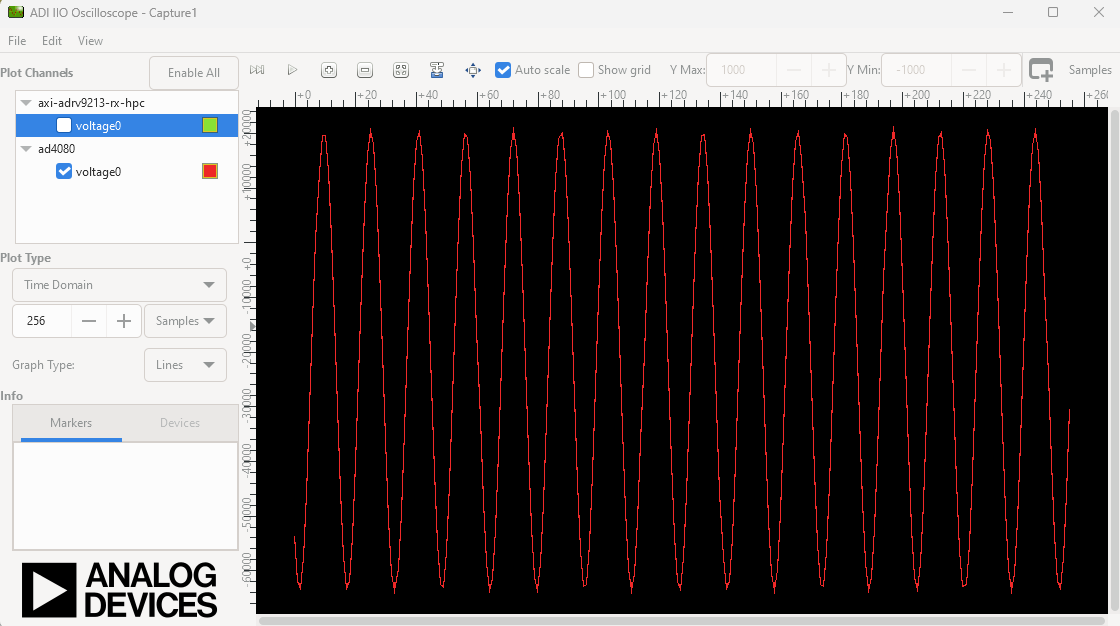
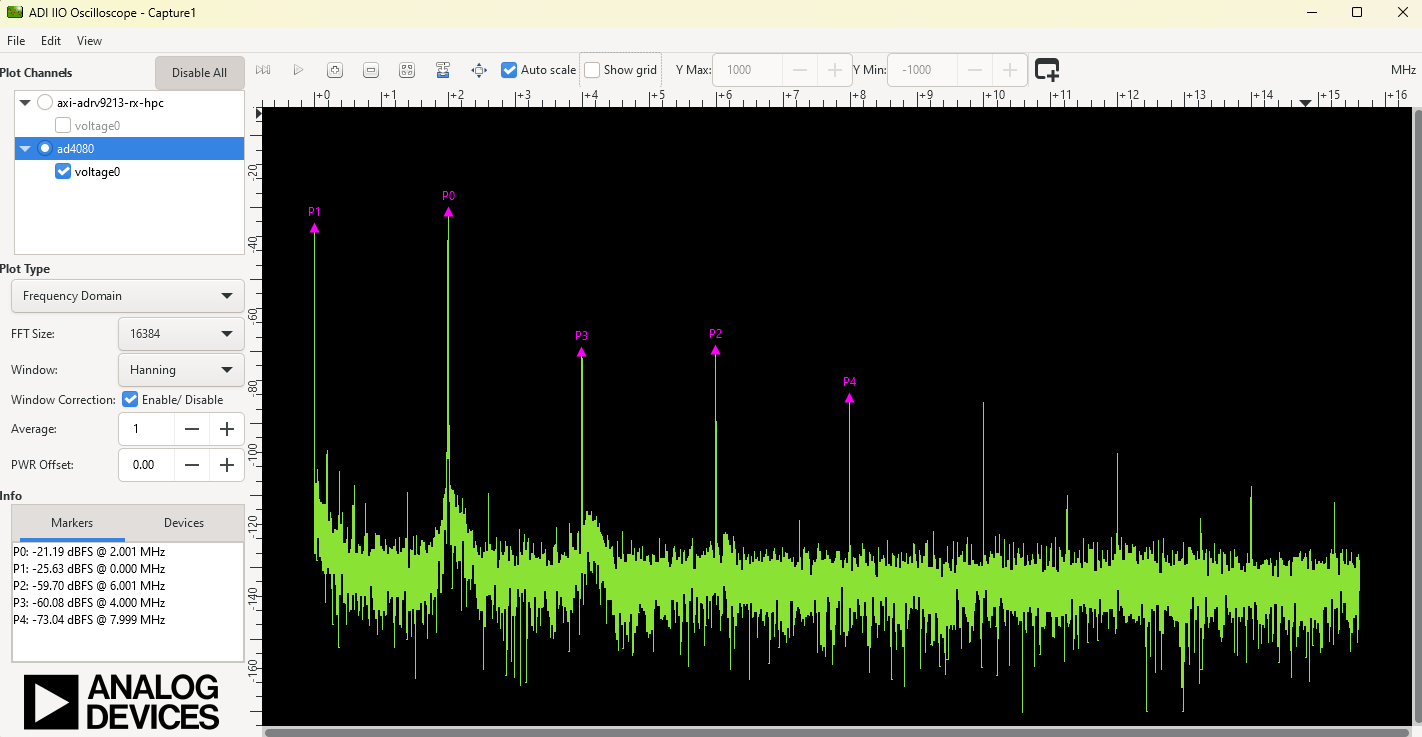
Data captured by the the AD9213 high-speed path and the AD4080 precision path can be visualized and saved to a .csv file in the IIO Oscilloscope plot window. Captured Signal Time Domain for adrv9213

https://media.githubusercontent.com/media/analogdevicesinc/documentation/main/docs/solutions/reference-designs/admx6001_ebz/images/adrv9213_time_domain.png

Captured Signal Time Domain for ad4080

https://media.githubusercontent.com/media/analogdevicesinc/documentation/main/docs/solutions/reference-designs/admx6001_ebz/images/ad4080_time_domain.png

The two data paths are listed in the top-left corner. Check one or both and then click the Capture/Stop button to view the data stream. For the IIO Oscilloscope to work smoothly, it is recommended that the number of samples is set to power of 2, such as 210 (1024) or 216 (65536). The IIO Oscilloscope supports only one scale for each axis so that it is not practical to view the AD9213 high-speed path and the AD4080 precision path simultaneously because the AD9213 (10GSPS) high-speed path is 320 times faster than the AD4080 (31.25MSPS) precision path for the horizontal axis and AD4080 (20-bit) has higher bit resolution than AD9213 (12-bit) for the vertical axis in the ADMX6001-EBZ design.

The IIO Oscilloscope plot window can also view the captured data in the frequency domain.

https://media.githubusercontent.com/media/analogdevicesinc/documentation/main/docs/solutions/reference-designs/admx6001_ebz/images/frequency_domain.png

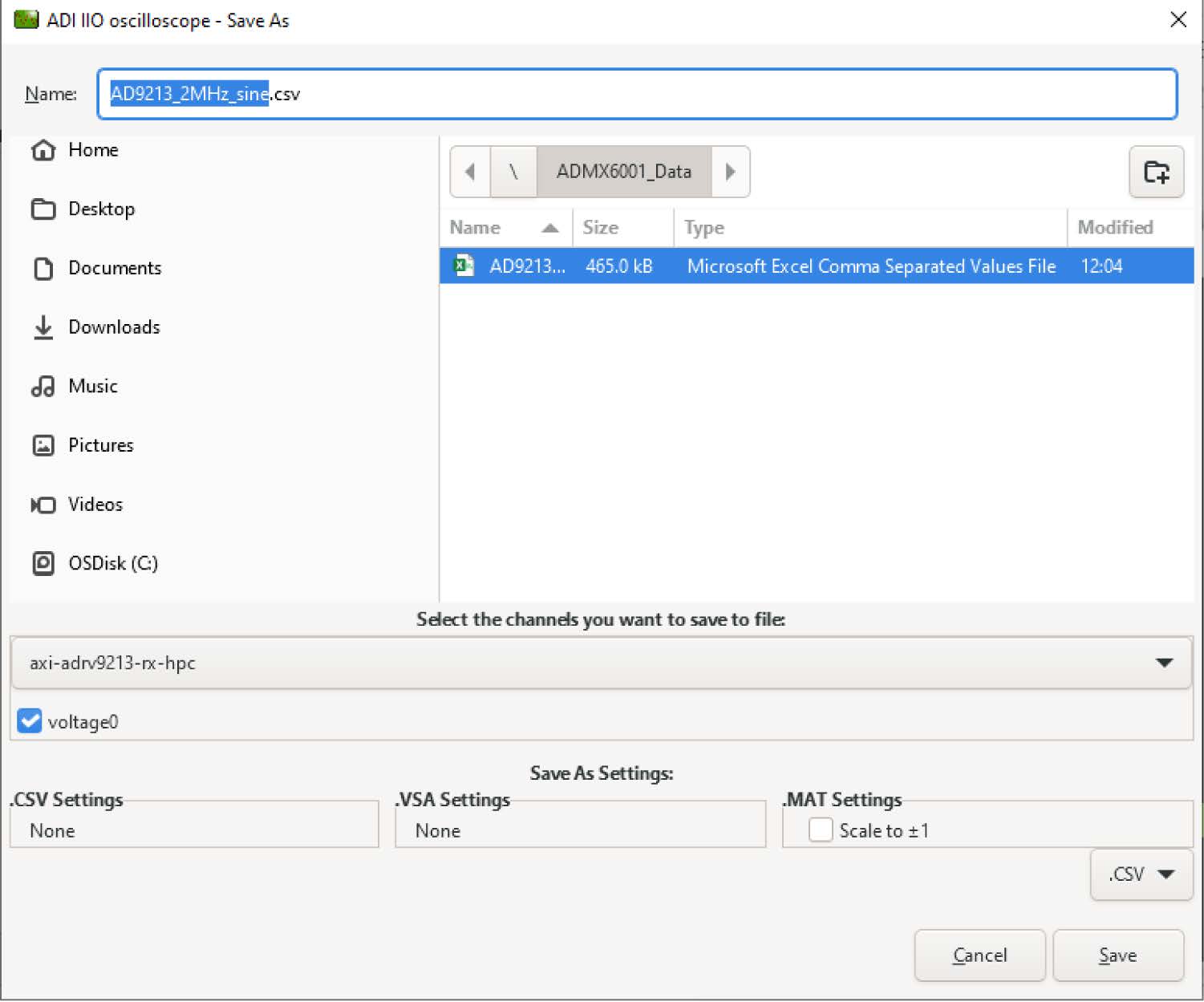
The data can be saved in a .csv file for post processing and analysis. From the File menu, select Save As to open the Save As window. Make sure to select the path from the dropdown list and select the correct checkbox before clicking the Save button on bottom-right.

https://media.githubusercontent.com/media/analogdevicesinc/documentation/main/docs/solutions/reference-designs/admx6001_ebz/images/csvfile_IIO_Oscilloscope.jpg

Input signal offset shift for AD9213

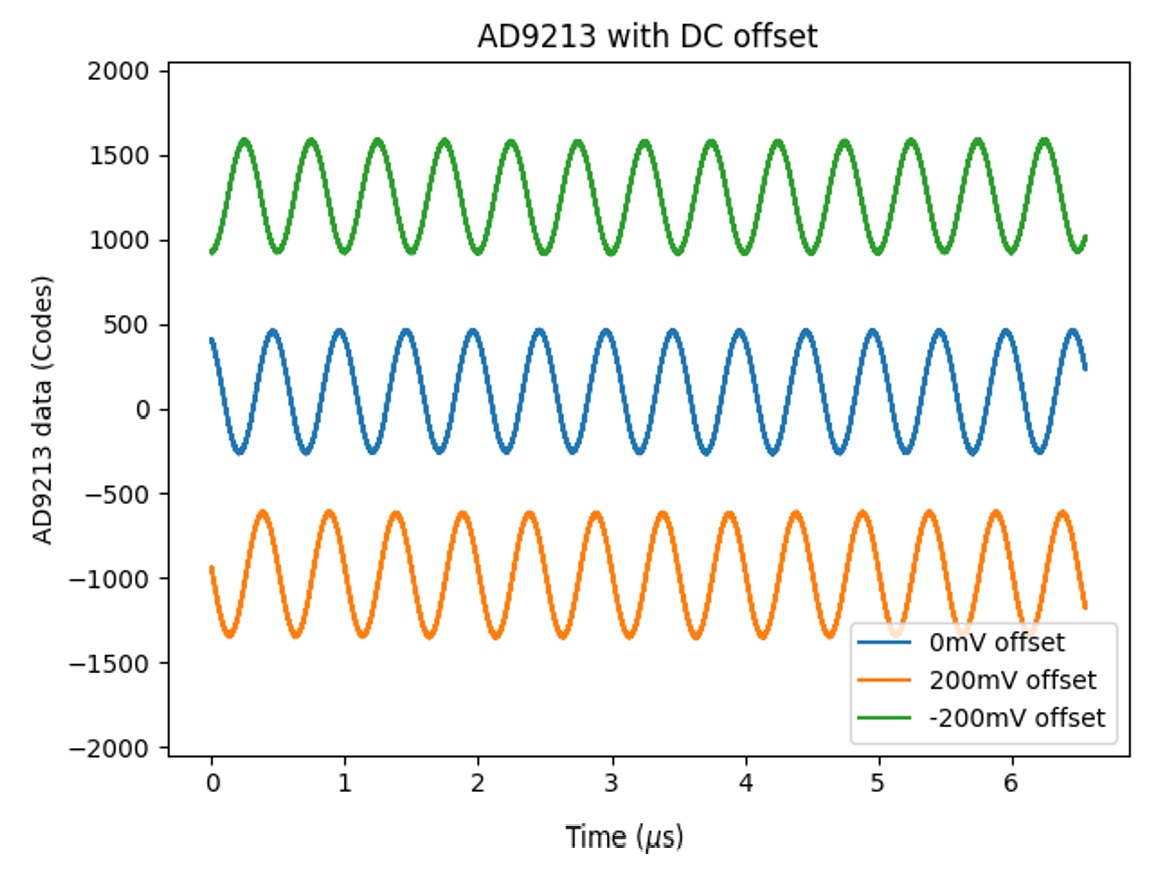
The input signal is often from transducers or sensors as a unipolar signal with DC offset, whereas the AD9213 works best with differential input. By biasing the ADL5580 input terminal with the output of the precision DAC LTC2664, the ADL5580 converts the unipolar signal to a differential signal with an adjustable DC offset to maximize the utility of the AD9213 input dynamic range. The actual use case may vary depending on the specific application.

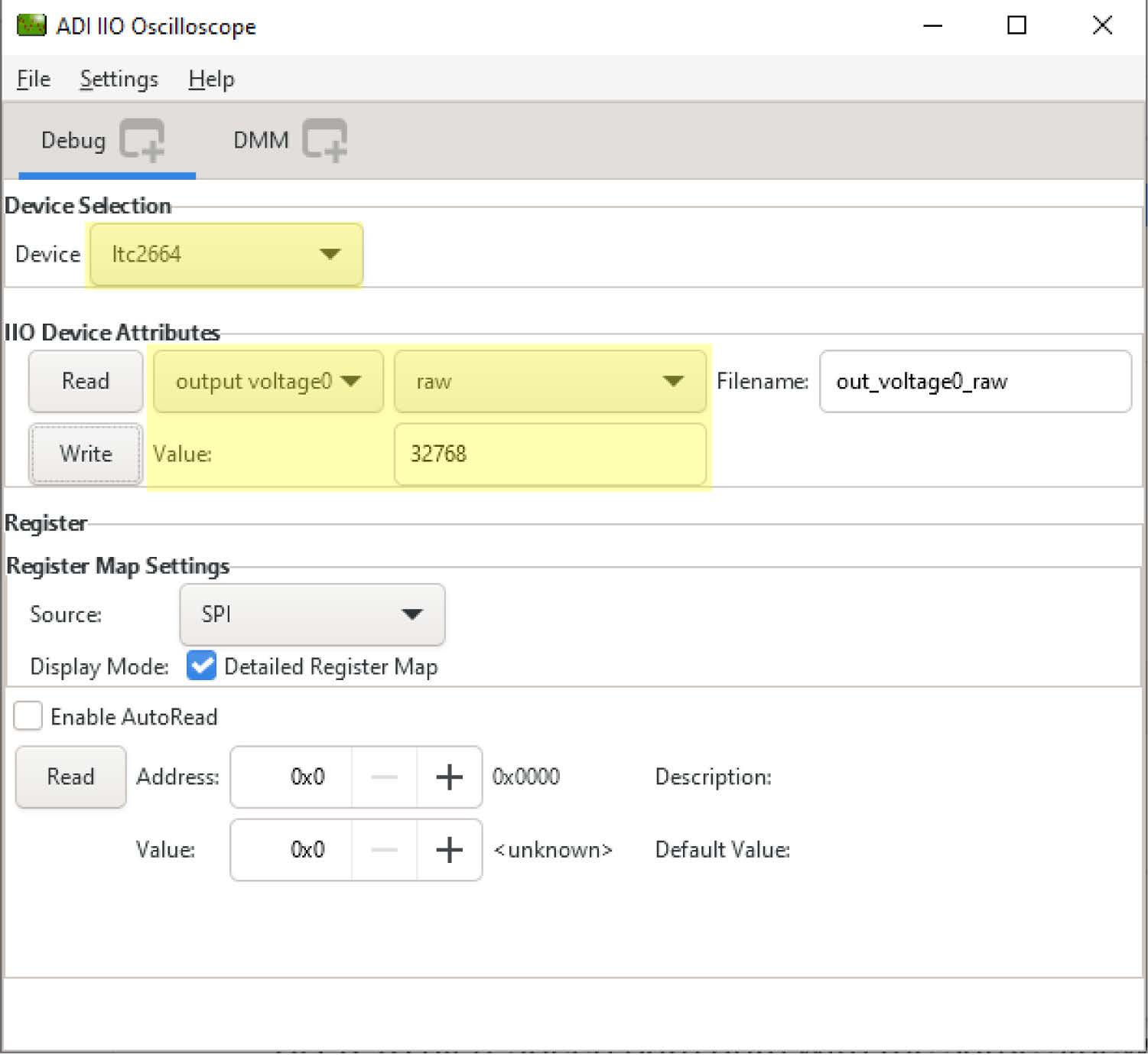
The DAC value of 32768 corresponds to 0V and is used as the default biasing to ADL5580. To achieve a targeted DC offset shift x mV, the DAC value can be calculated as

DAC value = 32768×(1 + x /5000)

where x is the DC offset in mV.

Round the DAC value to the nearest integer as the DAC LTC2664 input. The DAC output range is −5V to +5V.

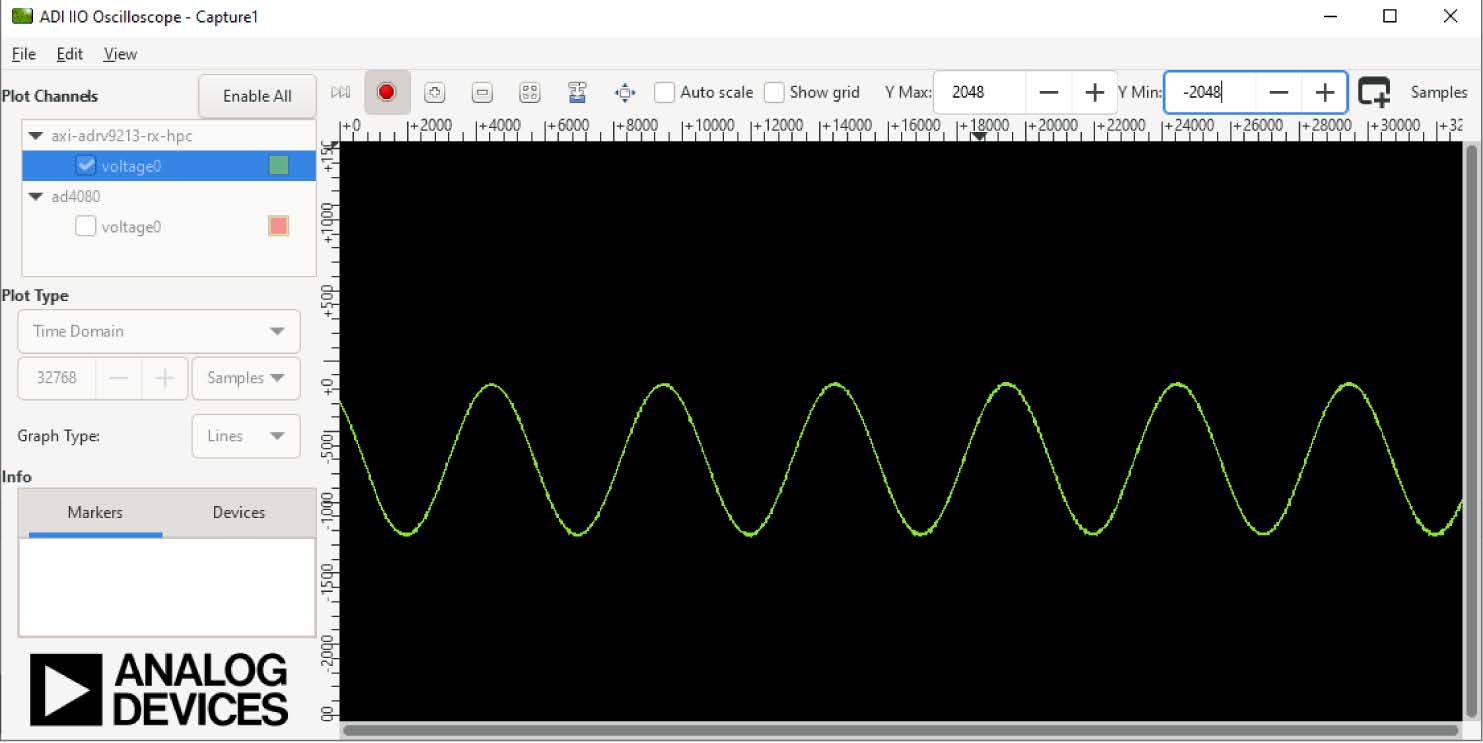
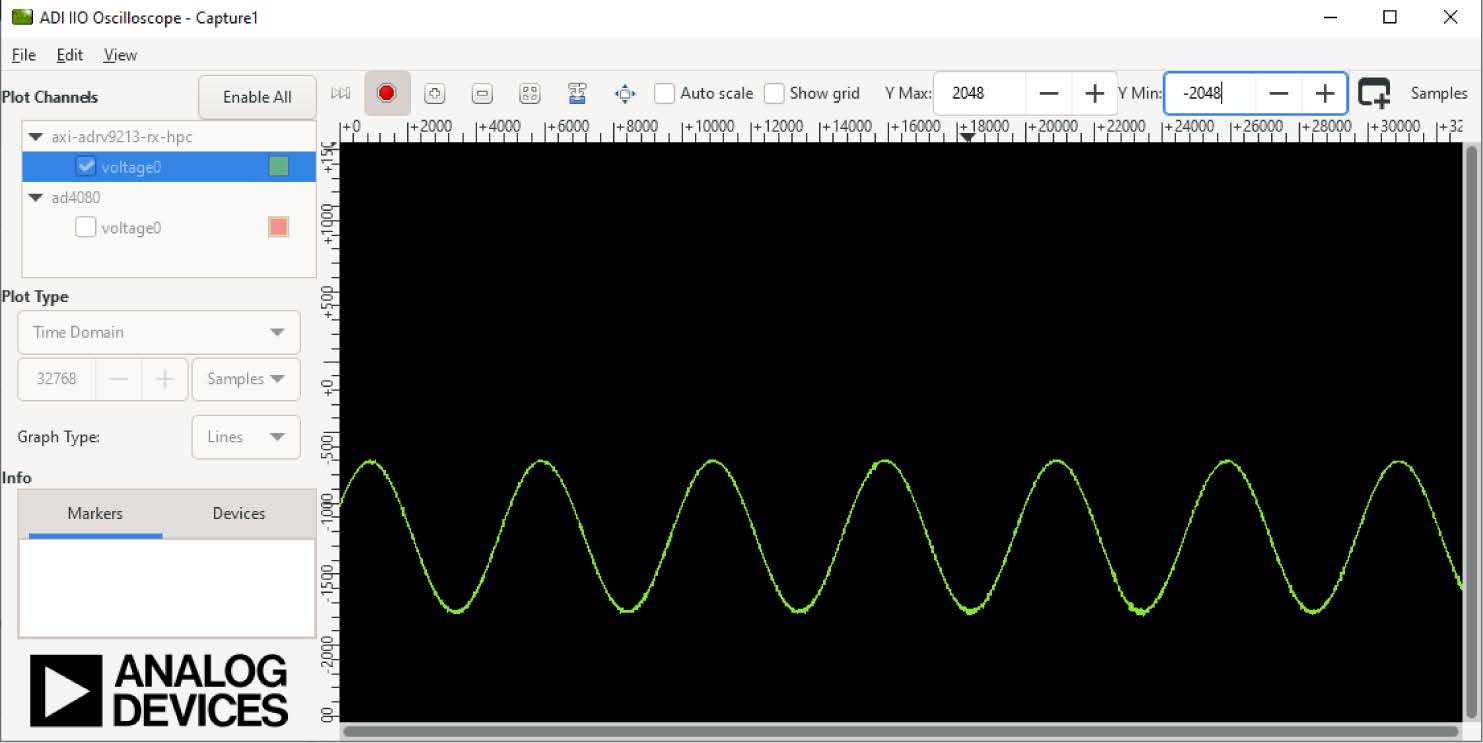
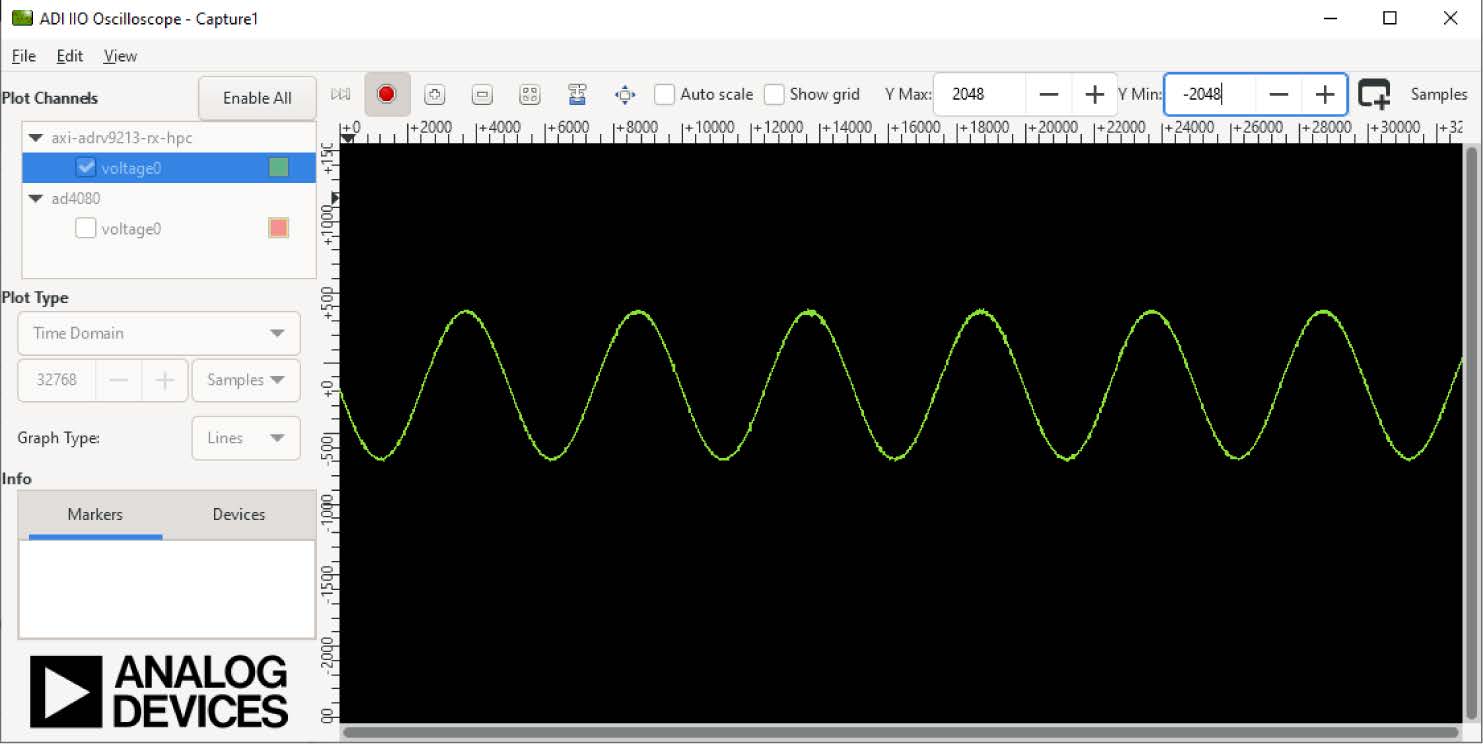
To change the LTC2664 DAC value for ADL5580 biasing, write the DAC value as raw data to output_voltage0, as shown in Figure 32. To illustrate the effect of offset shift, clear the Auto scale checkbox, set the Y max to 2048, and set the Y min to −2048. Figures below show the AD9213 high-speed path data with the same sinewave input but different DAC settings for offset shift.

https://media.githubusercontent.com/media/analogdevicesinc/documentation/main/docs/solutions/reference-designs/admx6001_ebz/images/write_dac_values.jpg https://media.githubusercontent.com/media/analogdevicesinc/documentation/main/docs/solutions/reference-designs/admx6001_ebz/images/ad9213_data_with_DCoffset.jpg https://media.githubusercontent.com/media/analogdevicesinc/documentation/main/docs/solutions/reference-designs/admx6001_ebz/images/ad9213_data_with_DCoffset100mV.jpg https://media.githubusercontent.com/media/analogdevicesinc/documentation/main/docs/solutions/reference-designs/admx6001_ebz/images/ad9213_data_with_DCoffset-100mV.jpg

Configure and control ADMX6001-EBZ with python scripts

Utilizing Python scripts offers advantages for configuring and controlling the ADMX6001-EBZ board and enables data visualization and processing. Python scripts are more efficient than the manual register read and write with IIO Oscilloscope. The Python virtual environment (venv) for running ADMX6001-EBZ Python scripts can be set with or without an IDE such as PyCharm. It is required that the user installs Python 3.11.5 or a newer version and downloads the PyADI-IIO library before proceeding to the venv setting in the following section.

Install Python and Git for windows

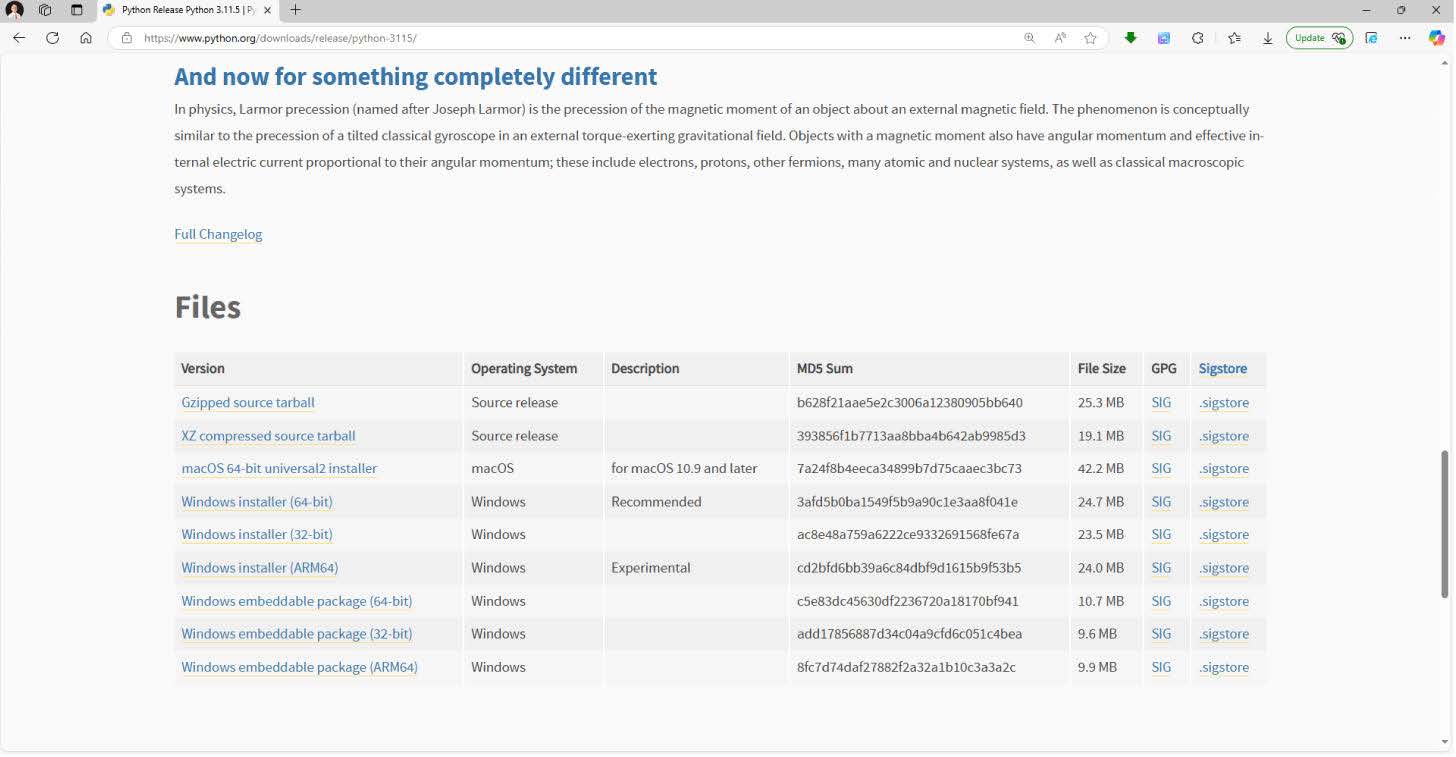
Download Windows Installer (64-bit).

https://media.githubusercontent.com/media/analogdevicesinc/documentation/main/docs/solutions/reference-designs/admx6001_ebz/images/download_python.jpg

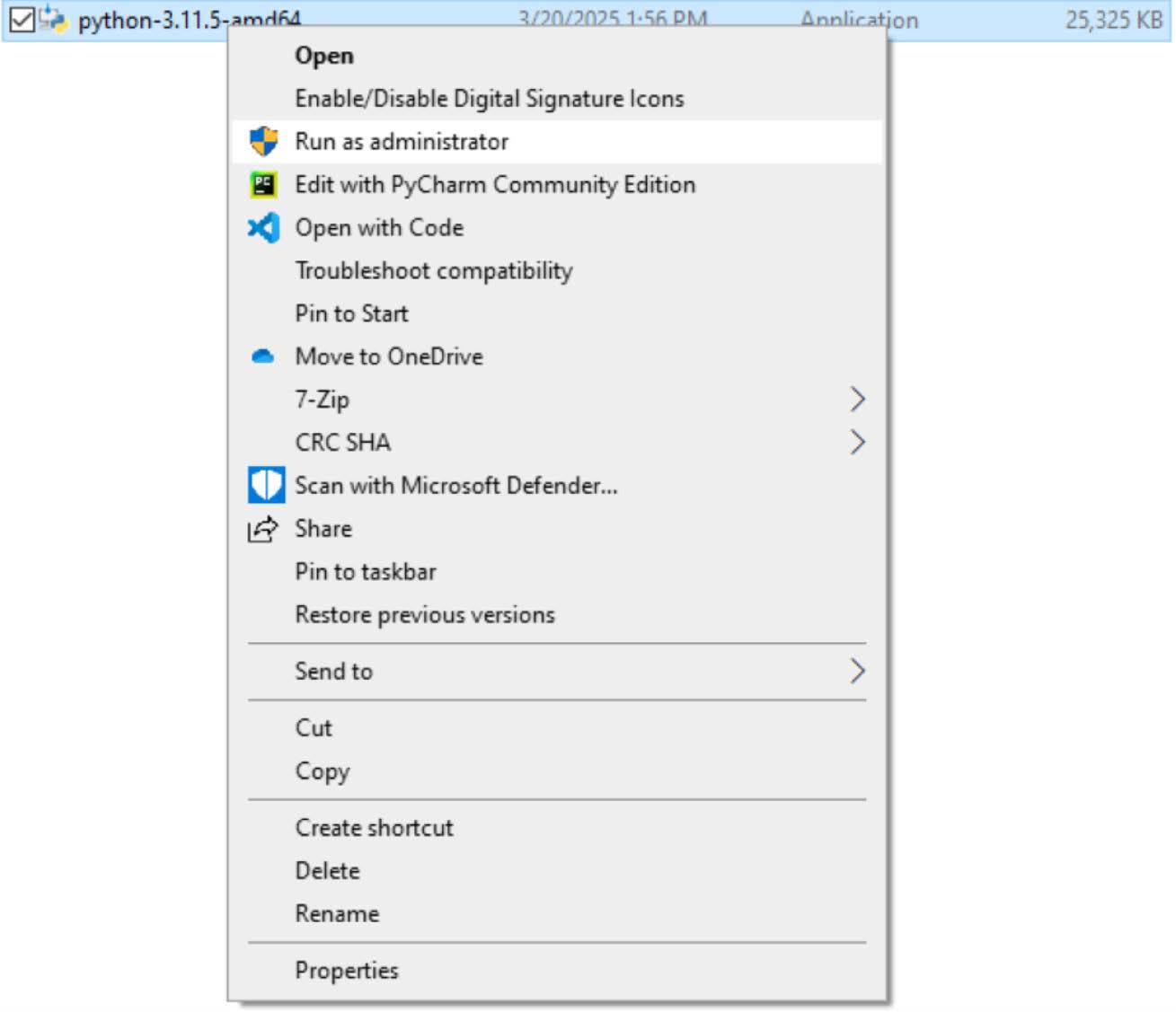
Install Python 3.11.5. It is recommended to install Python 3.11.5 as an administrator by right clicking on the installer.

https://media.githubusercontent.com/media/analogdevicesinc/documentation/main/docs/solutions/reference-designs/admx6001_ebz/images/install_python.jpg

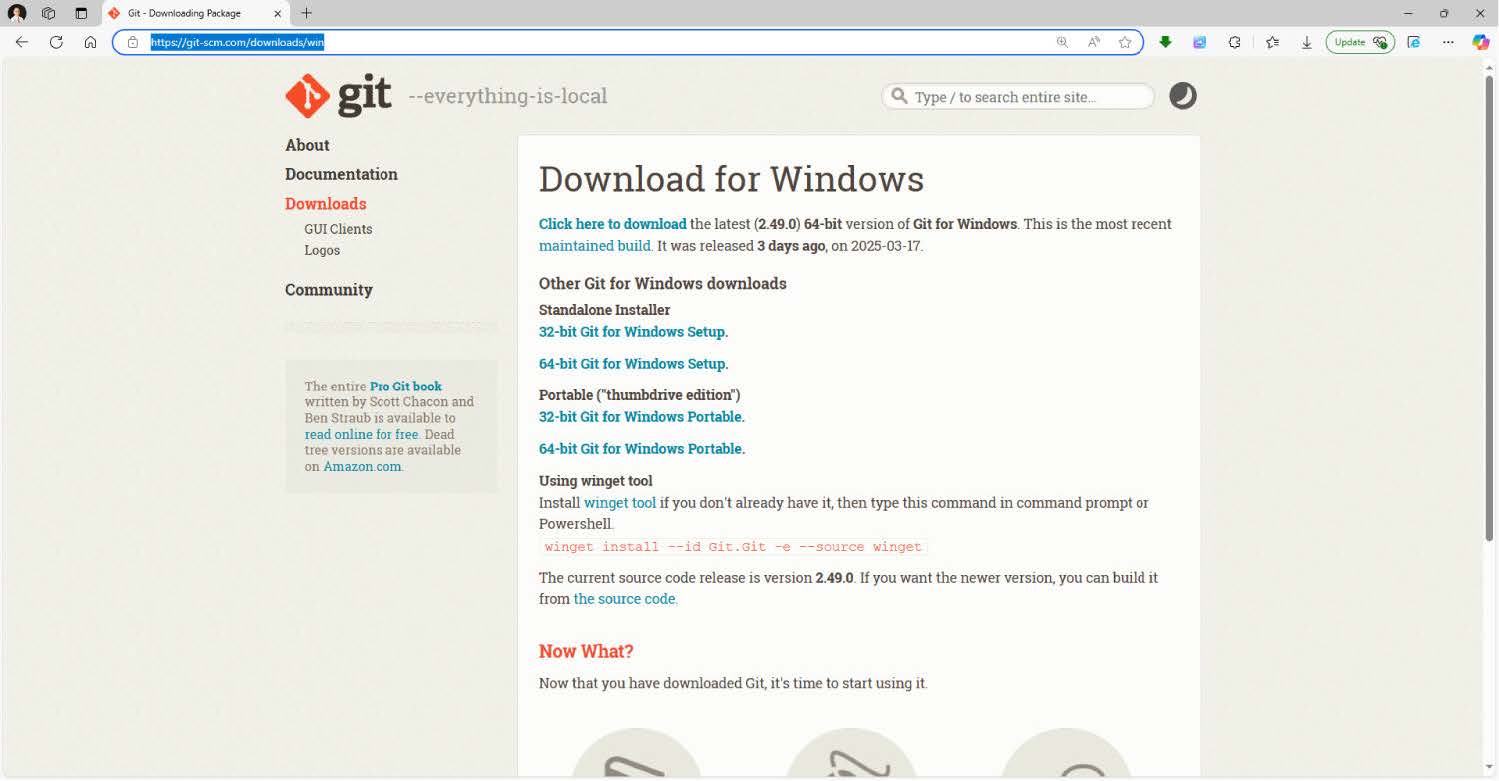
Download the 64-bit Git for Windows Setup and install Git.

https://media.githubusercontent.com/media/analogdevicesinc/documentation/main/docs/solutions/reference-designs/admx6001_ebz/images/download_git.jpg

Download the PYADI-IIO library

Start a Command Prompt window and clone the PyADI-IIO library for ADMX6001-EBZ.

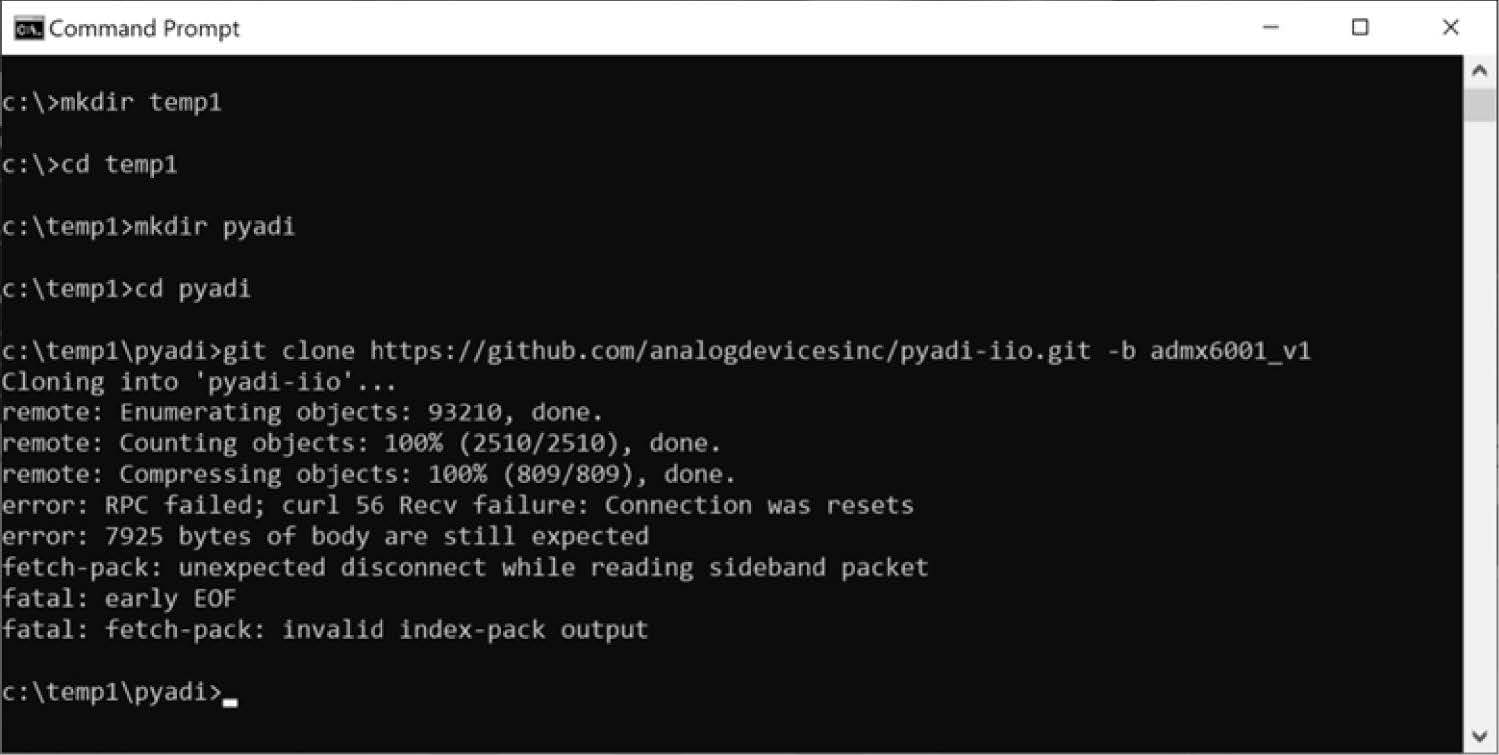
Create and navigate to the folder for saving the PyADI-IIO library,

mkdir temp1 -> cd temp1 -> mkdir pyadi -> cd pyadi

Clone the required PyADI-IIO library from the GitHub website,

git clone tree/admx6001_v1

https://media.githubusercontent.com/media/analogdevicesinc/documentation/main/docs/solutions/reference-designs/admx6001_ebz/images/clone_pyADI.jpg

Create and configure python venv for the ADMX6001-EBZ

The venv module supports creating lightweight virtual environments, each with their own independent set of Python packages installed in the site directories of the virtual environments. The venv contains a specific Python interpreter, software libraries, and binaries that are needed to support a project (library or application).

Complete the following steps to create and activate the venv for ADMX6001-EBZ and install the libraries:

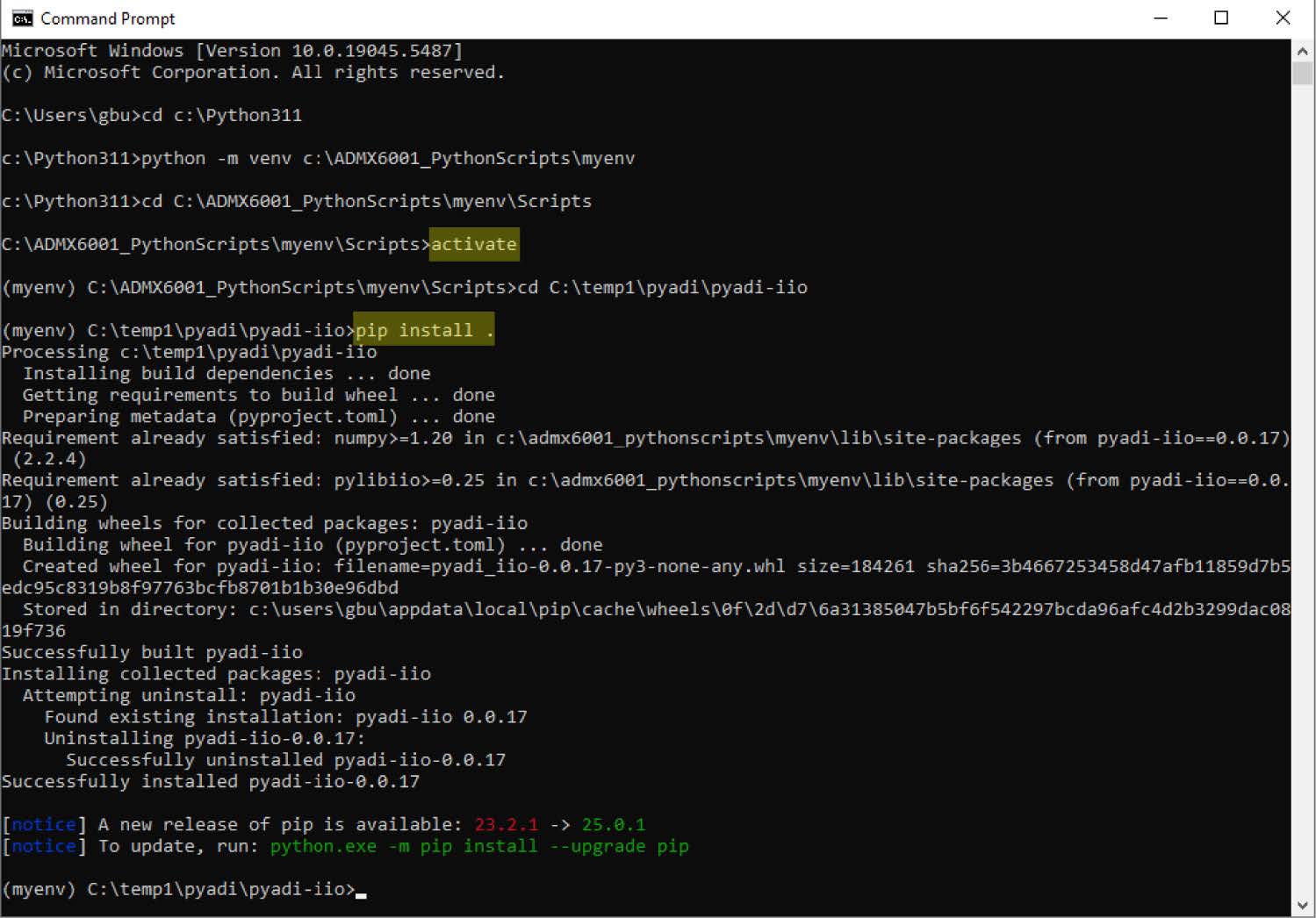
  • Create a folder and copy the Python scripts to this folder, in the example that follows C:\ADMX6001_PythonScripts.

  • Open a Command Prompt window and go to the Python 3.11 folder ( C:\Python311 in the following example).

  • To create the venv in the Command Prompt window run the following script: python -m venv c:\ADMX6001_Python-Scripts\myenv.

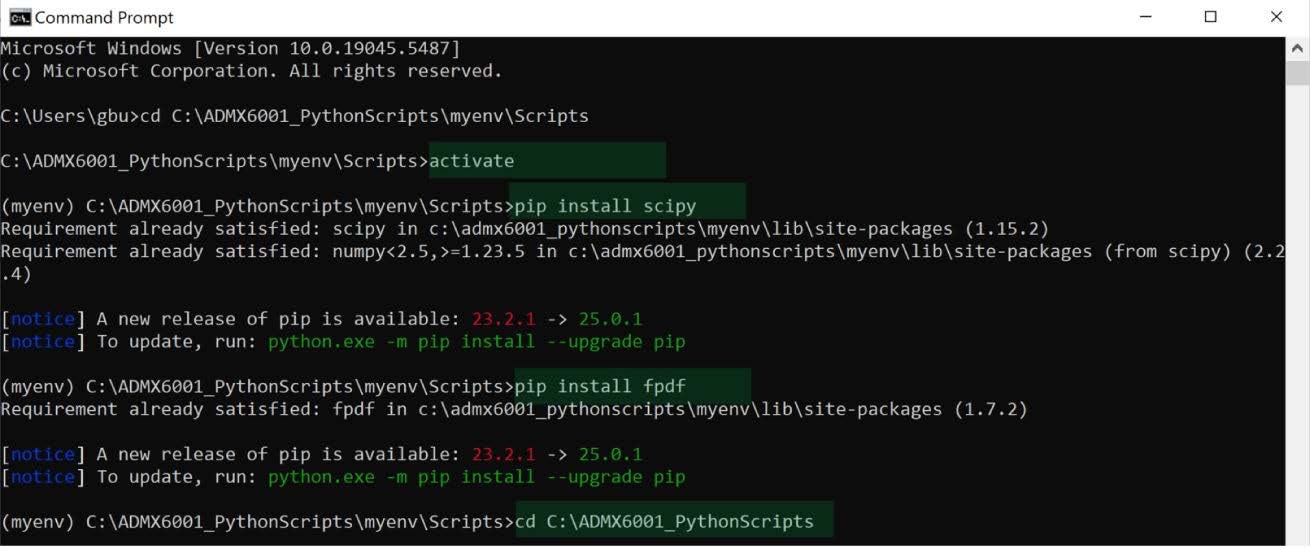
  • Activate the venv. Go to C:\ADMX6001_PythonScripts\myenv\Scripts>activate. Notice the prompt changes to (myenv), indicating the venv is activated.

  • In the (myenv) command window, install the PyADI-IIO library. Go to the PyADI-IIO library folder (C:\temp1\pyadi\pyadi-iio in the example) and install pyadi-iio library: pip install.

The venv is now created and activated, and the PyADI-IIO library is installed.

https://media.githubusercontent.com/media/analogdevicesinc/documentation/main/docs/solutions/reference-designs/admx6001_ebz/images/venv.jpg

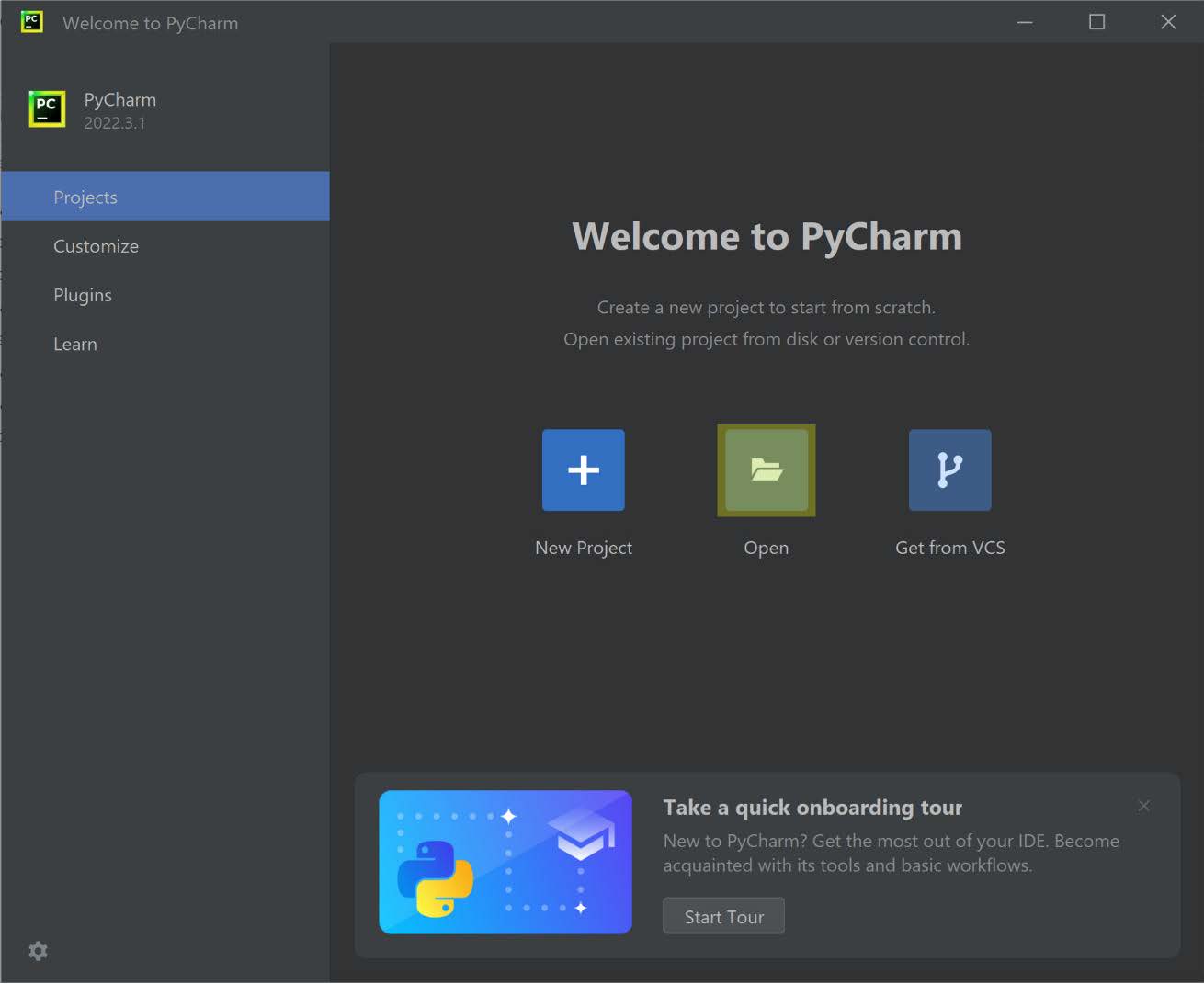
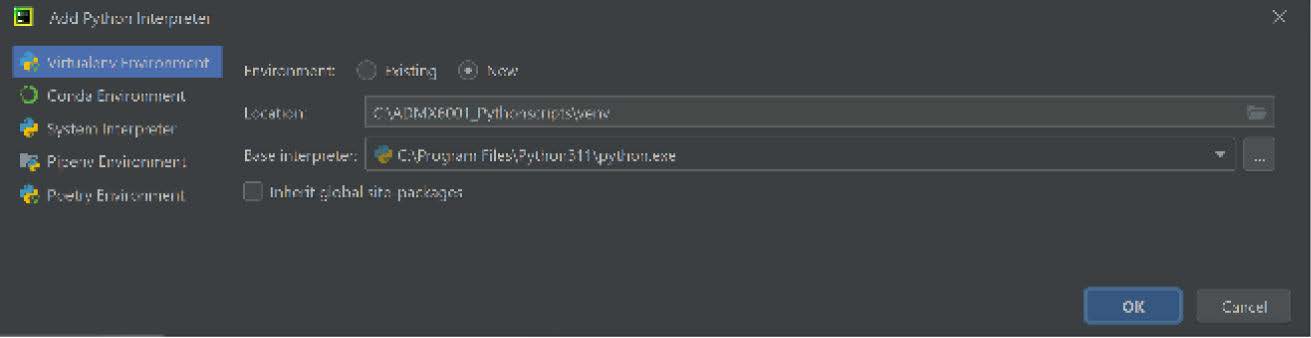
The user can also setup the venv for ADMX6001-EBZ with an integrated development environment (IDE) such as PyCharm. To create and activate the venv, complete the following:

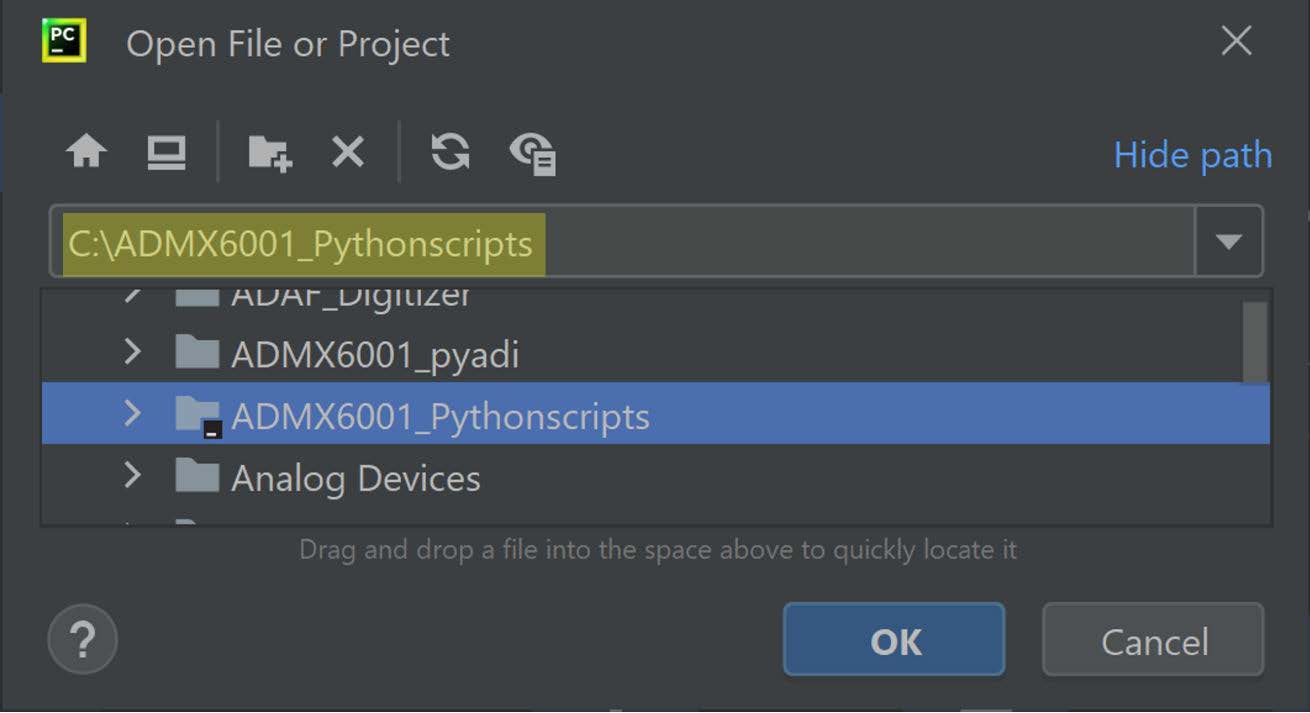
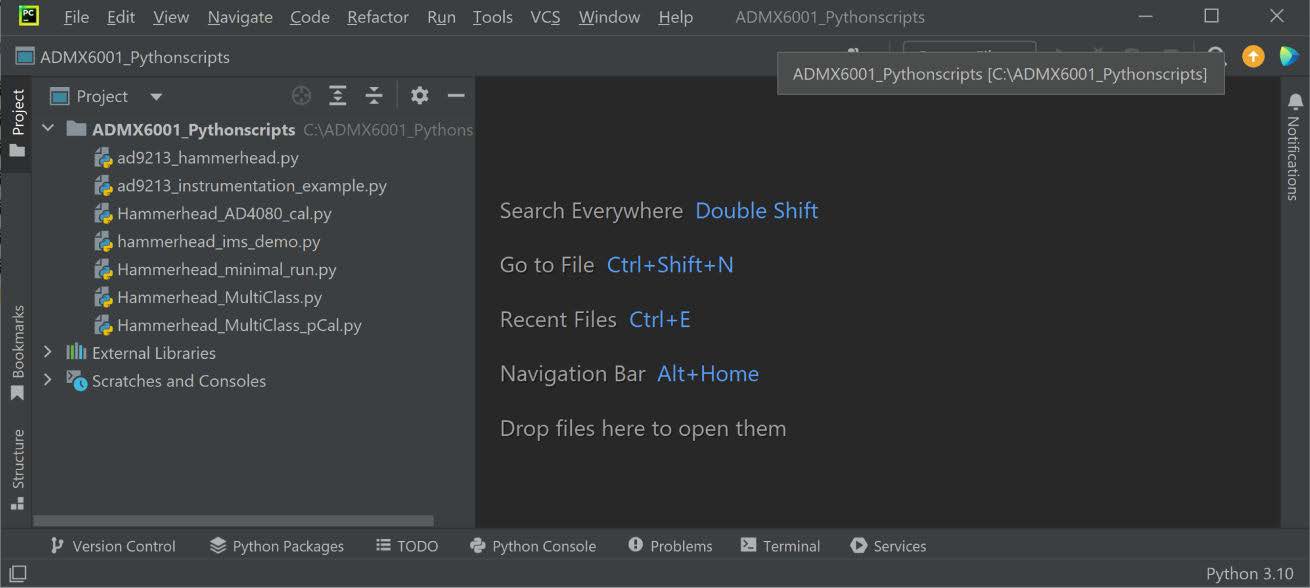
  • Launch PyCharm and open the ADMX6001_Pythonscripts project

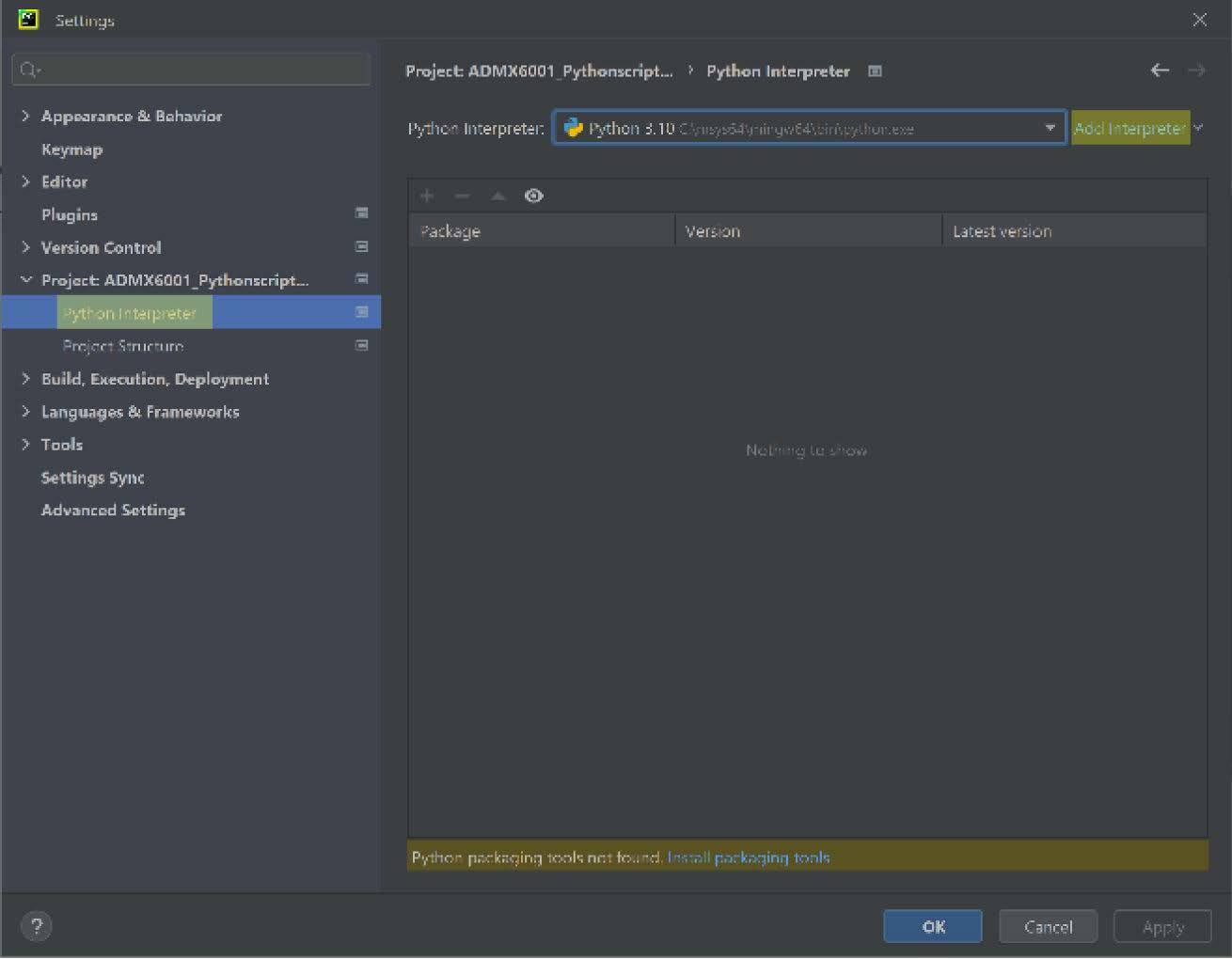
  • Navigate to File > Settings > Project > Python interpreter,click Add Interpreter > Add Local Interpreter to create the venv

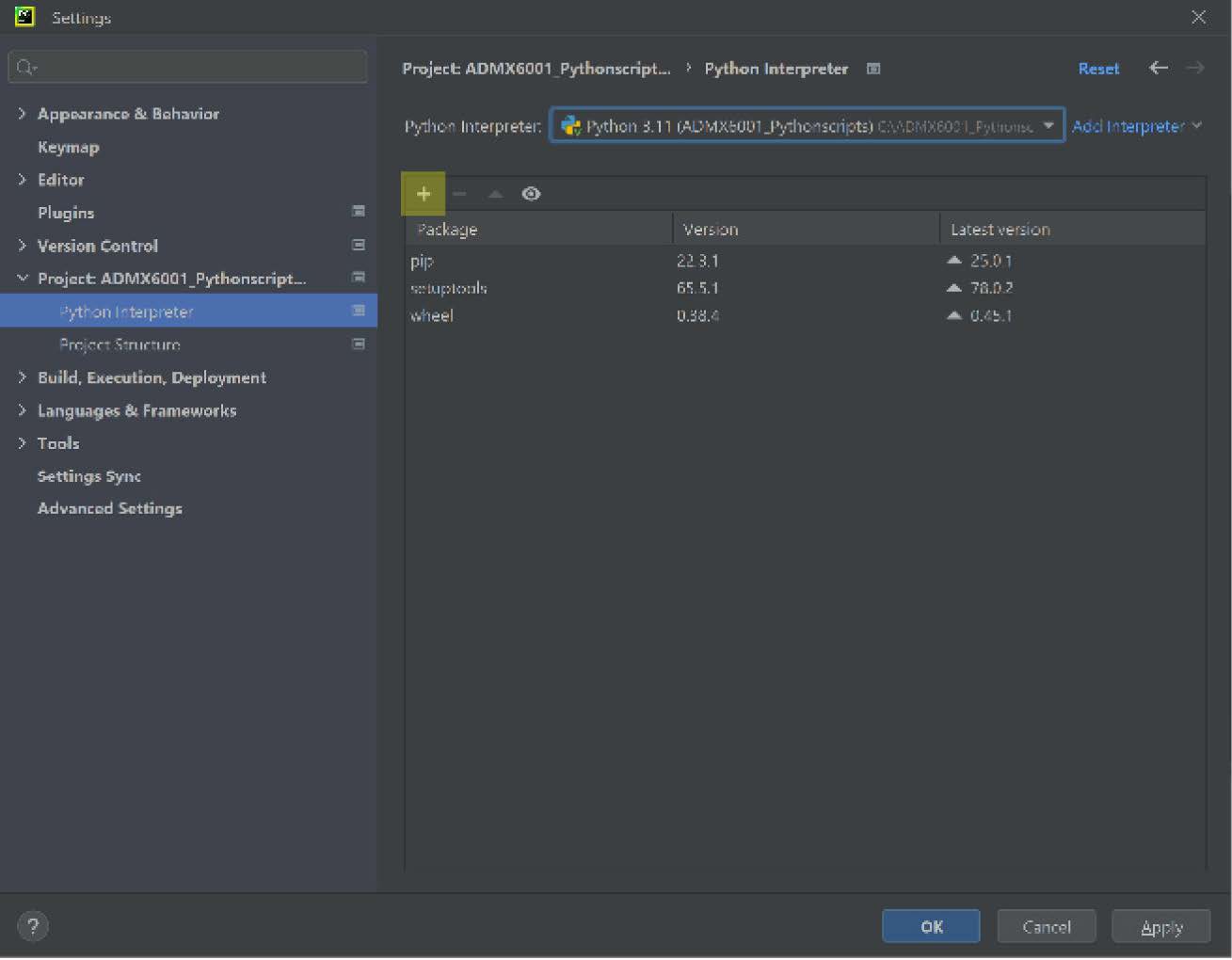
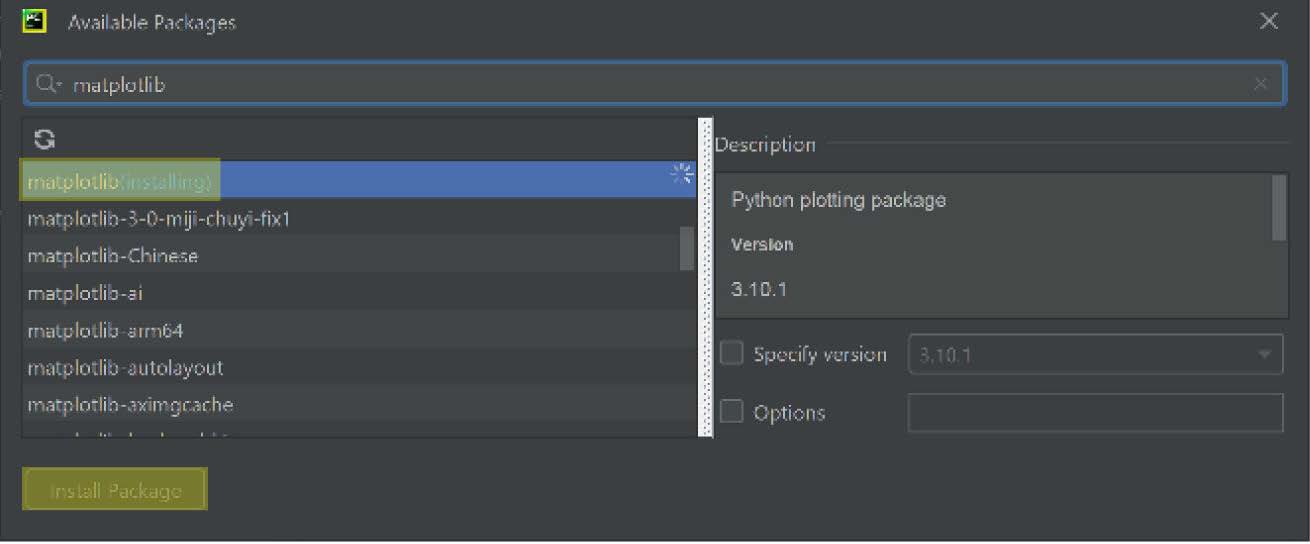
  • The user can add additional Python libraries in a Command Prompt window (see the Install Additional Python Libraries section) or in PyCharm

  • Launch a Command Prompt window to activate venv and install the PyADI-IIO

https://media.githubusercontent.com/media/analogdevicesinc/documentation/main/docs/solutions/reference-designs/admx6001_ebz/images/launch_pyCharm.jpg https://media.githubusercontent.com/media/analogdevicesinc/documentation/main/docs/solutions/reference-designs/admx6001_ebz/images/open_project.jpg https://media.githubusercontent.com/media/analogdevicesinc/documentation/main/docs/solutions/reference-designs/admx6001_ebz/images/ADMX6001-EBZ_pythonscripts.jpg https://media.githubusercontent.com/media/analogdevicesinc/documentation/main/docs/solutions/reference-designs/admx6001_ebz/images/create_venv.jpg https://media.githubusercontent.com/media/analogdevicesinc/documentation/main/docs/solutions/reference-designs/admx6001_ebz/images/install_additional_pylib.jpg https://media.githubusercontent.com/media/analogdevicesinc/documentation/main/docs/solutions/reference-designs/admx6001_ebz/images/python_interpreter.jpg https://media.githubusercontent.com/media/analogdevicesinc/documentation/main/docs/solutions/reference-designs/admx6001_ebz/images/activate_venv.jpg

This completes the Python venv for running Python scripts for the ADMX6001-EBZ board.

Install additional python libraries

The Python scripts for the ADMX6001-EBZ board utilize modules from various libraries. Install these libraries, such as scipy and matplotlib, using pip install <library name> within venv before running the Python scripts.

https://media.githubusercontent.com/media/analogdevicesinc/documentation/main/docs/solutions/reference-designs/admx6001_ebz/images/additional_lib.jpg

The Python scripts call modules in the PyADI-IIO library to initialize the ADMX6001-EBZ board by setting required registers, JSED and LVDS data lanes, and other control signals. Examples of Python scripts can be found at the product page for the ADMX6001-EBZ.

Run example python scripts for the ADMX6001-EBZ

Examples of Python scripts are provided on the ADMX6001-EBZ board product page for board evaluation. These Python scripts call modules in the PyADI-IIO library to initialize the ADMX6001-EBZ board by setting required registers, JSED and LVDS data lanes, and other control signals. The user is encouraged to check the product page of the ADMX6001-EBZ board for updated and/or additional examples of Python scripts.

The example script ADMX6001_MultiClass_pCal.py defines the classes to setup, initiate, configure, and operate the ADMX6001-EBZ for data acquisition and visualization. A list of useful methods defined in this script for operating the setup of the ADMX6001-EBZ board and the Xilinx VCU118 board follows.

  • AD4080_CAl(self): configure the AD4080 LVDS data interface, Register 0x15 and Register 0x16, for correct data output.

  • set_dac_offset(self, voltage): set the DC offset in mV for the AD9213 path. By setting the appropriate DC offset, the signal can be moved up or down for maximizing the dynamic range of the AD9213.

  • capture_data_ad9213(self, nsamples): the AD9213 captures data of nsamples at 10GSPS.

  • capture_data_ad4080(self, nsamples): the AD4080 captures data of nsamples at 31.25MSPS.

  • plot_data_ad9213(self, data): plot data captured by the AD9213.

  • plot_data_ad4080(self, data): plot data captured by by AD4080.

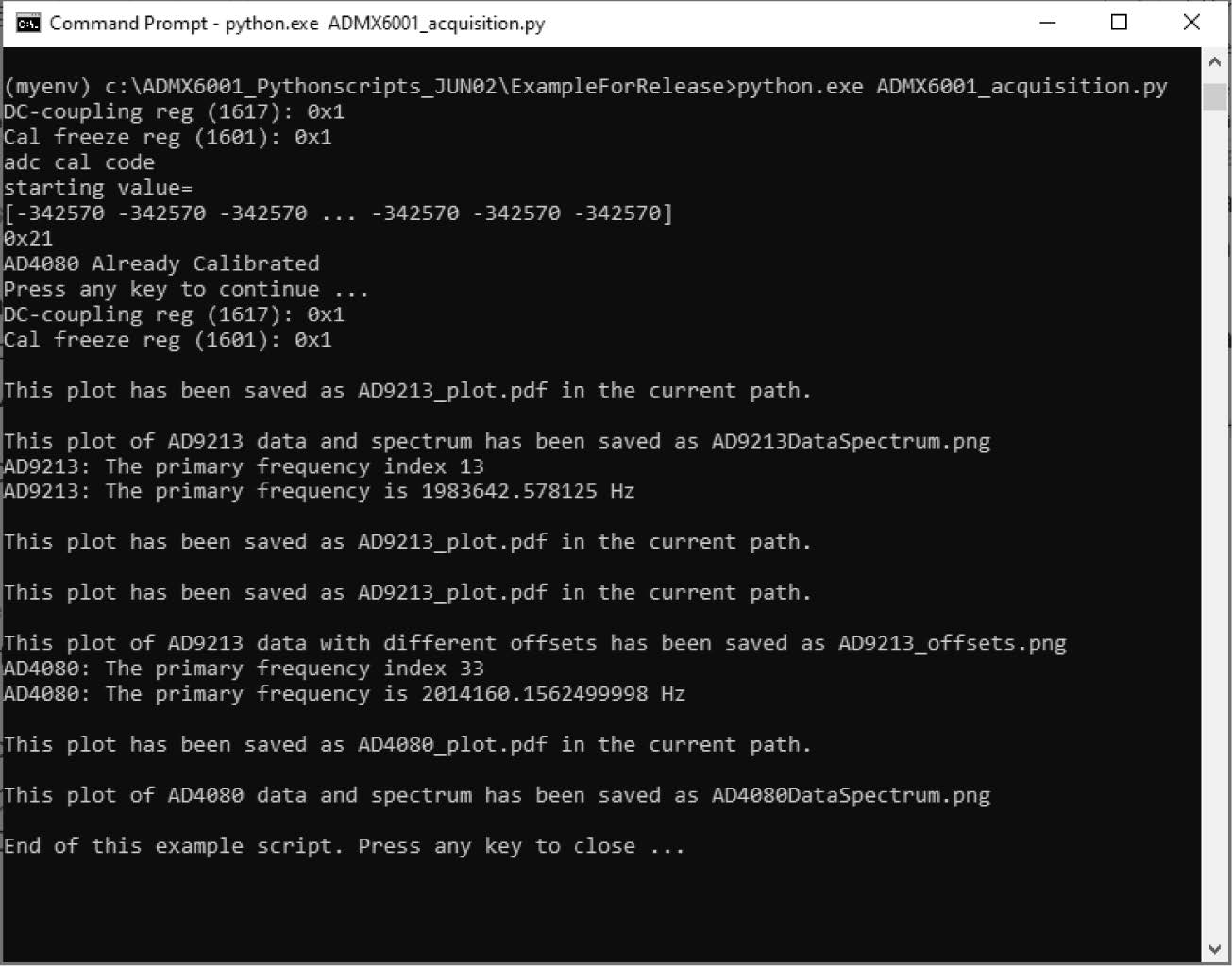
https://media.githubusercontent.com/media/analogdevicesinc/documentation/main/docs/solutions/reference-designs/admx6001_ebz/images/run_script.jpg

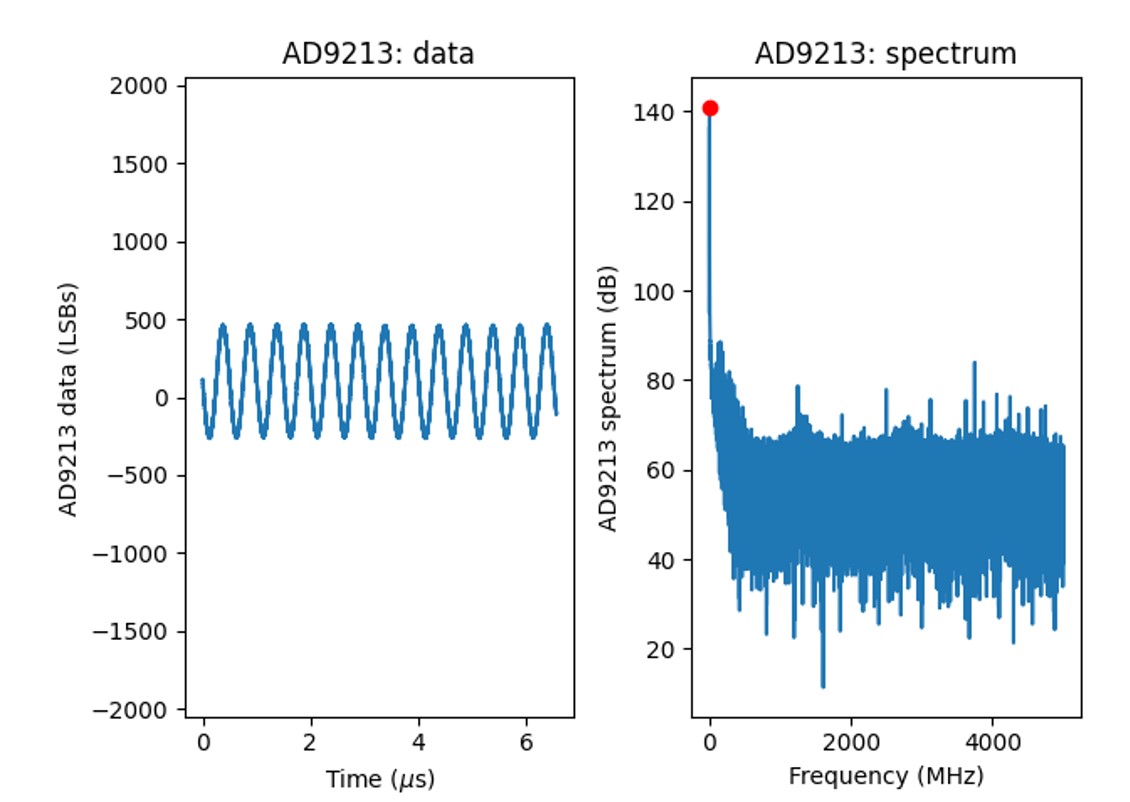
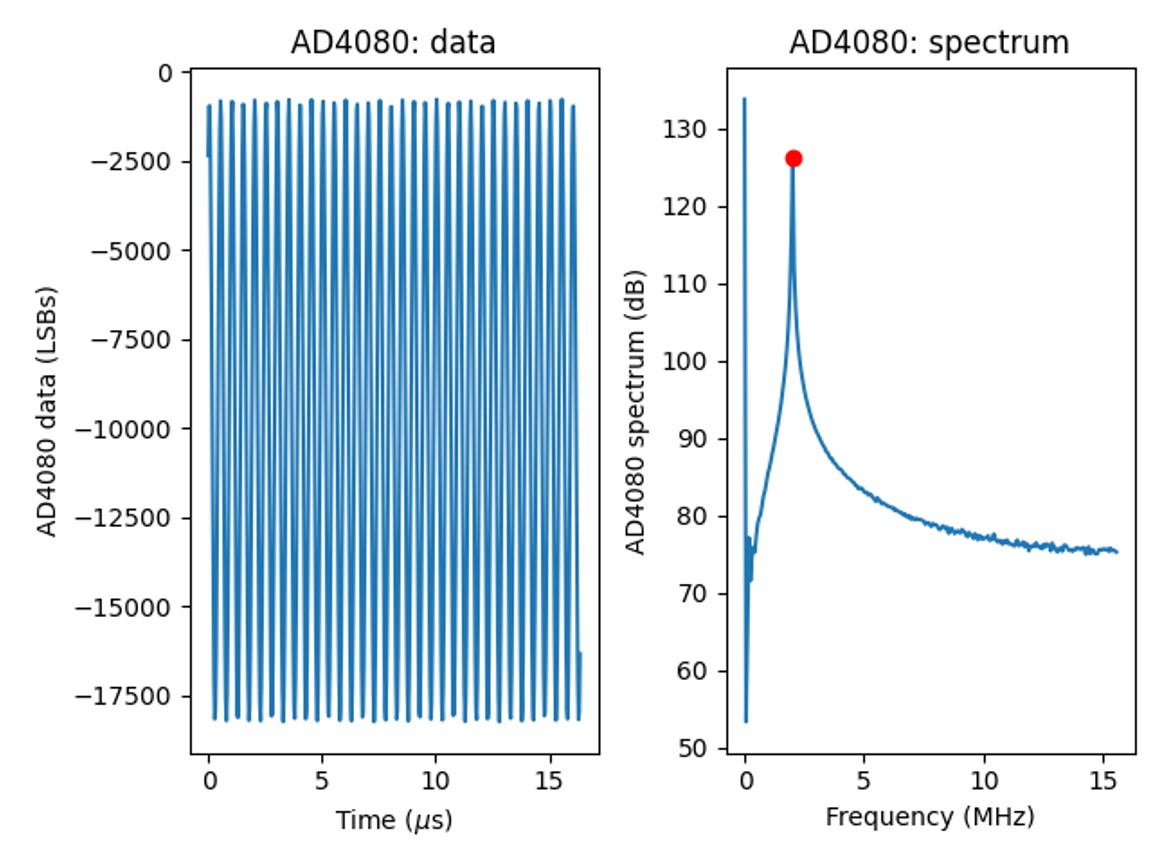
The example script ADMX6001_acquisitionl.py creates instance of classes defined in ADMX6001_multiClass_pCal.py and calls the methods to initialize the ADMX6001-EBZ board, calibrate the AD4080 LVDS data interface, and perform data acquisition. Figures below the plots that the Python script ADMX6001_acquisition.py generated.
https://media.githubusercontent.com/media/analogdevicesinc/documentation/main/docs/solutions/reference-designs/admx6001_ebz/images/plots.jpg https://media.githubusercontent.com/media/analogdevicesinc/documentation/main/docs/solutions/reference-designs/admx6001_ebz/images/ad9213_data.jpg https://media.githubusercontent.com/media/analogdevicesinc/documentation/main/docs/solutions/reference-designs/admx6001_ebz/images/ad9213_data_spectrum.jpg