Software Guide
Warning
The evaluation software and drivers must be installed before connecting the EVAL-AD719x-ASDZ evaluation board and controller board to the USB port of the PC to ensure the PC correctly recognizes the evaluation system. See the prerequisites for details.
ACE Plugin Install Guide
The software and drivers required for the installation are:
ACE Plugin (select the plugin matching your device):
SDP controller board drivers (required if not already installed on the PC)
Installing ACE
Download the ACE software to a Windows-based PC.
Double click the ACEInstall.exe file to begin the installation. By default, the software is saved to:
C:\Program Files (x86)\Analog Devices\ACE.A dialog box opens asking for permission to allow the program to make changes to the PC. Click Yes to begin the installation process.
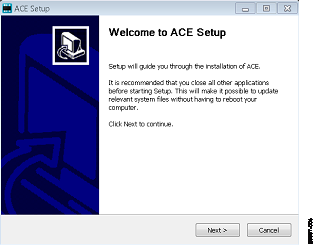
In the ACE Setup window, click Next > to continue the installation.
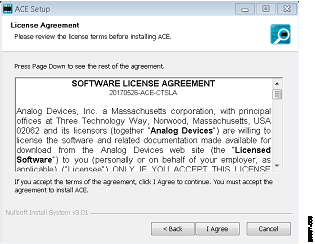
Read the software license agreement and click I Agree.
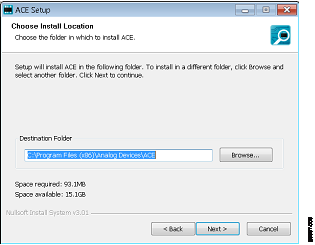
Click Browse… to choose the installation location and then click Next >.
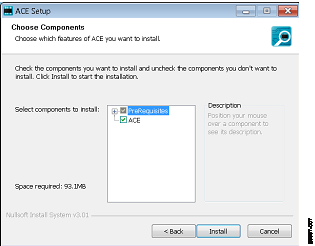
The ACE software components to install are preselected. Click Install.
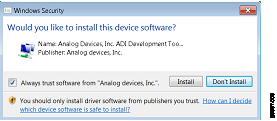
The Windows Security window opens. Click Install.
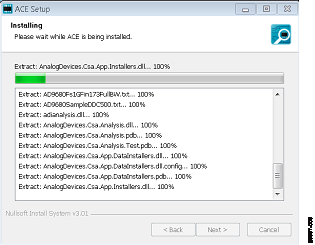
The installation is in progress. No action is required.
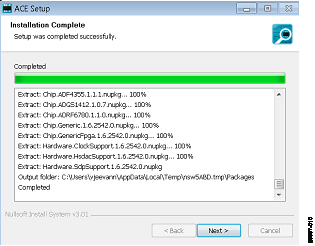
When the installation is complete, click Next >, and then click Finish to complete the installation process.
Installing the AD719x Plugin
After the plugin is downloaded, double click on the plugin file and connect your EVAL-AD719xASDZ to the PC through a controller board.
Alternatively, the plugin can be installed manually through ACE:
From the Start menu, select All Programs > Analog Devices > ACE > ACE.exe to open the ACE software main window.
Click on the Plug-in Manager tab in the top left panel.
Click on the Settings… button.
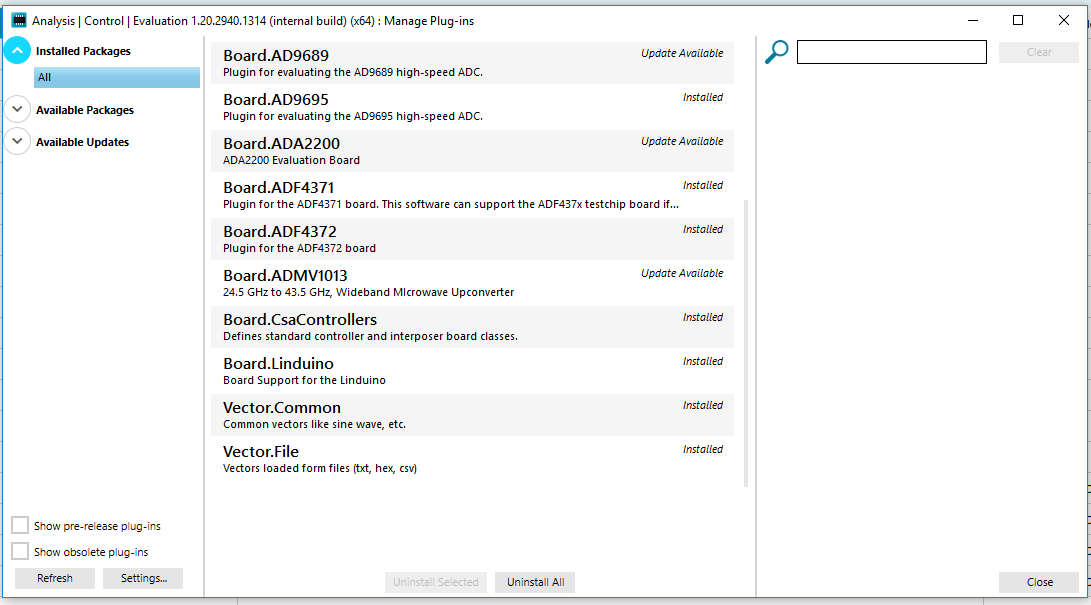
Click the + button next to the Zipped Plug-in Sources.
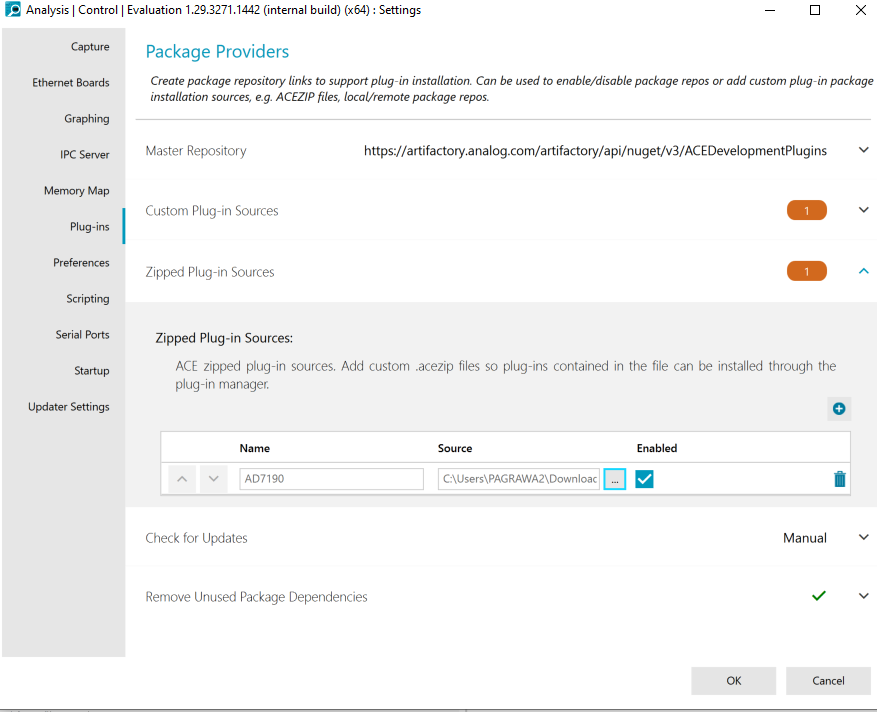
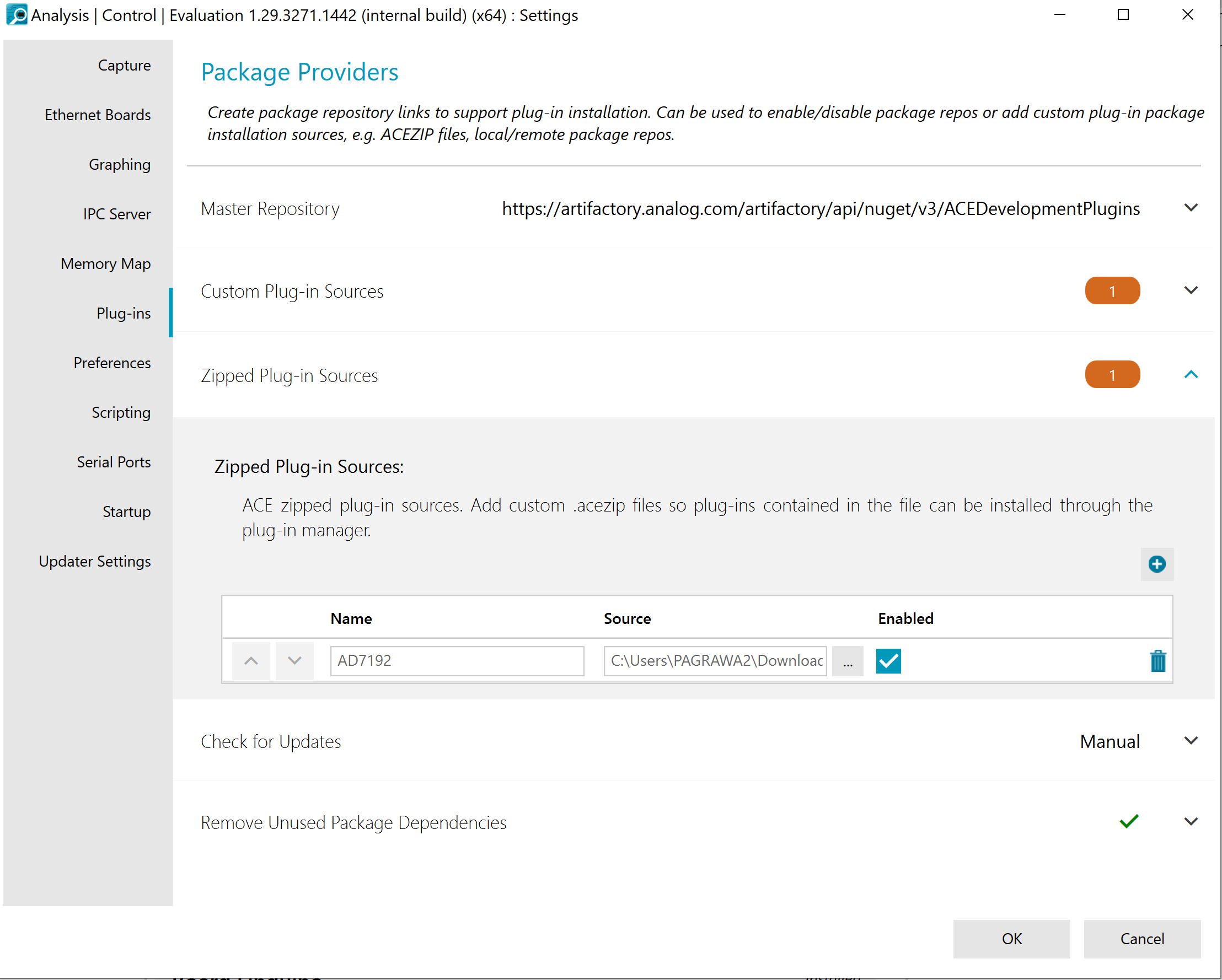
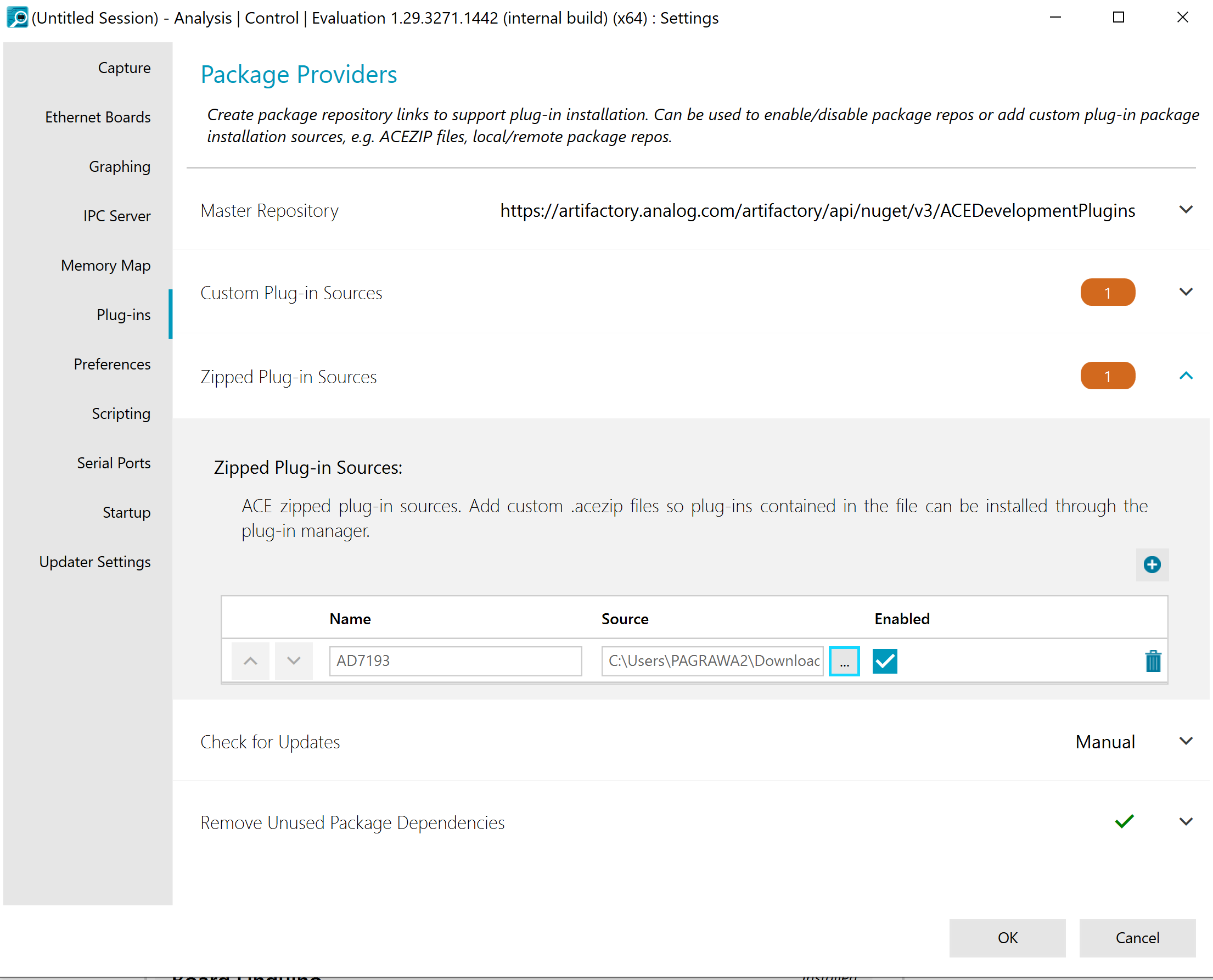
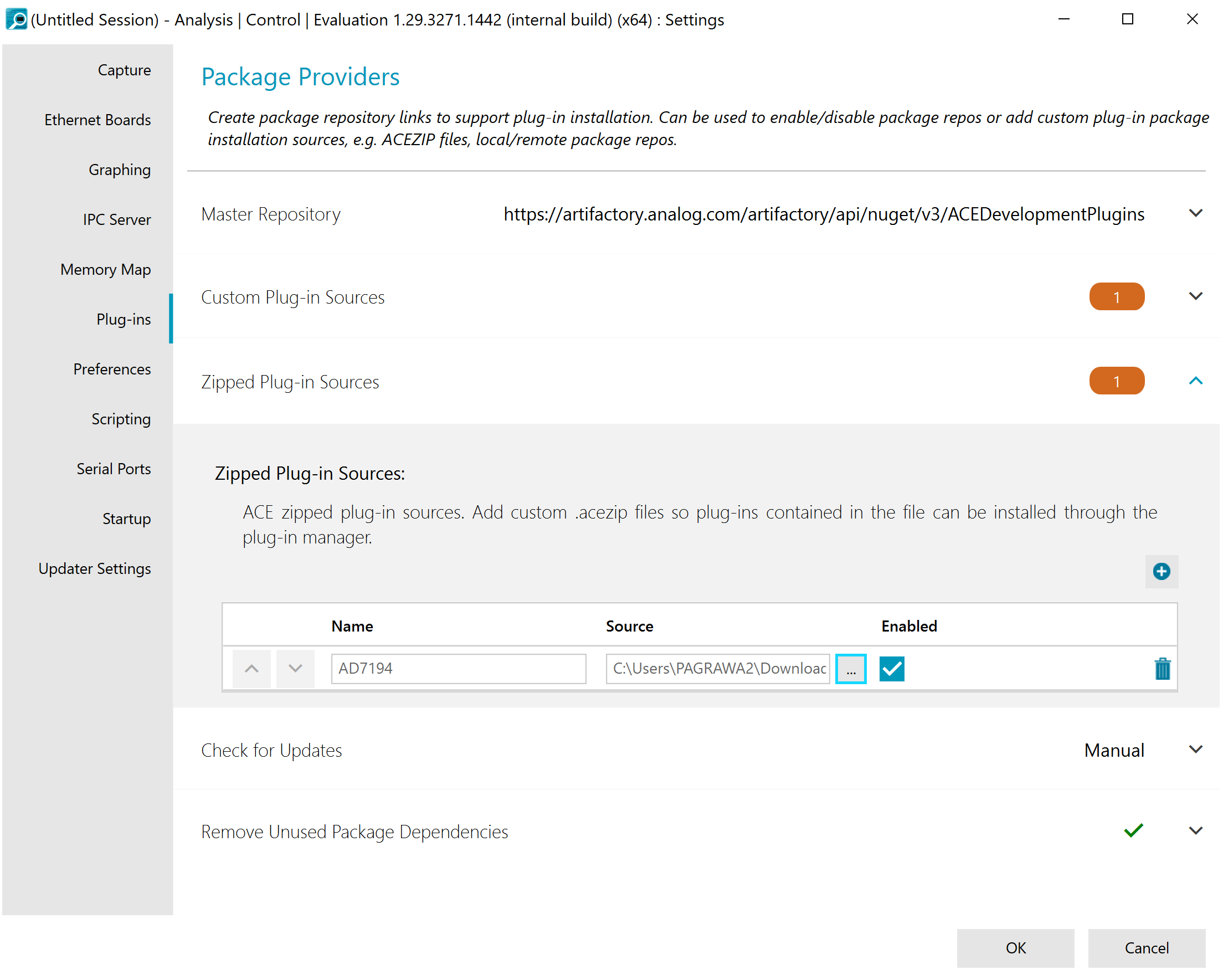
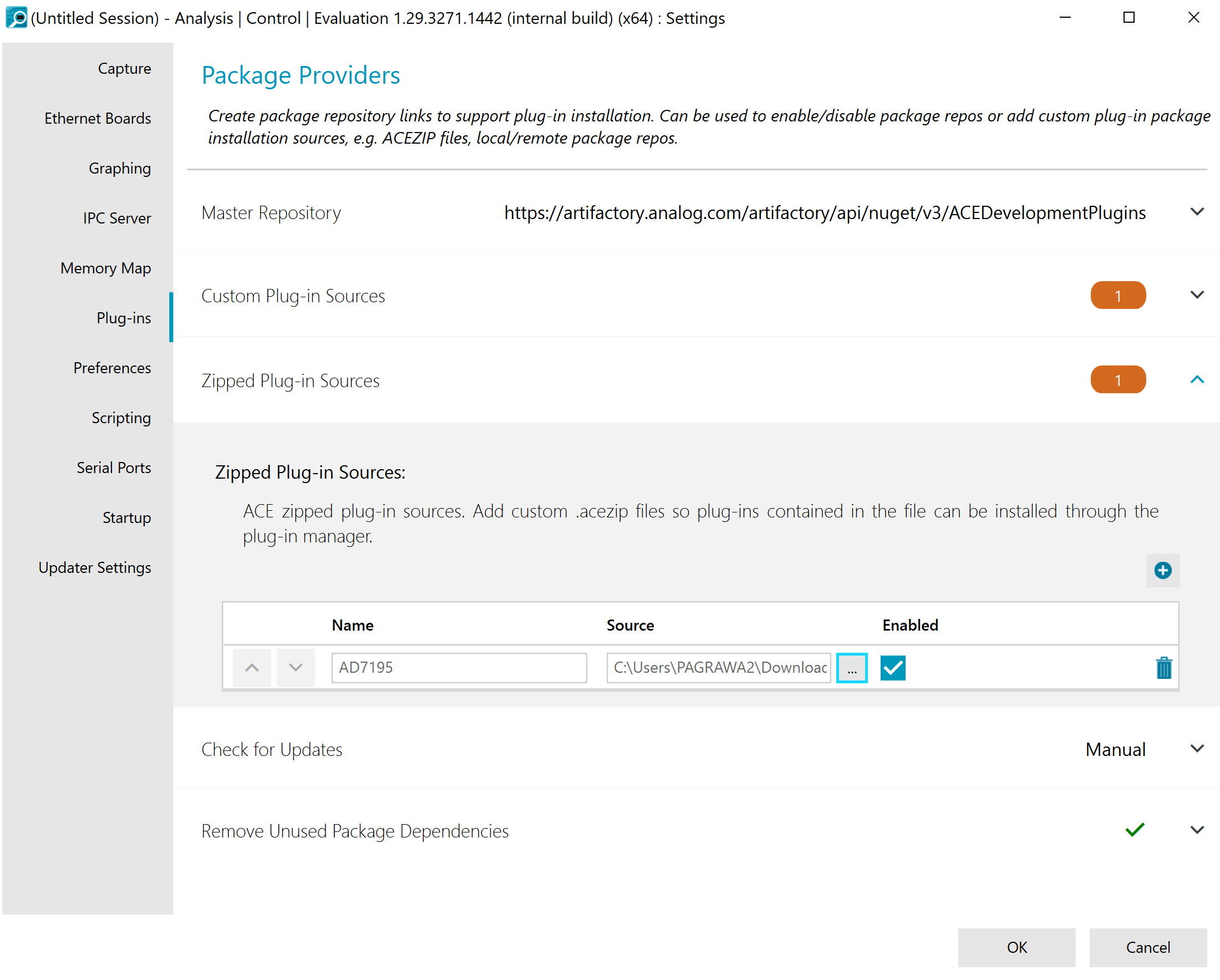
Under Name, enter the device name (e.g. “AD7192”).
Under Source, click the … button and set the path to the downloaded plugin file.
Press Ok, then Close.
ACE Software Operation
Launching the Software
After the EVAL-AD719xASDZ and controller board are properly connected to the PC, launch the ACE software:
From the Start menu, select All Programs > Analog Devices > ACE > ACE.exe to open the ACE software main window.
If the evaluation board is not connected via USB when the software launches, the Eval Board icon does not appear in the Attached Hardware section. To make it appear, connect the evaluation board and controller board to the USB port of the PC, wait a few seconds, and follow the instructions in the dialog box that opens.
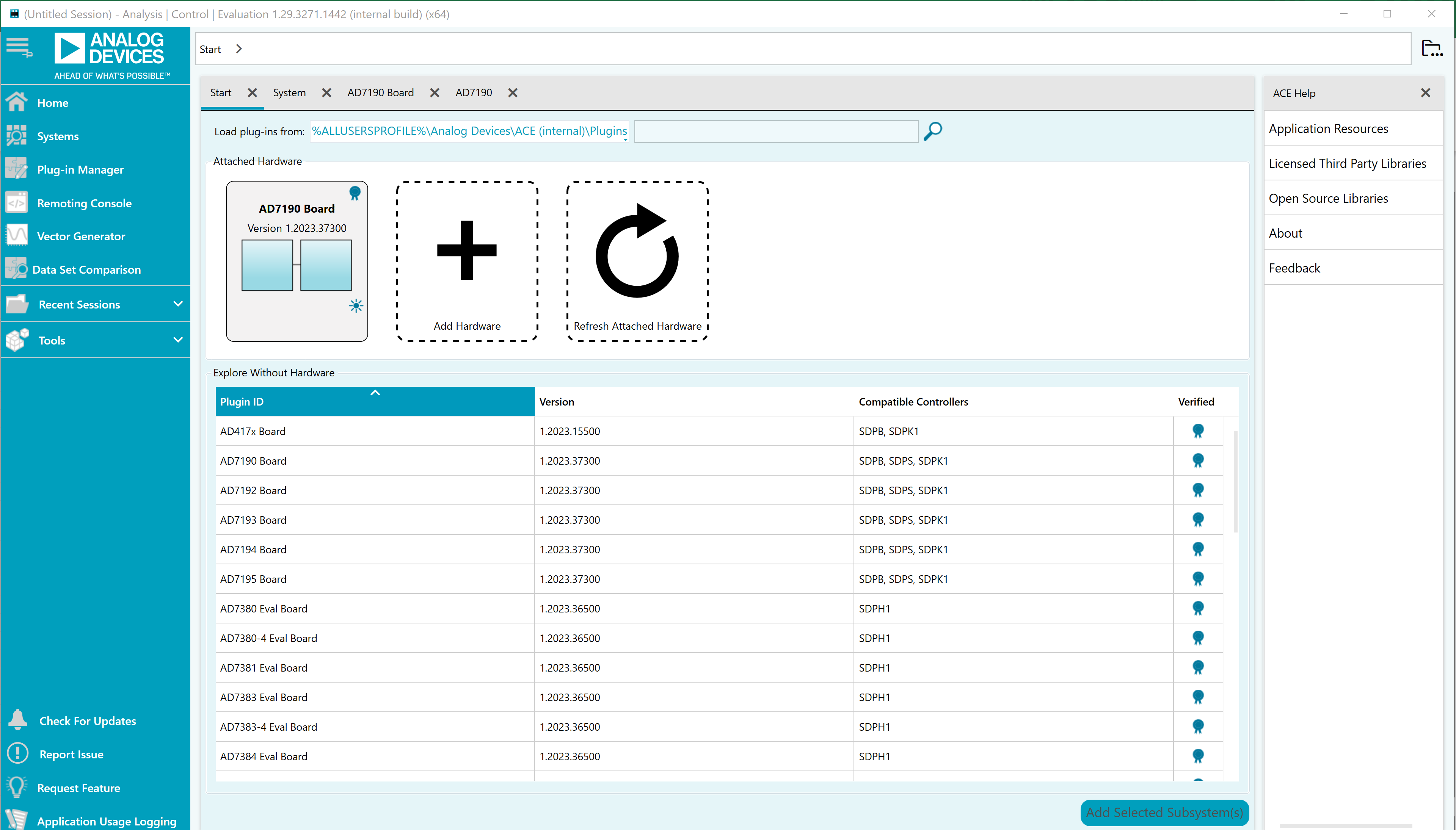
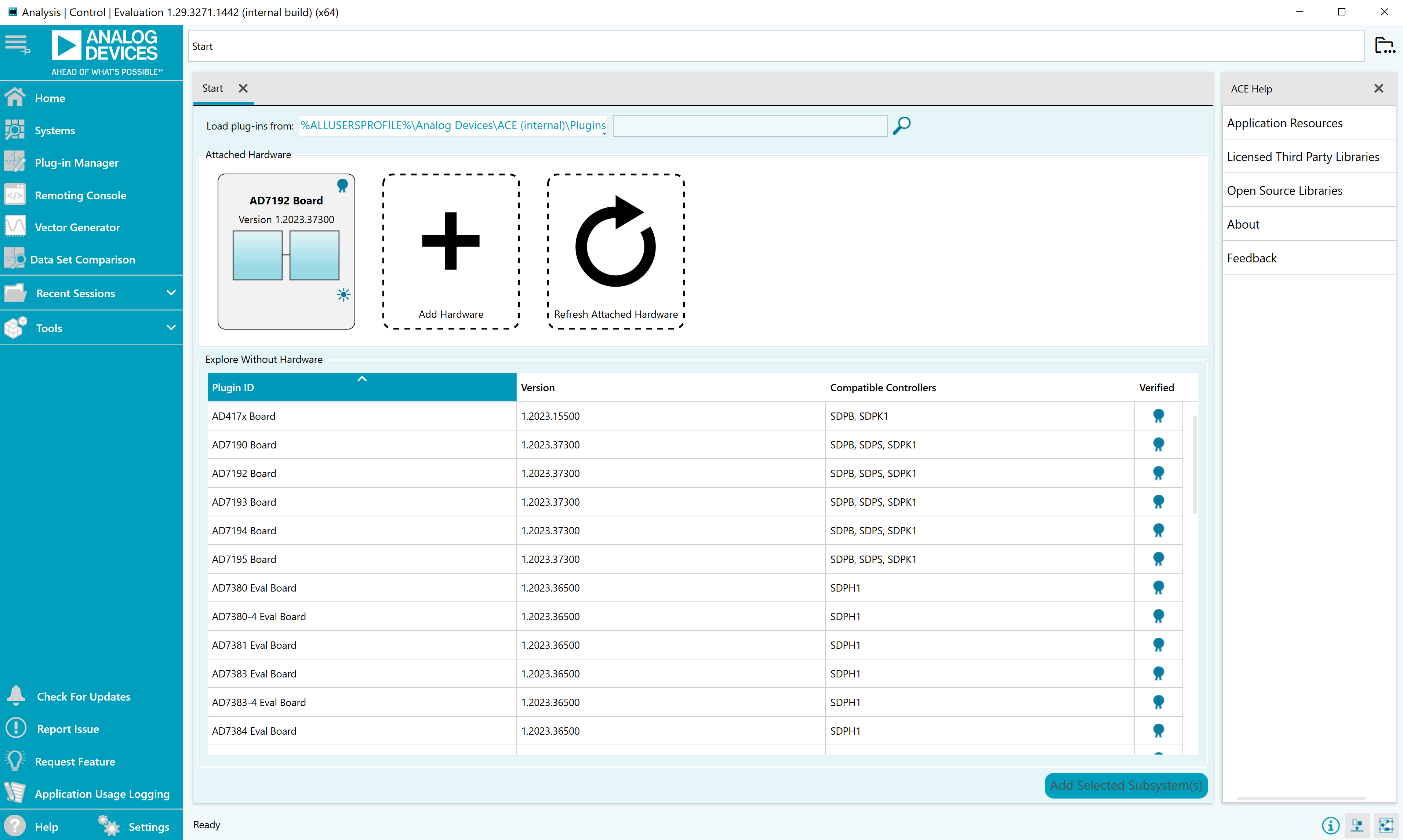
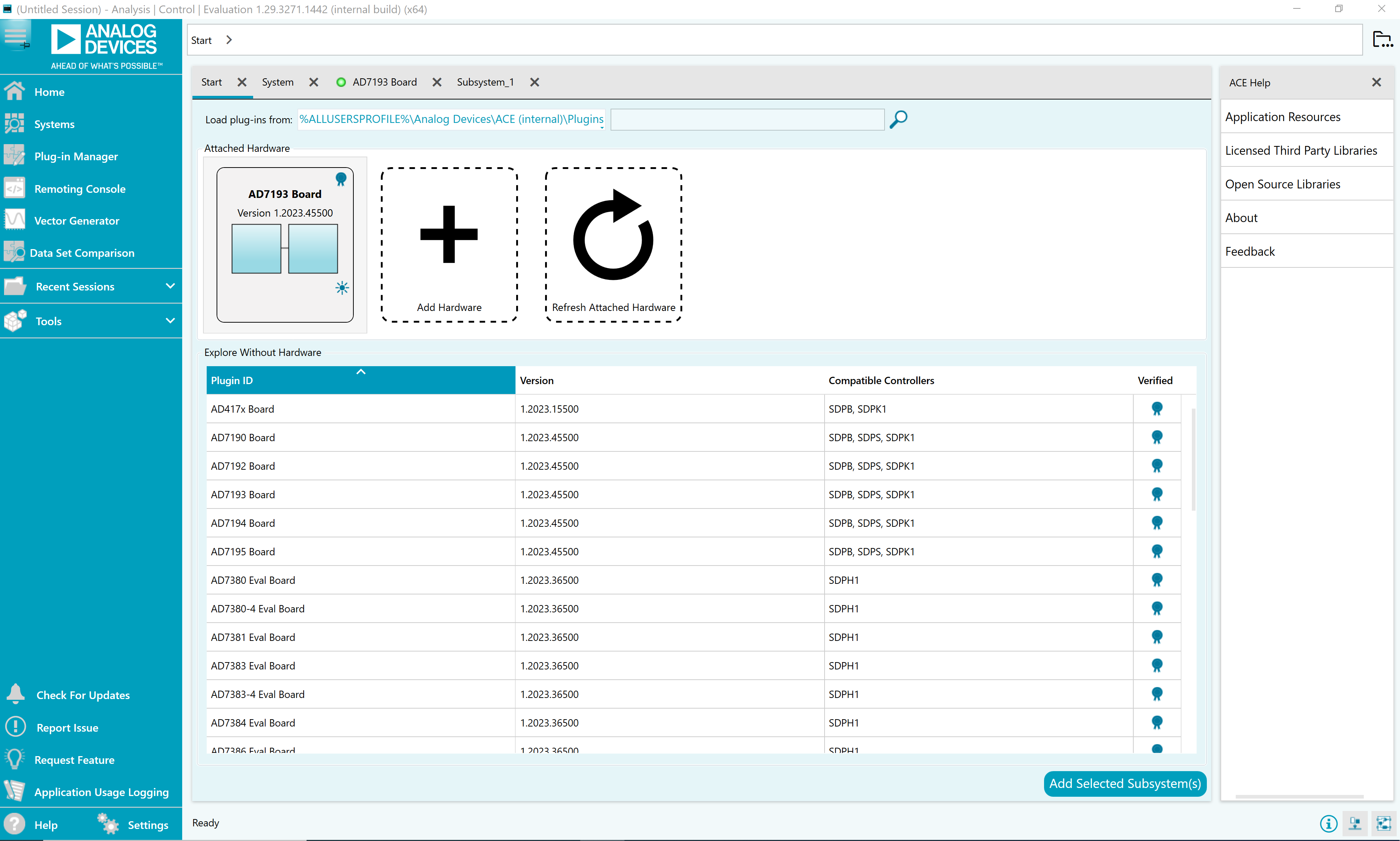
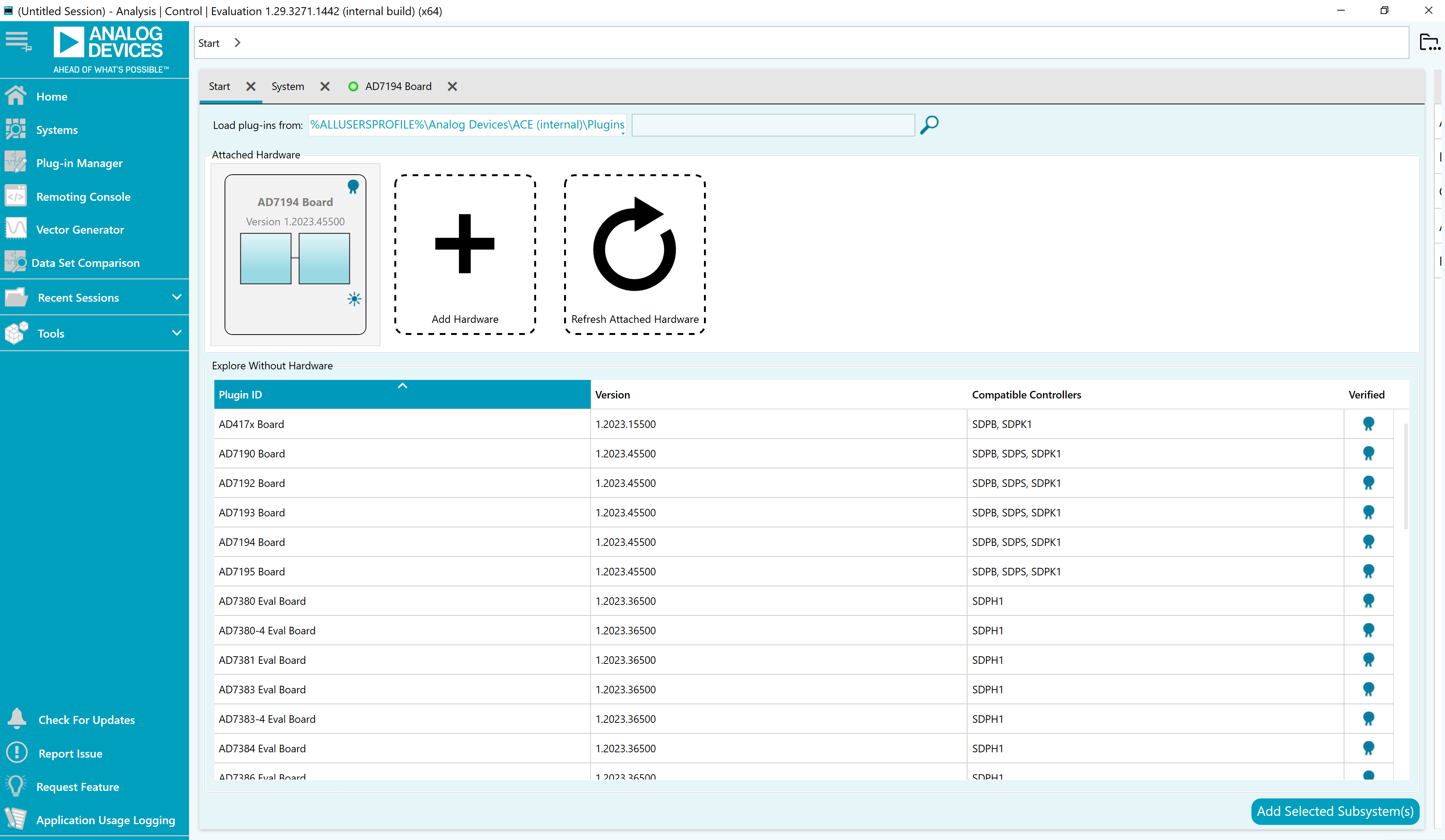
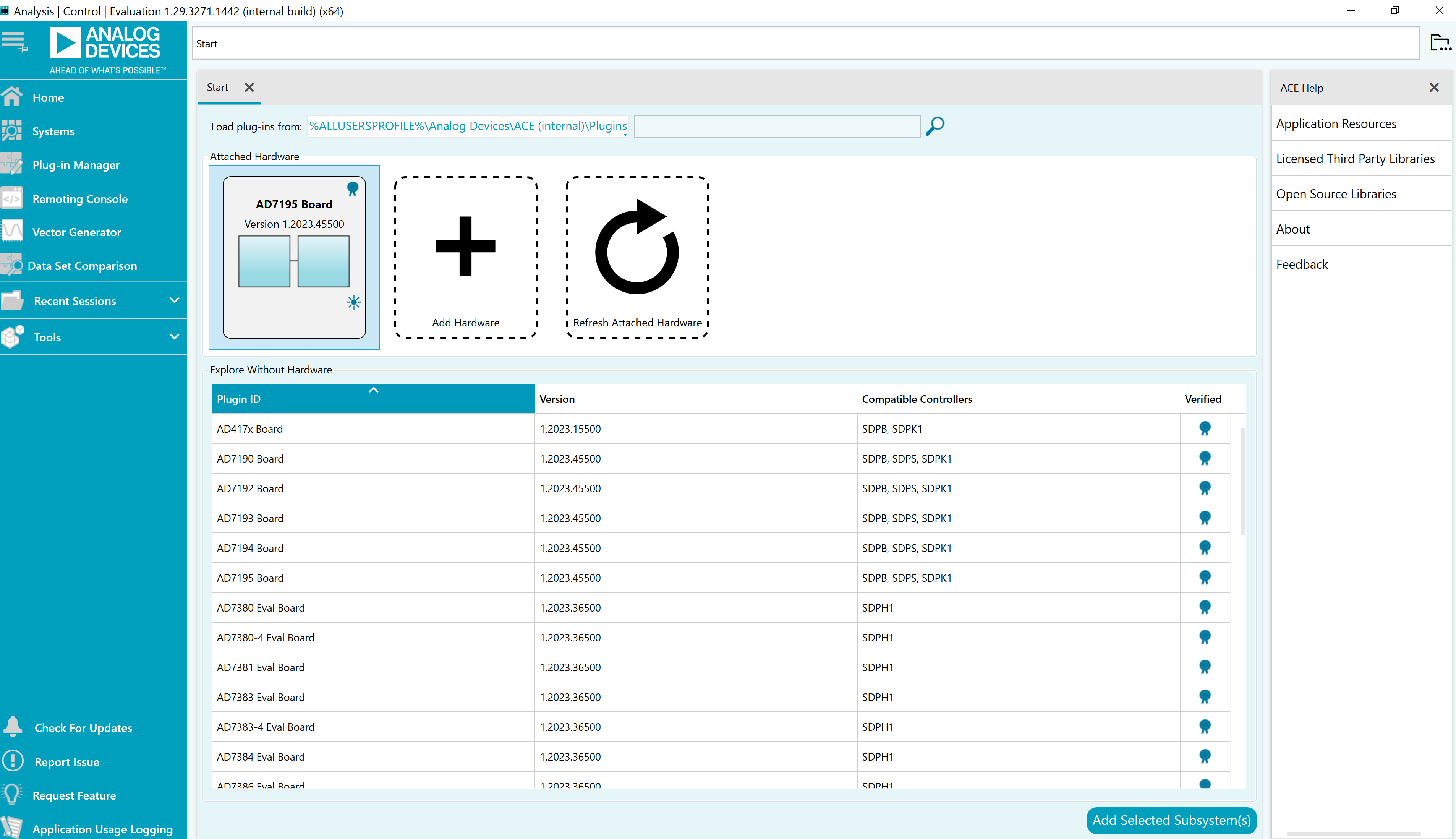
Double click the Eval Board icon to open the board view window.
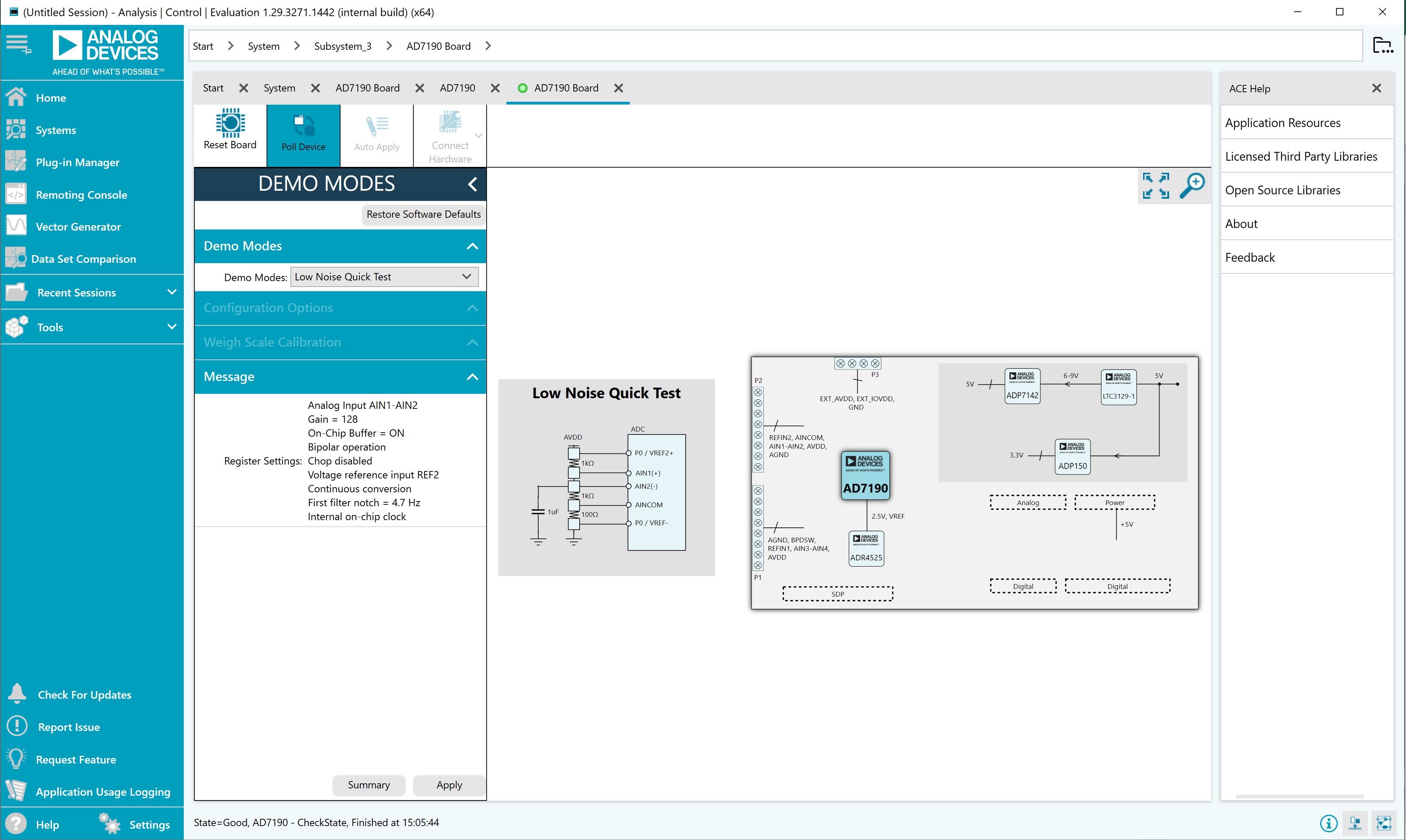
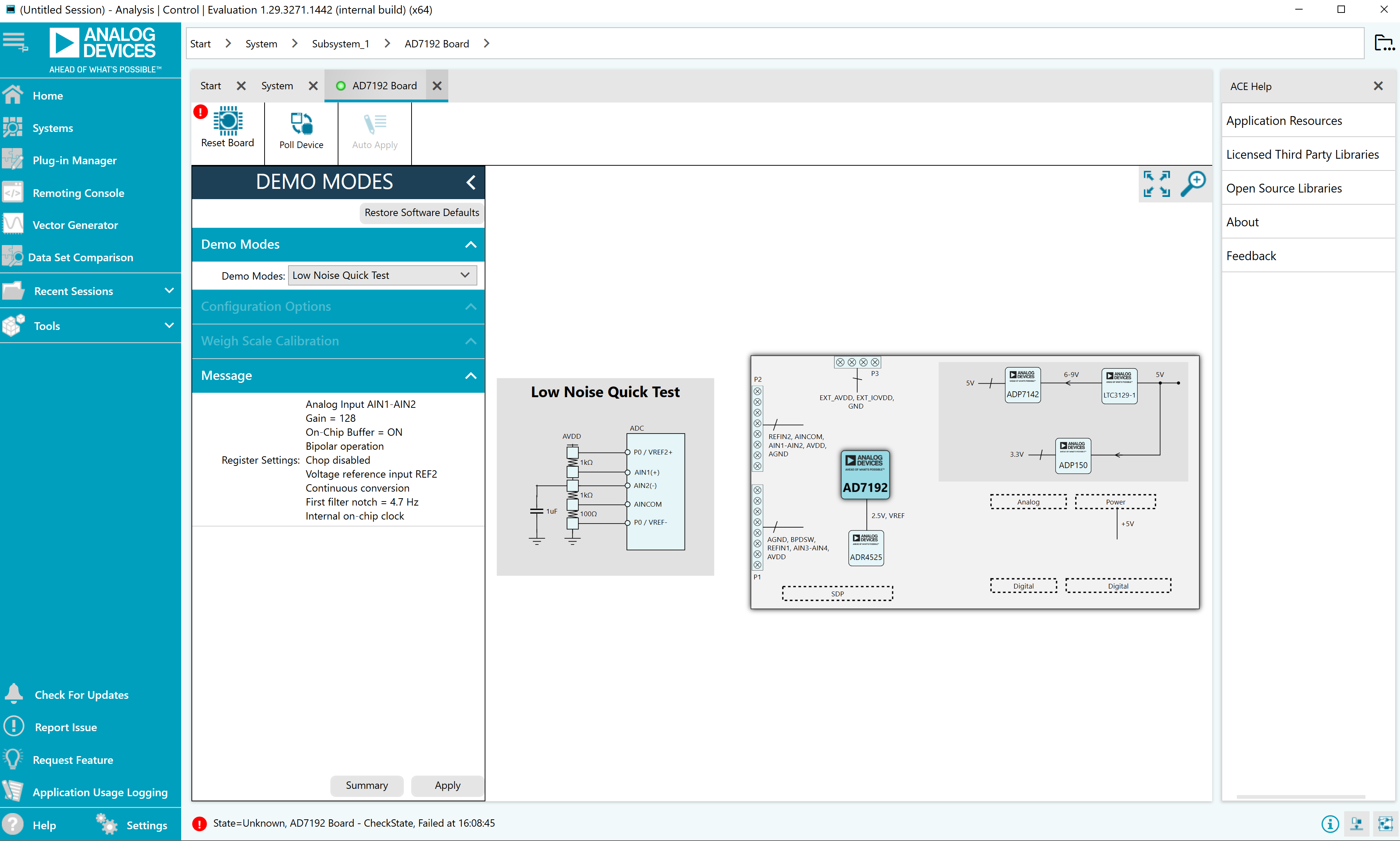
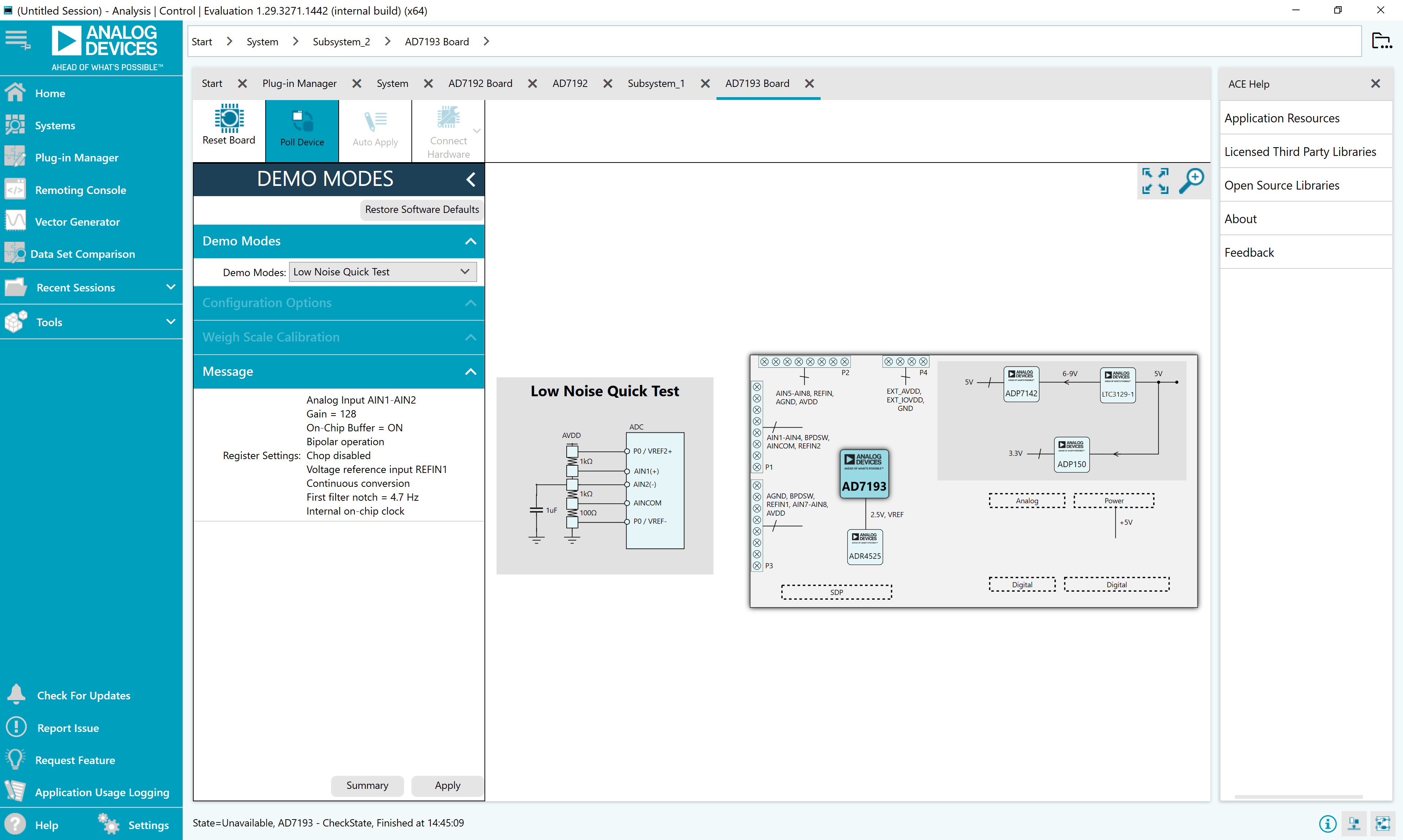
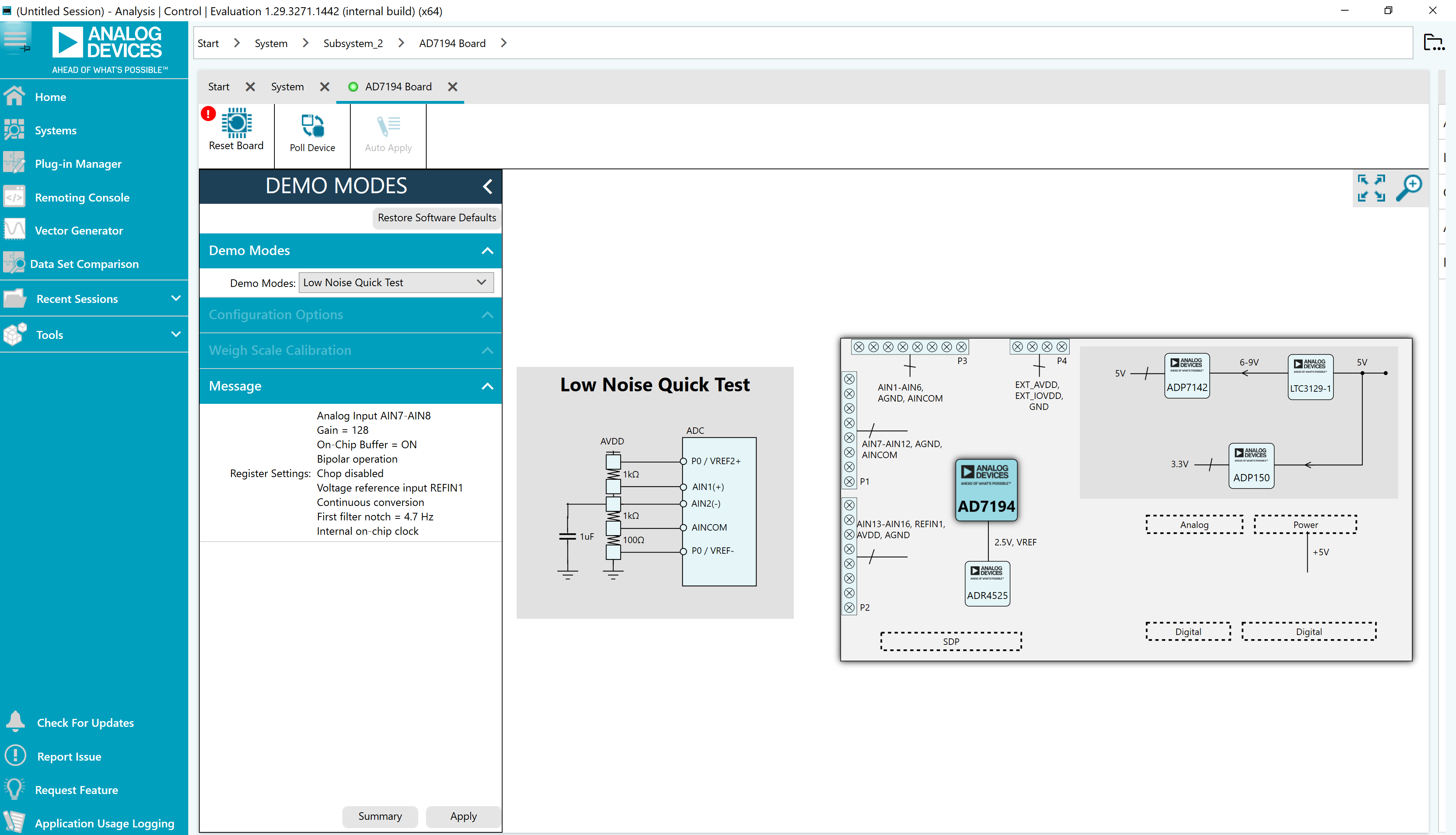
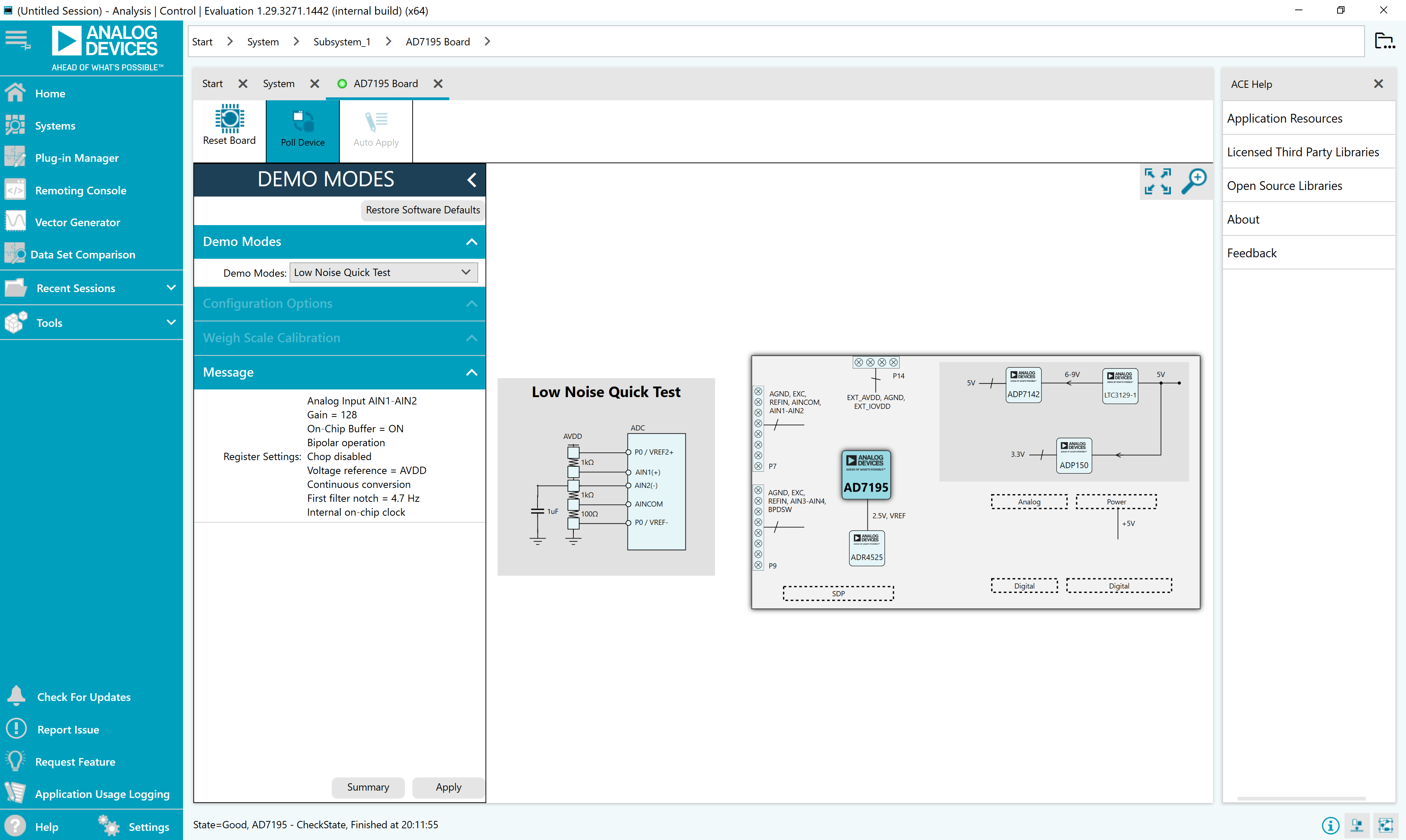
Double click the chip icon in the board view window to open the chip view.
Click Software Defaults and then click Apply Changes to apply the default settings to the device.
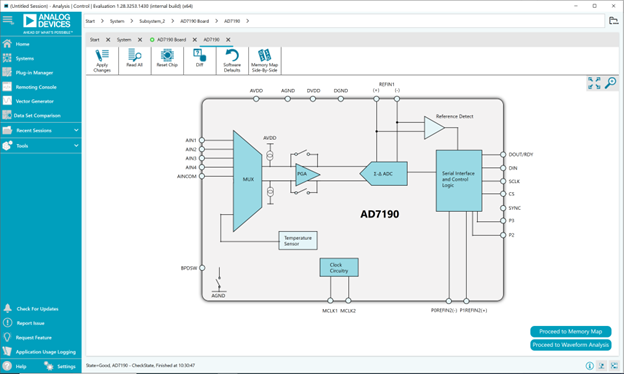
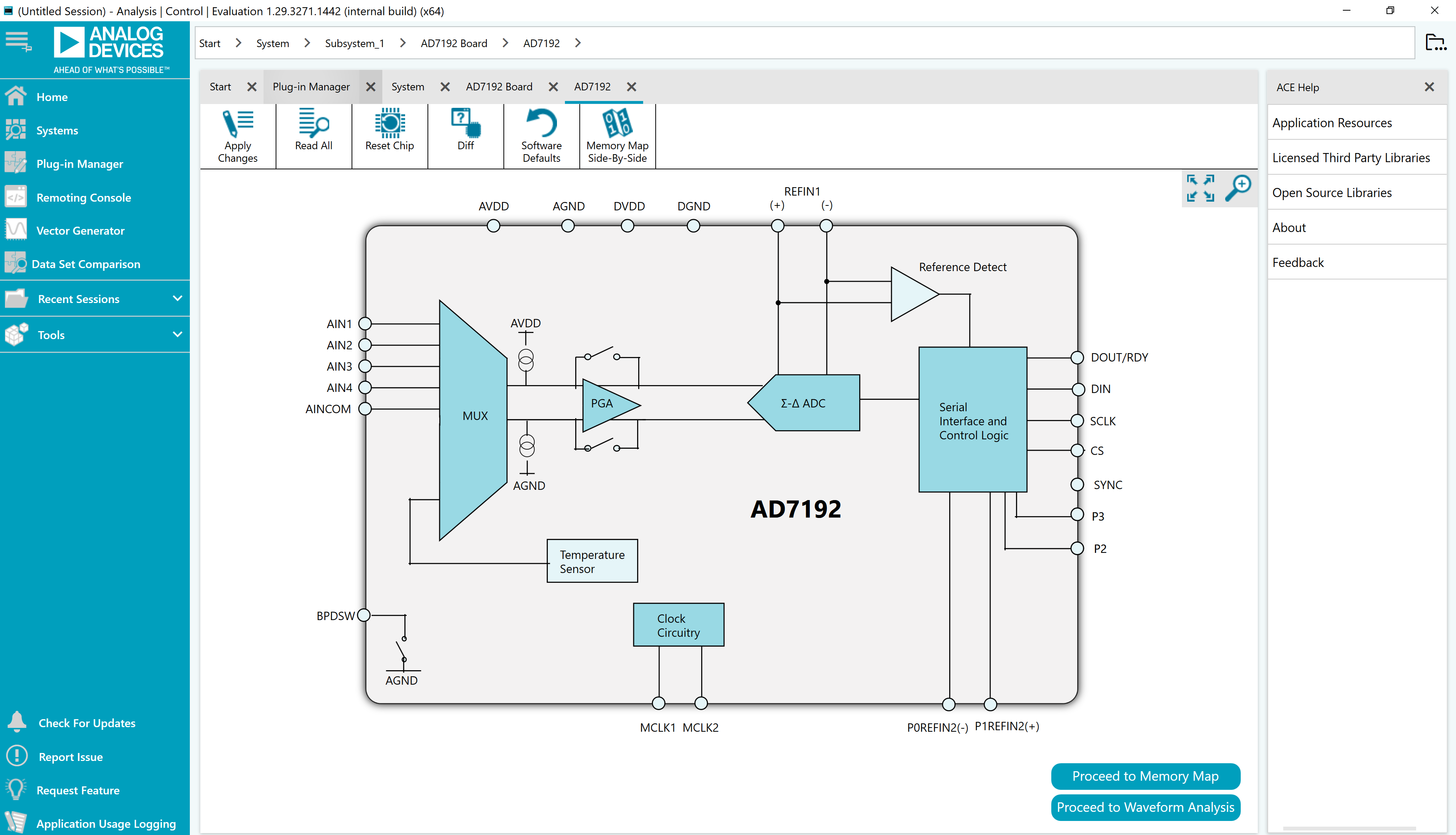
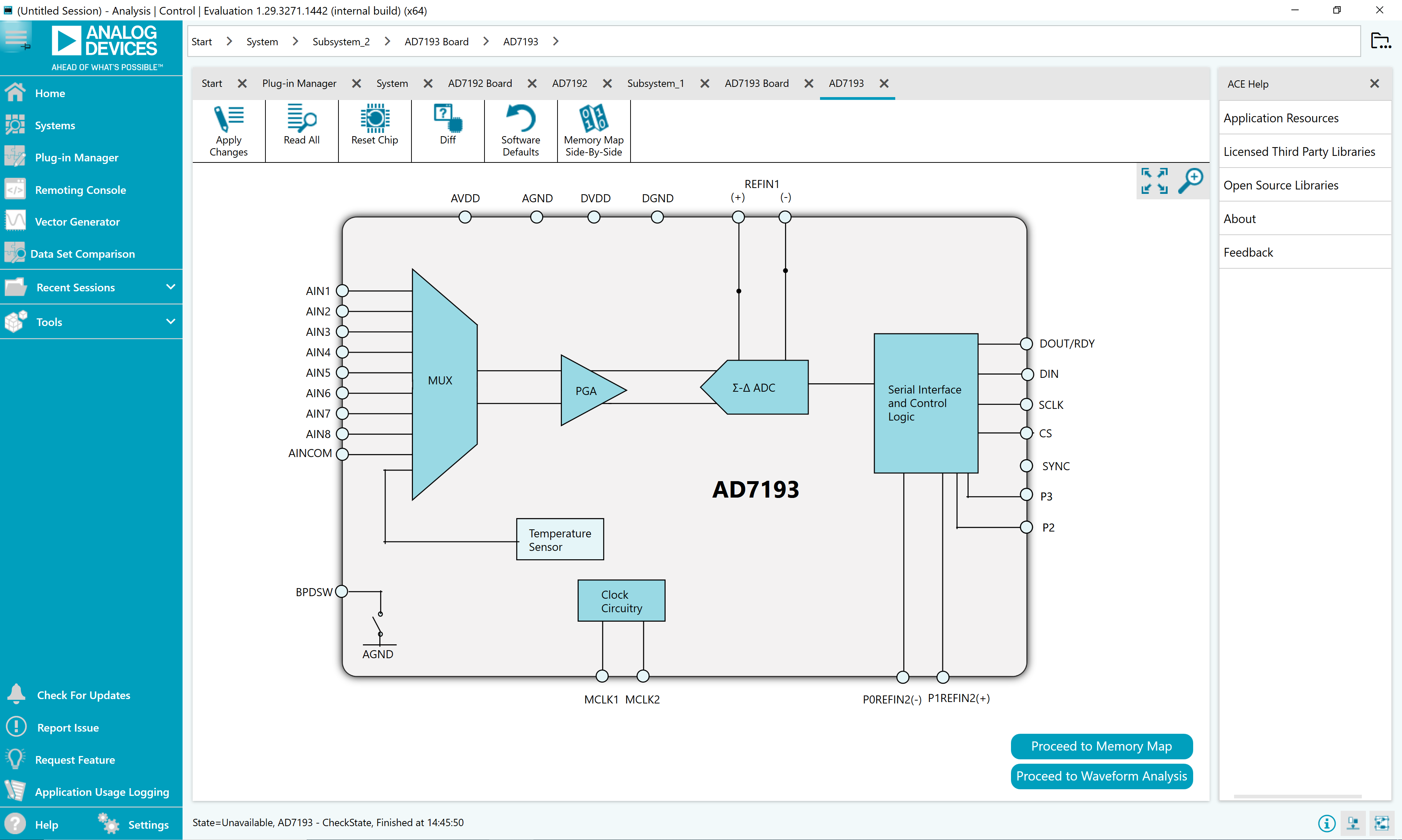
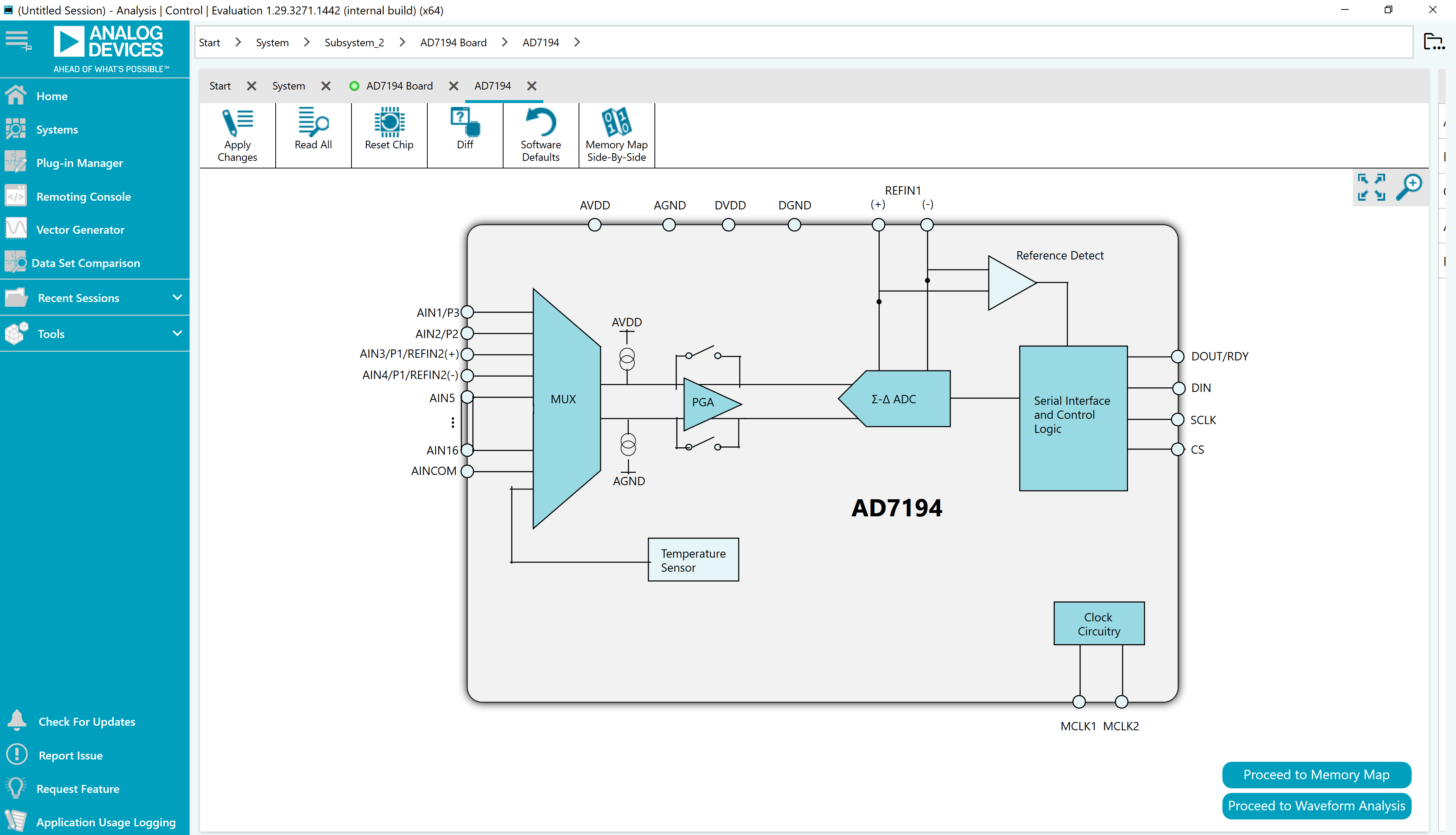
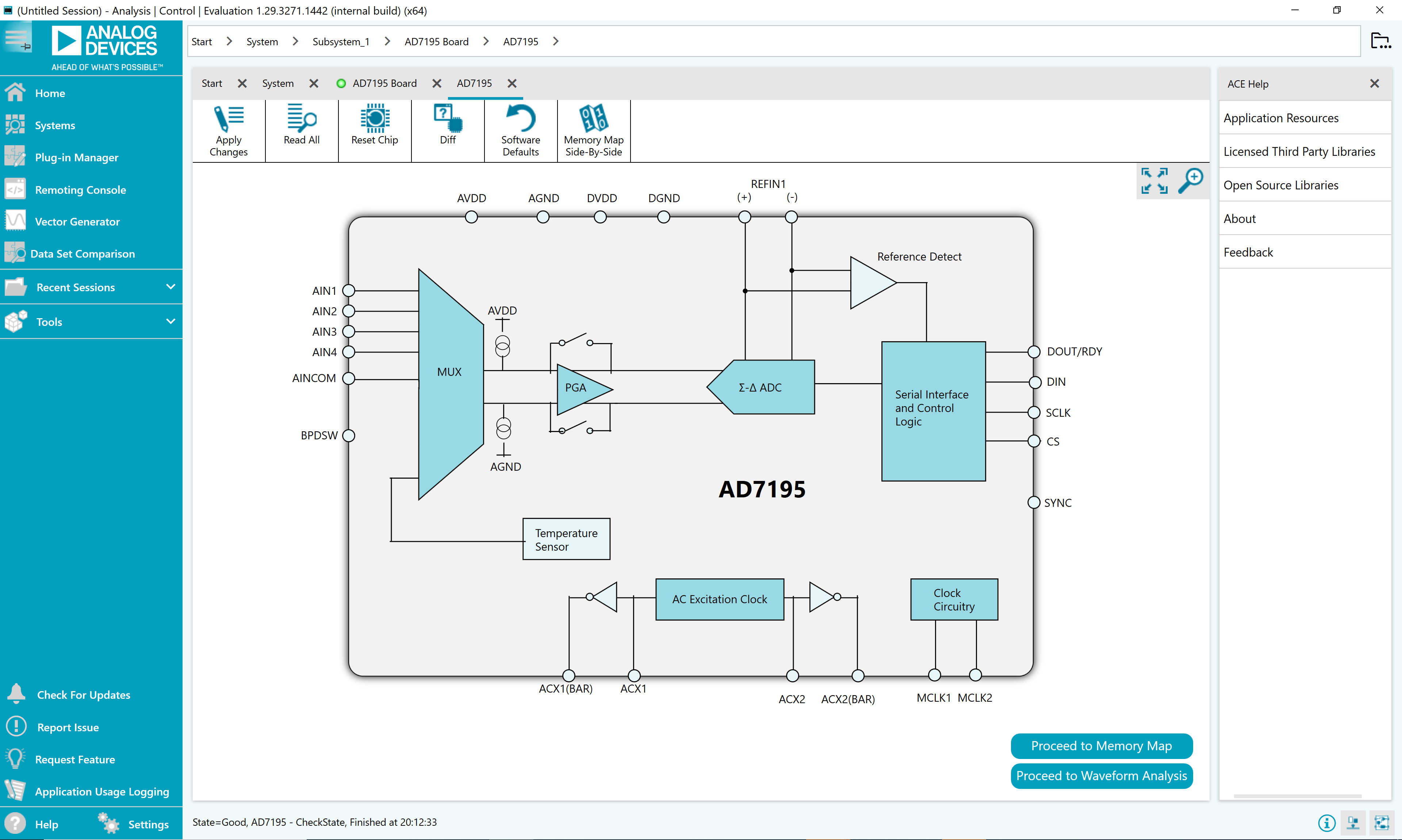
Chip View Window
After completing the installation and hardware setup, set up the system for data capture:
Block icons that are dark blue are programmable blocks. Click a dark blue block icon to open a configurable pop-up window to customize the data capture.
The Proceed to Memory Map button brings the user to the memory map. This allows the user to configure the device.
The Proceed to Analysis button brings the user to the Analysis tab. This allows the user to see the performance results and displays the data.
Waveform Window
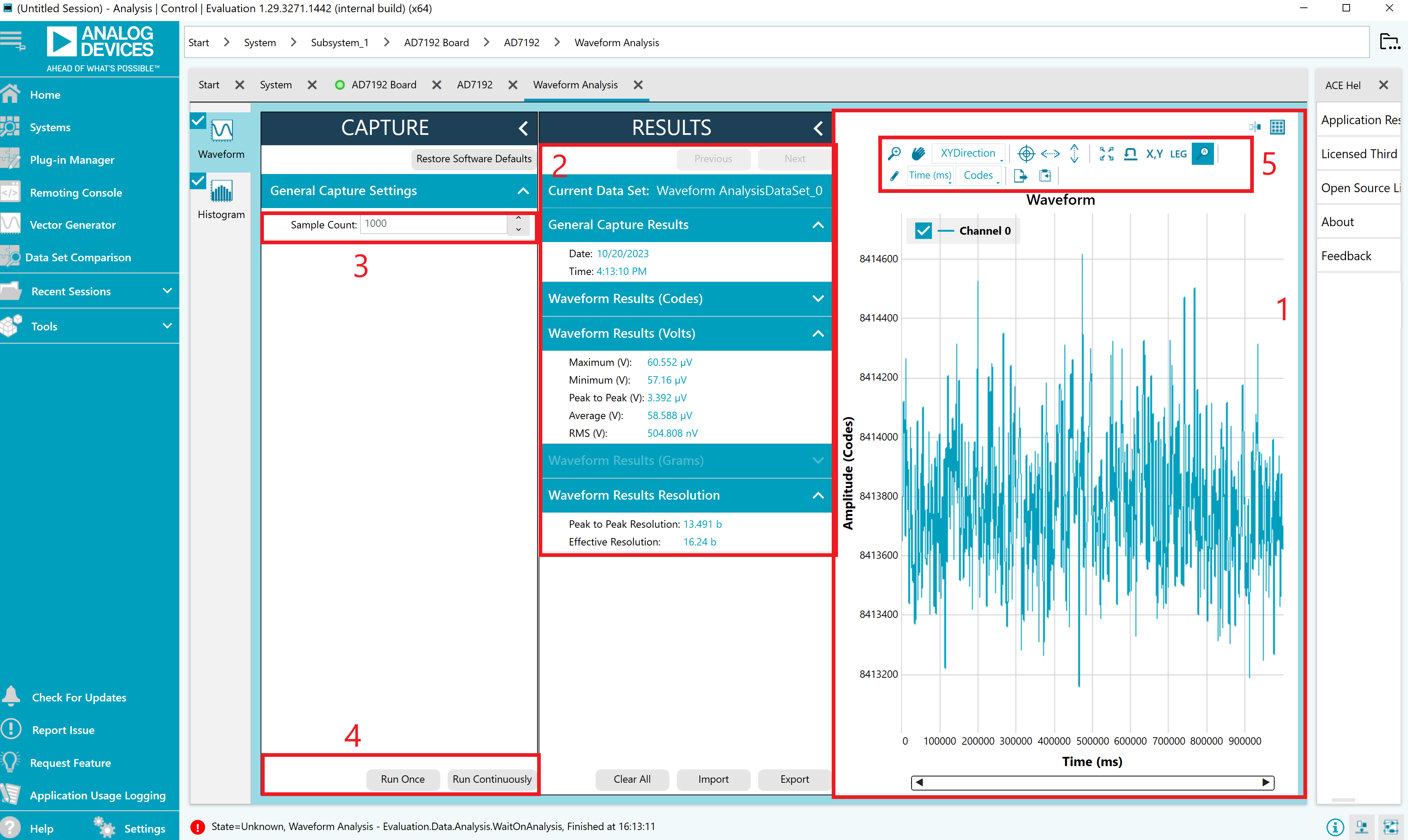
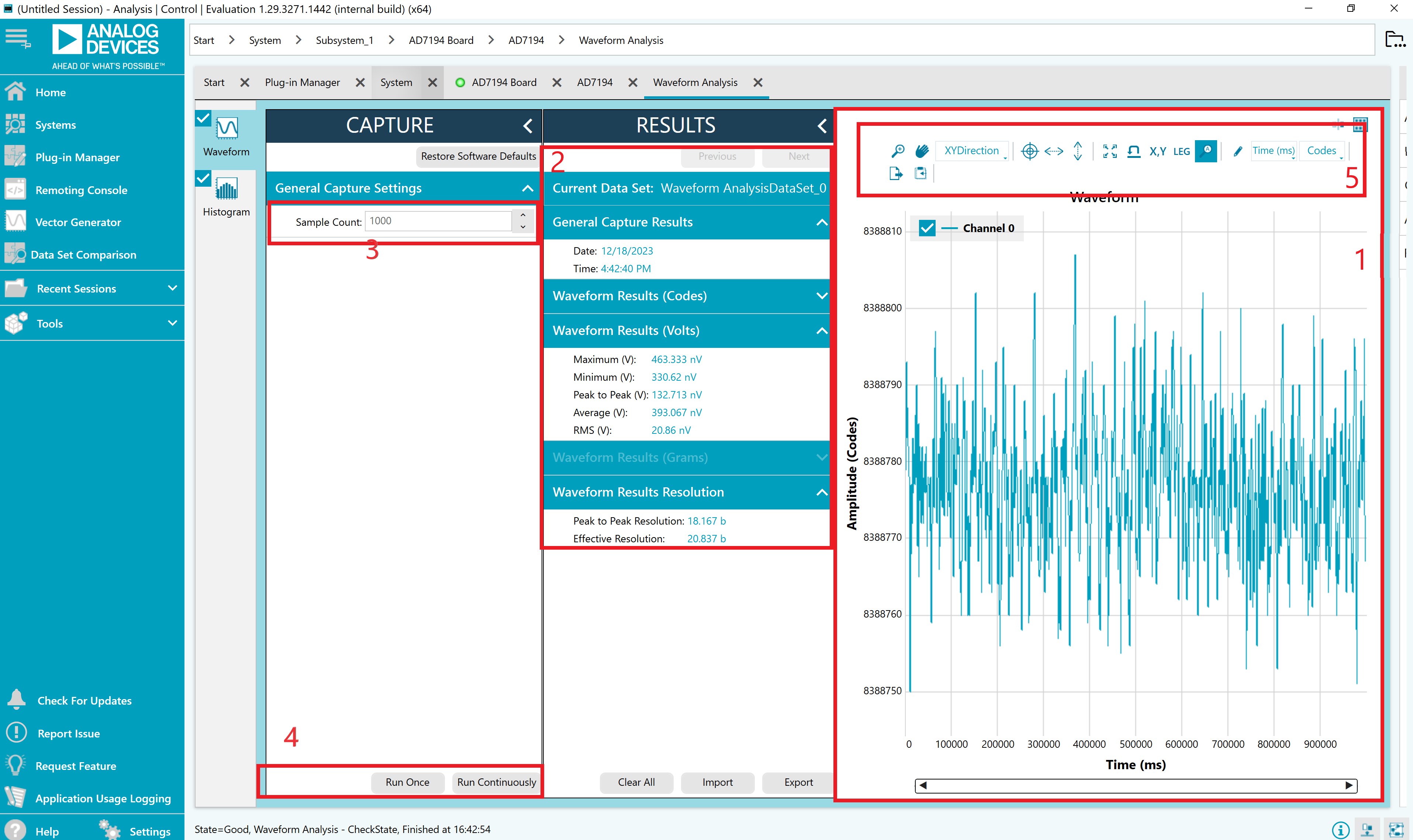
The Waveform tab graphs the conversions gathered and processes the data, calculating the peak-to-peak noise, RMS noise, and resolution.
Waveform graph and controls
The data waveform graph shows each successive sample of the ADC output. Zoom in on the data in the graph using the scroll wheel on your mouse or by selecting the magnifying glass.
Analysis Channel
The Result section shows the analysis of the channel selected.
Samples
The Samples numeric control sets the number of samples gathered per batch. This control is unrelated to the ADC mode. You can capture a defined sample set or continuously gather batches of samples. In both cases, the number of samples set in the Samples numeric input dictates the number of samples. The Noise Analysis section displays the results of the noise analysis for the selected analysis channel, including both noise and resolution measurements.
Capture
Click the Run Once button to start gathering ADC results. Click the Run Continuously button to start gathering ADC results continuously. Results appear in the waveform graph.
Display Units and Axis Controls
Click the Codes drop-down menu to select whether the data graph displays in units of voltages or codes. This control affects both the waveform graph and the histogram graph. The axis controls can be set to Fixed, allowing the axis ranges to be programmed; however, these ranges do not automatically adjust after each batch of samples.
Memory Map Window
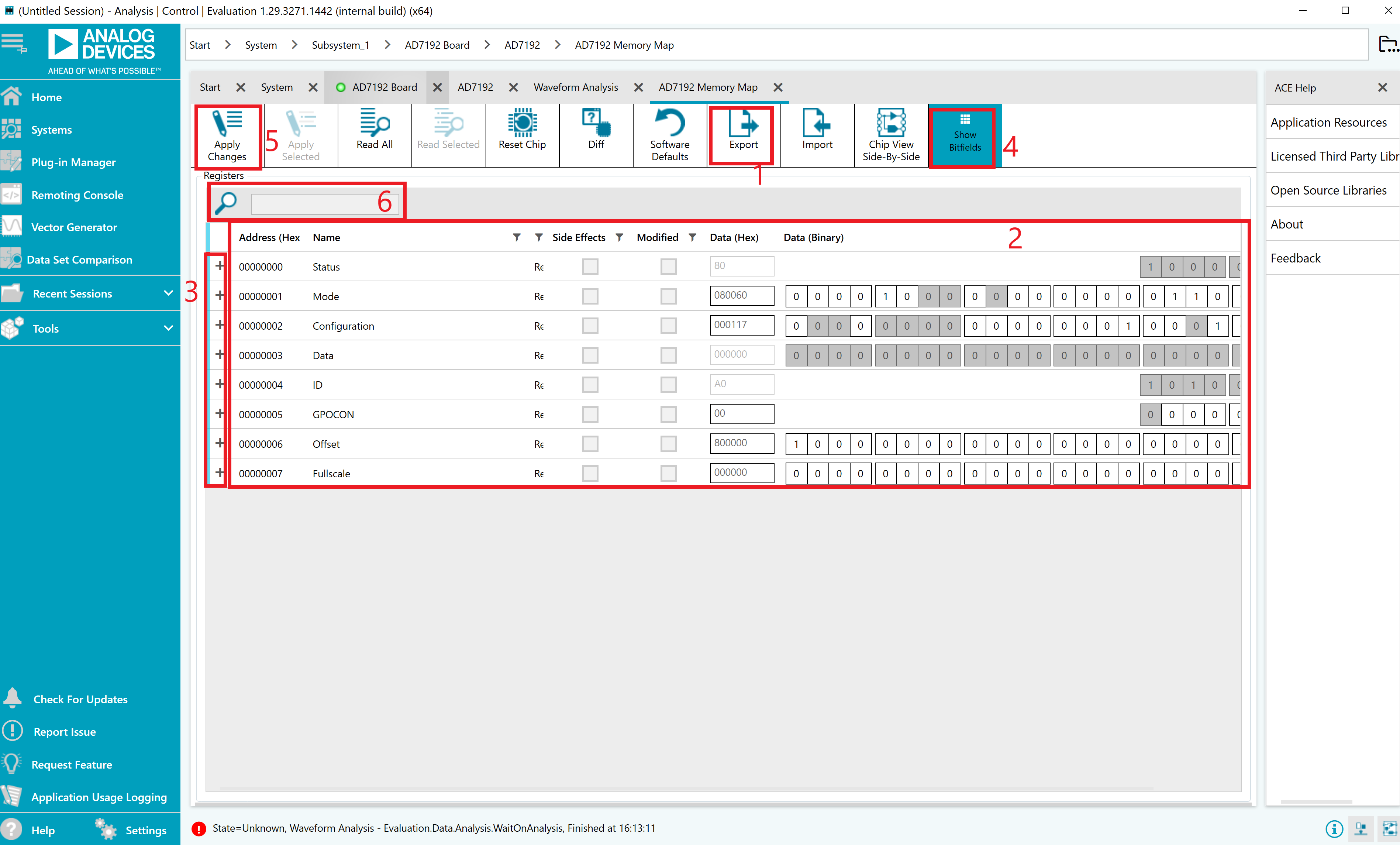
Use the Memory Map tab to access the device registers, shown in the figure below. This tab changes register settings and shows additional information about each bit in each individual register.
Register
The Register section shows the value that is set in the selected register. Check the value of the register in this window by clicking on the bits. Clicking any individual bit changes the bit from 1 to 0 or 0 to 1, depending on the initial state of the bit. The register value can also be changed by writing the hexadecimal value in the input field to the right of the individual bits.
Bitfields
The Bitfields section shows the individual bitfield of the selected register. The register is broken by name into its bitfields, name of the bitfields, a description of each bitfield, and access information. Show each individual bitfield by pressing the show bitfield button. Apply these changes using the apply button. Search for specific registers using the search field.
For more information on the register and the bitfields, double click on the register to display the register description.
Demo Modes
See the Demo Modes page for details on available demo modes for the AD7192, AD7193, and AD7195, including the Noise Test Demo and Weigh Scale Demo.
Virtual Eval Guide
This section provides a step by step guide to launching and using ADI’s Virtual Evaluation Tool.
Navigate to the Virtual Eval tool, or find the link on the product homepage on analog.com.
Select the target device by going to Precision ADC < 10MSPS and finding the part there.
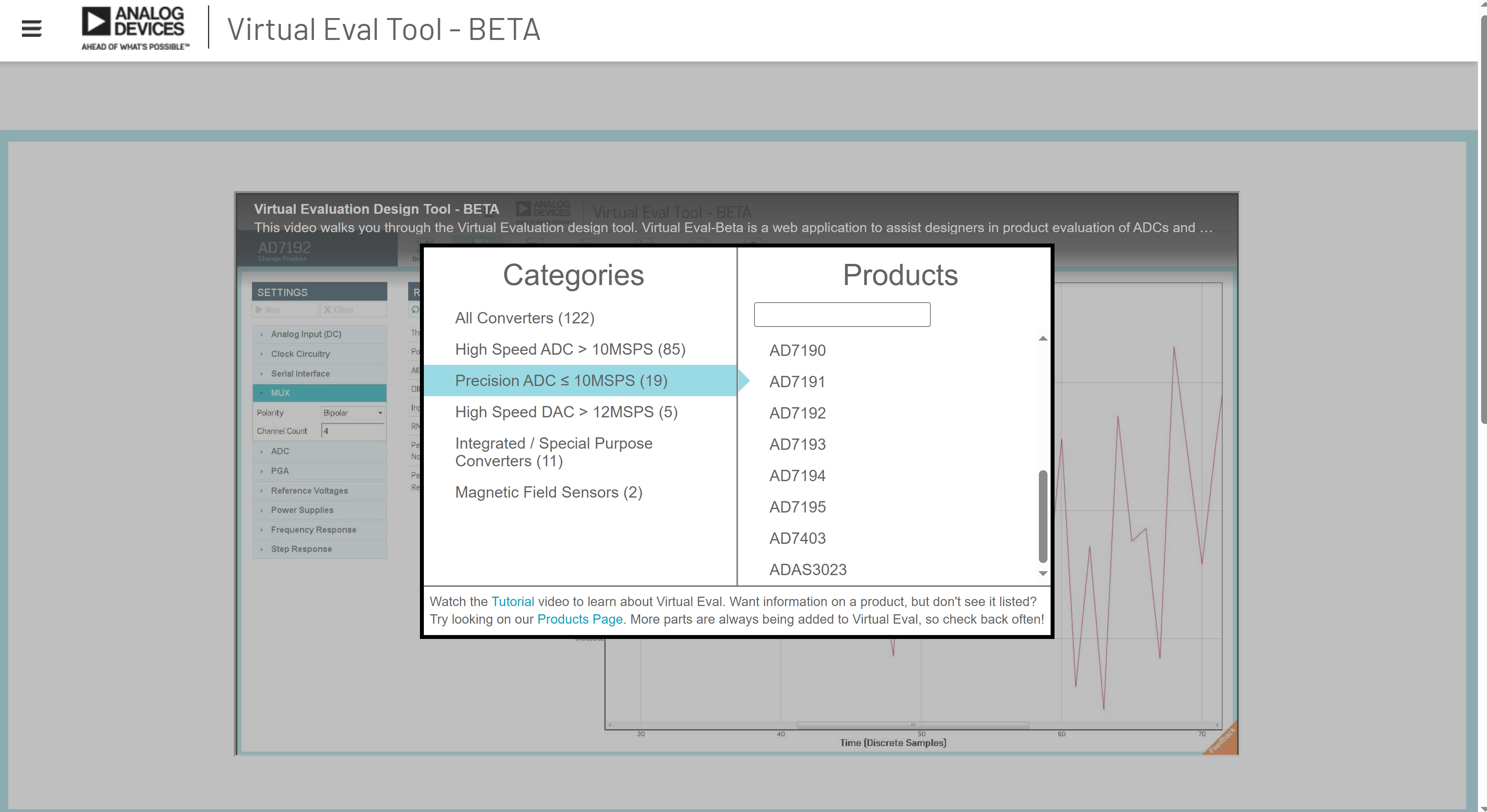
You are now ready to start using the tool.