Setup
This page walks through how to connect to Jupiter and verify communication.
Table of Contents
Connecting Jupiter
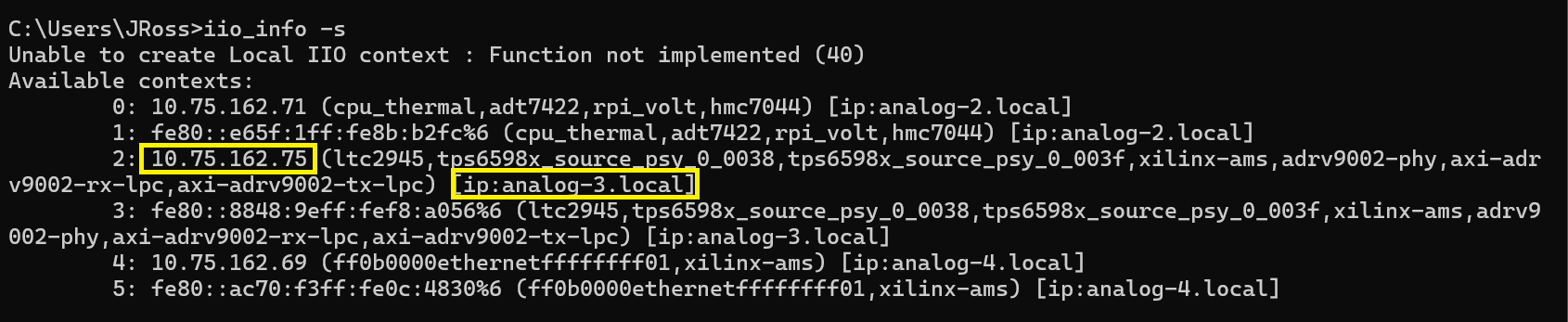
When Jupiter is connected you can use iio_info -s in command prompt to check what devices your computer can see. It can be seen that there are 5 different devices connected in the image below and that device 2 is the Jupiter SDR. This can be inferred from looking at the ‘adrv9002’ tag.
Note
There are two acceptable IP addresses here: 10.75.162.65 and analog-3.local.
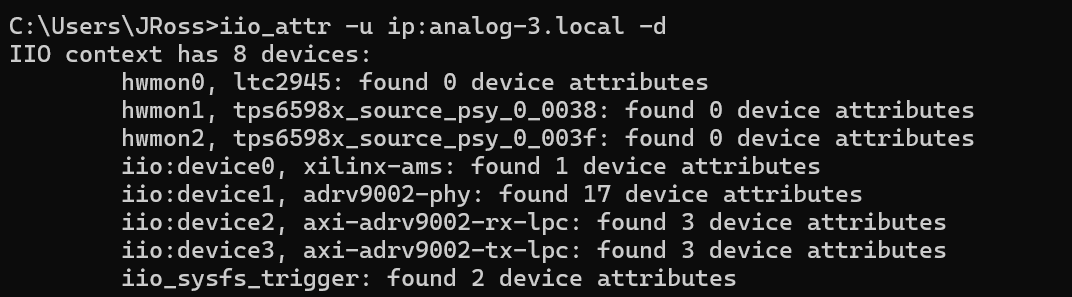
In command prompt type the iio_attr -u (-u allows specification of an IP address) followed by the IP address from the Jupiter and a -d (-d shows the devices) at the end. In this case it is iio_attr -u ip:analog-3.local -d or iio_attr -u ip:10.75.162.65 -d.
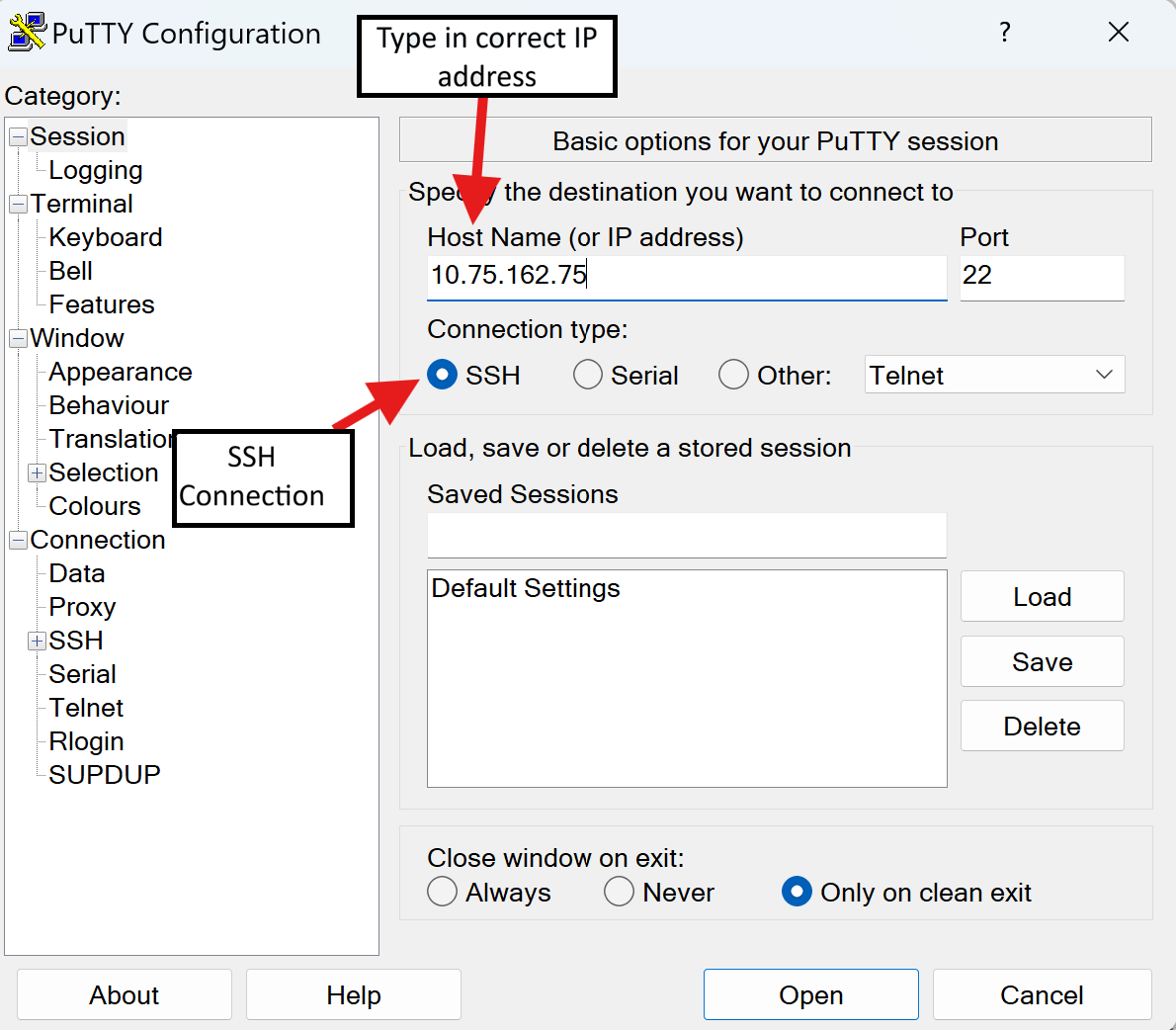
Next open a PuTTy terminal or another terminal emulator, connect to Jupiter by either using the IP address from above or connect using the COM port.
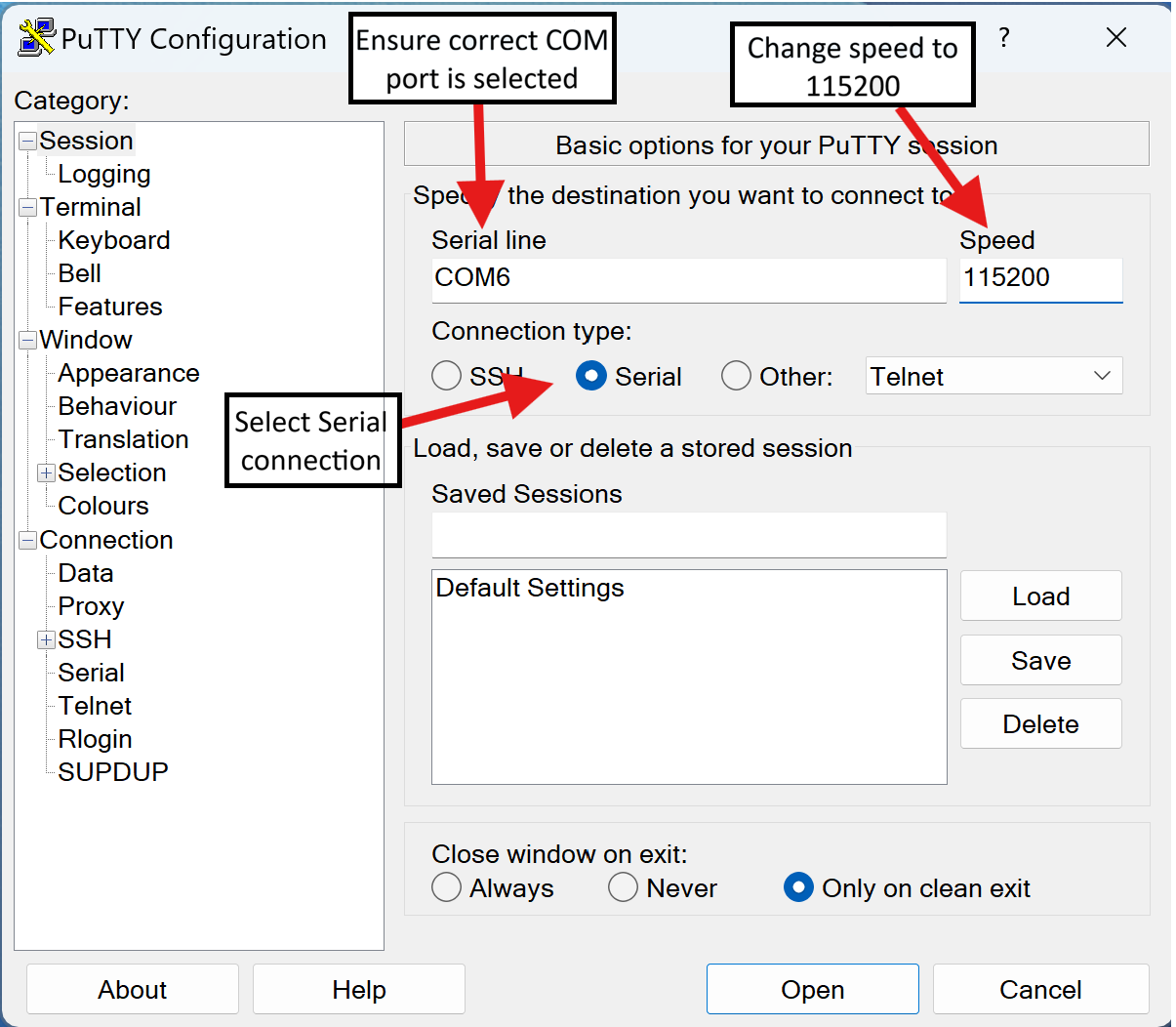
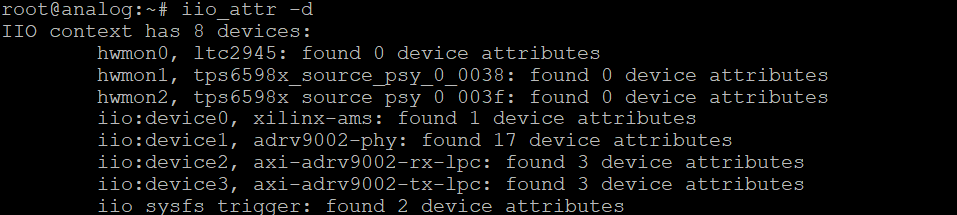
In the terminal emulator type in iio_attr -d the same devices that were in step 2 should be in this step. If this is the case it shows that you are connected to Jupiter.
Note
For questions or help with the Jupiter SDR, please visit:
EngineerZone