AD-GMSL793MIPI-EVK Production Testing
Overview
This document describes the production testing procedure for the AD-GMSL793MIPI-EVK board. The procedure focuses on identifying connectivity issues, poor soldering, and potential manufacturing defects. Some issues are directly identified by explicit part-targeted tests, while others are implicit, detected by running adjacent tests.
Test Duration
Step Description |
Estimated Time (minutes) |
|---|---|
Test bench setup |
4 min |
Software test |
4 min |
Total time |
8 min |
Test Requirements
Required Hardware
Raspberry Pi 5 + HDMI cable + power supply
Mouse and keyboard
2 x IMX219 cameras
2 x flex cables
2 x Fakra cables
1 x AD-GMSL792MIPI-EVK (GMSL792MIPI evkit)
2 x AD-GMSL793MIPI-EVK as Device Under Test (D.U.T.)
Power supply with USB Type-C for AD-GMSL792MIPI-EVK board
Required Software
SD card with the test image (provided separately)
Required Setup
Insert the SD card into the Raspberry Pi 5.
Connect the Raspberry Pi to a monitor and power it on.
Connect the Fakra cables to the cameras, then connect the cameras to the AD-GMSL793MIPI-EVK boards (D.U.T.).
Plug the D.U.T. boards into the AD-GMSL792MIPI-EVK.
Connect the P1 and P2 connectors of the D.U.T. using flex cables to P0 and P1 on the Raspberry Pi 5.
Power the AD-GMSL792MIPI-EVK using the USB Type-C power supply.
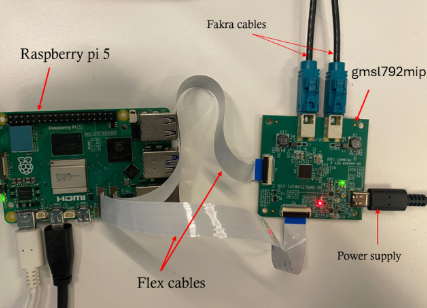
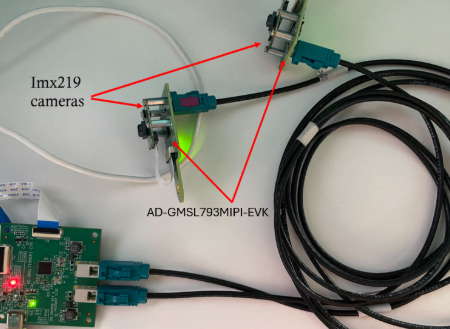
Test Process
Wi-Fi Setup
Ensure the Raspberry Pi is connected to Wi-Fi before starting the tests. If the test screen is already running, you will need to exit it first to configure the network connection.
Power on the Raspberry Pi. If the test screen appears automatically, press CTRL+C to exit the test application.
Click on the Wi-Fi network you want to connect to.
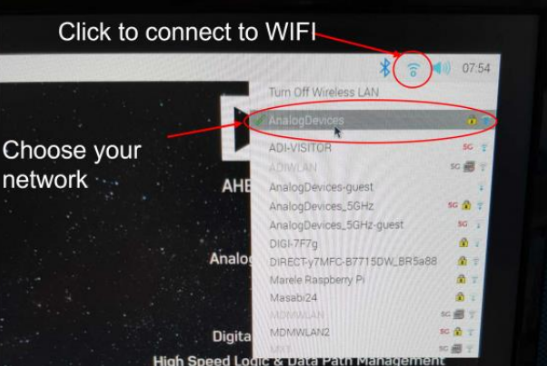
Type in the password and connect to the network.
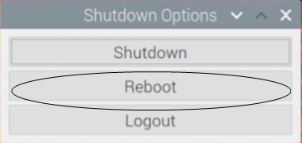
After connecting successfully, reboot the Raspberry Pi by navigating to the application menu, selecting Logout, then choosing Reboot from the shutdown options.
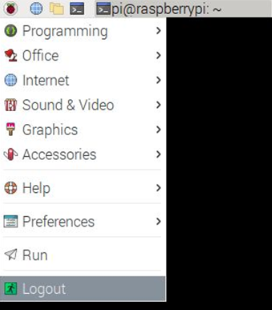
Running the Tests
After the Raspberry Pi reboots, the test screen will appear on the monitor.

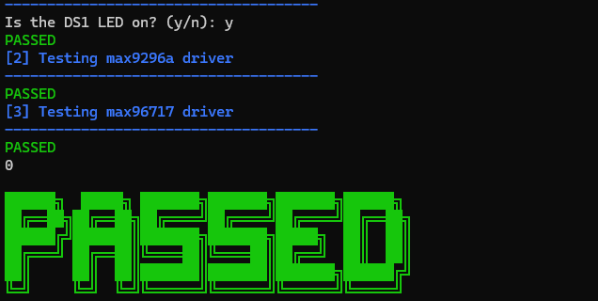
Type 1 from the keyboard to start 1) Communication Test.

Visually check if the DS1 LED is ON and type y or n accordingly.
If the test shows PASSED, you can proceed to the next test.
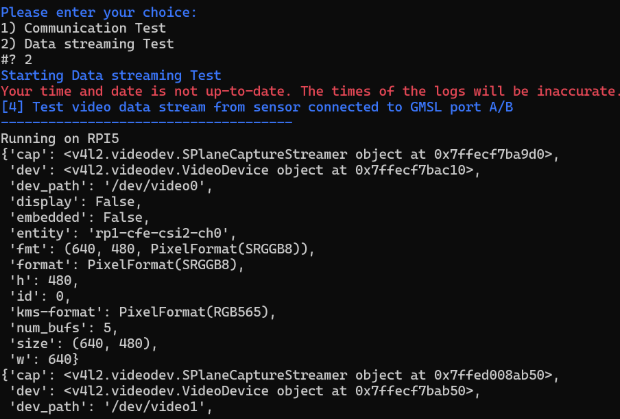
Type 2 in the terminal to start 2) Data Streaming Test.
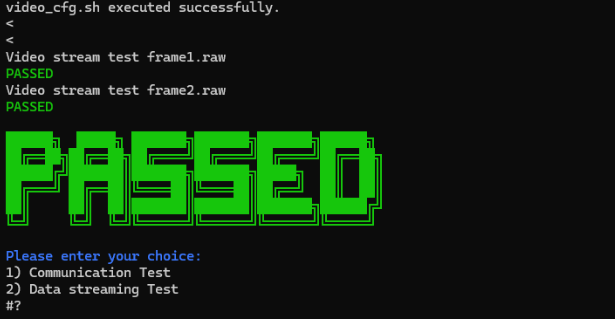
If the test shows PASSED, the device under test is functional.
To test additional D.U.T. boards, replace the AD-GMSL793MIPI-EVK boards and repeat the test procedure from step 1 of this section.