EVAL-ADPAQ3029 - Importing CCES project
Please see the resources section to download source code.
Launch the CCES IDE on your host & create a new workspace.
Click on
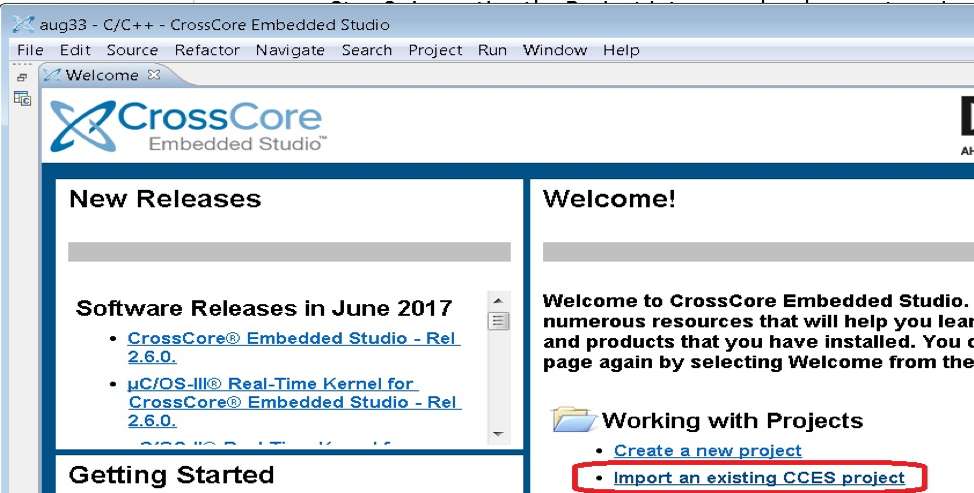
File->Import..or clickImport an existing CCES projectfrom homepage as shown below.Then select
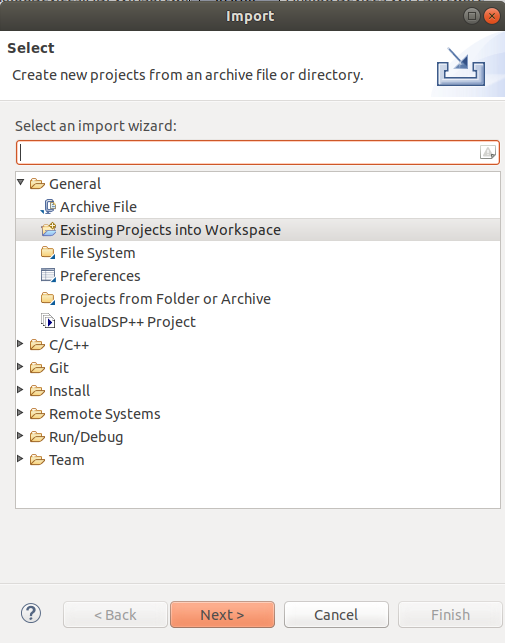
General->Existing Projects into Workspace.Then choose the source code directory to import one or more projects from the selected directory
The module application runs on the bootloader and the MDK provides APIs required for communication with the gateway. The bootloader and the MDK projects have to be added to the workspace. They can be downloaded from the resource page along with application source code. To add them to the workspace, follow the procedure described as above.
Setup path variables
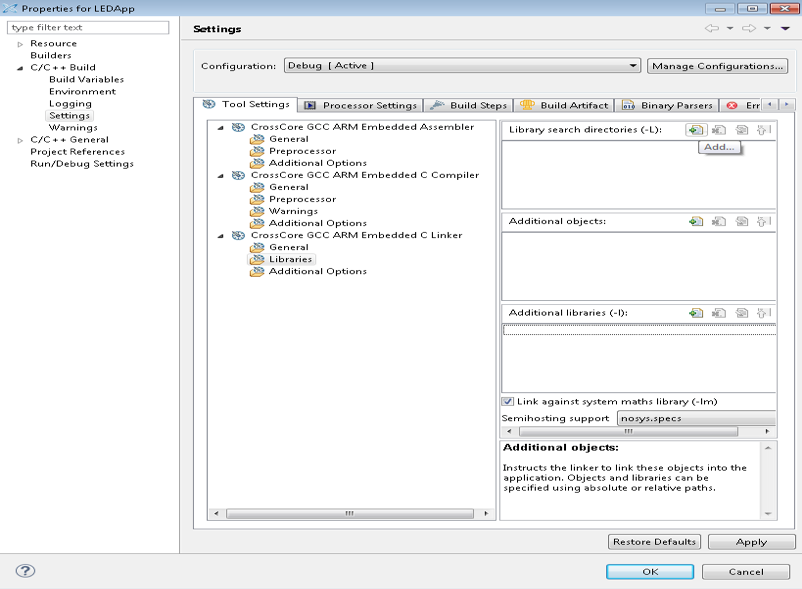
Open CCES, right click on the desired project and select
Properties.In the properties tab, go to
C/C++ Build->Settings->Cross Core GCC ARM Embedded C Linker->Libraries.Click on
add(at the top right section inside settings tab) and thenFile system. Then search for the required files from the workspace and add them.
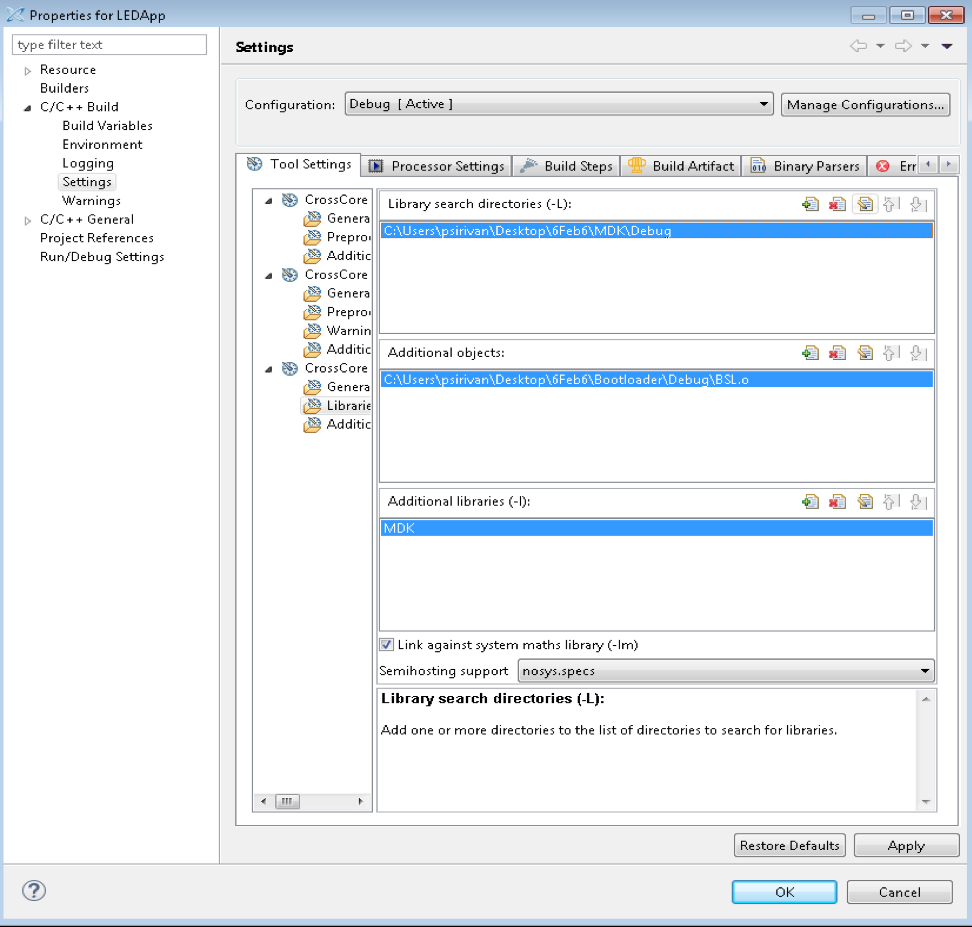
Below image shows the paths to be added. Make sure that you add the path from the workspace. In the figure shown below,
C:\Users\psirivan\Desktopis the path to the workspace,6Feb6is the name of the workspace.Semihosting support should be
nosys.specs, as shown in the figure below.
Important
Make sure that the libraries and objects are not enclosed within inverted commas.