Software
Firmware Installation
The demo board comes with the latest version of the firmware pre-installed. If you would like to re-install the firmware or update to the latest version, please follow these steps:
Download the latest version of the Demo board firmware. This file is called adi5758_20180910.zip
Unzip this file.
Install the latest version of the CrossCore Serial Flash Programmer from Analog.com. You can skip this step if you have the latest version already installed.
Start the CrossCore Serial Flash Programmer.
Set Target to “ADuCM302x”.
Select firmware file “adi5758_20180910.hex” in the <File to download> field. (This is the file you downloaded and unzipped in steps 1 & 2.)
Apply 24 V to the “24 V SYS” connector
Plug the USB cable into the demo board.
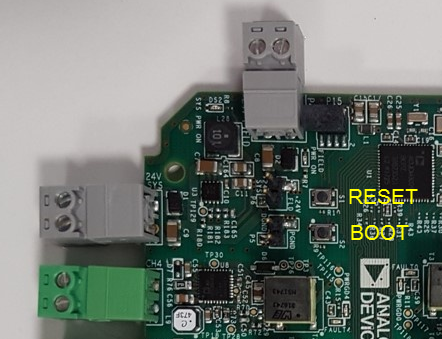
Hold down S2 (Boot) button while briefly pressing the S1 (Reset) button. Then release S2. This sequence is important.
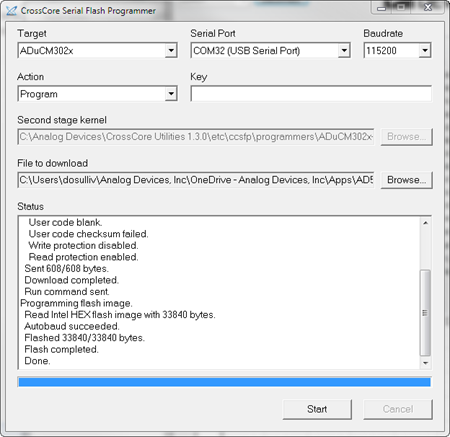
On the CrossCore SFP, select the correct COM port. (Be sure to select the correct COM port here. It is usually the highest COMnn.)
- Press [Start] to program device. (If you get the message “Failed to
open serial device”, then repeat step 5 above, taking care to follow the exact button press sequence.)
- Programming the board takes about 10 seconds. When it is complete,
you will see a message to that effect in the Status Window.
Press the reset button (S1) on the demo board or unplug it from the USB cable and reconnect.
The demo board now has the latest version of the firmware.
GUI Installation
This section outlines how to download and install the latest version of AD5758 Eight Channel Demo Board GUI software. You can skip this step if you already have the latest version installed which is version 0911.
These instructions are for installation on Windows-10 but should also work for Windows-7 with minor differences.
Step-by-step guide
Download the latest version of the ad5758 GUI Software and save to a folder of your choice.
Unzip the file “DEMO-AD5758-AO8Z_Installer.zip”
Double click the “DEMO-AD5758-AO8Z_Installer.exe” file to run it.
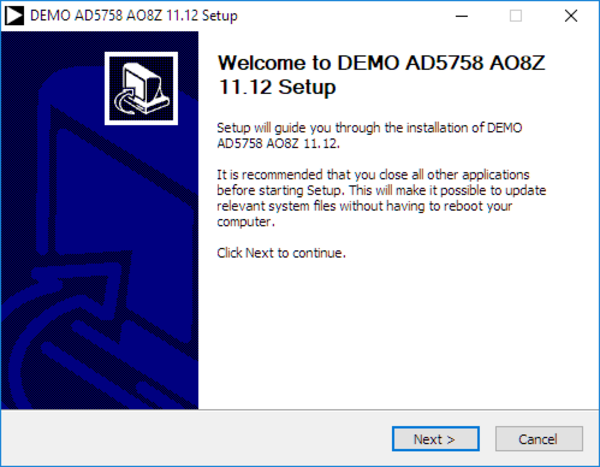
Click Next in the pop-up that appears.
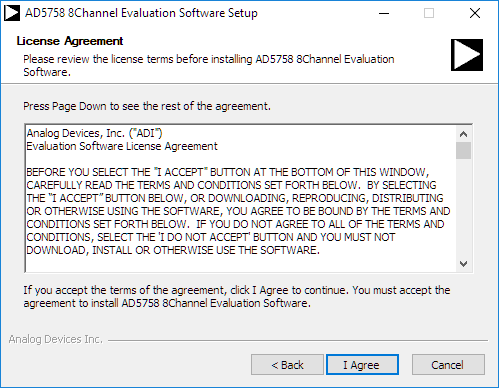
Read carefully the License Agreement and click “I Agree” if you agree to its content.
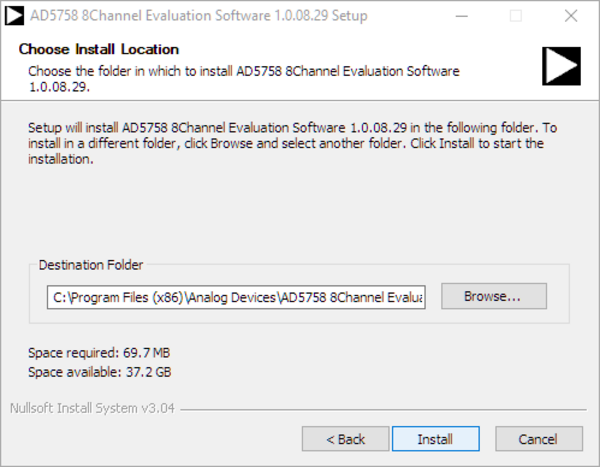
Click Install to install the software in the default location or Browse… to a new location first.
Click “Finish” in the final pop-up.