EVAL-ADPAQ3029 - First application [RGB LED]
Setup the hardware as shown here.
Make sure to use Dev module with LED. Here is the schematics for one such board - Nexpaq_Glue_Micro_Dev_Board.
Download the following projects from the resources section.
Bootloader
MDK source code
Download firmware and Tile application from below
The mapping of the RGB LED with the ADPAQ GPIOs is given below
LED color |
GPIO port used |
|---|---|
Red |
P1_08 |
Green |
P0_14 |
Blue |
P1_09 |
Launch the CCES IDE and import the first 3 projects into CCES as explained here.
Build and flash the firmware binary (*.bin) as explained here
Deploy the tile application as explained here
Launch the
Moduwareapp and pair to the gateway (Mini Dev board)Now you should be able to see tile with
DevMod.
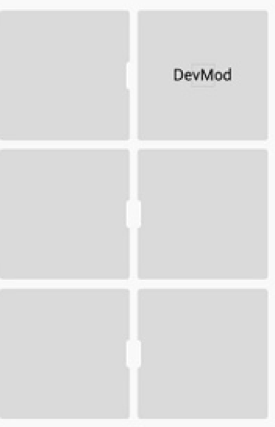
Long Press on the
DevModTile. Select theRGB LEDtile.
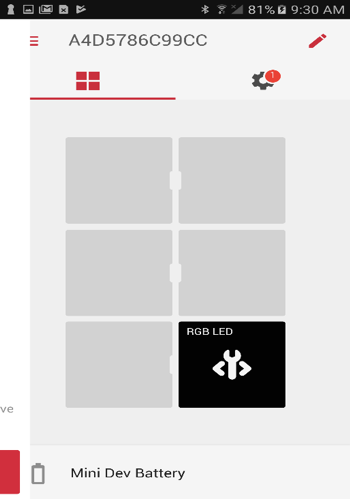
The tile of the RGBLED app which was uploaded earlier will appear as shown in the image.
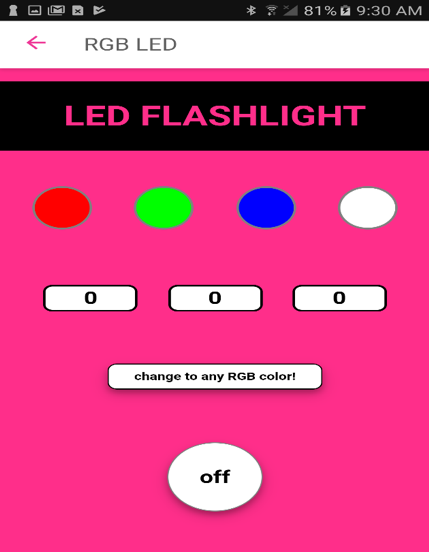
Test the application using GUI, by pressing R, G and B color buttons to observe change in the LED color in ADPAQ Dev module.