EVAL-ADPAQ3029 - Software tools setup
Cross Core Embedded Studio (CCES)
The CCES software development environment for EVAL-ADPAQ3029 is based on open source tools, and is maintained by Analog Devices. CCES includes support for DSP (digital signal processing) and ARM Cortex M- and A- devices, and includes the following features and many more:
Eclipse based IDE
GNU ARM Embedded Toolchain for Cortex-M core based parts (6-2017-q2-update)
OpenOCD with support for ADuCM3029 and ADuCM4x50 microcontroller (open source SWD)
CMSIS Pack files
Mbed CMSIS-DAP
J-Link Lite
CrossCore Embedded Studio is based on Eclipse, but because the MBED platform provides a CMSIS-DAP interface to connect to the board, the EVAL-ADPAQ3029 can be used without problems with IAR Embedded Workbench IDE or Keil µVision IDE as well.
Installing on Windows:
To install CrossCore Embedded Studio, double-click ADI_CrossCoreEmbeddedStudio-Rel2.8.0.exe
All the tools will be installed in local directory C:\Analog Devices\CrossCore Embedded Studio 2.8.0\
It is recommended to install the version 2.6.0 and above, since all the sample applications provided here are validated on 2.6.0 version.
Installing on Linux:
CrossCore Embedded Studio can be installed and used on Ubuntu 14.04+ 32-bit and 64-bit.
If you are installing on a 64-bit distribution, then you will also need to install 32-bit support and compatibility libraries:
$> sudo dpkg --add-architecture i386 && apt-get update
$> sudo apt-get install -y libc6:i386 libncurses5:i386 libstdc++6:i386 libgtk2.0-0:i386 libxtst6:i386 gtk2-engines-murrine:i386 libcanberra-gtk-module:i386 gtk2-engines:i386 libpng-dev:i386 libssl-dev:i386
To install CrossCore Embedded Studio, run the command:
$> sudo dpkg -i adi-CrossCoreEmbeddedStudio-linux-x86-2.8.0.deb
The Ubuntu Linux Installer(Debian) installs all necessary components to local directory /opt/analog/.
Activating CCES
The first time you launch CCES, you will be prompted to input a serial number, name, and email address. A full license can be purchased from here. To know more about acquiring, activating and managing licenses, see the manual here.
The New License Wizard will guide you through the process.
Select yes to install a license at this time.
Choose “I have a serial number that I would like to activate” and click on next.
Enter the serial number and click on next.
Choose “Install and activate a license on-line all in one step” and click next.
Complete your name and address and click on finish.
On success, you will be prompted with a dialog that tells you that “Your license has been successfully activated”. Click on OK.
Once the serial number has been activated, the CrossCore development tools will allow you full and unlimited access to all the features of the tool when using the Analog Devices family of ARM Cortex Processor.
Installing CMSIS Packs
CCES does not come with the Analog Device specific packs or the ARM CMSIS Pack file pre-installed. Download the device family pack from the link below.
Open CCES and click on
Window->Perspective->Open Perspective->Other, then selectCMSIS Pack Manger.
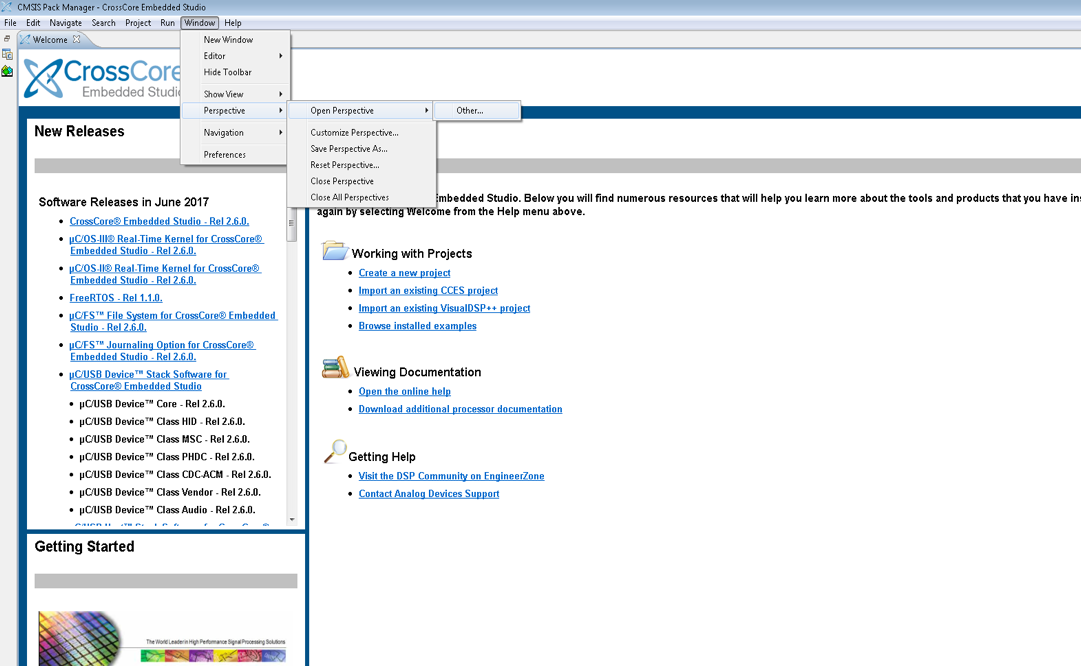
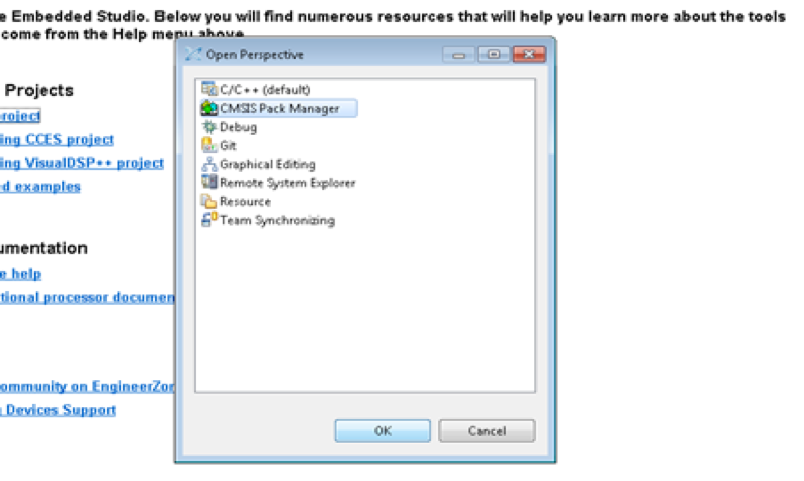
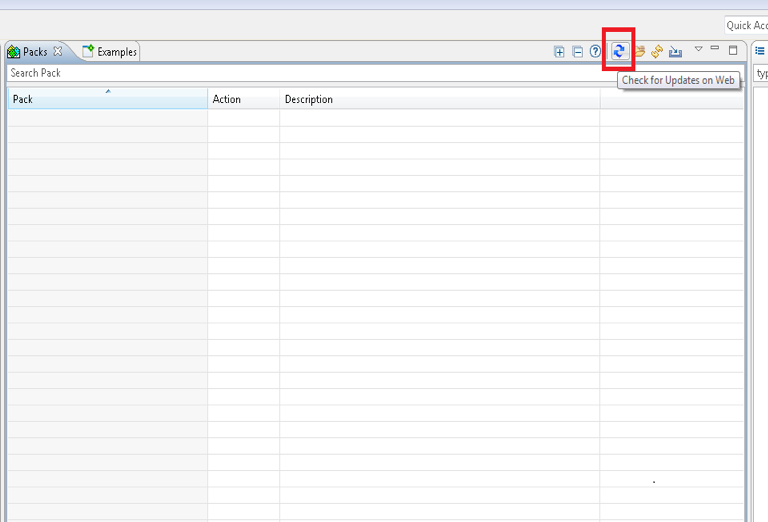
Now close the Welcome Window and click on
Check for Updates on Web.
Now select ADuCM3029 from the Devices list.
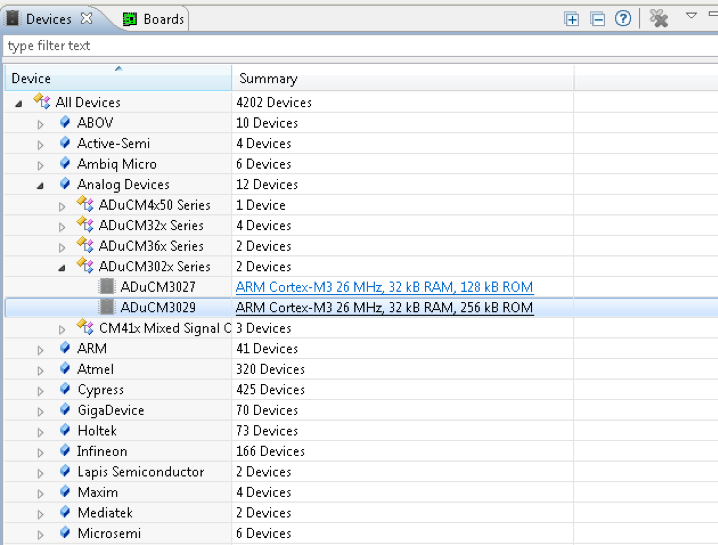
In
Packs->Genericfolder, installARM CMSIS version 5.0.1.
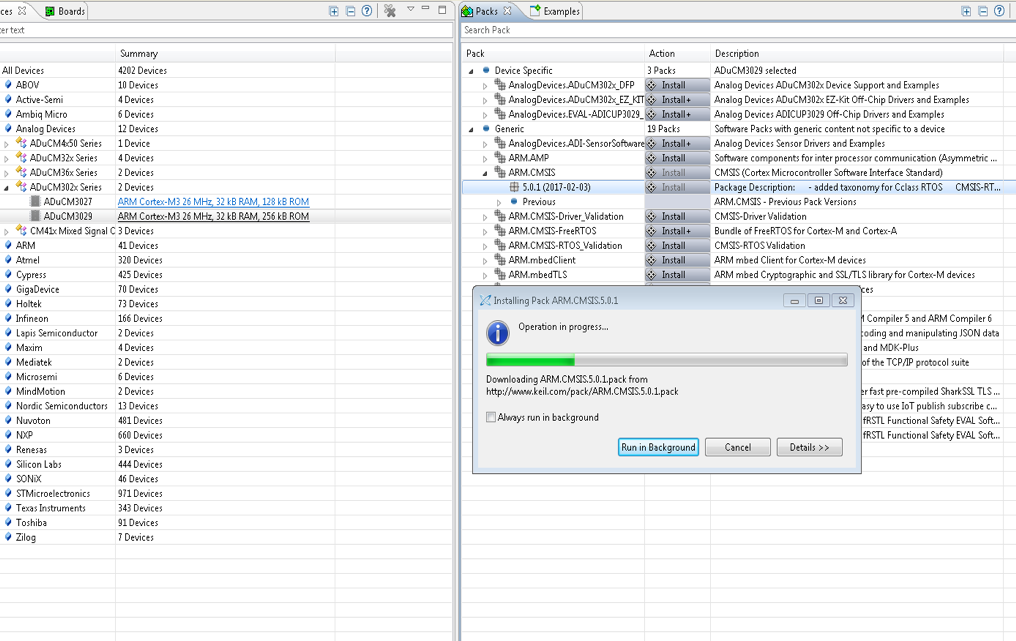
Now click on
import existing packsand add the BSP and Device family packs downloaded from Starweb link provided above.
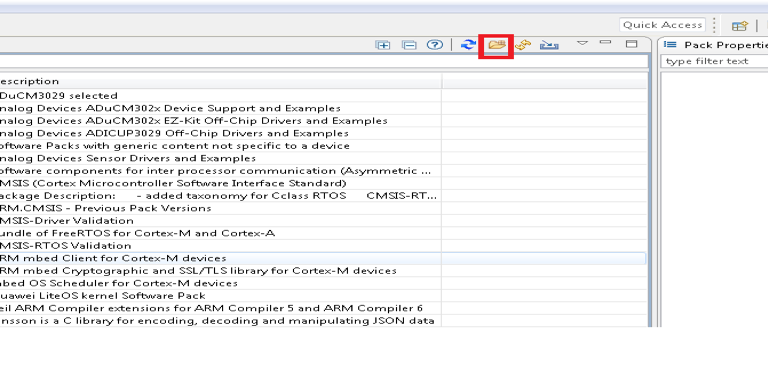
Ensure that you delete the default
DFP->Analog Devices ADuCM302x_DFP version 2.0.0.
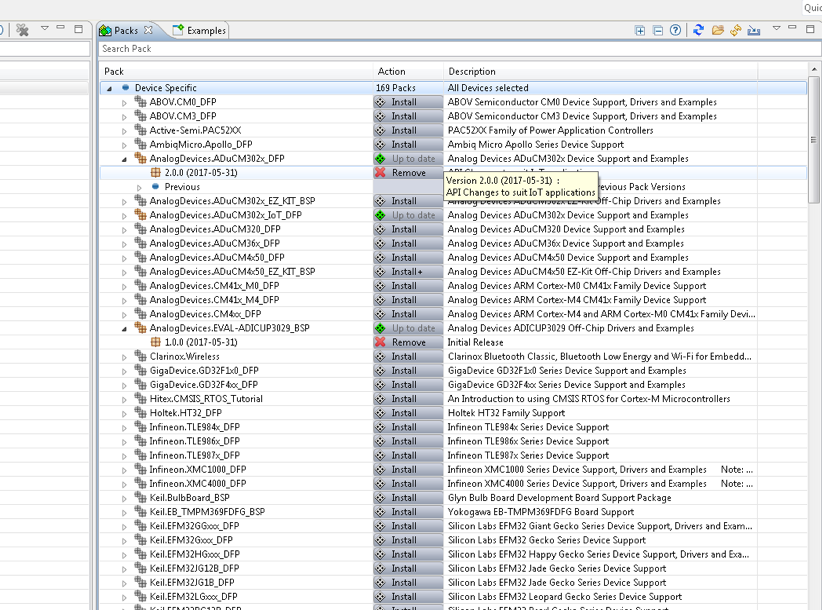
The CCES is now ready for ADPAQ firmware development which is explained here.
mbed Serial port driver
The CrossCore Embedded Studio installer will also install the mBed windows serial driver. Check by going to Device manager -> Ports (COM and LPT), mbed Serial Port should be visible under Ports.
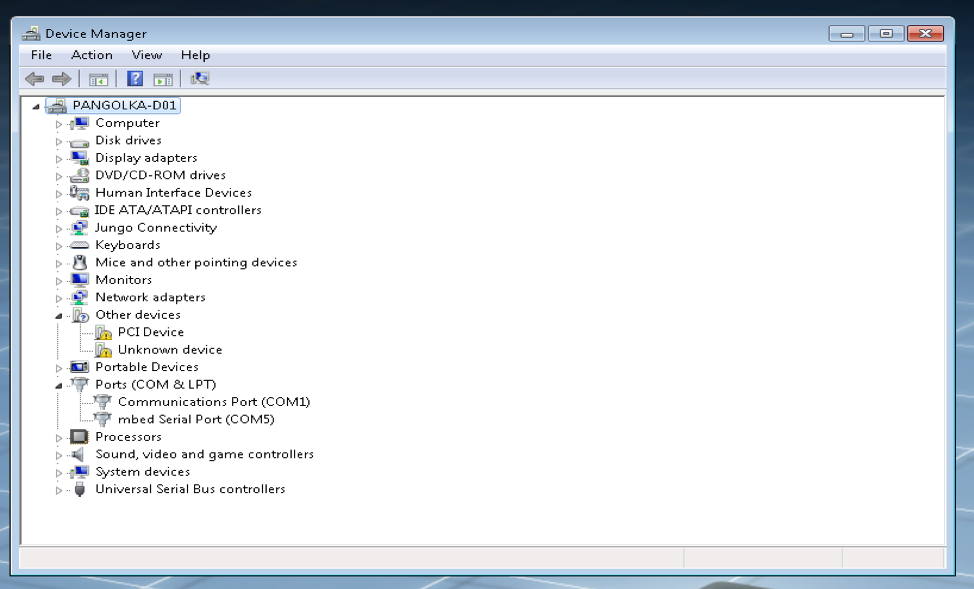
If not, it can be installed separately by going to - https://developer.mbed.org/handbook/Windows-serial-configuration
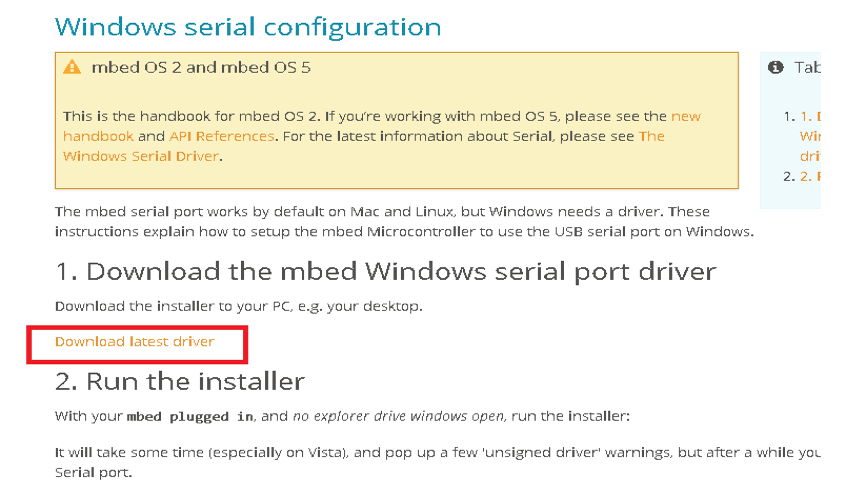
open device manager to check mbed serial port is visible again.
Important
While installing the mbed serial driver, keep your ADPAQ Board connected to the computer.